Overview
This guide serves as a central hub for resolving connectivity, hardware, and print quality issues when using Xemelgo with Zebra RFID printers.
1. Understanding the Flow
Understanding the data flow helps isolate where a issue is occurring:
Xemelgo Web App: Where print commands are issued from a web browser
Zebra Browser Print: A background utility service on your workstation that receives the print commands
Local Connection: The service sends commands to the printer via USB or your Local Network (Port 9100).
Zebra Printer: Receives the print command, encodes the tag, prints out the label.
Important: Xemelgo does not require standard Windows/Mac print drivers. We communicate directly with the printer via Zebra Browser Print.
2. Connectivity & Discovery
2a. No printers are shown in the printer dropdown
Confirm that Zebra Browser Print is running
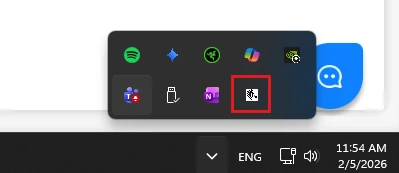
Xemelgo will indicate an error in the onboarding UI if Zebras Browser Print is not running. Check your System Tray (Windows) or Menu Bar (Mac) for the Zebra logo. If it's missing, launch "Zebra Browser Print" on Windows, or “Browser Print” on Mac, from your Applications.
Zebra Browser Print Configuration:
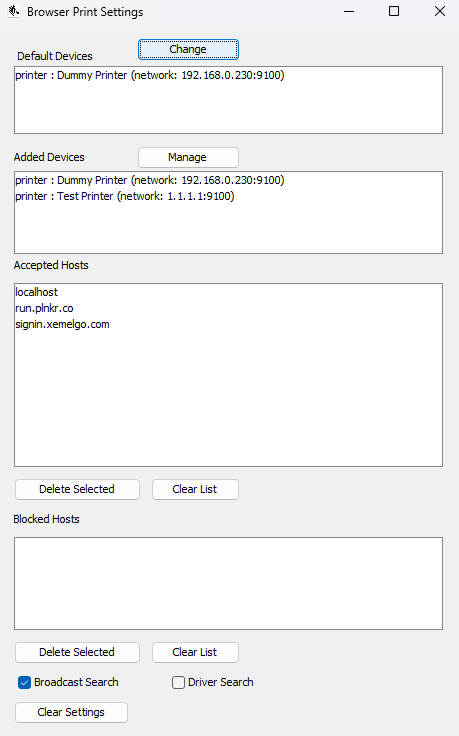
Open the Zebra Browser Print by right-clicking on the Zebra icon → Settings. Confirm that a printer is displayed in either the Default Devices or the Added Devices
Zebra Browser Print is unable to start due to port 9100 already being in use:
If you see this error after starting Zebra Browser Print, that means another service is attempting to use the same communication port as Zebra Browser Print. Restart your computer and attempt to open Zebra Browser Print again. If the problem persists, reach out to your IT team for assistance with the error message.
2b. Xemelgo cannot communicate with the printer
- Ensure printer language is set to EnglishOther languages are not supported at this time, and will cause the printer to not show up as online in Xemelgo even if the printer can be reached through network or USB
- If USB connected, check the USB connection:Ensure the cable is tight. If it was working and stopped, unplug the USB and plug it back in to refresh the connection.
- If communicating over Network (IP), check network connection:Ensure your workstation and printer are on the same Wi-Fi or Ethernet subnet, and that port 9100 is not blocked.
- Verify the IP Address
Printers using DHCP can occasionally change IP addresses. Print a configuration label from the printer to verify its current IP.
- Network Connectivity Test through Web Browser
Enter the printer's IP address into your web browser. If the printer's internal web page doesn’t load, the printer may not be reachable from your workstation. Contact your IT department for assistance.
- Check Port 9100:
Many corporate firewalls block Port 9100. Ensure your IT team has whitelisted this port for communication between your workstation and the printer's IP.
2b. Xemelgo cannot communicate with the printer
- Ensure printer language is set to EnglishOther languages are not supported at this time, and will cause the printer to not show up as online in Xemelgo even if the printer can be reached through network or USB
- If USB connected, check the USB connection:Ensure the cable is tight. If it was working and stopped, unplug the USB and plug it back in to refresh the connection.
- If communicating over Network (IP), check network connection:Ensure your workstation and printer are on the same Wi-Fi or Ethernet subnet, and that port 9100 is not blocked.
- Verify the IP Address
Printers using DHCP can occasionally change IP addresses. Print a configuration label from the printer to verify its current IP.
- Network Connectivity Test through Web Browser
Enter the printer's IP address into your web browser. If the printer's internal web page doesn’t load, the printer may not be reachable from your workstation. Contact your IT department for assistance.
- Check Port 9100:
Many corporate firewalls block Port 9100. Ensure your IT team has whitelisted this port for communication between your workstation and the printer's IP.
3. Print Quality & Alignment
3a. Smudged text or blurry barcodes
- Consistency:
Is it every label or just some? If it's every label, check your Darkness/Print Speed settings in the printer menu.
Media Check:
Did you recently change the wax ribbon or labels? Ensure the ribbon is compatible with the label material.Hardware Adjustment:
You may need to adjust the pressure toggles on the printhead to ensure even contact across the label.
3b. Alignment issues (Drifting or "Off-center" print)
The Slider:
Check the physical media guides (the yellow or gray sliders) inside the printer. If they are loose, the labels will "walk" side-to-side.Template Error:
If the print is consistently off by the same amount every time, contact Xemelgo support to adjust the Label Template offsets.
3c. Print is "Tiny" or "Huge"
DPI Mismatch:
This usually happens if the label template was designed for a 203 DPI printer but you are using a 300 DPI printer (or vice versa). The template must be updated by Xemelgo to match your specific hardware.
4. Mechanical & Media Errors
4a. Feeding multiple labels for 1 print
- Calibration Loss:
The printer has forgotten where the "gap" is between labels. Perform a Media Calibration followed by an RFID Calibration.
4b. Labels are coming out completely blank
- Ribbon Loading:
The most common cause is the wax ribbon being loaded inside-out. Only one side of the ribbon has ink. To test, press a piece of scotch tape to the ribbon; the side that pulls off the "ink" should face the labels.
Thermal vs. Thermal Transfer:
Ensure you aren't trying to use a ribbon on "Direct Thermal" labels (which don't need them) or vice-versa.
5. Advanced RFID Troubleshooting
Printing "VOID"
This indicates an encoding failure. Please refer to our Detailed VOID Troubleshooting article for calibration and data formatting steps.
Common Questions (FAQ)
Do I need to install Zebra Setup Utilities?
Only for the initial IP configuration. Once the printer has been setup, for daily printing, only Zebra Browser Print is required. For instructions, follow the How to Install Zebra Browser Print articleCan two people print to the same printer?
Yes, as long as both workstations have Browser Print configured with that printer's IP address. Each workstation will need Zebra Browser Print installed
Still experiencing issues?
If you have looked through the steps above and still having issues, contact Xemelgo support for assistance
Contact Xemelgo Support:
Email: support@xemelgo.com
Information to include: Printer model (e.g., ZT411R), printer DPI, and the label part number
Was this article helpful?
That’s Great!
Thank you for your feedback
Sorry! We couldn't be helpful
Thank you for your feedback
Feedback sent
We appreciate your effort and will try to fix the article