Overview:
This article helps you quickly diagnose and resolve issues when a handheld RFID reader will not connect to the Xemelgo mobile app. Start with the quick checks below, then use the device type or error message tables to jump to the right troubleshooting steps.
Terminology: In the Xemelgo web app, a handheld reader is registered as a Detector. The Detector # is the unique device identifier used by Xemelgo to match the physical reader to the app.
Start Here: Quick Connection Checklist
- Confirm the handheld is charged and powered on. If it is a sled reader, pull the trigger and confirm the power or status light turns on or blinks.
- Identify your device type using the table in Section 1.
- Confirm the device is registered in Xemelgo under My Facility → Detectors.
- For Bluetooth sled readers only: confirm the reader is paired in Android Settings → Bluetooth.
- Open the Xemelgo mobile app, go to a feature in Xemelgo that uses the handheld (audit, cycle count, search and find, etc.), and attempt to connect to the reader.
- If the reader still does not connect, jump to the troubleshooting section for your device type below.
Common Error Messages
| Error / Symptom | Most Likely Cause | Where to Go |
| No paired device found, please try again | The reader is not onboarded in Xemelgo, powered off, or paired to the wrong device. | Complete the Quick Connection Checklist above |
| No supported BLE device found | Reader has not been paired in Bluetooth settings | Go to Section 4.1. |
| No embedded device licensed or supported! | The embedded reader may not be registered correctly in Xemelgo. | Go to Section 4.4. |
| TSL reader pairs in Bluetooth but will not connect in Xemelgo | The TSL Detector # may have been entered from the physical label instead of the Bluetooth name. | Go to Section 4.1 and review the TSL serial number note. |
| RFID connects, but barcode scanning does not work | Zebra DataWedge may not be configured correctly. | Go to Section 4.5. |
1. Identify Your Device Type
Xemelgo supports these handheld RFID reader categories:
- Integrated readers — All-in-one handheld devices with a built-in RFID scanner.
- Bluetooth sled readers — Separate RFID readers that connect to an Android device through Bluetooth.
- Zebra Econnex sled readers — Zebra RFD40/RFD90 sleds that connect to a supported device through the Zebra Econnex cradle instead of Bluetooth.
- Embedded readers — Devices with an RFID module built directly into the Android device.
| Device | Category |
| Zebra TC53e | Embedded reader |
| Zebra EM45 | Embedded reader |
| Zebra RFD40 / RFD90 | Bluetooth or Econnex sled reader |
| Zebra MC33 Series | Integrated reader |
| NordicID HH83 / HH85 | Integrated reader |
| TSL 1128 / 2128 / 2128P / 3138 | Bluetooth sled reader |
2. Confirm the Device is Charged
Embedded / Integrated Readers
Confirm the Android device battery is charged and the device is powered on.
Bluetooth / Econnex Sled Readers
Pull the trigger and confirm the reader power or status light turns on or blinks. If the light does not turn on, charge the sled reader before continuing.
3. Confirm the Device Has Been Added to Xemelgo
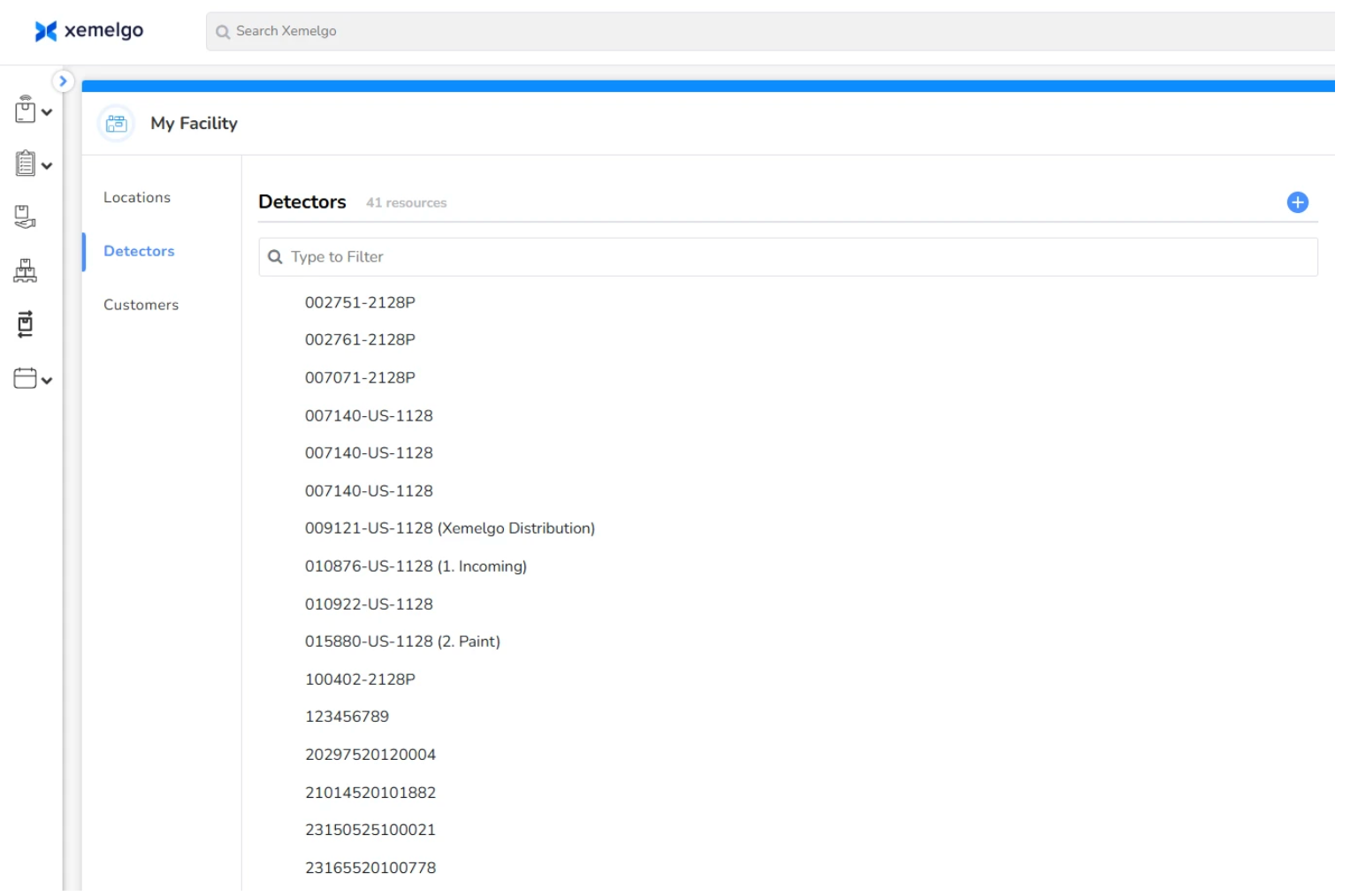
Your handheld must be registered as a detector in Xemelgo before the mobile app can connect to it.
- Open the Xemelgo web app.
- Go to My Facility → Detectors.
- Look for your handheld in the detector list.
- If the device is not listed, onboard it first using the guide for your device in the table below.
- If the device is listed, confirm the detector record has the correct Detector #, Vendor, and Detector Type.
Onboarding Guides by Device
| Device | Onboarding Guide |
| Zebra RFD40 / RFD90 | Onboarding and Connecting to Zebra RFD40/RFD90 |
| Zebra MC33 Series | Onboarding a Zebra MC33 Series |
| Zebra TC53e | Onboarding a Zebra TC53e |
| Zebra EM45 | Onboarding a Zebra EM45 |
| NordicID HH83 / HH85 | Onboarding a NordicID HH83/85 |
| TSL 1128 / 2128 / 2128P / 3138 | Onboarding a TSL Handheld Reader |
4. Device-Specific Troubleshooting
Refer to the table below for device-specific troubleshooting sections.
| Device | Category | Troubleshooting Section |
| Zebra TC53e | Embedded reader | Section 4.4 |
| Zebra EM45 | Embedded reader | Section 4.4 |
| Zebra RFD40 / RFD90 | Bluetooth or Econnex sled reader | Section 4.1 or 4.2 |
| Zebra MC33 Series | Integrated reader | Section 4.3 |
| NordicID HH83 / HH85 | Integrated reader | Section 4.3 |
| TSL 1128 / 2128 / 2128P / 3138 | Bluetooth sled reader | Section 4.1 |
4.1 Bluetooth Sled Readers — Troubleshooting
This section applies to:
- Zebra RFD40 / RFD90 when used without an Econnex cradle
- TSL 1128 / 2128 / 2128P / 3138
Step 1: Verify Bluetooth Pairing
Your sled reader must be paired with your Android device before the Xemelgo app can connect to it.
- On the Android device, go to Settings → Bluetooth.
- Confirm your reader appears under Paired Devices.
- If it is not listed, turn on the reader and pair it from Bluetooth settings.
Step 2: Confirm Only One Reader is Paired
A device should only be actively paired with one handheld RFID reader at a time. If you are switching to a different reader:
- Go to Settings → Bluetooth on the Android device.
- Tap the gear icon next to the old reader.
- Select Forget or Unpair.
- Pair the new reader.
Step 3: Confirm the Reader is Onboarded Correctly
Review the Detector Record Checklist in Section 3 and make sure the detector record matches the reader you are trying to connect.
TSL serial number note: TSL readers display their serial number in a reversed format over Bluetooth compared to the label printed on the device.
- Example: The label reads 1128-US-000192, but the Bluetooth name shows 000192-US-1128.
- When onboarding the detector in Xemelgo, use the Bluetooth name, not the label on the device.
- See Onboarding a TSL Handheld Reader for full setup instructions.
Step 4: Connect in the Xemelgo Mobile App
Attempt to connect to the handheld with any feature that uses the handheld.
4.2 Econnex Sled Readers — Troubleshooting
This section applies to Zebra RFD40 / RFD90 readers used with a Zebra Econnex cradle.
Econnex sled readers connect through the Econnex cradle, so Bluetooth pairing is not required.
- Confirm the Android device is securely attached to the Econnex cradle.
- Confirm your device has been onboarded into Xemelgo using the Onboarding Guides by Device above.
- Ensure that the 123RFID app is closed.
- Attempt to connect to the handheld with any Xemelgo mobile app feature that uses the handheld.
If Xemelgo is having issues, close the Xemelgo app and attempt to connect using the 123RFID app. If that is able to connect, then refer to the Still Experiencing Issues? section to reach out to Xemelgo support.
4.3 Integrated Readers — Troubleshooting
This section applies to:
- Zebra MC33 Series
- NordicID HH83 / HH85
Integrated readers are all-in-one devices, so Bluetooth pairing is not required.
- Confirm the device is charged and powered on.
- Confirm your device has been onboarded into Xemelgo using the Onboarding Guides by Device above.
- Zebra: Ensure that the 123RFID app is closed.
- NordicID: Ensure that the RFID Demo app is closed.
- Attempt to connect to the handheld with any Xemelgo mobile app feature that uses the handheld.
If Xemelgo is having issues, close the Xemelgo app and attempt to connect using the 123RFID app for Zebra, or RFID Demo for NordicID. If that is able to connect, then refer to the Still Experiencing Issues? section to reach out to Xemelgo support.
4.4 Embedded Readers — Troubleshooting
This section applies to:
- Zebra TC53e
- Zebra EM45
Embedded readers have an RFID module built into the Android device, so Bluetooth pairing is not required.
If the Xemelgo app shows Cannot connect to reader! or No embedded device licensed or supported!, check the following:
- Confirm the device is charged and powered on.
- Confirm your device has been onboarded into Xemelgo using the Onboarding Guides by Device above.
- Attempt to connect to the handheld with any Xemelgo mobile app feature that uses the handheld.
If Xemelgo is having issues, close the Xemelgo app and attempt to connect using the 123RFID app for Zebra, or RFID Demo for NordicID. If that is able to connect, then refer to the Still Experiencing Issues? section to reach out to Xemelgo support.
5. Barcode Scanning Not Working?
If your handheld connects for RFID scanning but barcodes are not scanning, this is typically a DataWedge configuration issue on Zebra devices.
See: Configuring Zebra Phone for Barcode Scanning
Still Experiencing Issues?
Contact Xemelgo Support at support@xemelgo.com. Please include the following information so we can help you quickly:
- Device model, such as Zebra RFD90 or TSL 2128P
- Device serial number
- Device name in Bluetooth settings, if it is a Bluetooth sled reader
- Any error messages shown in the Xemelgo mobile app
- Android device model and Android version
- Whether the reader connects through Bluetooth, Econnex, or a built-in RFID module
Was this article helpful?
That’s Great!
Thank you for your feedback
Sorry! We couldn't be helpful
Thank you for your feedback
Feedback sent
We appreciate your effort and will try to fix the article