Overview:
When a Zebra printer outputs a label with "VOID" stamped across it, it means the printer was unable to successfully write data to the RFID chip (inlay) inside the label.
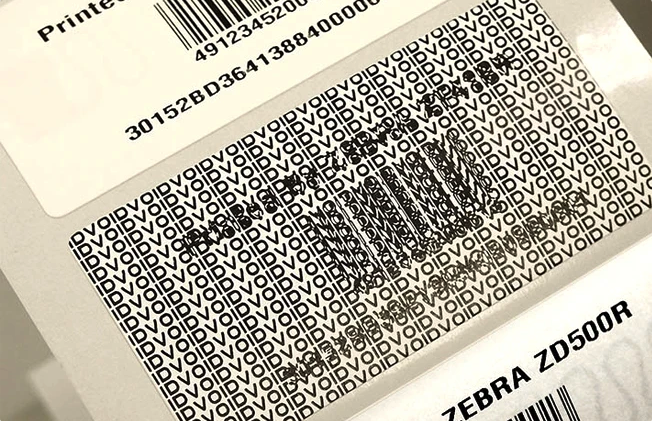
1. Identify the Failure Pattern
Before changing settings, observe the frequency of the "VOID" stamps:
Occasional VOID: Usually a single defective tag or minor interference.
Three VOIDs in a Row: Standard Zebra logic. The printer retries two additional times before giving up on that specific print job.
Every label is VOID: This indicates a fundamental setup issue, such as incorrect calibration or data formatting errors.
2. Immediate Physical Checks
Small changes to the printer's physical state can disrupt the sensitive RFID encoding process.
New Media/Ribbon: Even if you replaced a roll with the same type of label, slight manufacturing variations can occur. If the wax ribbon or label roll was changed, perform both a Print / Media calibration, followed by an RFID calibration.
Label Alignemnt: If the last tag was ripped too hard, or the label alignment slider is not set correctly, the label can start getting fed out at a slightly different angle than before, which is enough to cause the printer to not be able to find the RFID chip consistently. Ensure the label is being fed out correctly by pressing the “Feed” button.
3. Step-by-Step Print/Media and RFID Calibration
Step A: Media & Ribbon Calibration
You can also follow this video from Zebra as tutorial
Confirm the details about your printer / labels
Print Type
Thermal transfer or Direct thermal
Label Type
Continuous or Gap/Notch or Mark
Label Width (Dots)
Calculate this by doing label width * printer DP
ex. 4” label * 203 DPI printer = 812 width in dots
Collection Method (Tear Off, Peel Off, Rewind, Cutter, Delayed Cut, etc)
On the printer screen, navigate to Wizards > Print.
Follow the prompts to calibrate the media.
Ensure the labels are feeding consistently and stopping at the end of each label point correctly.
Step B: RFID Calibration
You can also follow this video from Zebra as tutorial
Confirm the printer is not Paused: If you attempt an RFID calibration and it fails immediately, ensure the printer is not paused. The printer must be in a "Ready" state to perform calibration.
On the printer screen, navigate to Wizards > RFID.
Select Start Calibration.
The printer will feed several labels forward and backward to determine the optimal "program position" and power level for your specific tags. This may take several minutes.
Note: If this fails, double-check that the labels are loaded correctly under the "media guides."
4. Verifying the Data (EPC Formatting)
If calibration is successful but the printer still "VOID"s every label, the issue is likely the data being sent. The EPC (Electronic Product Code) must follow strict rules:
Requirement | Rule |
Character Set | Hexadecimal only (Numbers 0–9 and Letters A–F). |
String Length | Must be an even number of characters (e.g., 24 chars). |
| Invalid Examples | 123G45 (contains 'G') ABC12 (length is 5) |
Note: If you are using the Xemelgo platform, our system automatically generates a valid EPC, making a formatting error unlikely but still worth verifying. Reach out to Xemelgo Support if you want to confirm this, support@xemelgo.com
Still experiencing issues?
If you have performed both Print/Media and RFID calibration successfully but "VOID" labels persist, you may have a defective batch of labels or require a Manual RFID Calibration.
Contact Xemelgo Support:
Email: support@xemelgo.com
Information to include: Printer model (e.g., ZT411R), printer DPI, and the label part number
Was this article helpful?
That’s Great!
Thank you for your feedback
Sorry! We couldn't be helpful
Thank you for your feedback
Feedback sent
We appreciate your effort and will try to fix the article