Overview:
This article explains how to onboard a Urovo DT50P to Xemelgo.
Instructions:
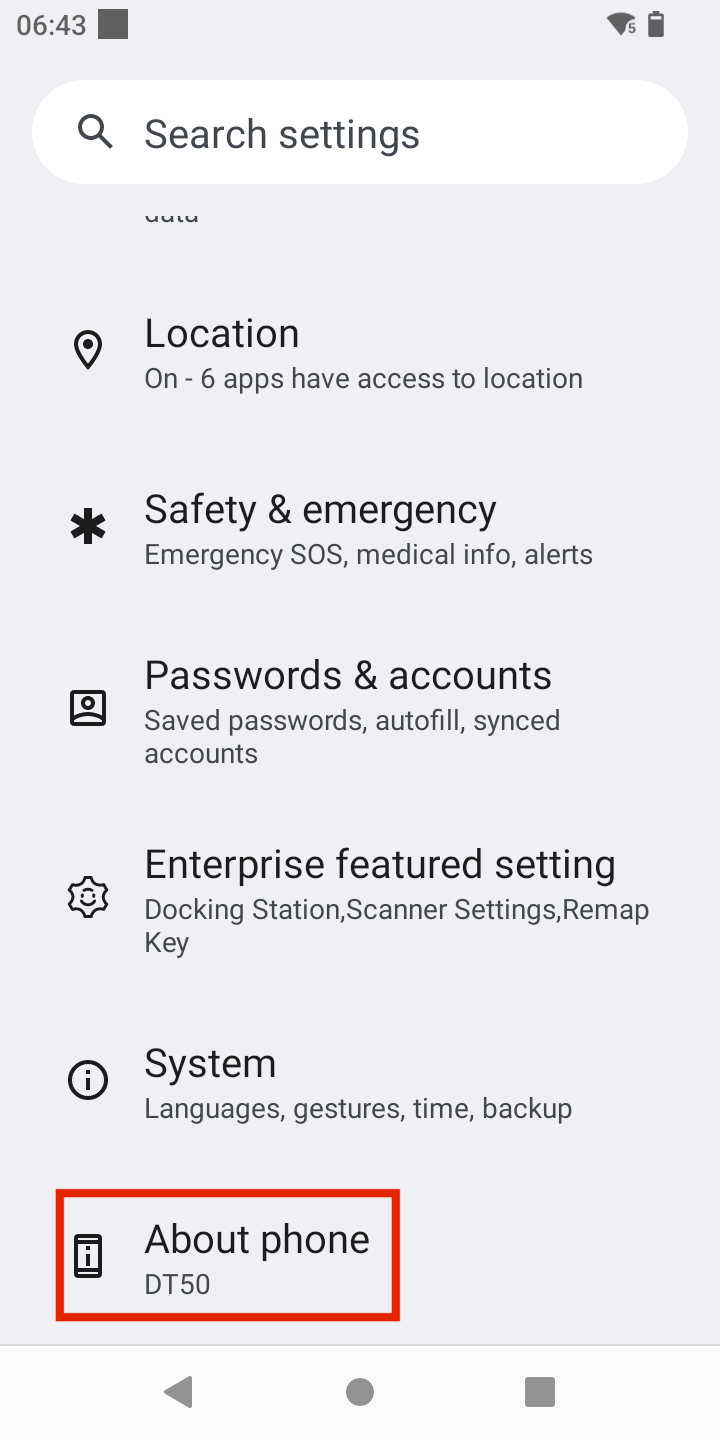
To begin, go to your device settings and tap About Phone.
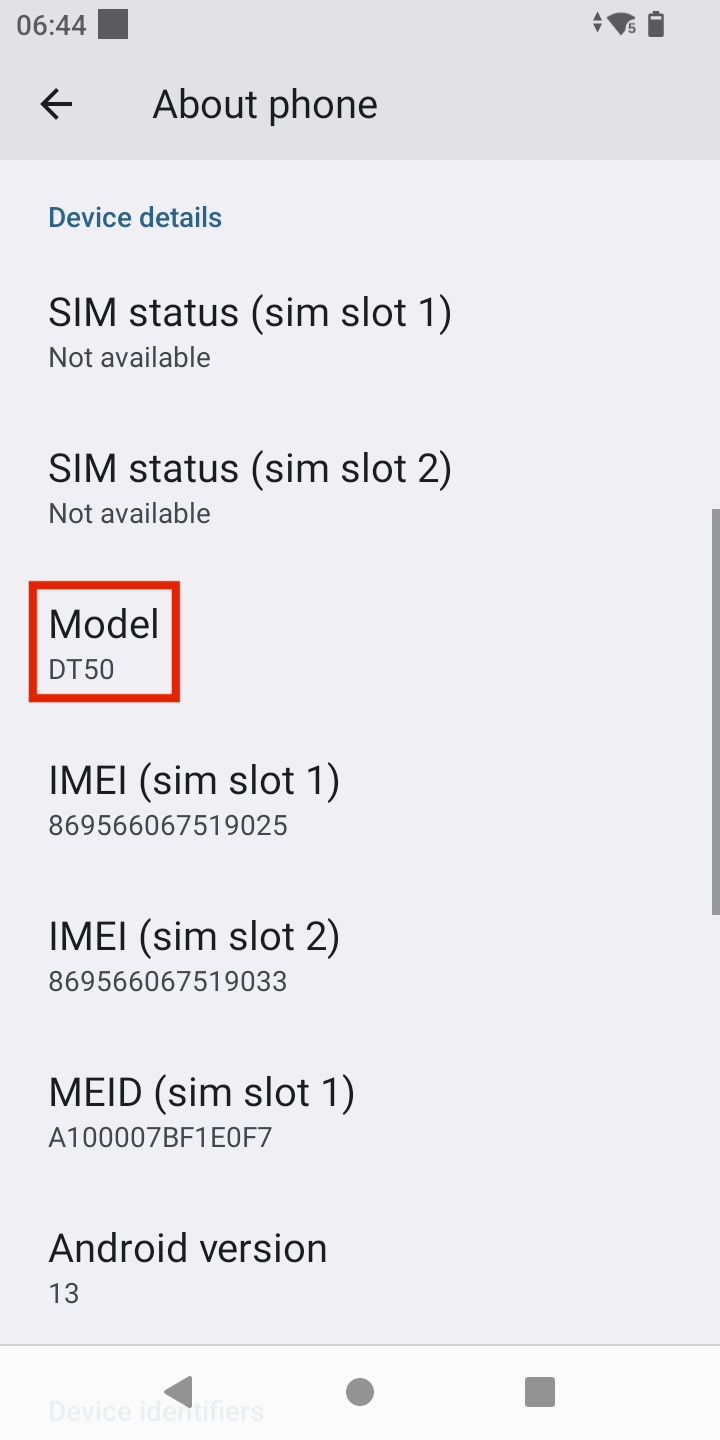
Next, scroll down to the Model section and tap it.
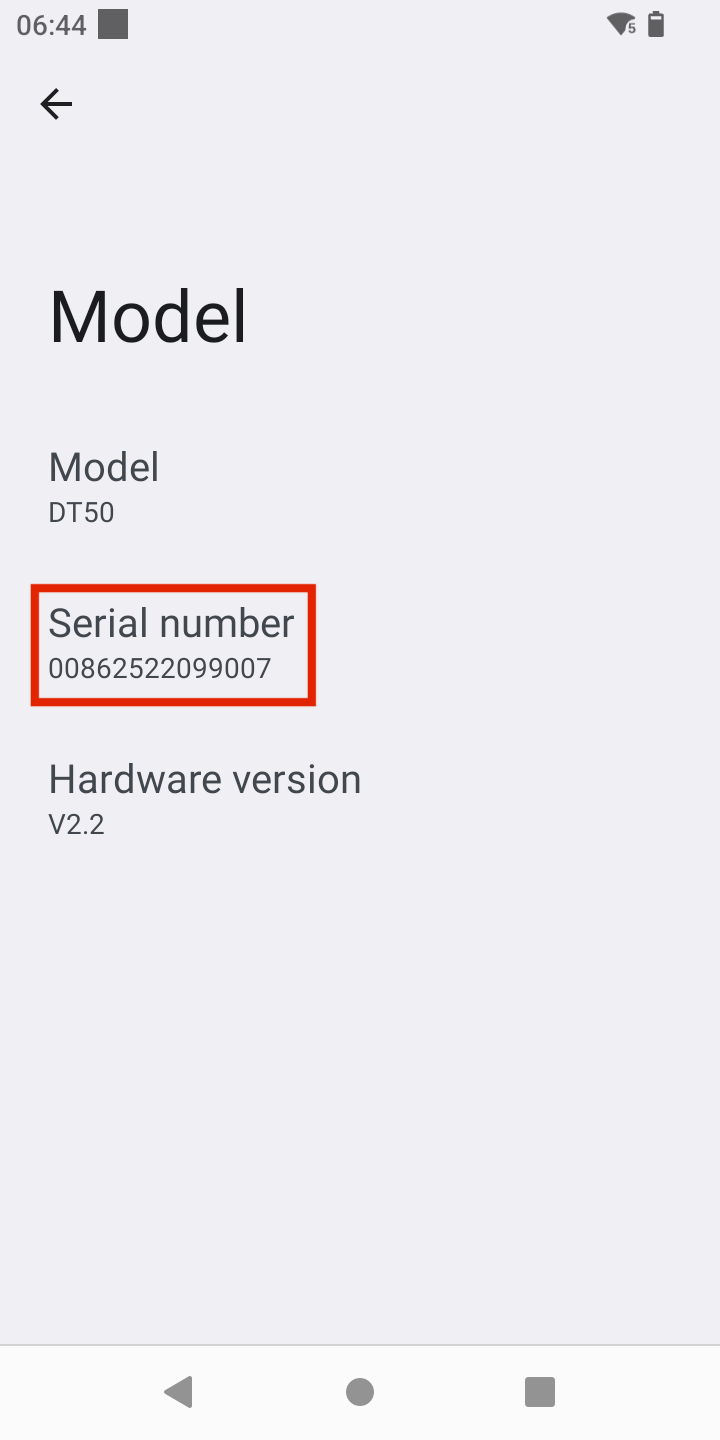
You will then see the RFID Reader Serial Number displayed.
To onboard your Urovo DT50P to the Xemelgo system, view our documentation on Onboarding an RFID Device.
Note: When viewing our Onboarding an RFID Device documentation remember that:
| Detector # | Serial Number |
| Vendor | Urovo |
| Detector Type | Handheld |
Was this article helpful?
That’s Great!
Thank you for your feedback
Sorry! We couldn't be helpful
Thank you for your feedback
Feedback sent
We appreciate your effort and will try to fix the article