Overview:
This article explains how to use the Update app to bulk update the location of multiple RFID tags in a single scan session.
Instructions:
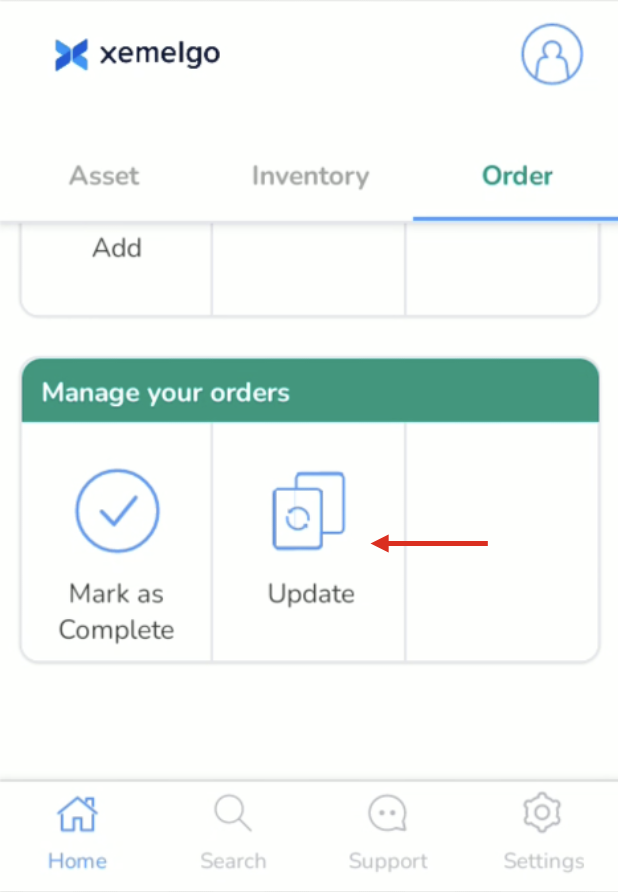
From the Order Home Screen, tap the Update icon.
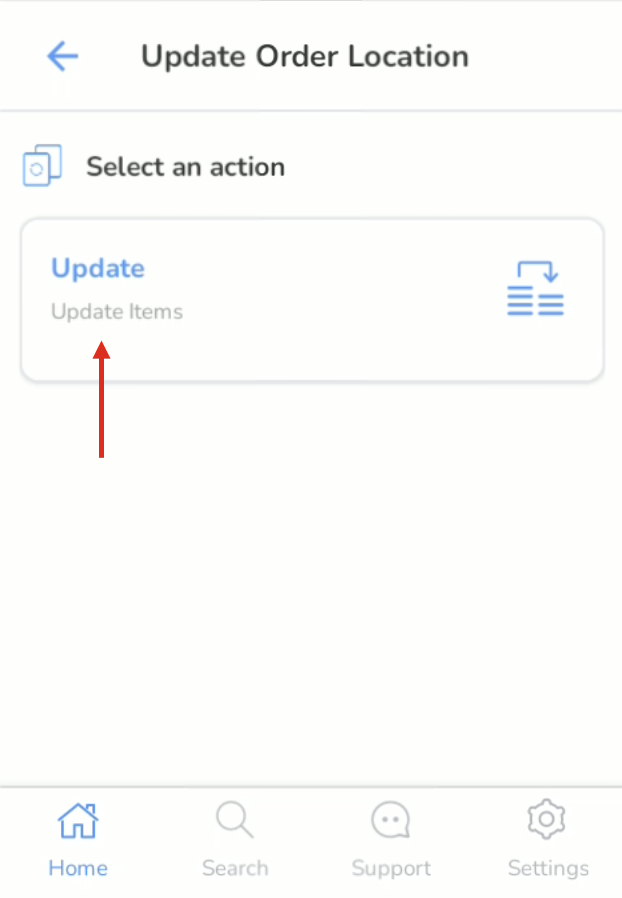
Choose Update under Select an action.
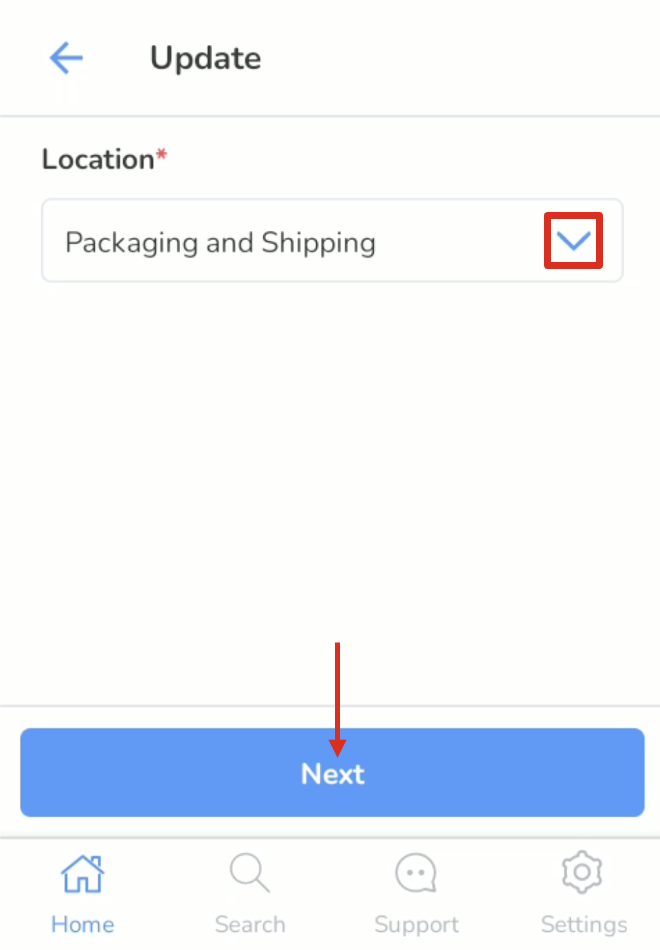
Select the Location you want to assign to the tags you will scan from the dropdown, then tap Next.
Next, the Xemelgo app will automatically establish a connection to the RFID handheld device you are using.
Note: If the RFID handheld device you are attempting to use has not been onboarded to the Xemelgo app before, please consult the Onboarding an RFID Device section of the Xemelgo knowledge base.
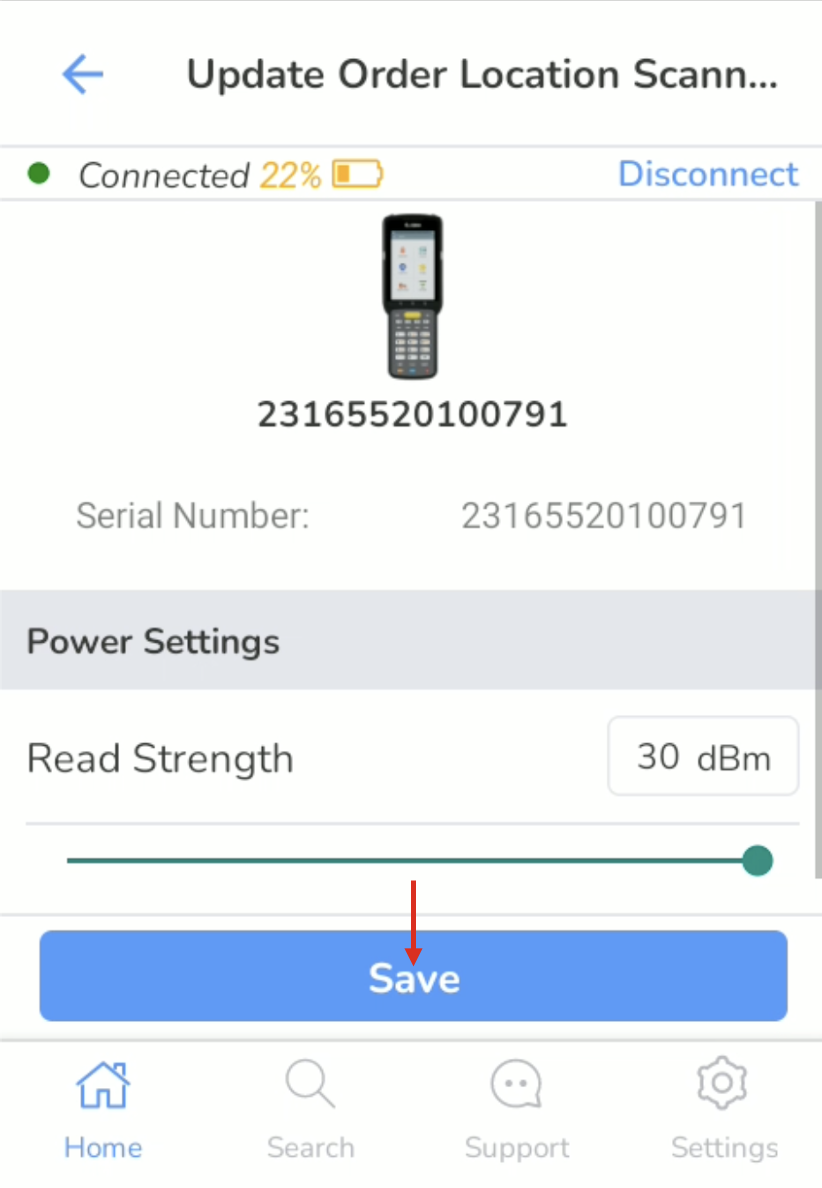
If you need to adjust the power for the handheld, tap the Handheld Icon in the top right corner.
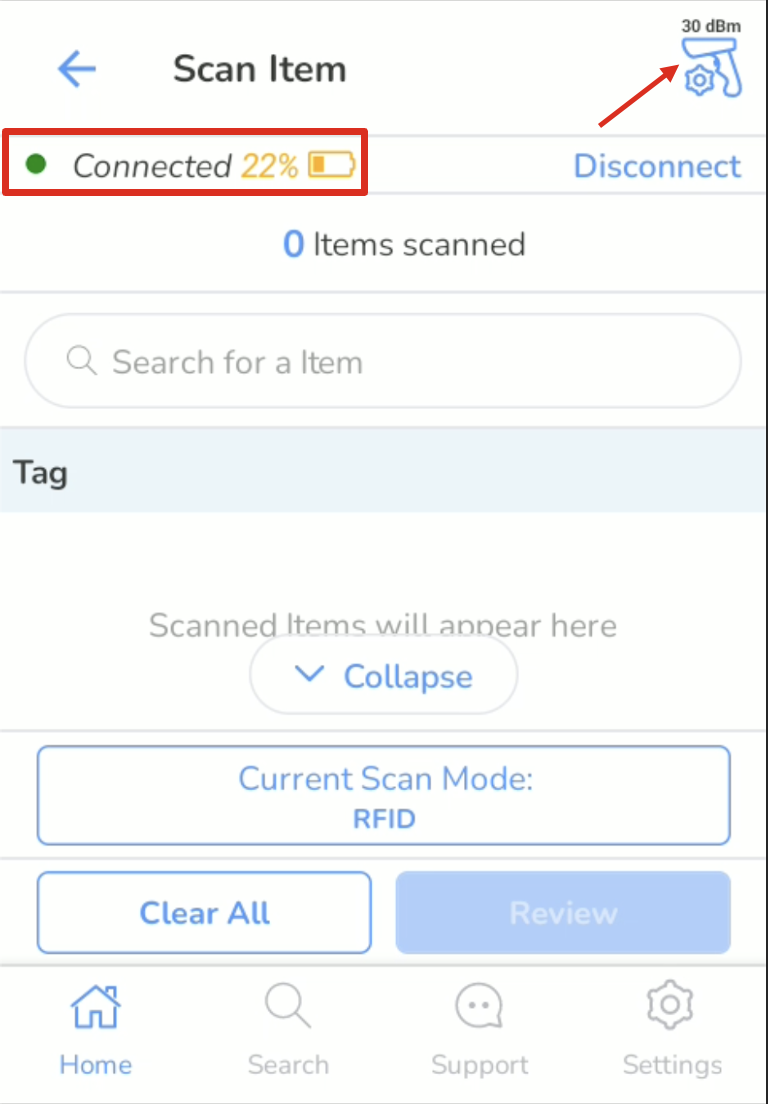
Then drag the Read Strength slider to your desired level, then tap Save.
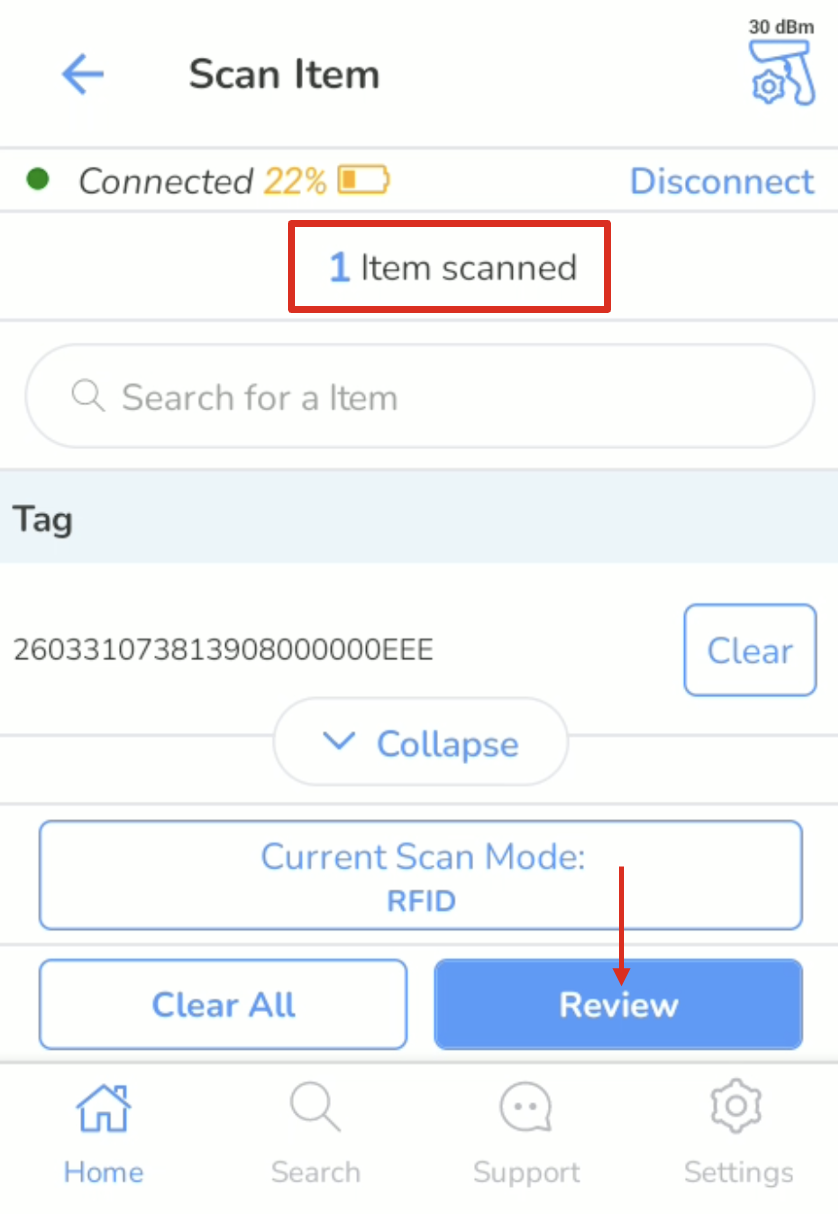
Press and hold the physical trigger on your RFID handheld to begin scanning tags. The screen will display a running count of all tags detected. When you have finished scanning, tap Review.
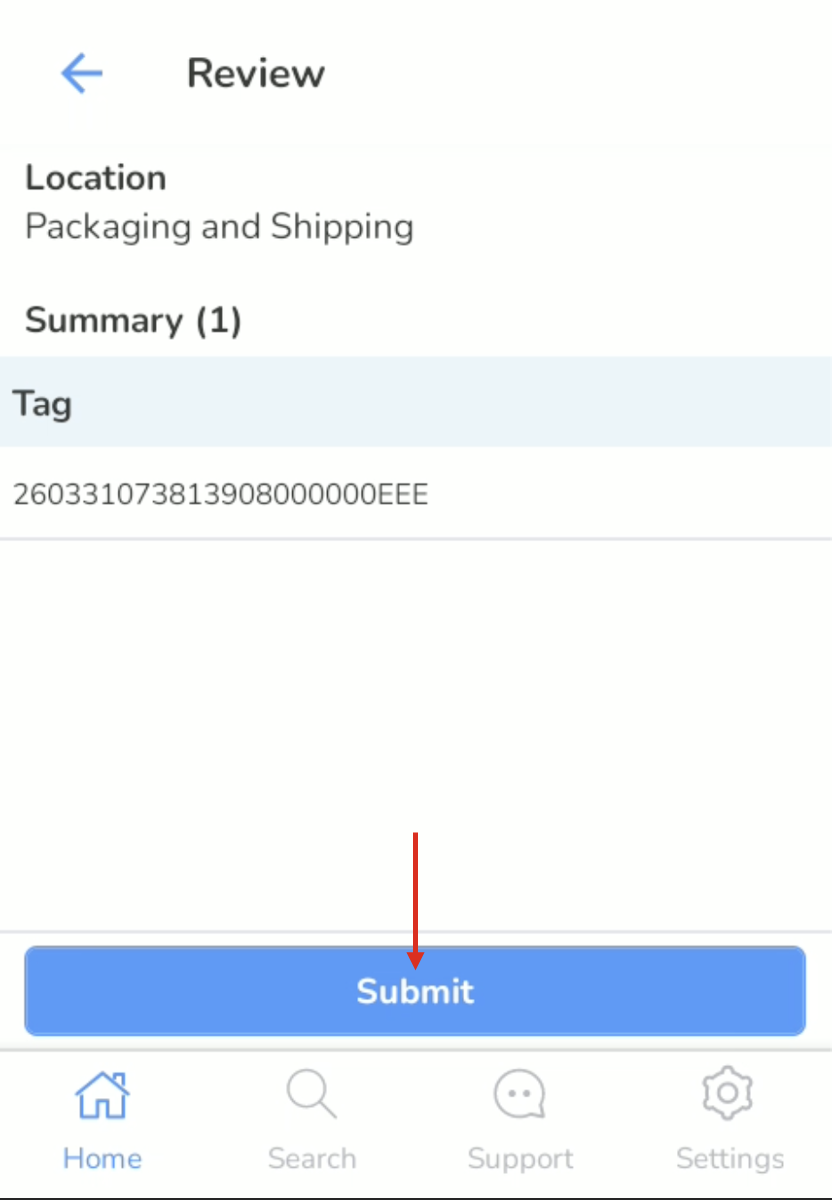
Review the list of scanned tags to confirm everything looks correct, then tap Submit to complete the location update.
Was this article helpful?
That’s Great!
Thank you for your feedback
Sorry! We couldn't be helpful
Thank you for your feedback
Feedback sent
We appreciate your effort and will try to fix the article