Overview:
This article explains how to consume (remove) multiple items from inventory at once using the Bulk Consume feature. You can access the list of items either directly or by navigating through locations.
Instructions:
There are two ways to reach the list of items you want to bulk consume:
Option 1: Go directly to all items
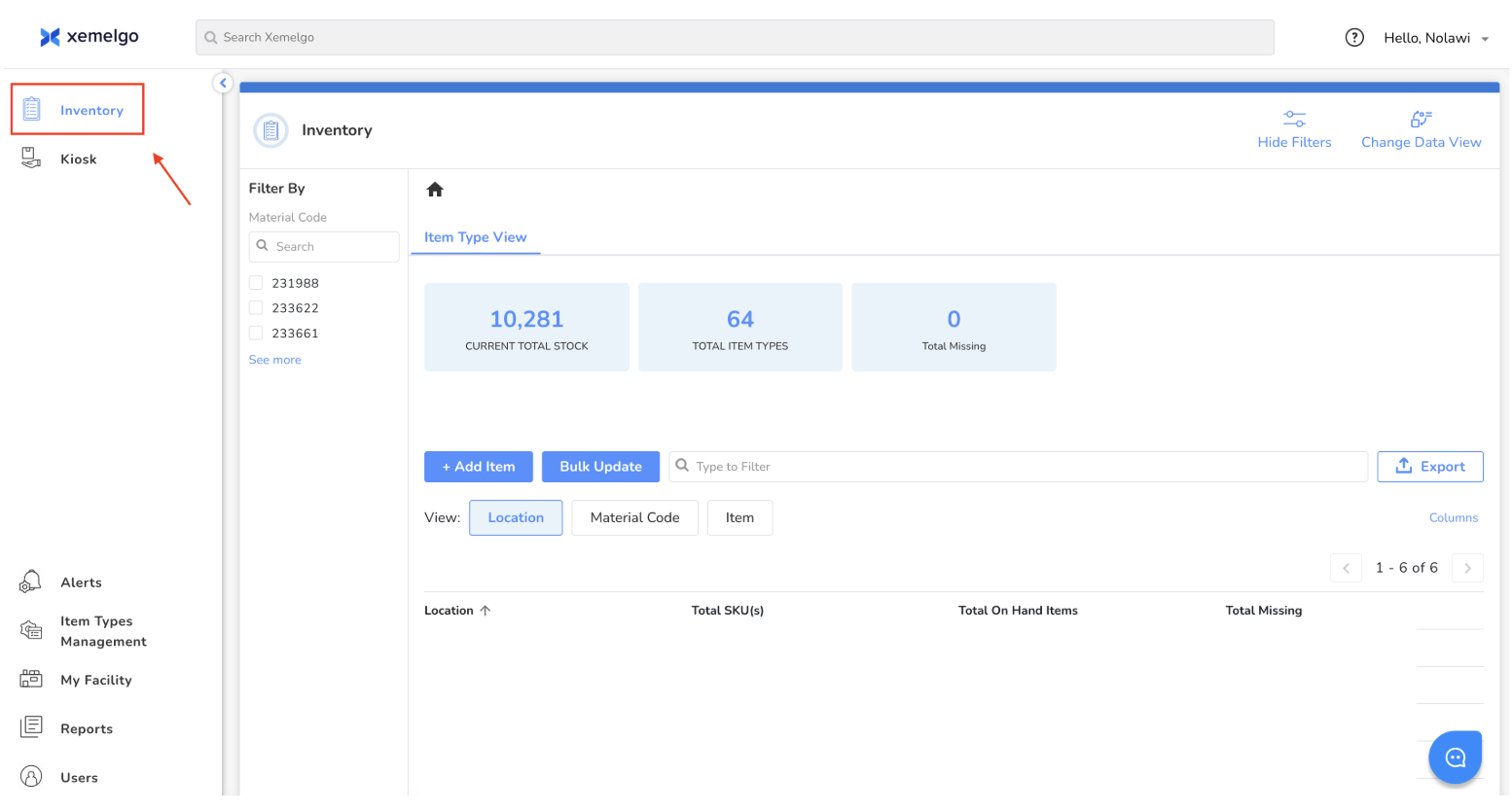
1. Navigate to inventory
- Log in to your Xemelgo account.
- In the sidebar, select Inventory
2. Switch to Items List (if needed)
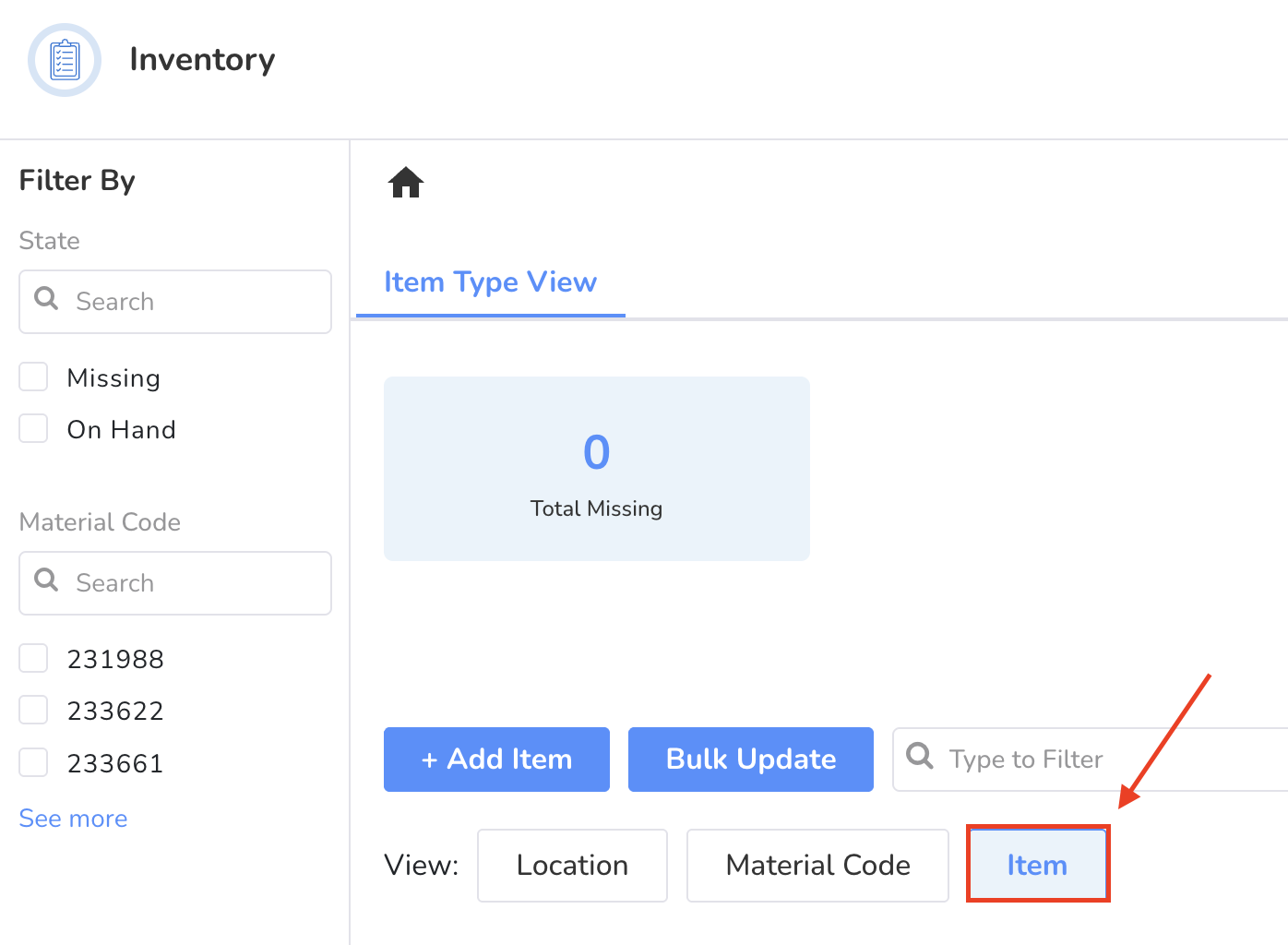
- On the inventory track page, select the Item view.
Option 2: Go Through Locations
1. Navigation by Location
- Log in to Xemelgo.
- In the sidebar, select Inventory.
- Select a Location.
- From the location view, switch to the Item list for that location.
Bulk Consuming Items (steps apply to either method)
1. Select Items
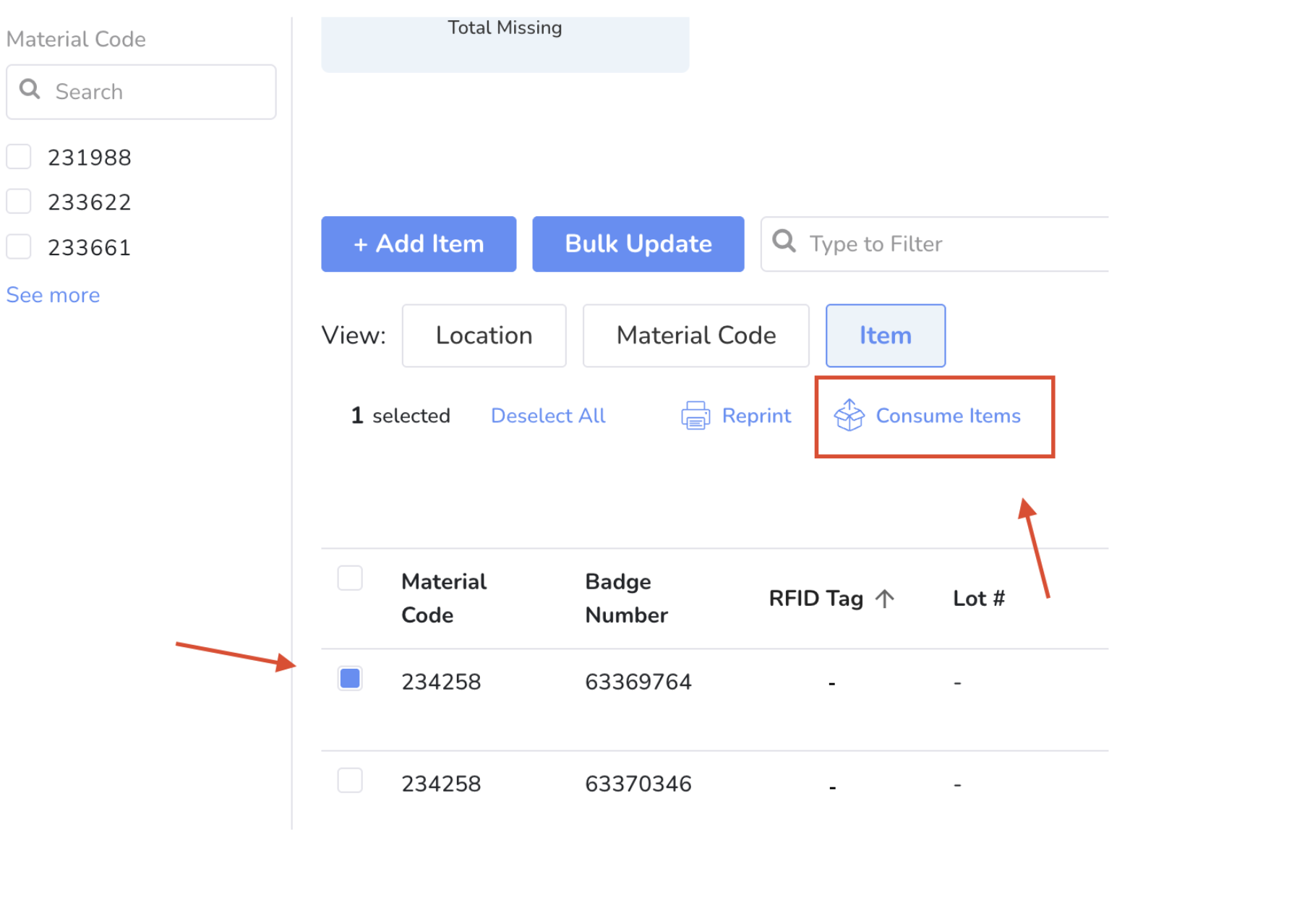
- In the items table, use the checkboxes to select one or more items you want to consume.
2. Click 'Consume Items'
- Once items are selected, a toolbar will appear above the table.
- Click the Consume Items button in the toolbar.
3. Confirm the Action
- Follow the prompts to confirm consumption. All selected items will be removed from inventory.
Notes:
- You can switch between locations or filter your list before selecting items.
- The same process applies whether you access the item list directly or through a specific location.
Was this article helpful?
That’s Great!
Thank you for your feedback
Sorry! We couldn't be helpful
Thank you for your feedback
Feedback sent
We appreciate your effort and will try to fix the article