Order Lookup
Order Lookup
Overview
This article provides instructions on how to look up and manage work orders in the Xemelgo app, covering search, viewing details, expediting, editing, and marking as complete.
Instructions
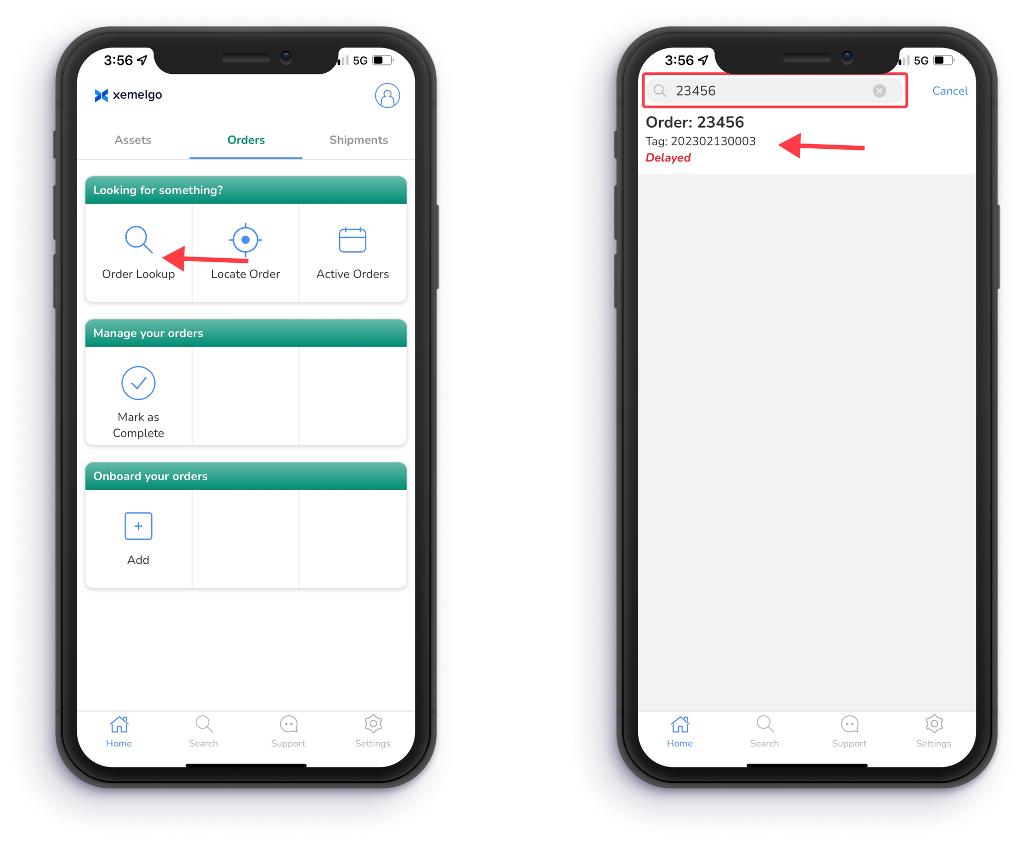
To look up a work order, tap Order Lookup under the Looking for something? section of the Orders user interface.
Next, enter either the Order Number or Tag Number in the text field.
Then tap on the work order you were searching for.
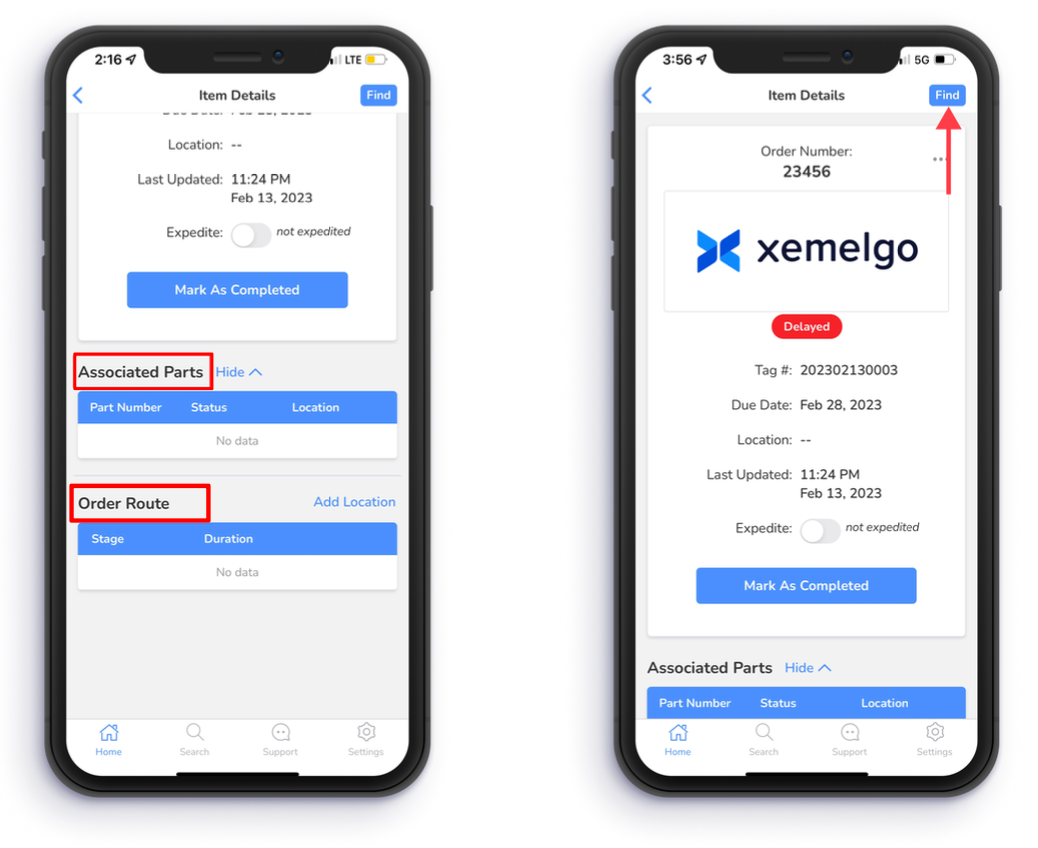
After selecting a work order, the Order Number, Tag Number, Due Date, Location, and Last Updated information will be displayed.
A table called Associated Parts will be displayed that shows the Part Number, Status and Location information that is associated with the work order.
Additionally, a table called Order Route will be displayed that shows the Stage and Duration spent on a stage for the work order.
Users can subscribe to Idle Alerts to receive a notification every time an order has been sitting at a location for an extended period of time.
To expedite the work order, swipe right next to Expedite.
Users can subscribe to Expedited Alerts to receive a notification every time an order has been marked as expedited.
If you are unable to locate the work order, tap Find to connect to an RFID handheld device.
If the RFID handheld device you are attempting to use has not been onboarded to the Xemelgo app before, please consult the Onboarding an RFID Device section of the Xemelgo Help Center.
To edit the work order's details, tap "..."
Then tap Edit Order. 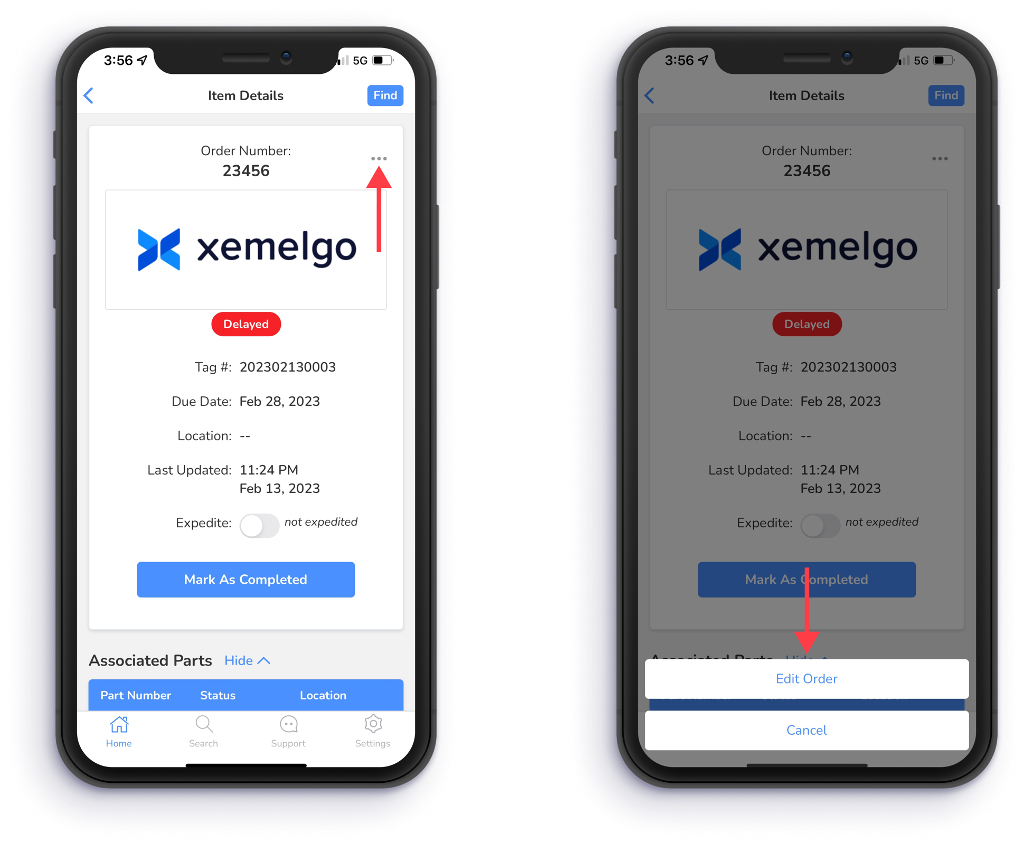
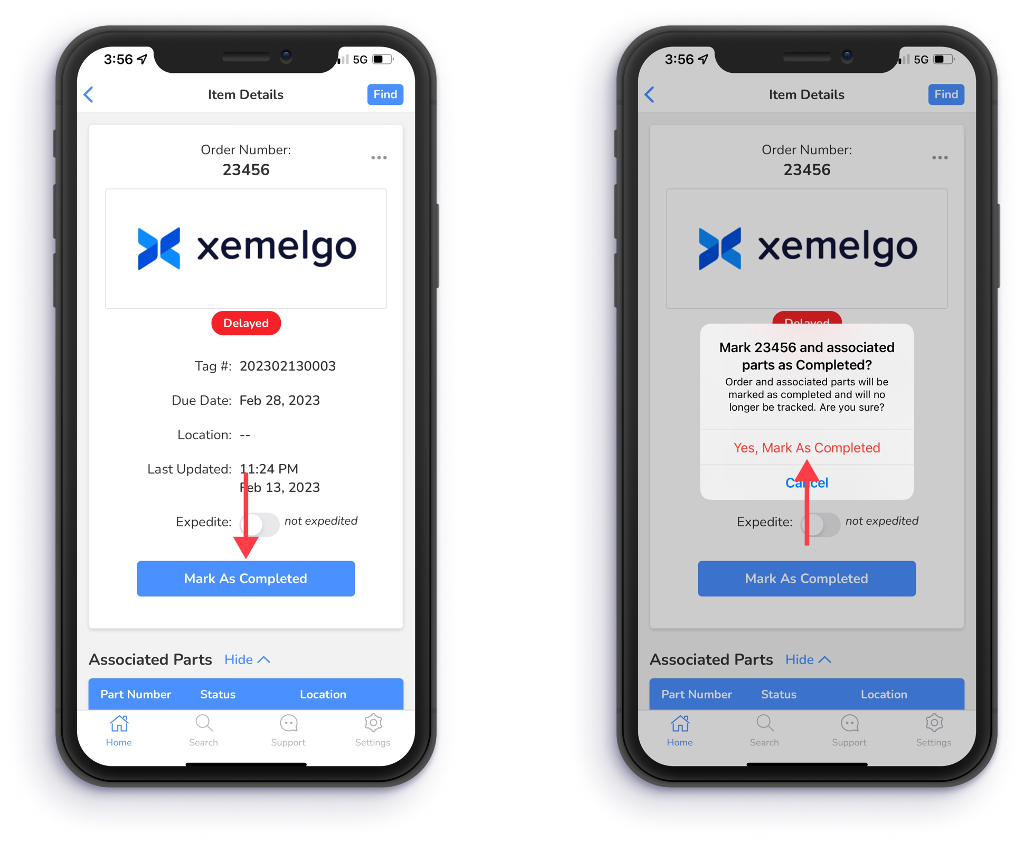
To mark a work order as complete, tap Mark As Complete.
To confirm that the work order has been completed, tap Yes, Mark As Completed.
Need further assistance?
The article above couldn't resolve your issue? Use the chat button in the bottom-right corner to contact the support team.