Mark as Complete
Mark as Complete
Overview
This article provides step-by-step instructions on how to mark work orders as completed.
Instructions
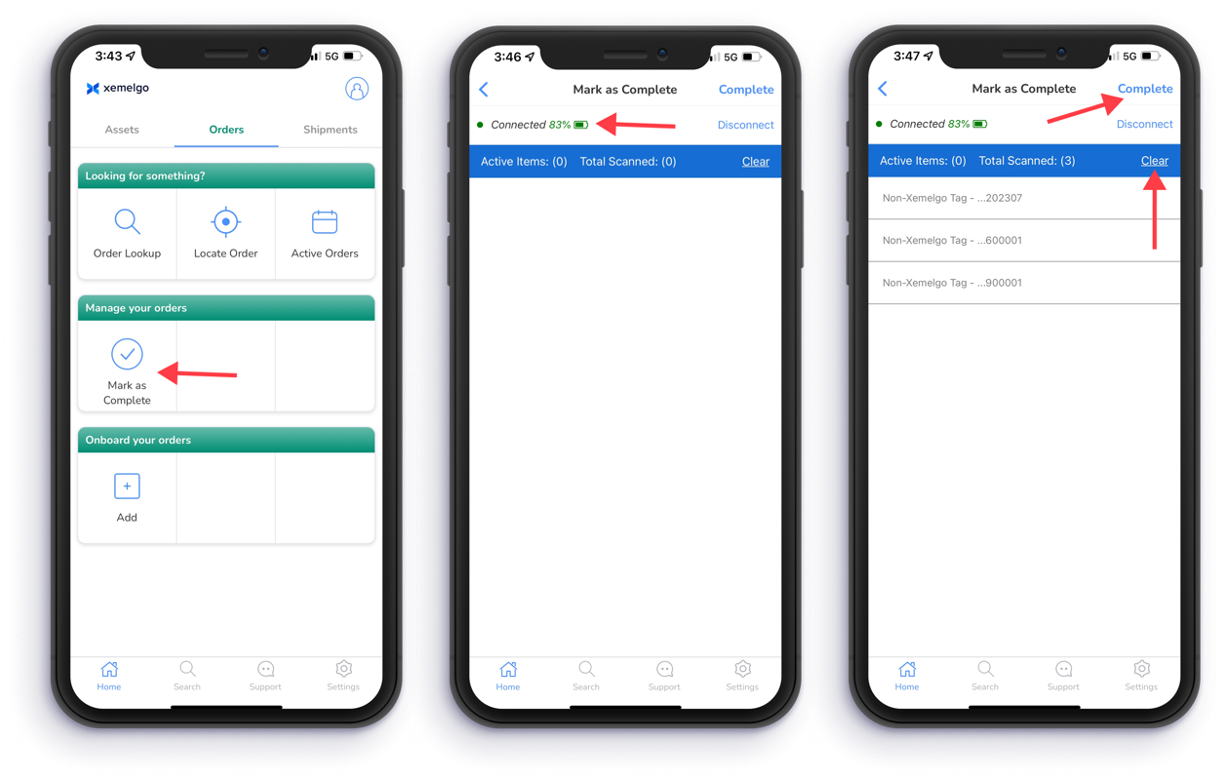
To begin marking work orders as complete, tap Mark as Complete under the Manage your orders section of the Orders user interface.
Next, the Xemelgo app will automatically establish a connection to the RFID handheld device you are using.
If the RFID handheld device you are attempting to use has not been onboarded to the Xemelgo app before, please consult the Onboarding an RFID Device section of the Xemelgo Help Center.
Then begin scanning tags with the RFID handheld device.
To clear scanned tags, tap Clear.
To finish marking work orders as complete, tap Complete.
Need further assistance?
The article above couldn't resolve your issue? Use the chat button in the bottom-right corner to contact the support team.