Hot Shipments
Hot Shipments
Overview
This article covers using the Hot Shipments feature in Xemelgo for both shipping and receiving processes. It explains connecting RFID devices, selecting shipment types, scanning orders, and submitting the scanned data.
Shipping
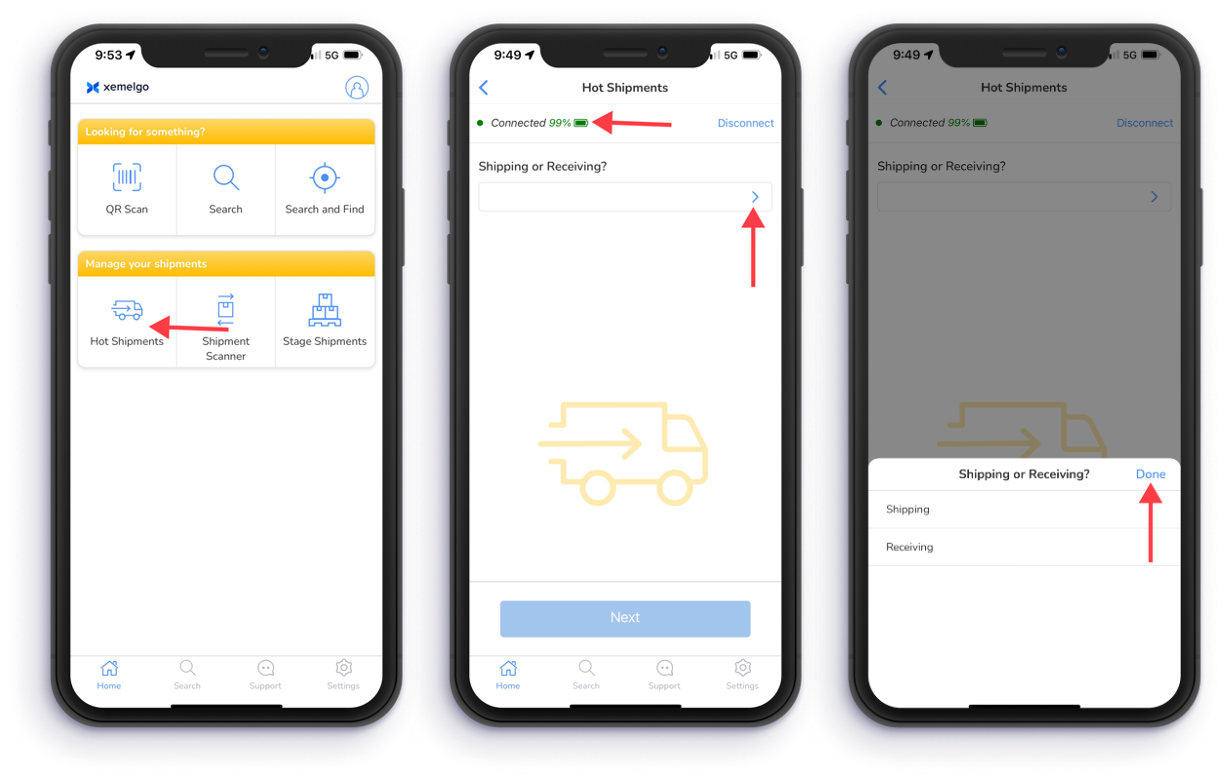
To access the hot shipments feature, tap Hot Shipments under the Manage your shipments section of the Shipments user interface.
Next, the Xemelgo app will automatically establish a connection to the RFID handheld device you are using.
If the RFID handheld device you are attempting to use has not been onboarded to the Xemelgo app before, please consult the Onboarding an RFID Device section of the Xemelgo Help Center.
Then tap the Blue arrow and select Shipping.
Once you have selected Shipping, tap Done.
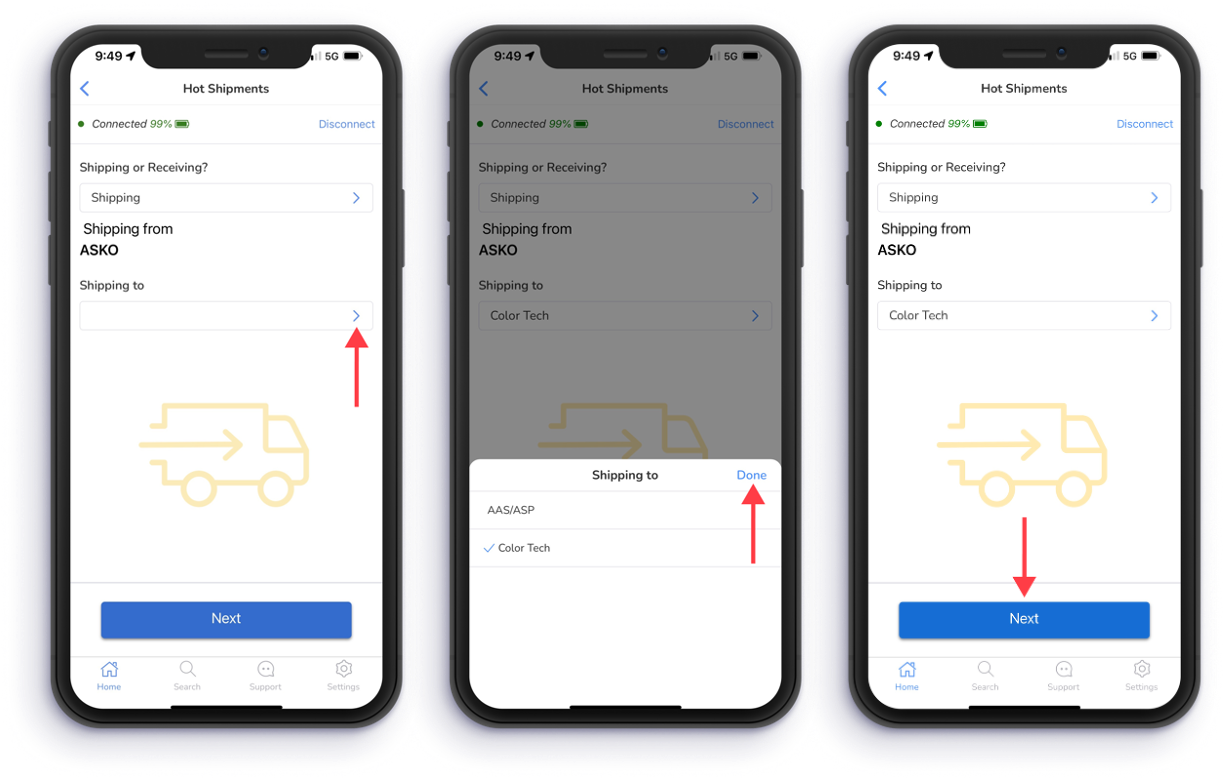
Next, select the location you are shipping to by tapping on the blue arrow.
After you have selected a location, tap Done.
Then tap Next.
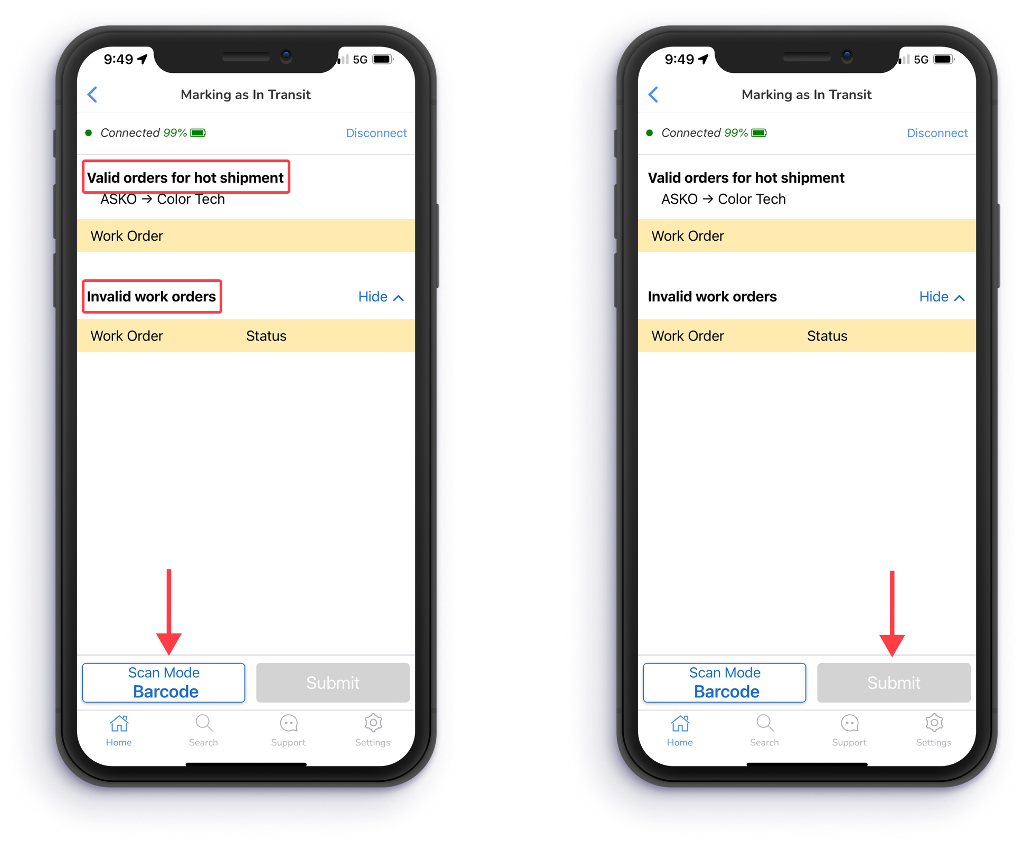
Then start scanning the barcodes of orders.
If you want to scan RFID tags instead of barcodes, tap Scan Mode Barcode to switch to Scan Mode RFID.
As you scan orders, they will be displayed under either the Valid or Invalid orders for hot shipment.
After you have completed your scanning, tap Submit.
Receiving
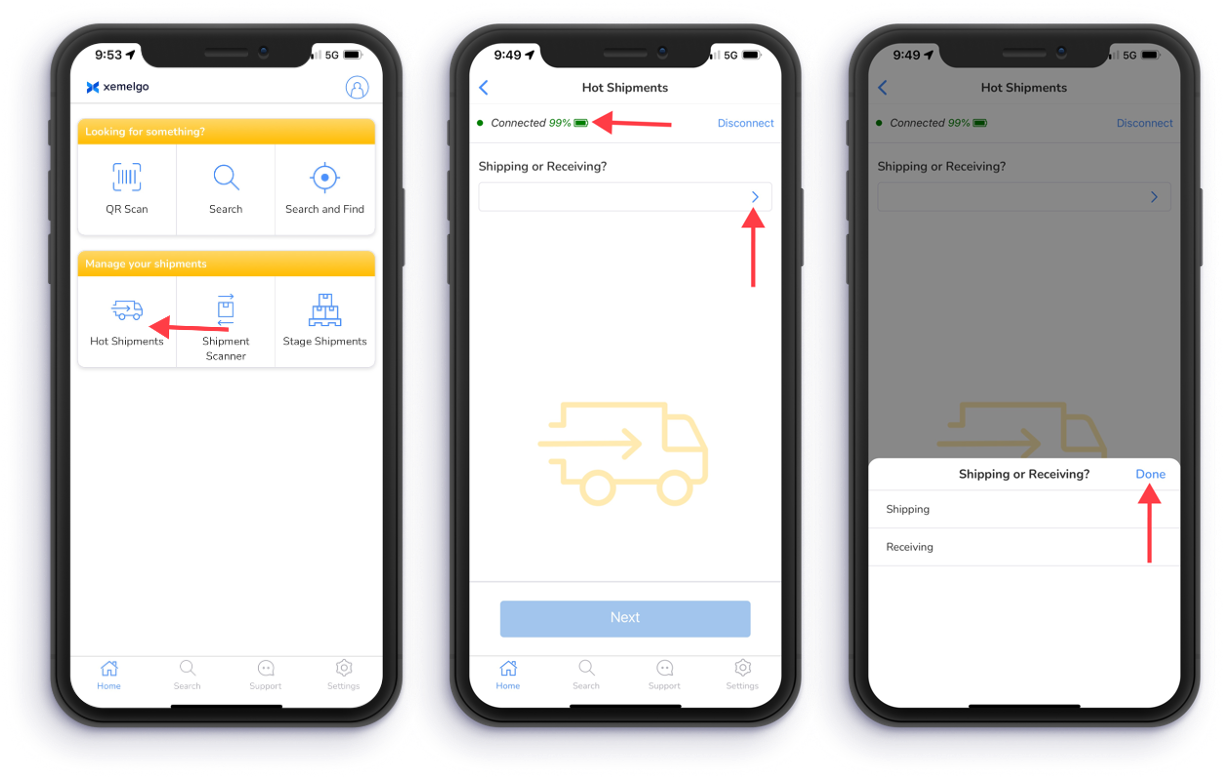
To access the hot shipments feature, tap Hot Shipments under the Manage your shipments section of the Shipments interface.
Next, the Xemelgo app will automatically establish a connection to the RFID handheld device you are using.
If the RFID handheld device you are attempting to use has not been onboarded to the Xemelgo app before, please consult the Onboarding an RFID Device section of the Xemelgo Help Center.
Then tap the Blue arrow and select Receiving.
Once you have selected Receiving, tap Done.
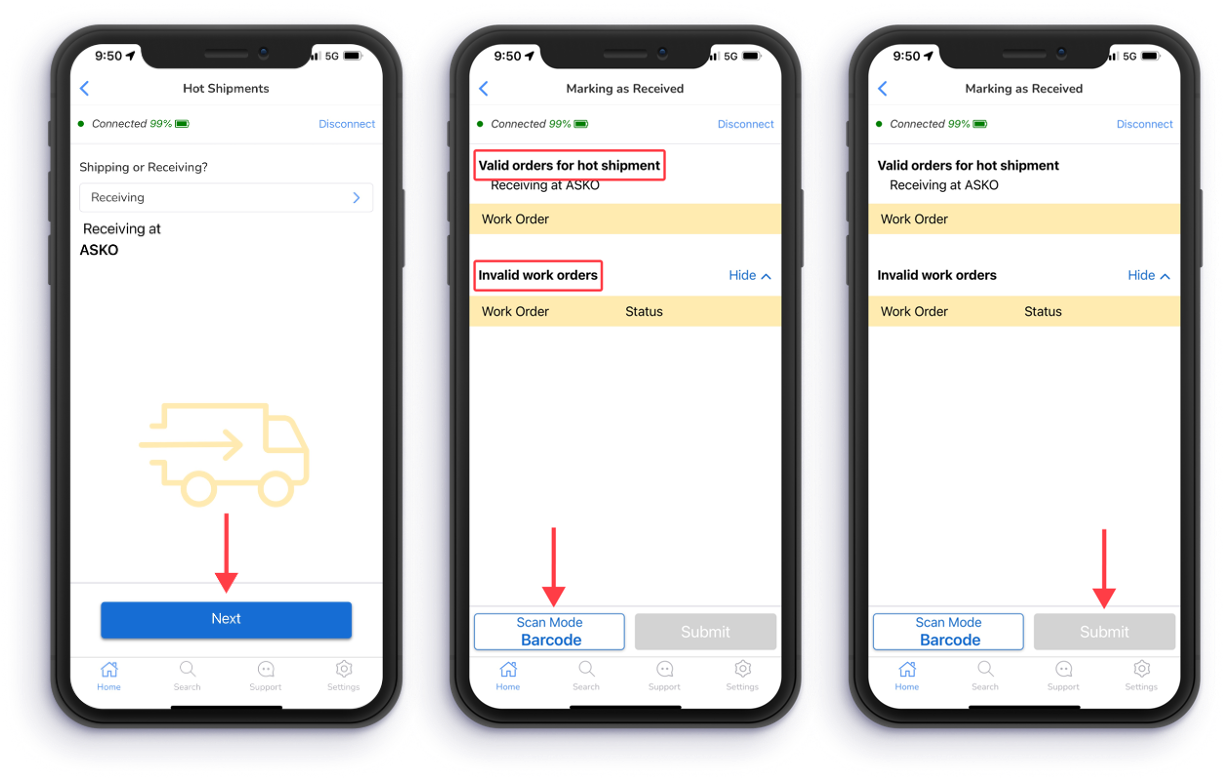
Tap Next.
Then start scanning the barcodes of orders.
If you want to scan RFID tags instead of barcodes, tap Scan Mode Barcode to switch to Scan Mode RFID.
As you scan orders, they will be displayed under either the Valid or Invalid orders for hot shipment.
After you have completed your scanning, tap Submit.
Need further assistance?
The article above couldn't resolve your issue? Use the chat button in the bottom-right corner to contact the support team.