Add for Inventory
Add for Inventory
Overview
This article provides step-by-step instructions for how to onboard items into your inventory using the Add feature on the Xemelgo mobile app.
Instructions
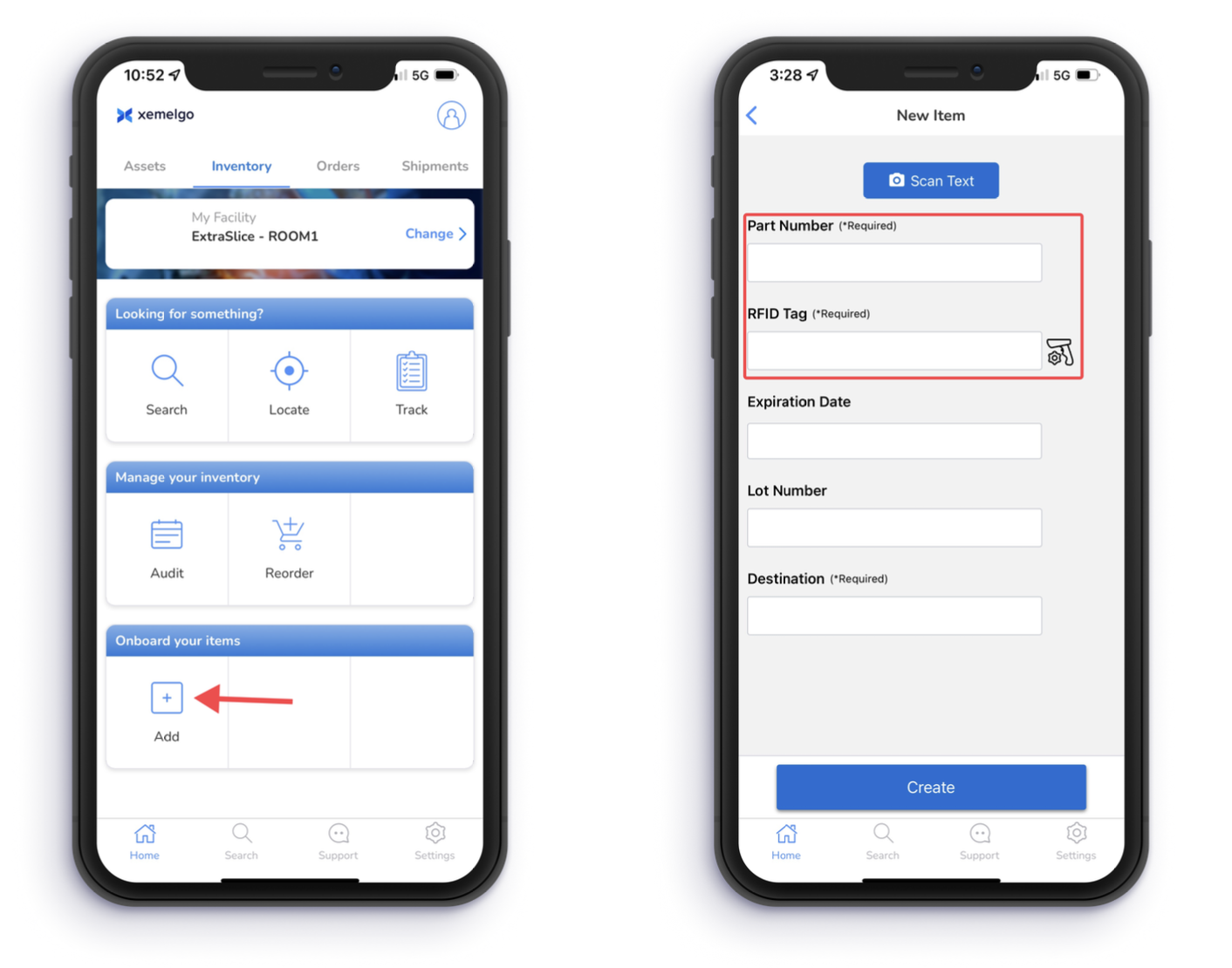
To begin the process of onboarding items into your inventory, tap Add under the Onboard your items section of the Inventory user interface.
Next, enter the Part Number and RFID Tag associated with the item you are onboarding.
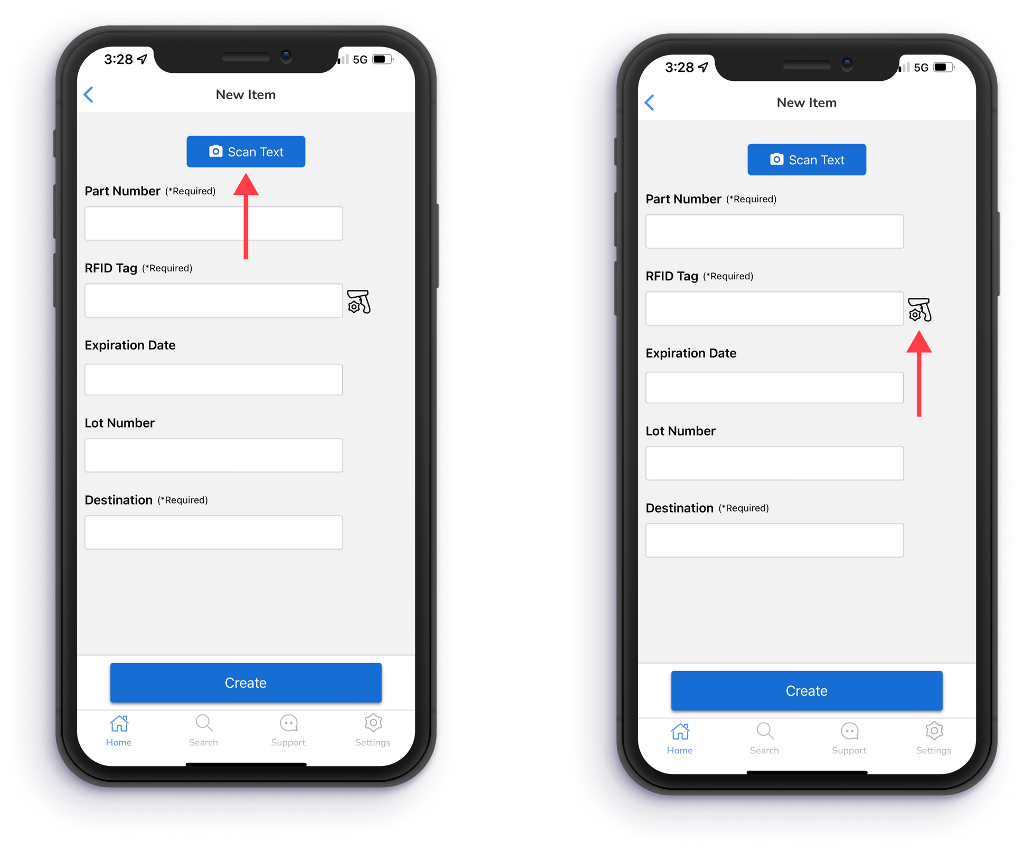
Users have the ability to enter the Part Number information through their camera by tapping Scan Text.
Users can onboard an asset's RFID tag by using an RFID handheld device. Ensure that the tag you want to enter is at least 5 inches away from any other tag in the area.
If the RFID handheld device you are attempting to use has not been onboarded to the Xemelgo app before, please consult the Onboarding an RFID Device section of the Xemelgo Help Center.
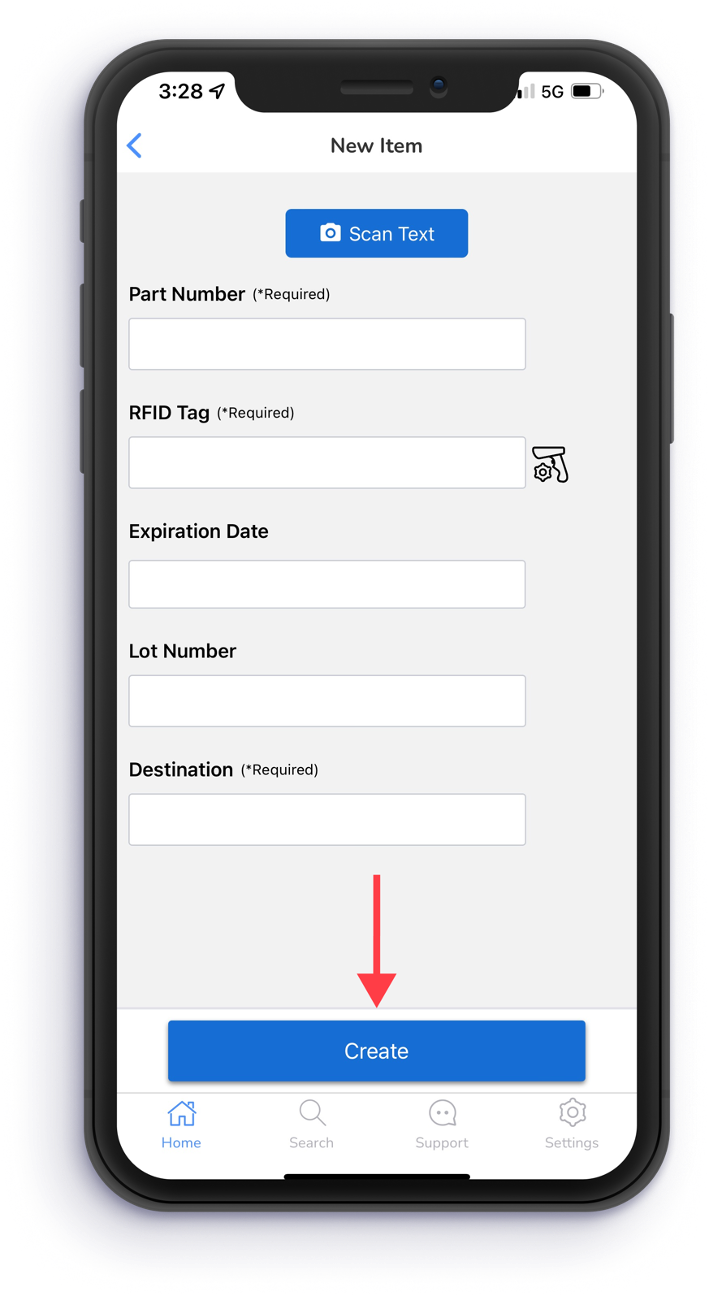
After entering the Part Number and RFID Tag information, tap Create.
Need further assistance?
The article above couldn't resolve your issue? Use the chat button in the bottom-right corner to contact the support team.