Search and Find for Assets
Search and Find for Assets
Overview
This article will cover initiating a search by entering either the asset's Name or Tag Number, selecting the desired asset from the results, and establishing a connection to your RFID handheld device. Additionally, we will explain how to interpret proximity feedback provided by the RFID reader, including color-coded indicators and audible alerts. You'll also learn how to switch to a different asset if needed.
Instructions
To use the search and find feature, tap Search and Find under the Looking for something? section of the Assets user interface.
Next, use the text field to search for an asset. Users can enter either the asset's Name or Tag Number.
Once you have entered the asset's Name or Tag Number, tap Return.
Then tap the asset you were searching for from the list.
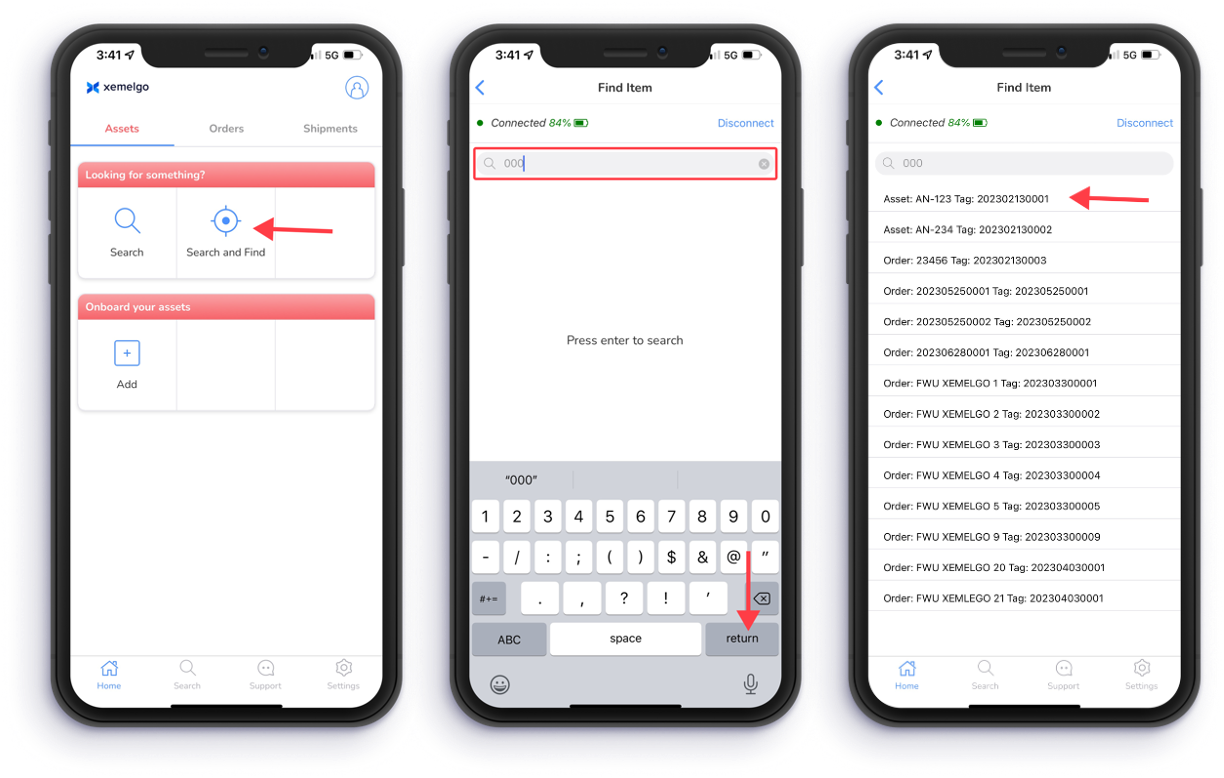
Next, the Xemelgo app will automatically establish a connection to the RFID handheld device you are using.
If the RFID handheld device you are attempting to use has not been onboarded to the Xemelgo app before, please consult the Onboarding an RFID Device section of the Xemelgo Help Center.
Then, the RFID handheld reader will provide proximity feedback to help you locate the asset you are searching for.
To begin this process, press and hold the trigger on the reader to scan.
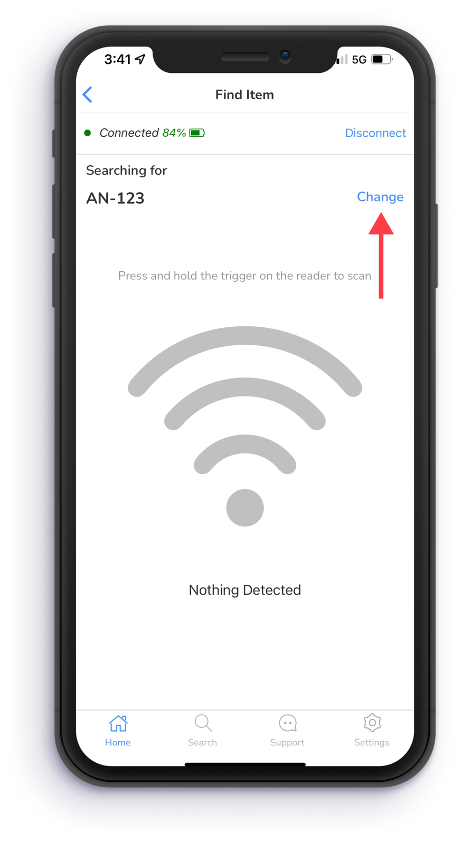
When the asset is nearby, the screen indicator will turn Green, and the RFID handheld reader will emit a rapid audible alert. Conversely, if the asset is barely in proximity, the screen indicator will turn Red, and the RFID handheld reader will emit a subdued audible alert. In cases where the asset is out of range, the indicator will display Nothing Detected.
If you need to change the asset you are searching for, tap Change.
Need further assistance?
The article above couldn't resolve your issue? Use the chat button in the bottom-right corner to contact the support team.