How to Replace an RFID Tag
How to Replace an RFID Tag
Overview
This article explains how to replace an RFID tag.
Instructions
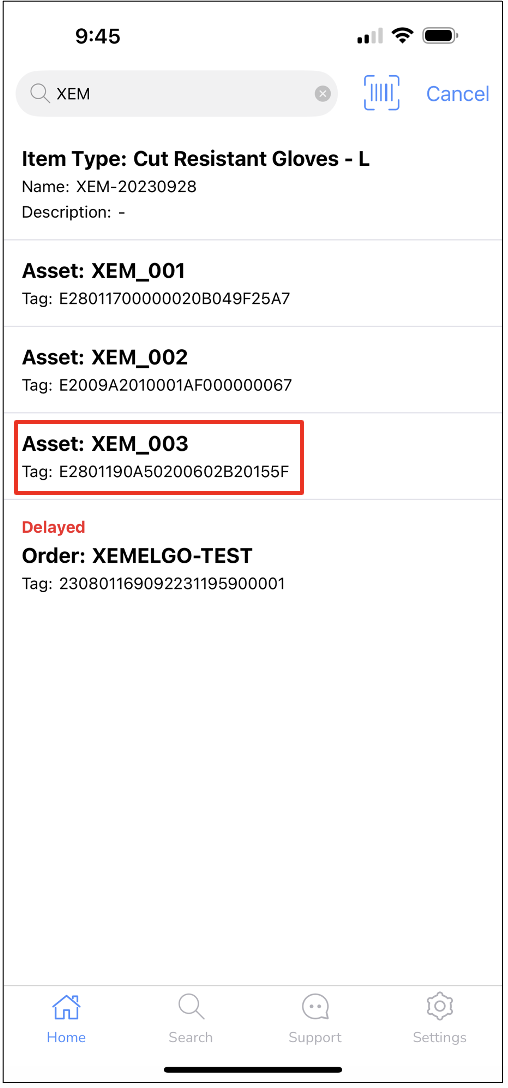
To begin the process of replacing an RFID tag, search for the item you are looking for and select it.
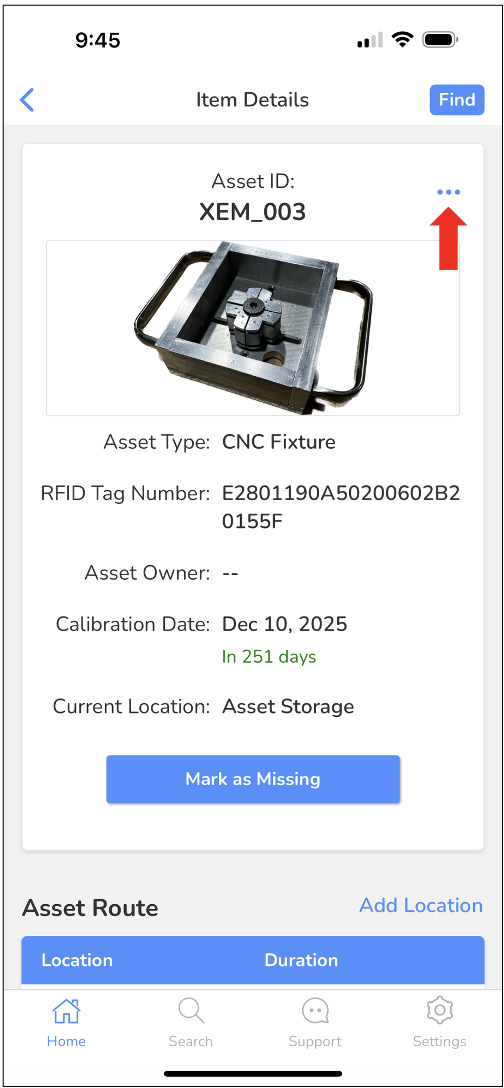
Next, tap the ... icon.
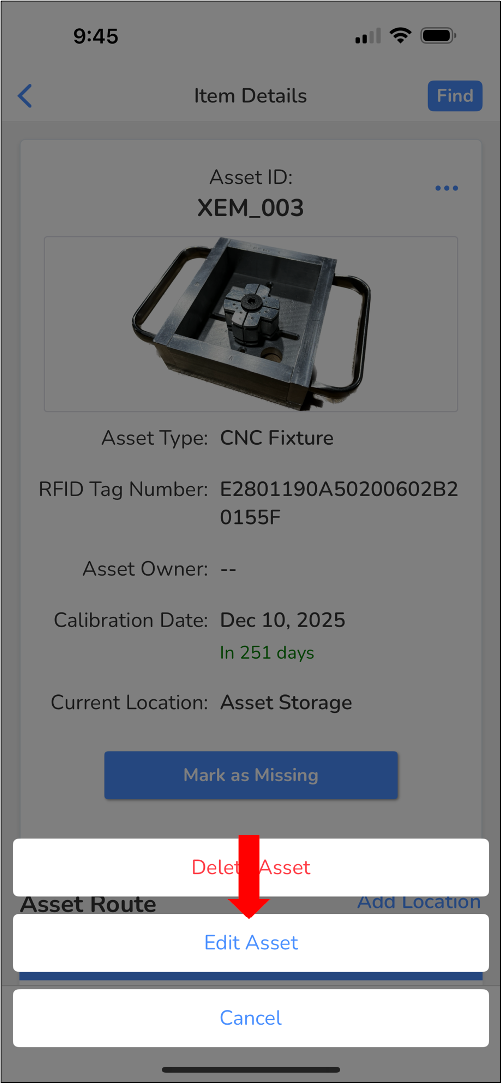
Then, tap Edit.
Users can update the RFID Tag Number automatically by clicking the Handheld Scanner Icon. The app will connect to your handheld scanner and the RFID Tag Number will be updated once the tag is detected.
If you need assistance connecting your handheld scanner to the Xemelgo app, view our Onboarding an RFID Device documentation.
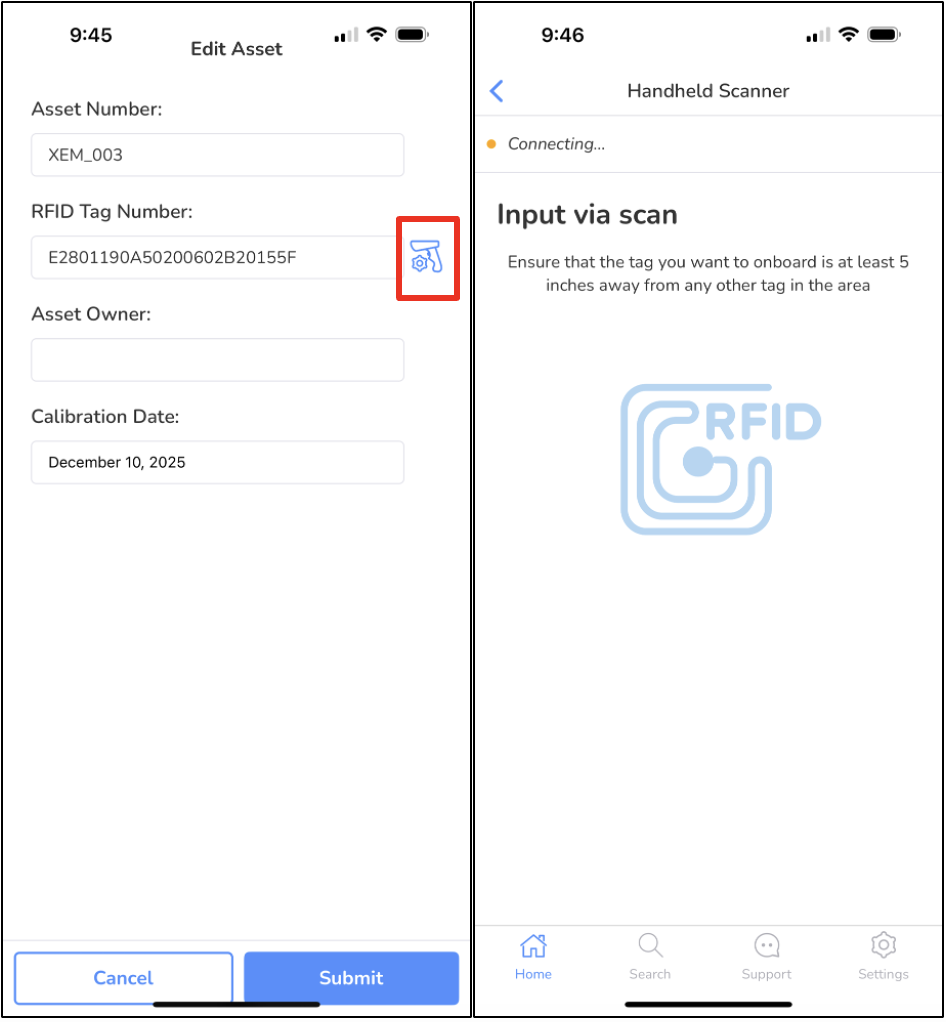
Users* can also update the RFID Tag by manually typing out the new tag number into the text field.
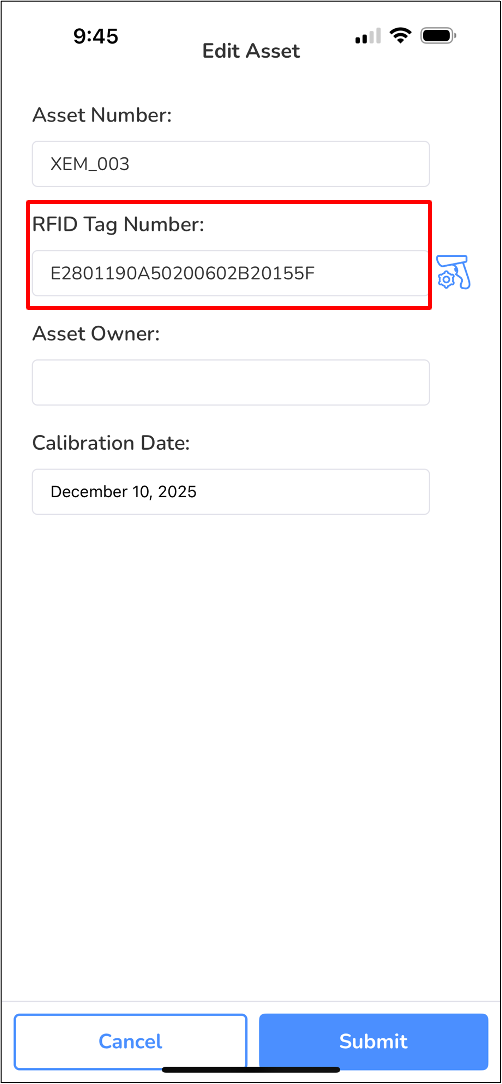
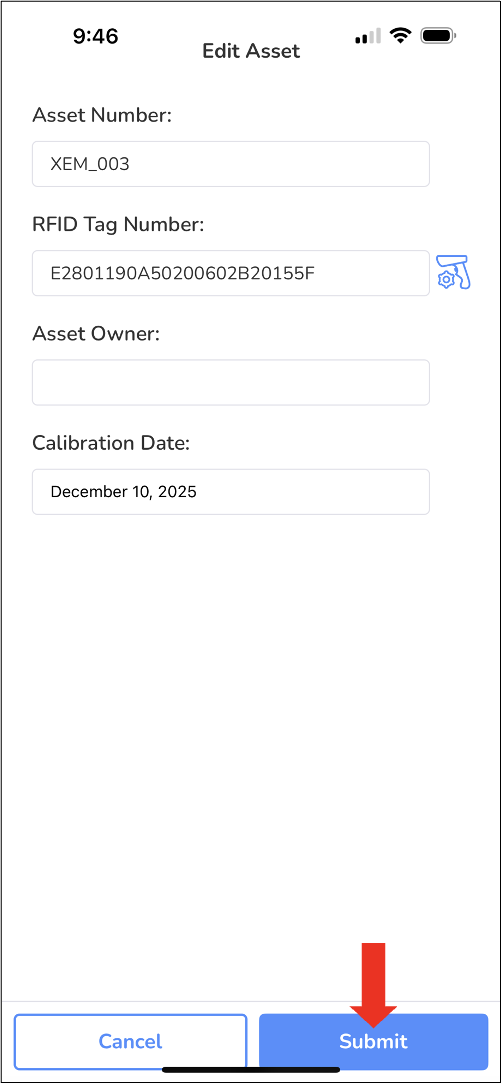
Once the RFID Tag Number has been updated, tap Submit to save your changes.
Need further assistance?
The article above couldn't resolve your issue? Use the chat button in the bottom-right corner to contact the support team.