Bulk Update Item Location and Property
Bulk Update Item Location and Property
Overview
This article explains how to update item location and properties.
Instructions
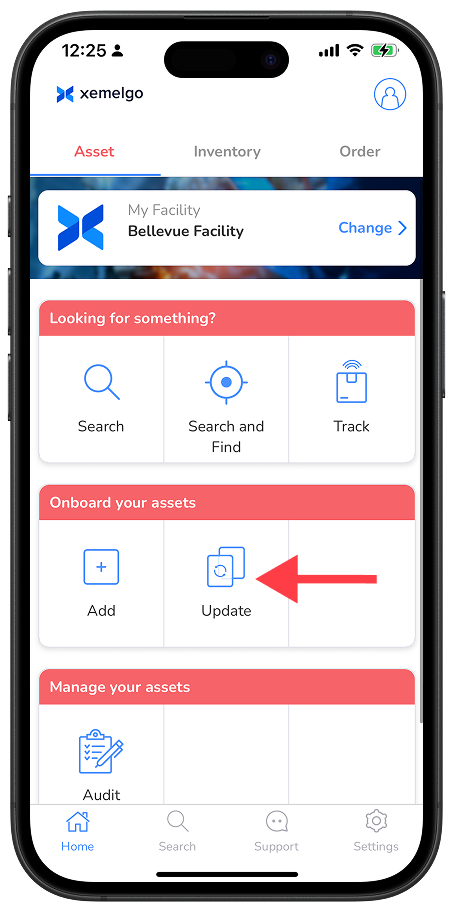
To begin a status update, tap Update on the Home Screen.
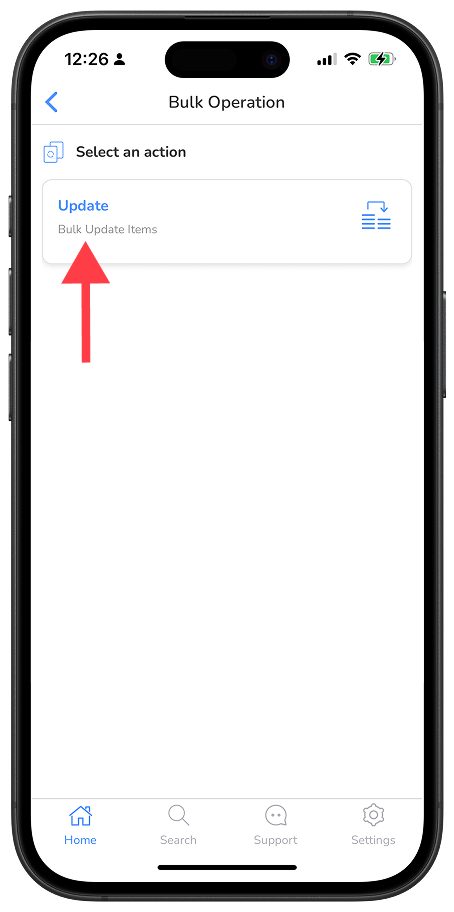
Next, tap Update under Select an action.
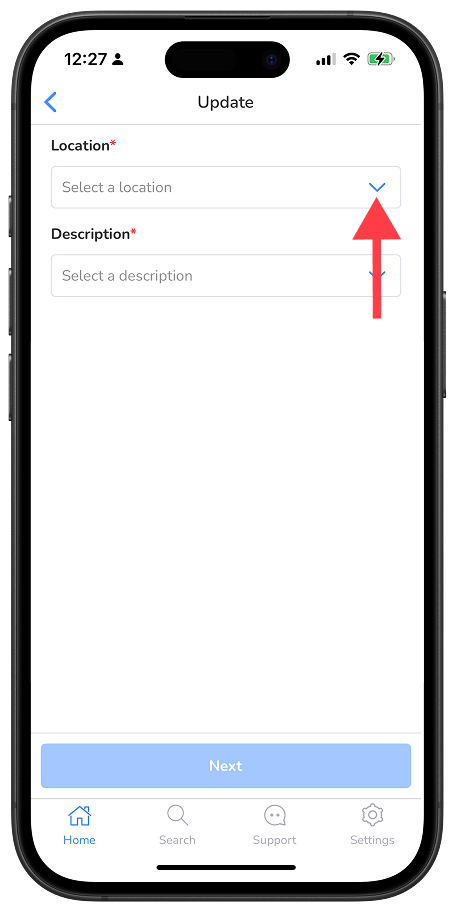
Select a Location from the dropdown.
Then, enter any other applicable information in the remaining fields and tap Next.
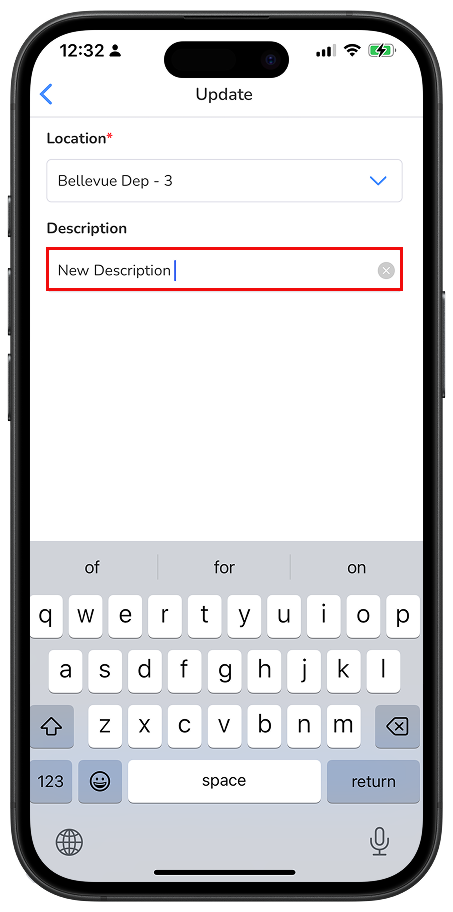
The fields and labels shown in this example (e.g., **Description) are for illustration only. Your actual tenant setup may differ depending on configuration.
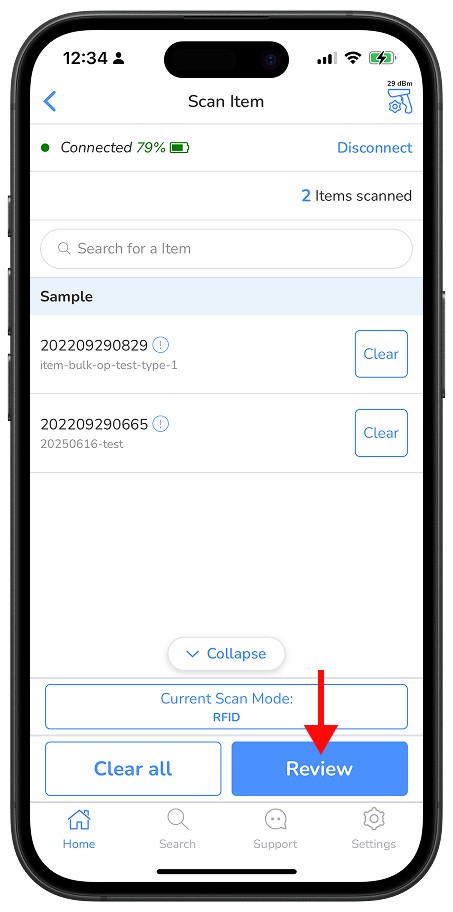
On the Scan Item screen, verify that your RFID handheld device is connected.
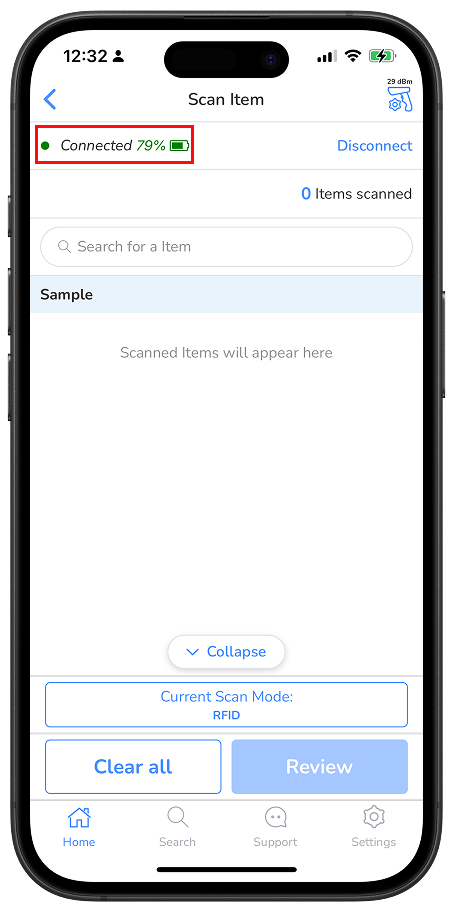
If the RFID handheld device you are attempting to use has not been onboarded to the Xemelgo app before, please consult the Onboarding an RFID Device section of the Help Center.
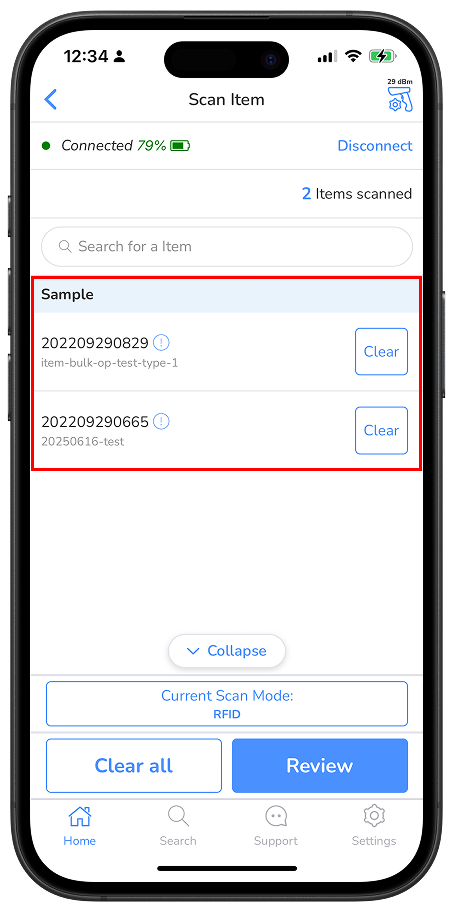
Once you have verified the RFID handheld device has been connected, begin scanning for tags. As tags are detected, the information associated with them will display below.
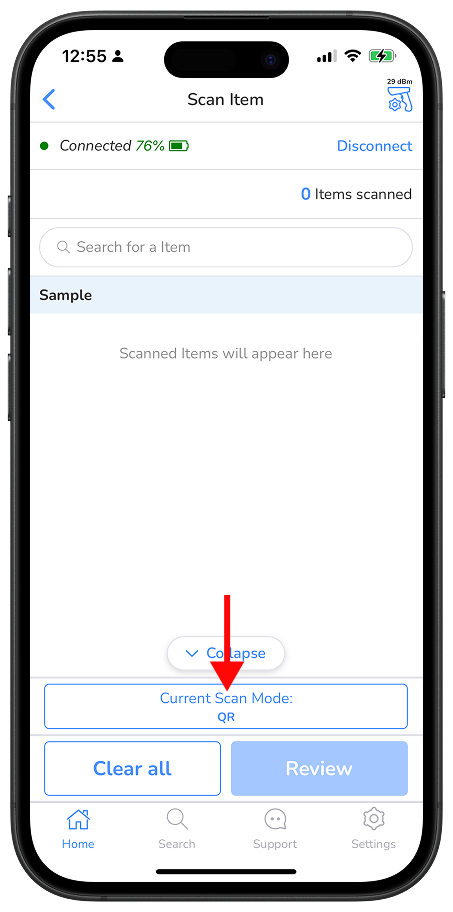
Users can also switch to QR mode by tapping the Current Scan Mode button.
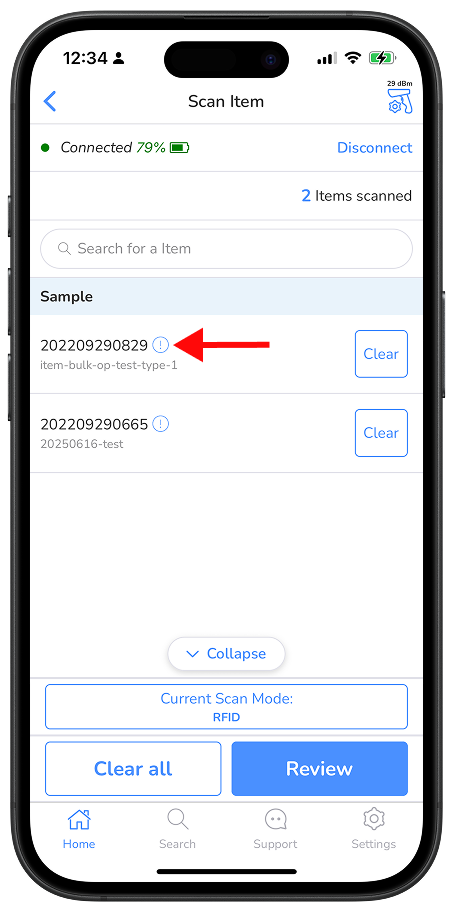
To view additional information associated with the RFID tag, tap the ! icon.
Once you have finished scanning tags, tap Review.
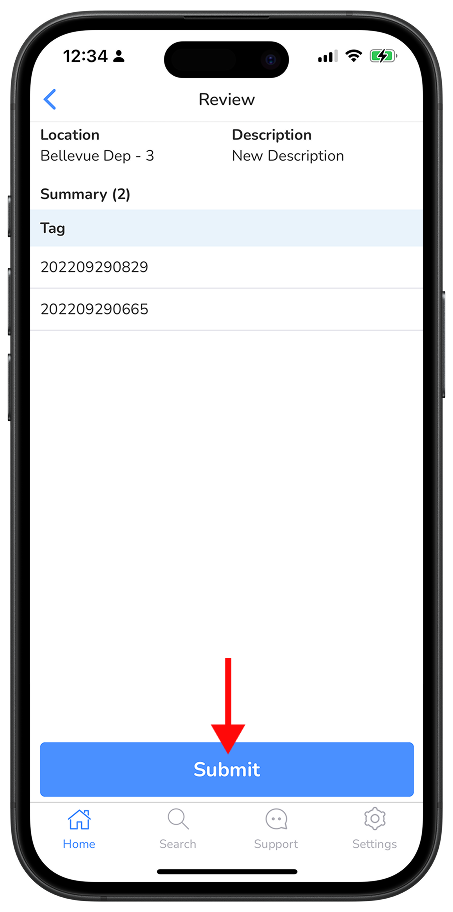
Verify that the Location, Description, and Tag information are correct and tap Submit to finish.
Need further assistance?
The article above couldn't resolve your issue? Use the chat button in the bottom-right corner to contact the support team.