Reprint Tags
Reprint Tags
Overview
This article explains the process of reprinting tags for Assets, Inventory, and Work Orders.
Reprint Tags for Assets
To begin the process of reprinting an asset tag, ensure you have the Asset Trackpage selected.
Then, select Asset as your View.
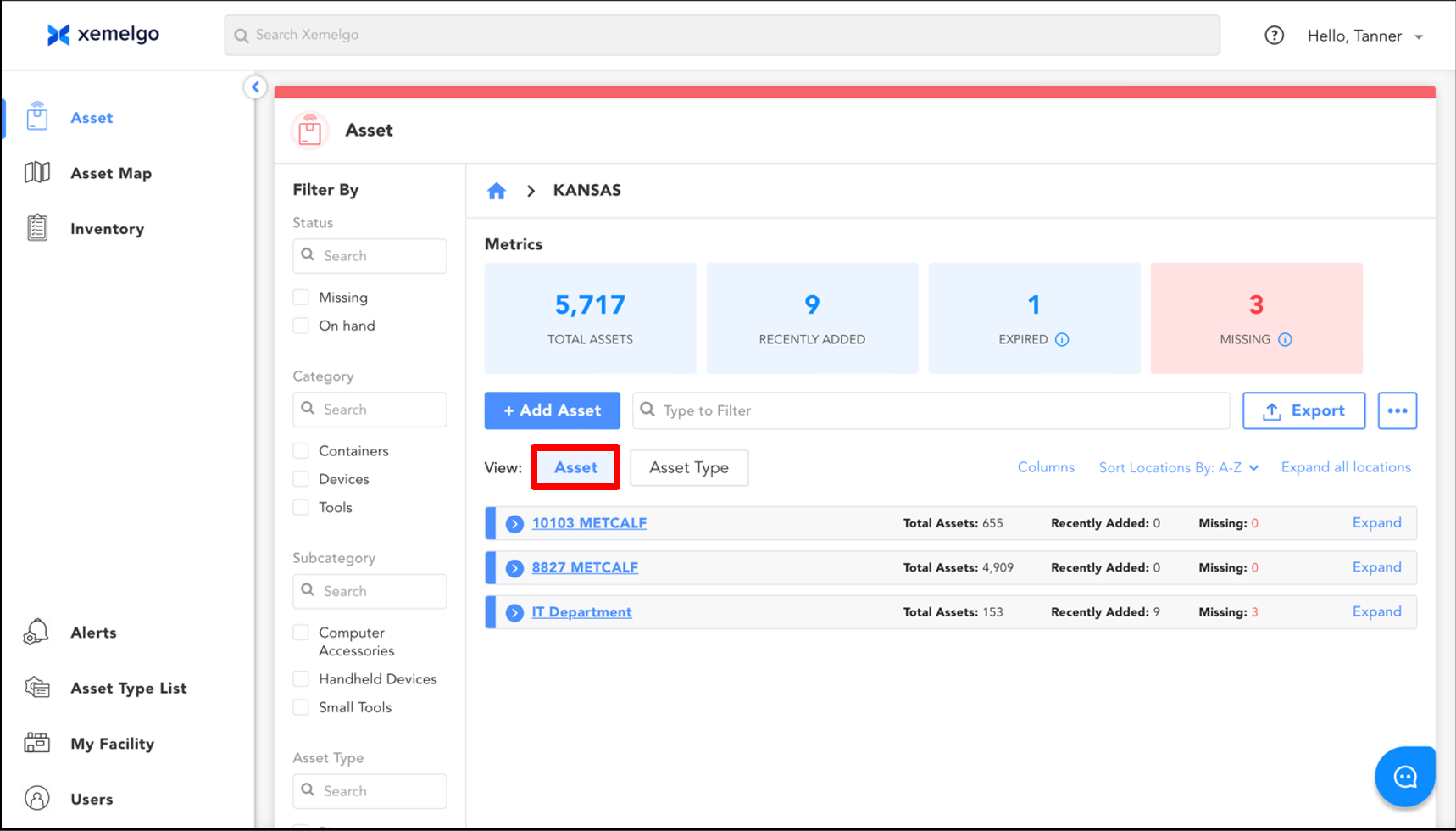
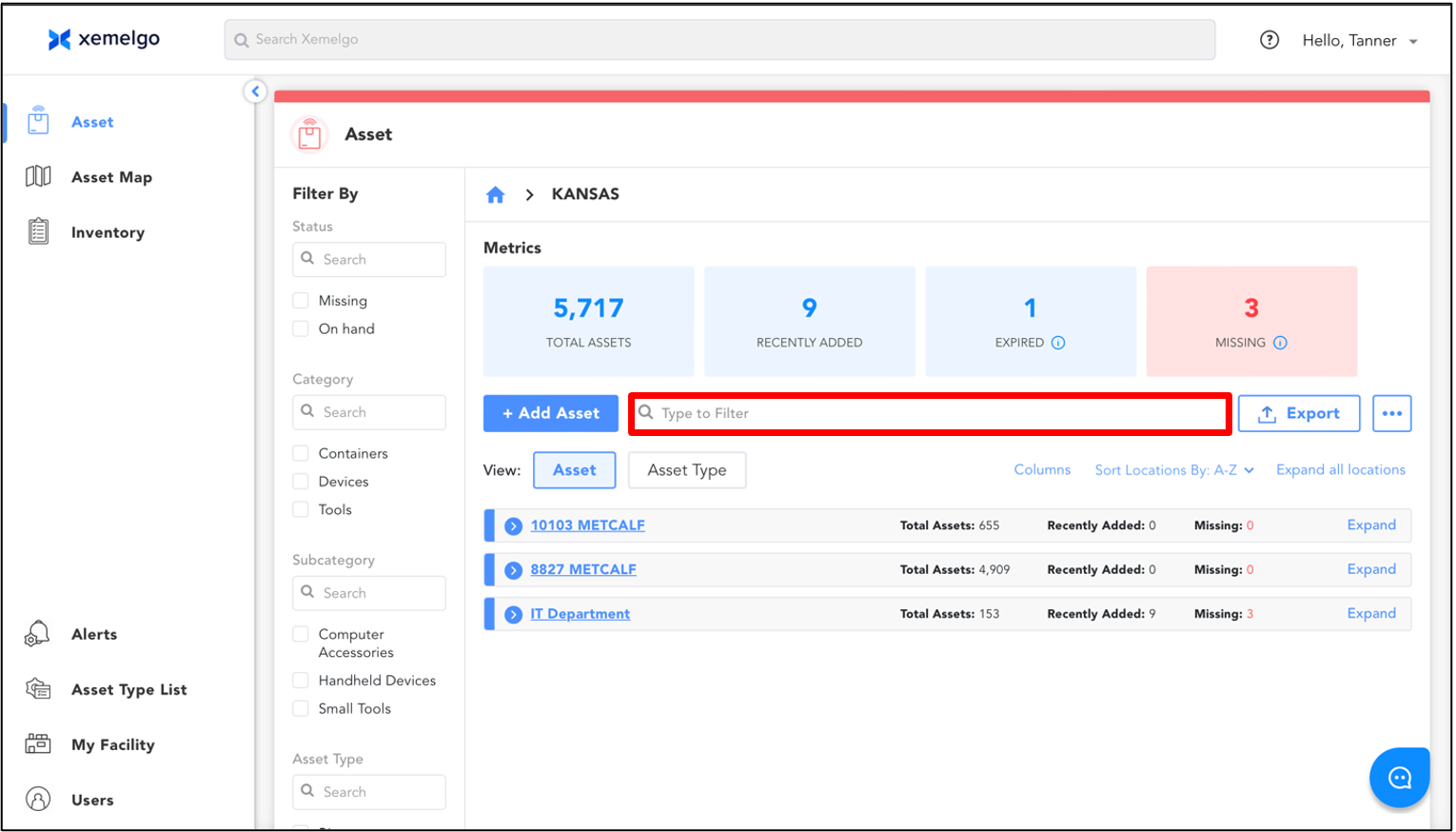
Next, use the text field to search for the asset you want to reprint a tag for.
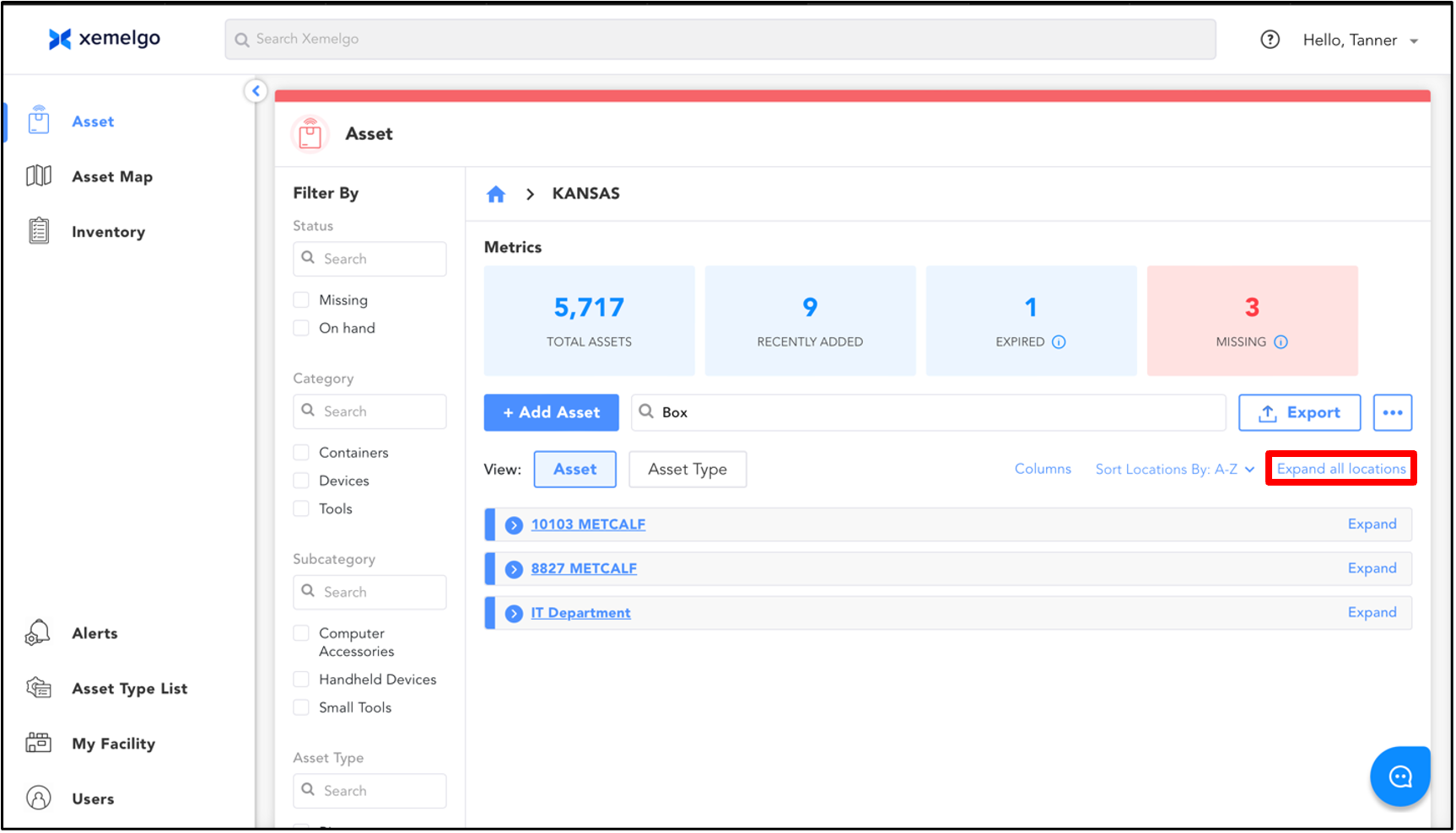
Then, click Expand all Locations.
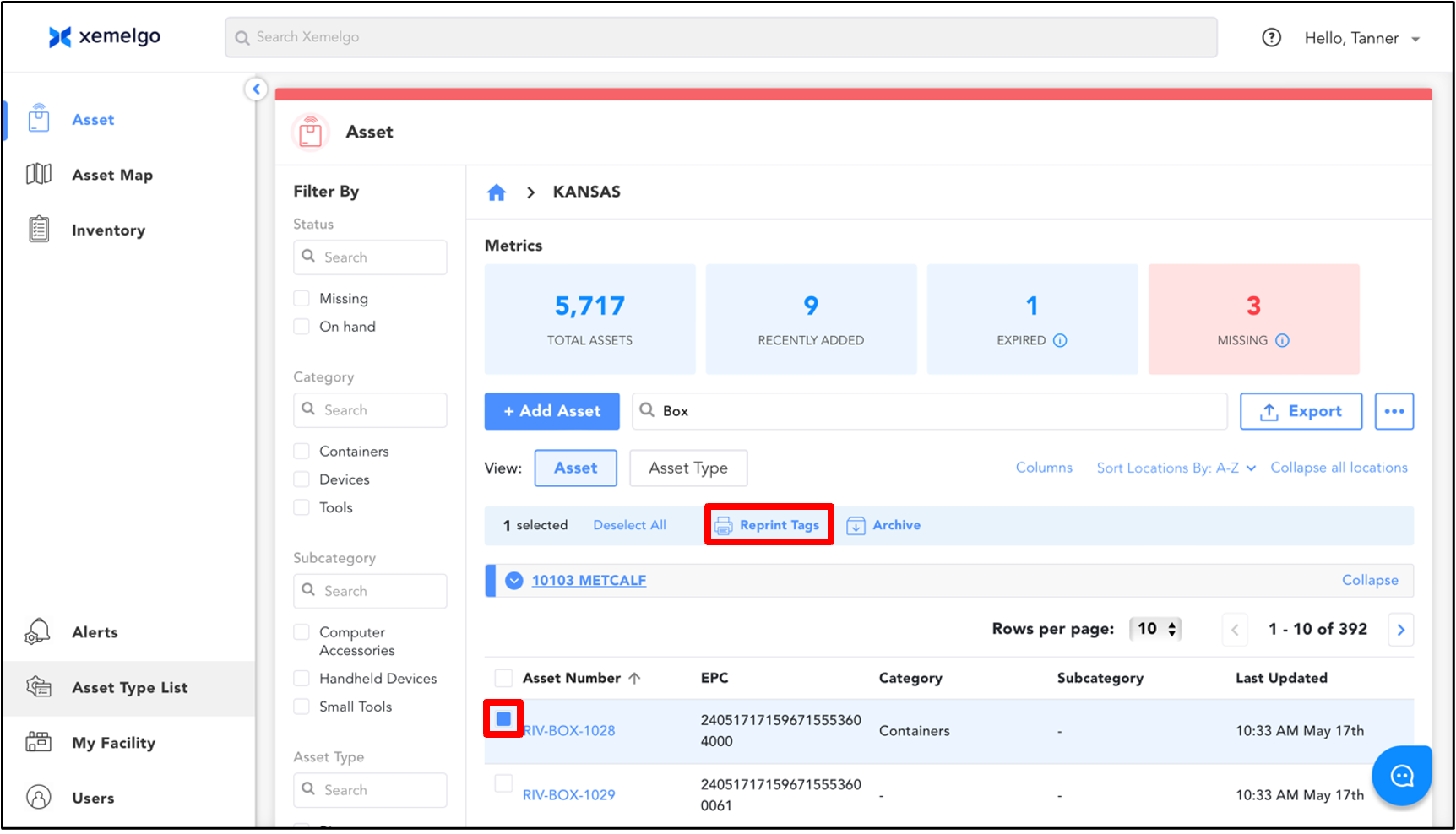
To continue, select the box to the left of the asset, and click Reprint Tags.
You have the ability to select multiple assets to reprint at once.
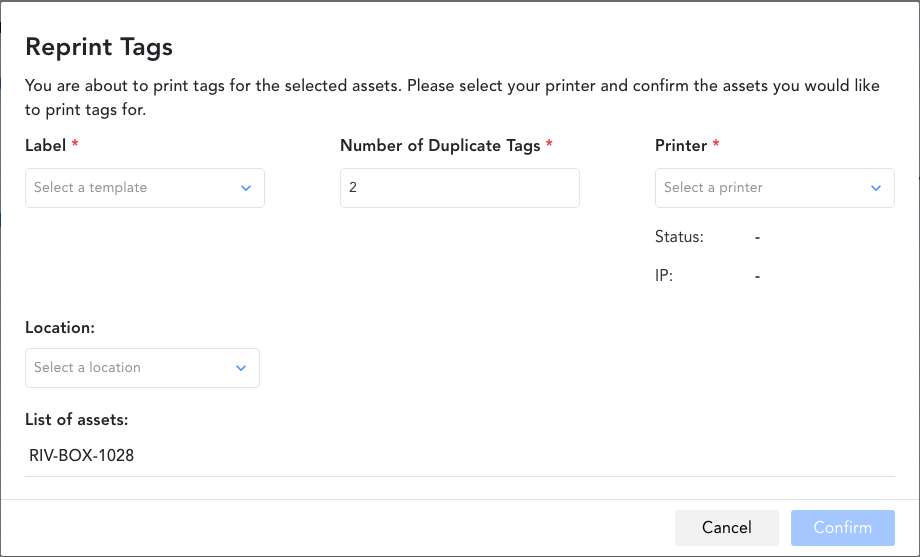
Then, choose a Label (if applicable), enter the Number of tags you wish to print for each asset, and select the correct Printer.
If there is a Location field on this screen, you have the option to choose a location to onboard the reprinted tag from the dropdown.
To finish, click Confirm.
Reprint Tags for Inventory
To begin the process of reprinting an item tag, ensure you have the Inventory Trackpage selected.
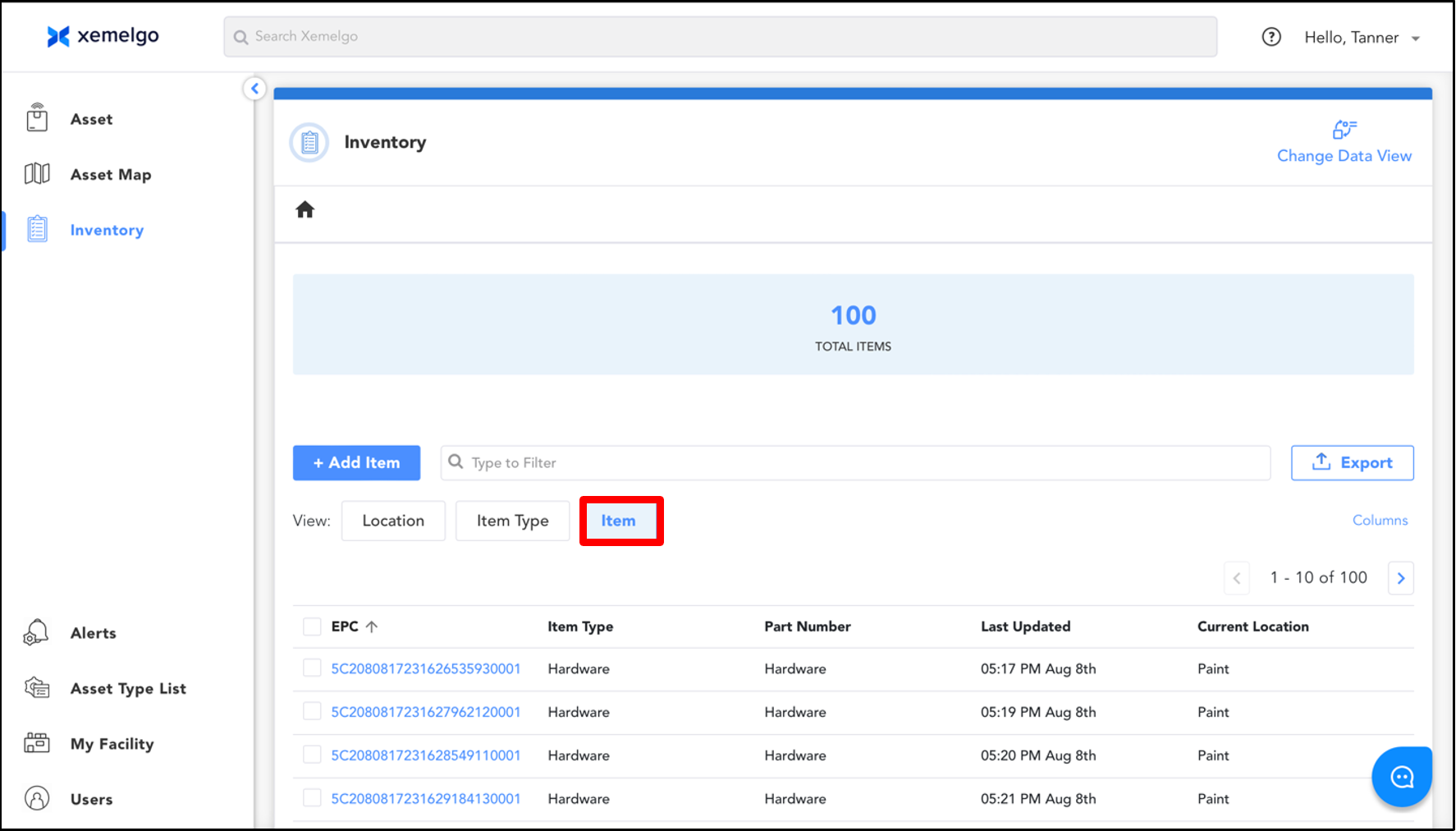
Then, select Item as your View.
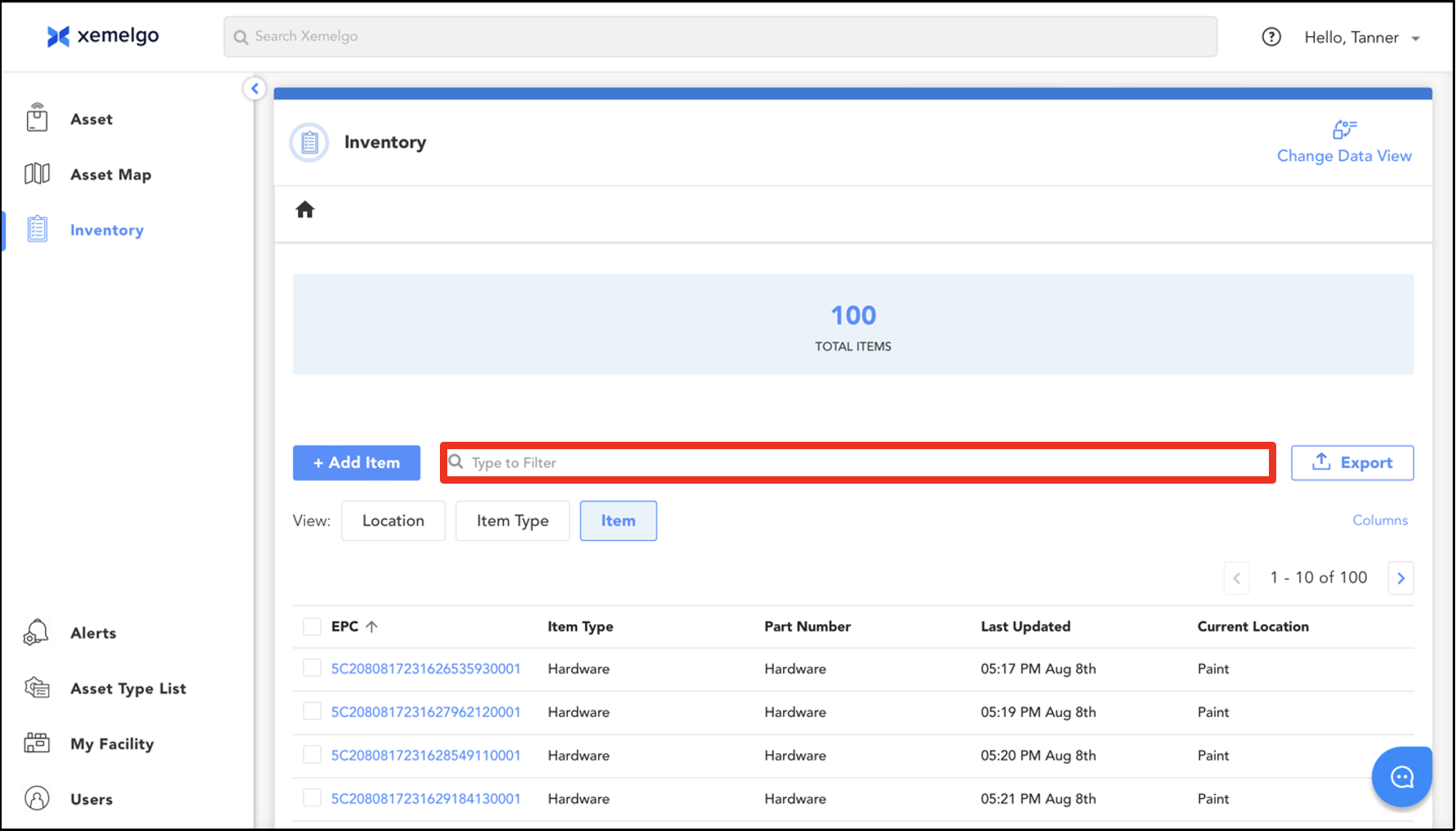
Next, use the text field to search for the work order you want to reprint a tag for.
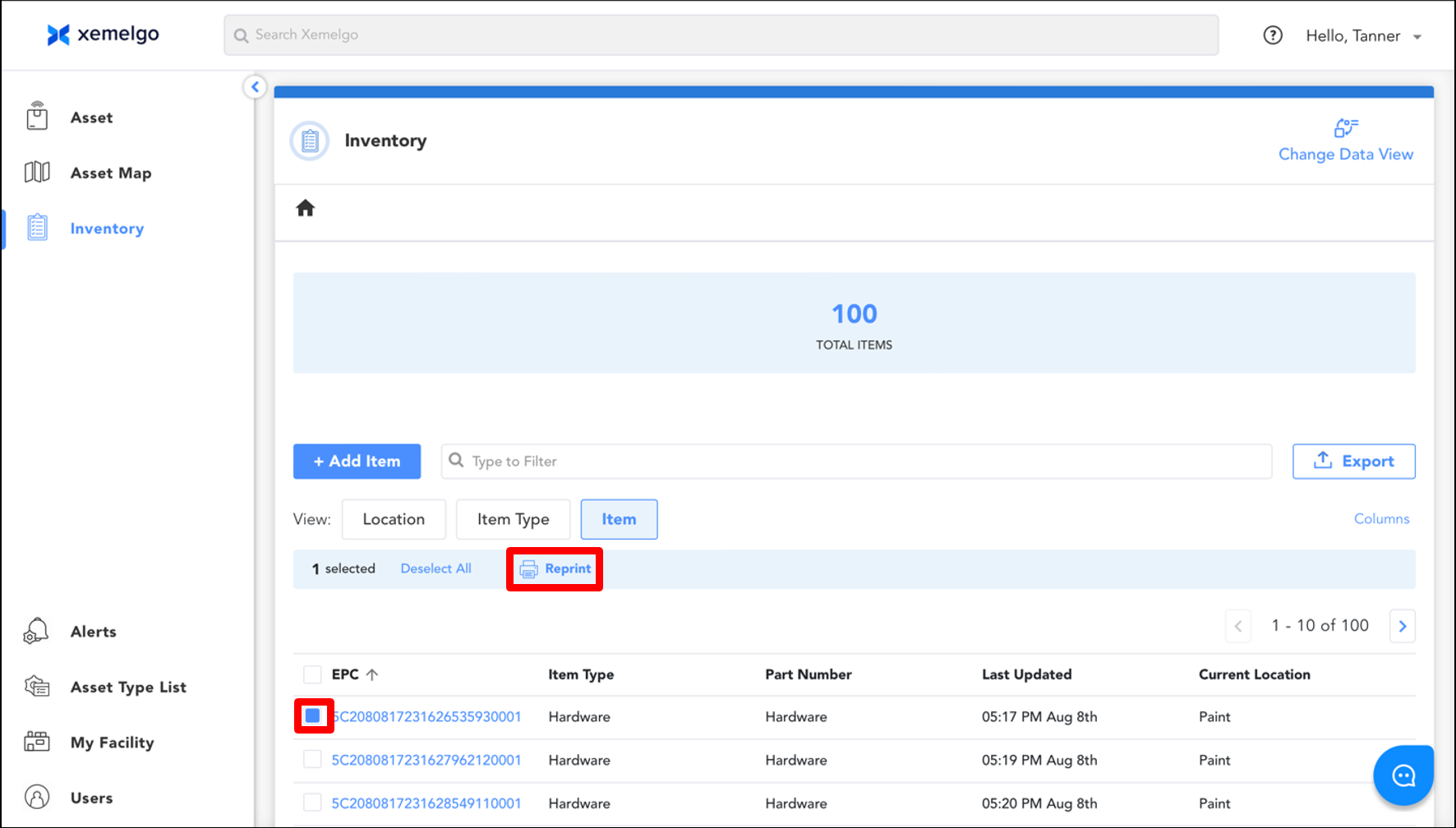
Then, select the box to the left of the item and click Reprint.
You have the ability to select multiple items to reprint at once.
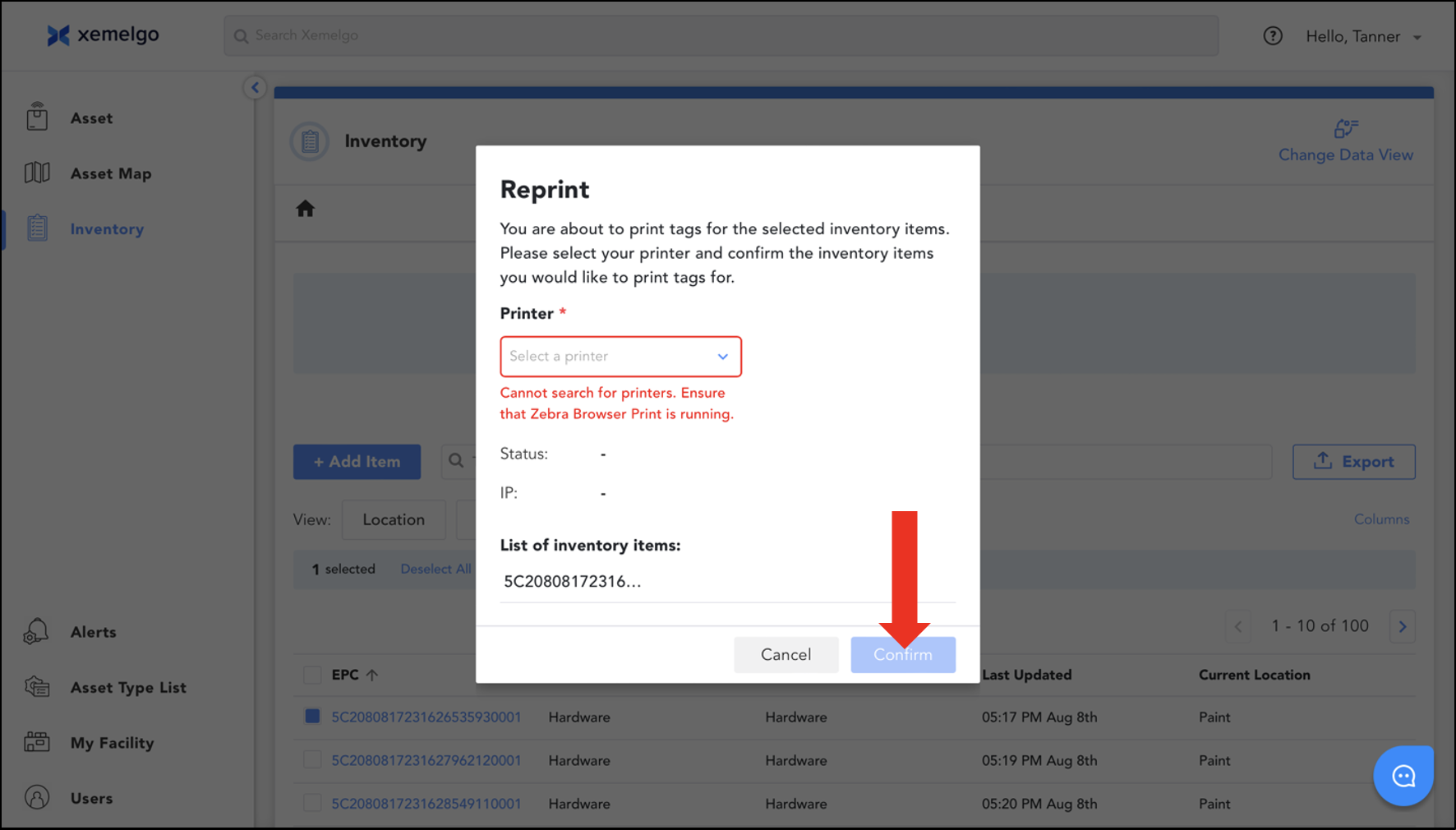
To finish, select a Printer and click Confirm.
Ensure Zebra Browser Print is installed and running on your device before printing.
Reprint Tags for Work Orders
To begin the process of reprinting a work order tag, ensure you have the Work Order Trackpage selected.
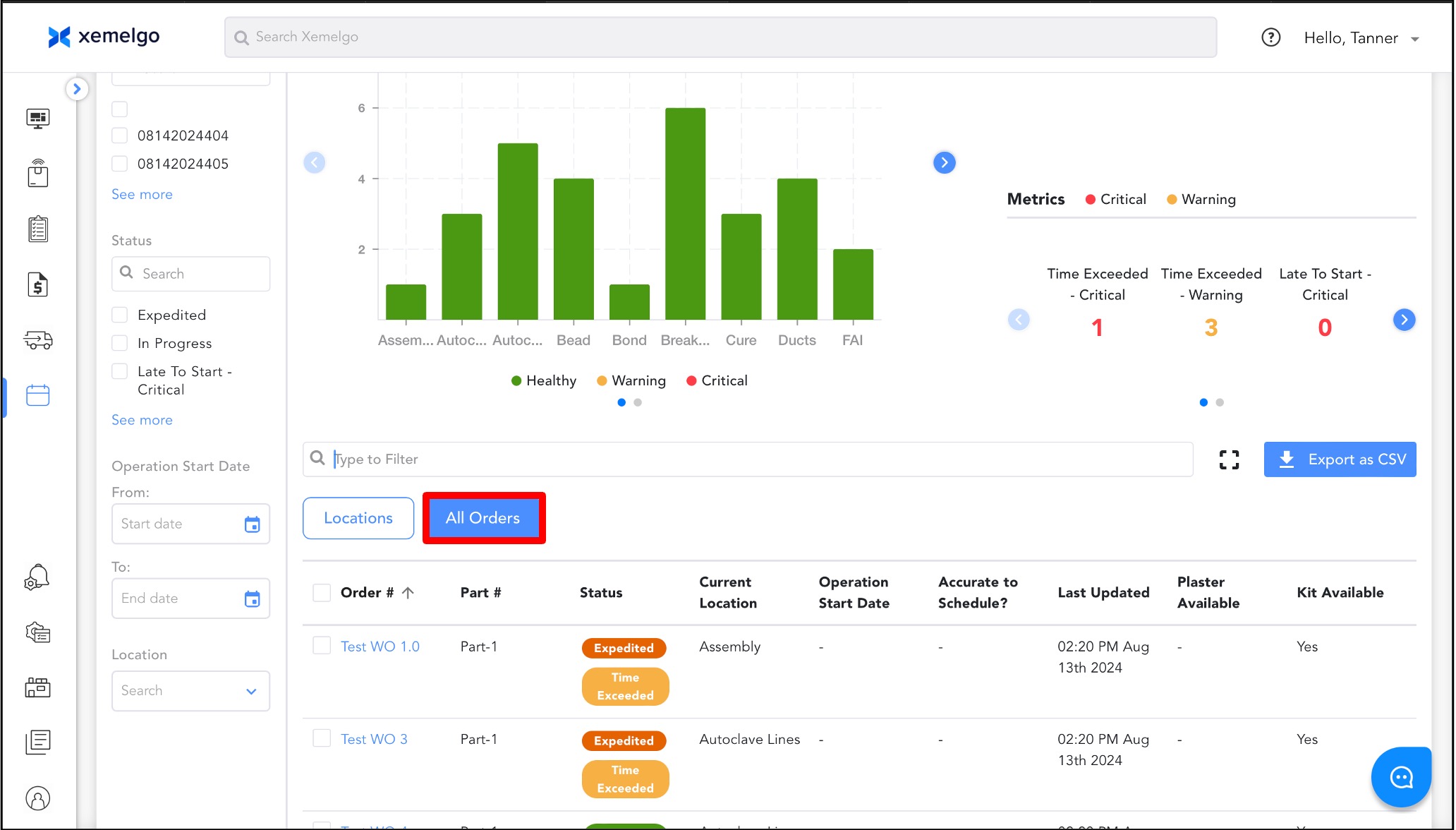
Then, select All Orders.
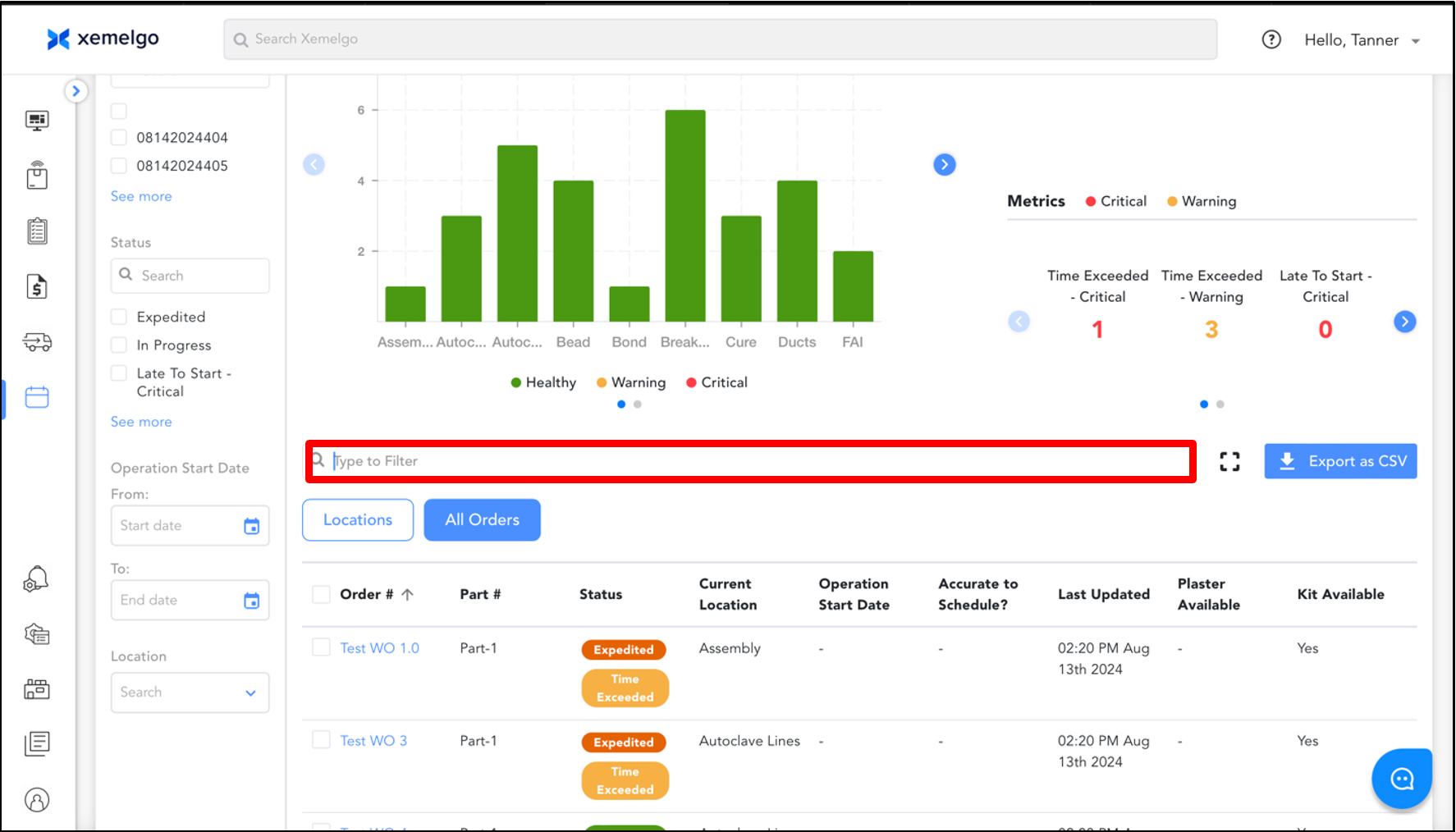
Next, use the text field to search for the work order you want to reprint a tag for.
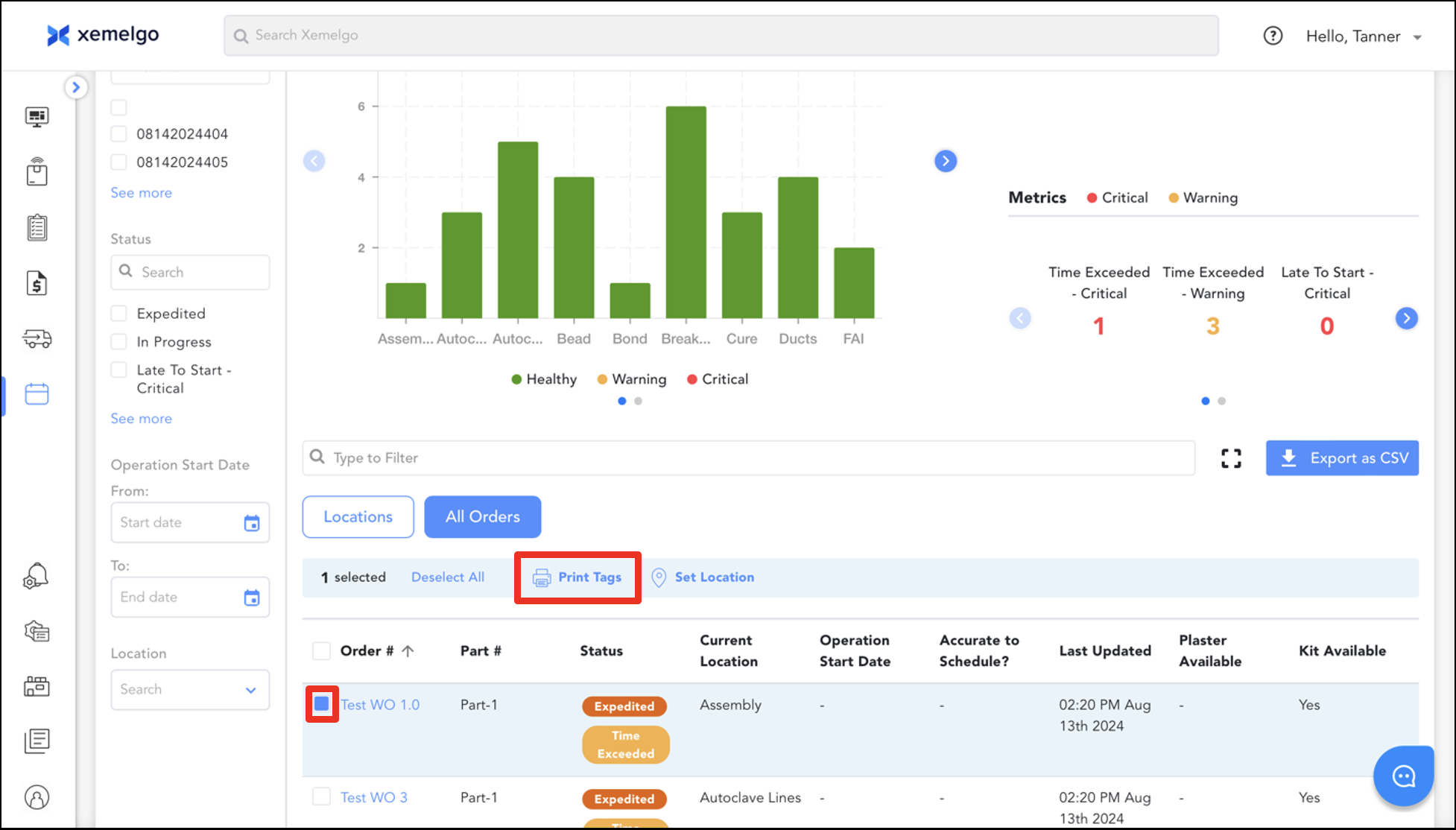
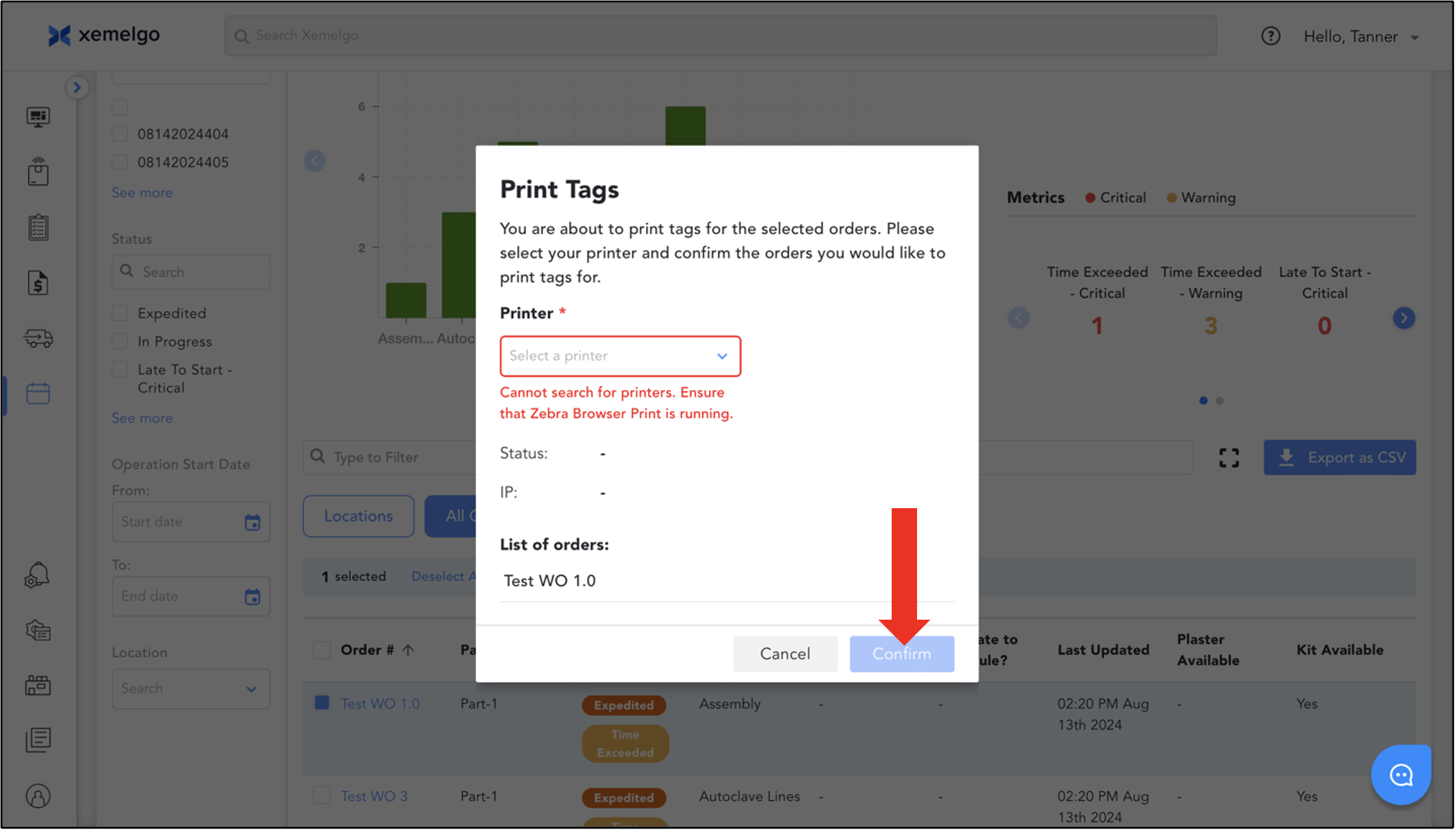
Then, select the box to the left of the work order, and click Print Tags.
You have the ability to select multiple work orders to reprint at once.
To finish, select a Printer and click Confirm.
Ensure Zebra Browser Print is installed and running on your device before printing.
Need further assistance?
The article above couldn't resolve your issue? Use the chat button in the bottom-right corner to contact the support team.