Editing Item Type Image and Information
Editing Item Type Image and Information
Overview
This article explains how to upload and associate Images with an item type as well as editing their Description and UOM.
Uploading / Editing an Image for an Item Type
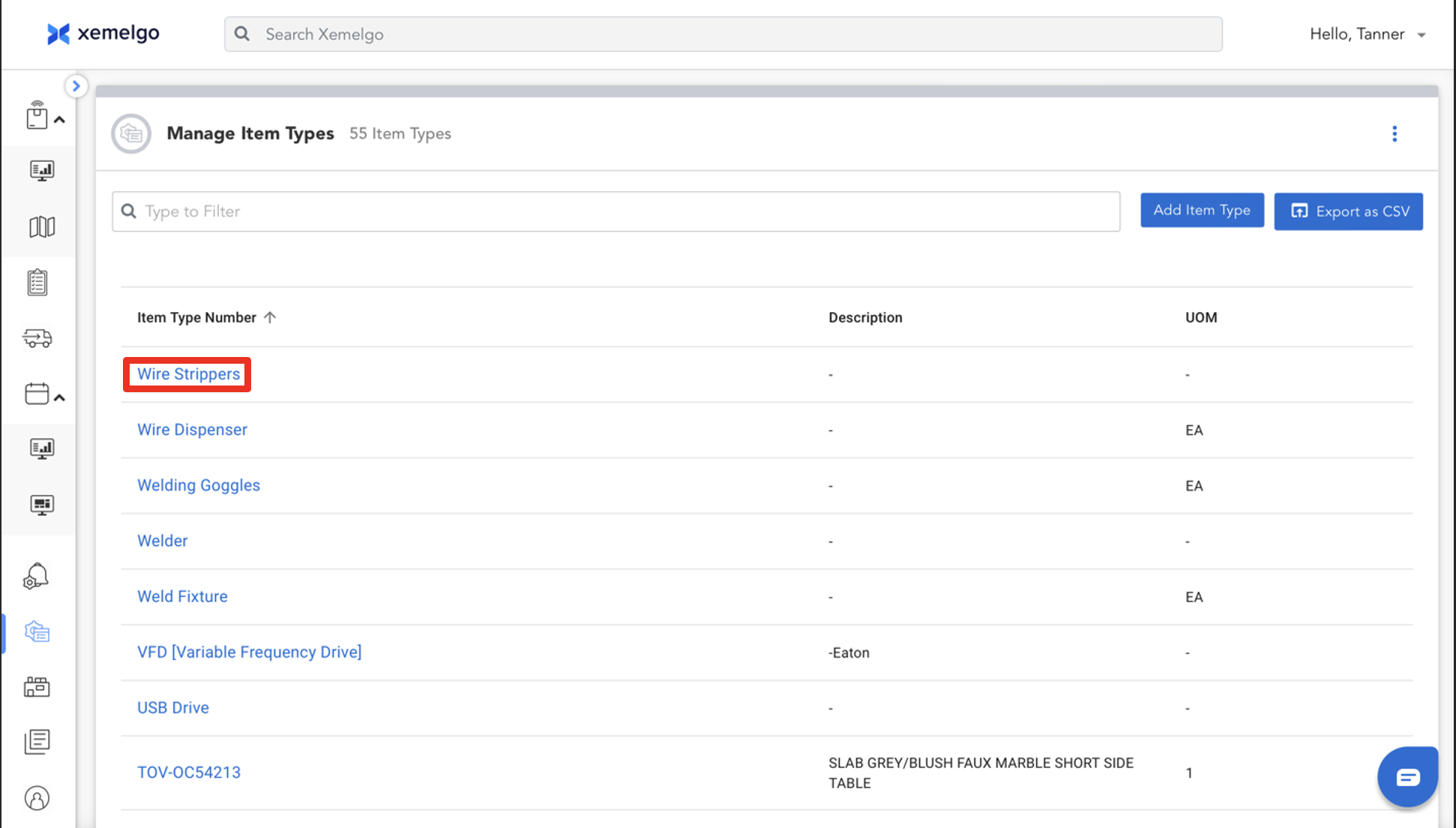
To begin uploading an image associated with an item type, click an Item Type Number.
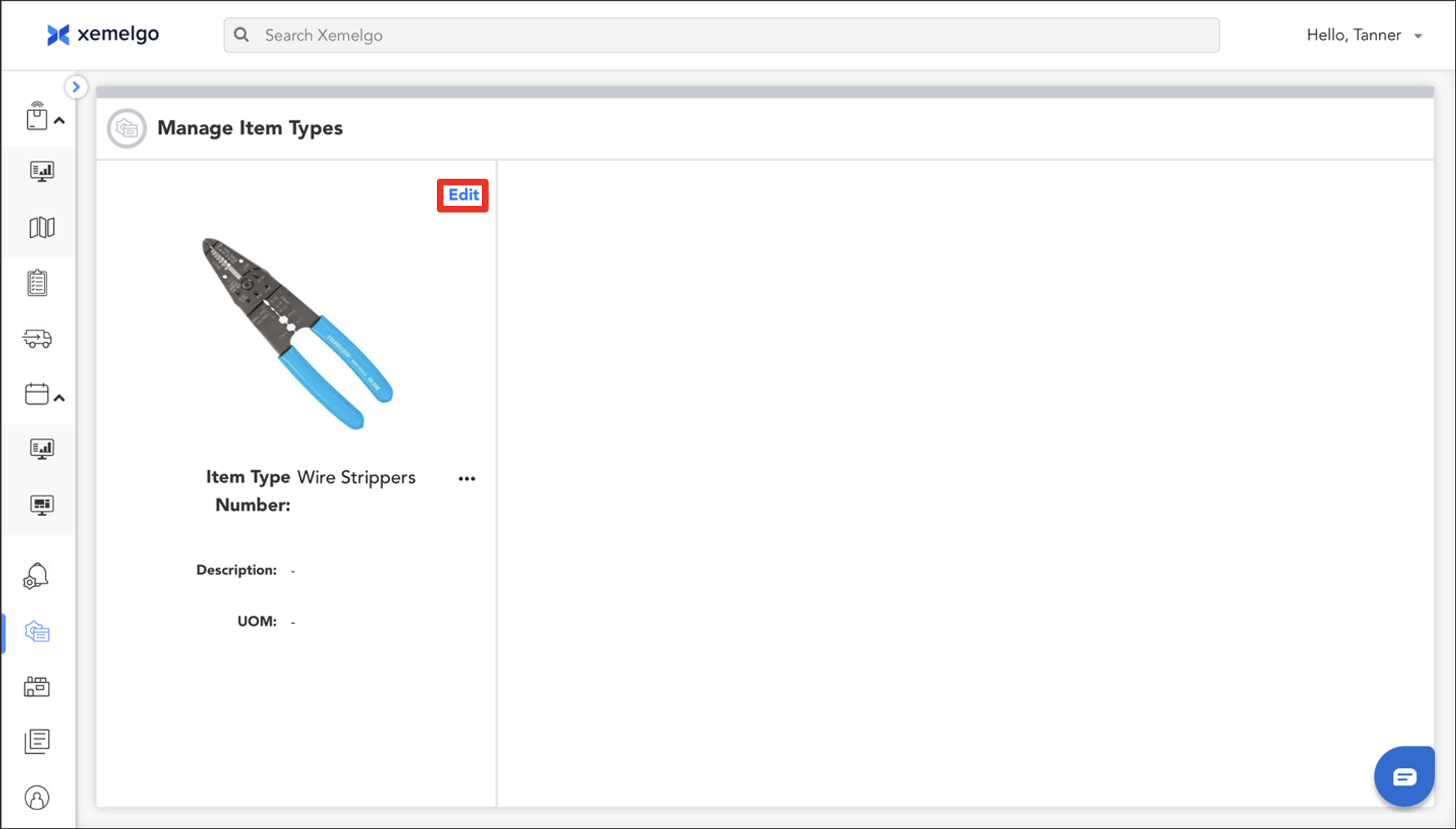
Next, click Edit.
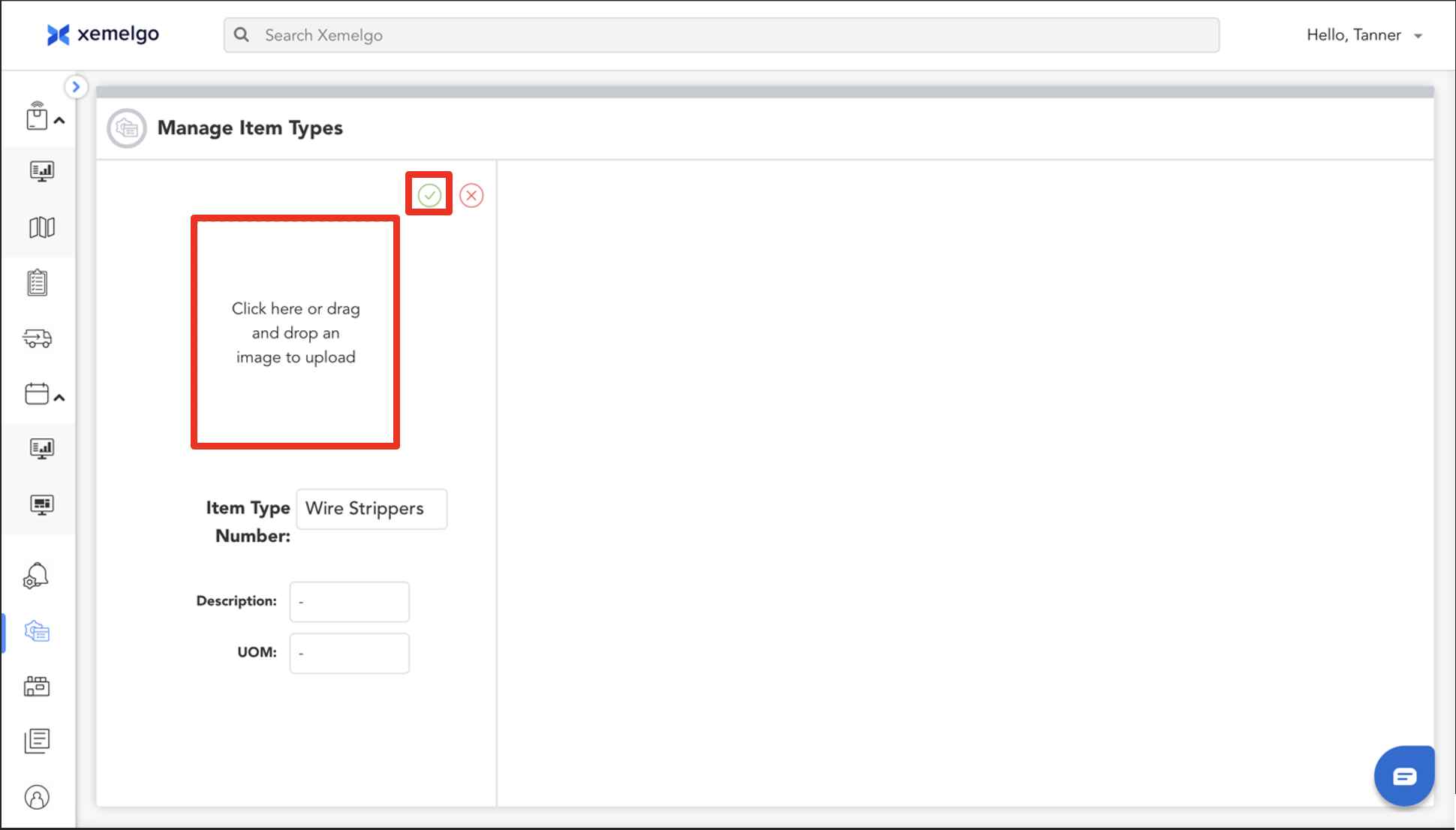
Then, either drag and drop the image or upload it from the files on your device.
Once the image is in, click the Green check mark to save your changes.
Editing Description and UOM for an Item Type
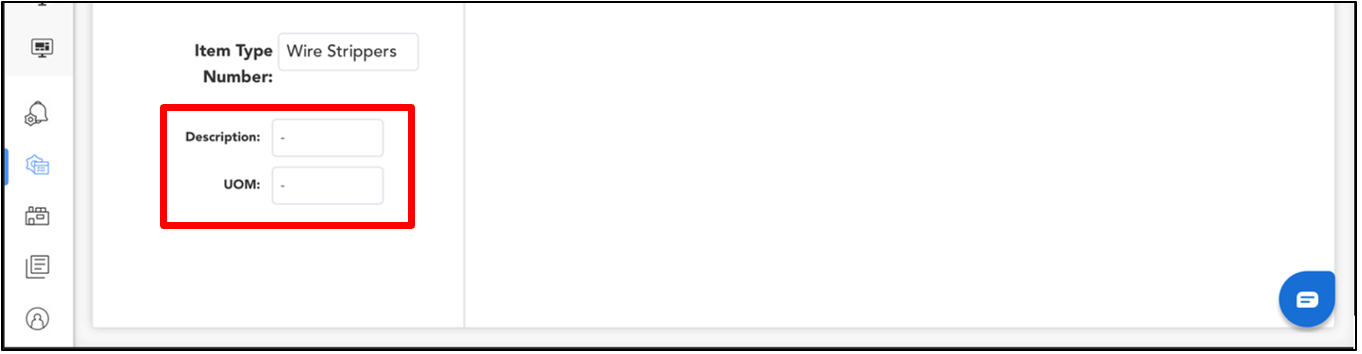
To edit the description and/or UOM for an item type, fill in the appropriate fields below where you uploaded the item type image.
Once the fields have been edited, click the Green check mark as you did for the item type image to save your changes.
Need further assistance?
The article above couldn't resolve your issue? Use the chat button in the bottom-right corner to contact the support team.
Was this article helpful?