Performing Actions on an Individual Work Order
Performing Actions on an Individual Work Order
Overview
There are 3 ways a user can begin performing actions on an individual work order:
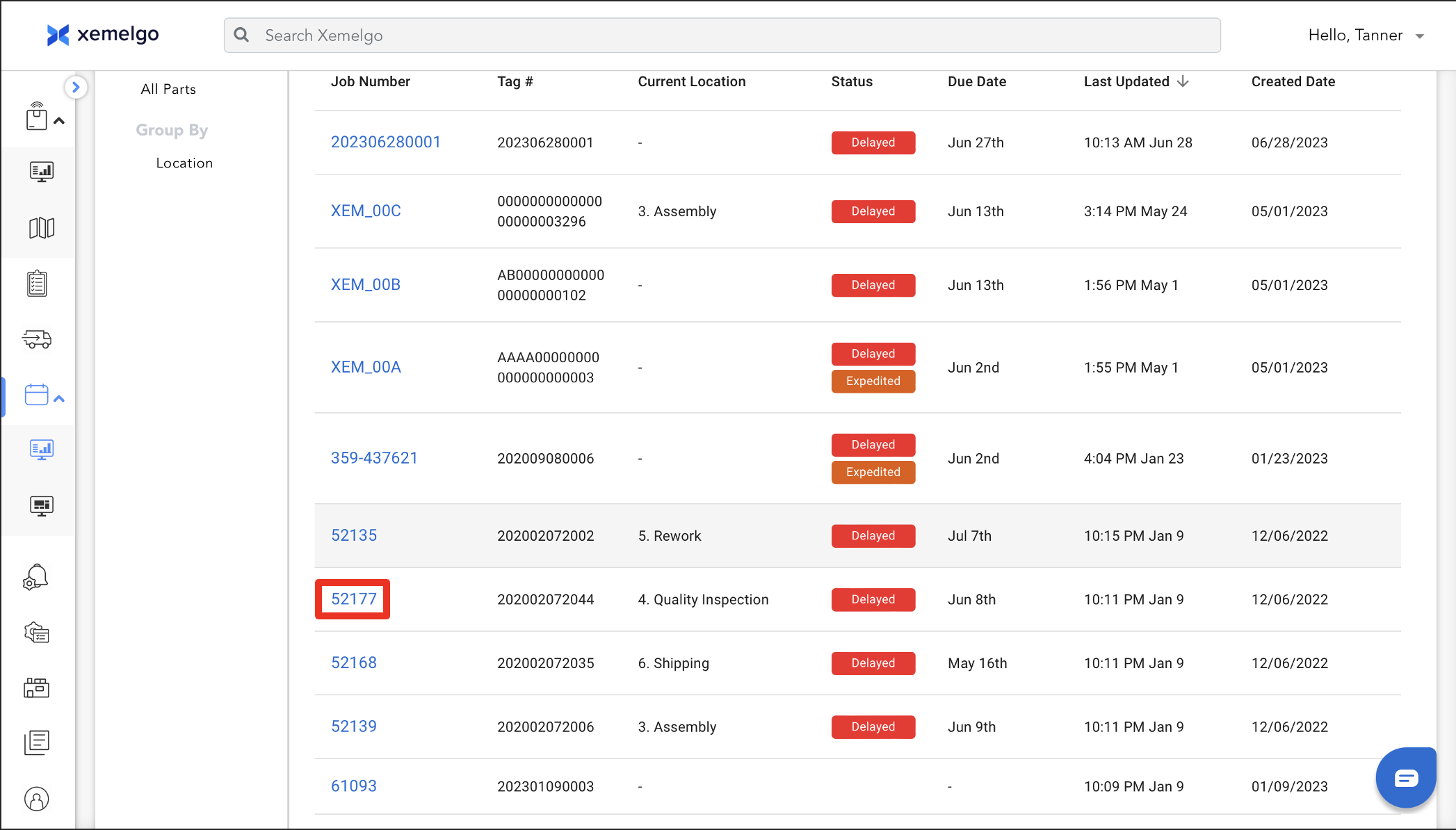
- Clicking on the order on the work order track page.
- Clicking on the associated order on the part details page.
- Searching for the work order using global search.
The details of the work order i.e., Tag Number, Status of the Work Order, Last Known Location, etc. can be seen on this page.
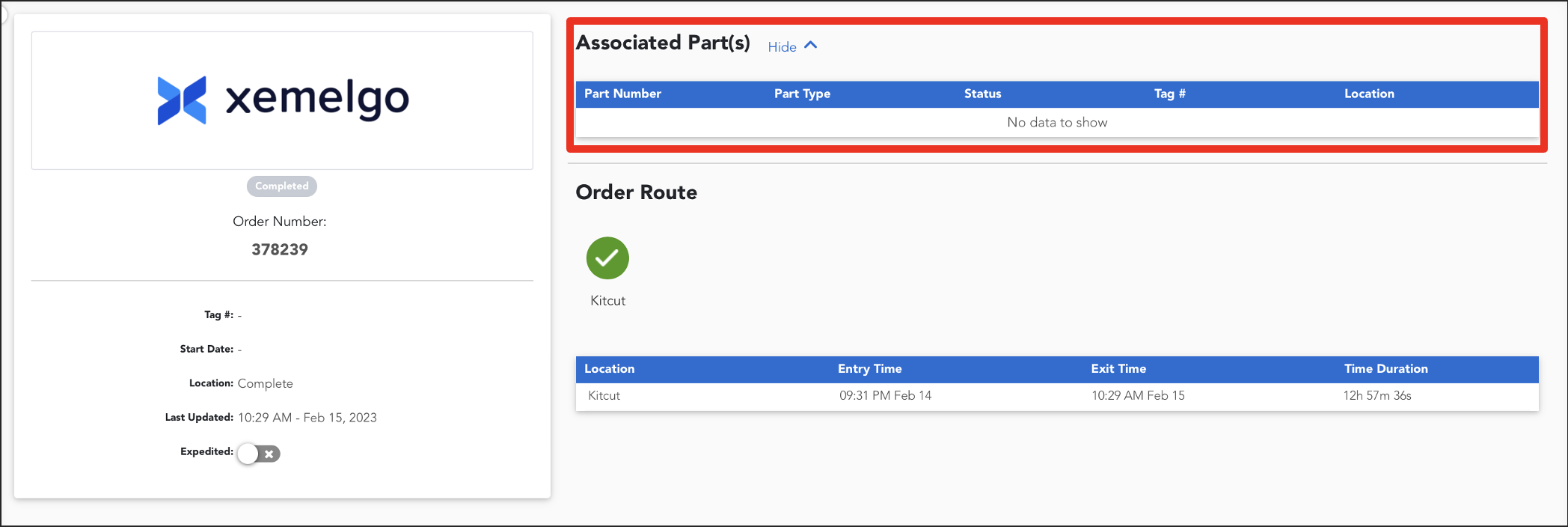
View Parts Associated with a Work Order
This table displays a list of parts that are connected to the work order. Information about the part will be displayed. This could include the Type, Current Location, and Last Updated Time for the part.
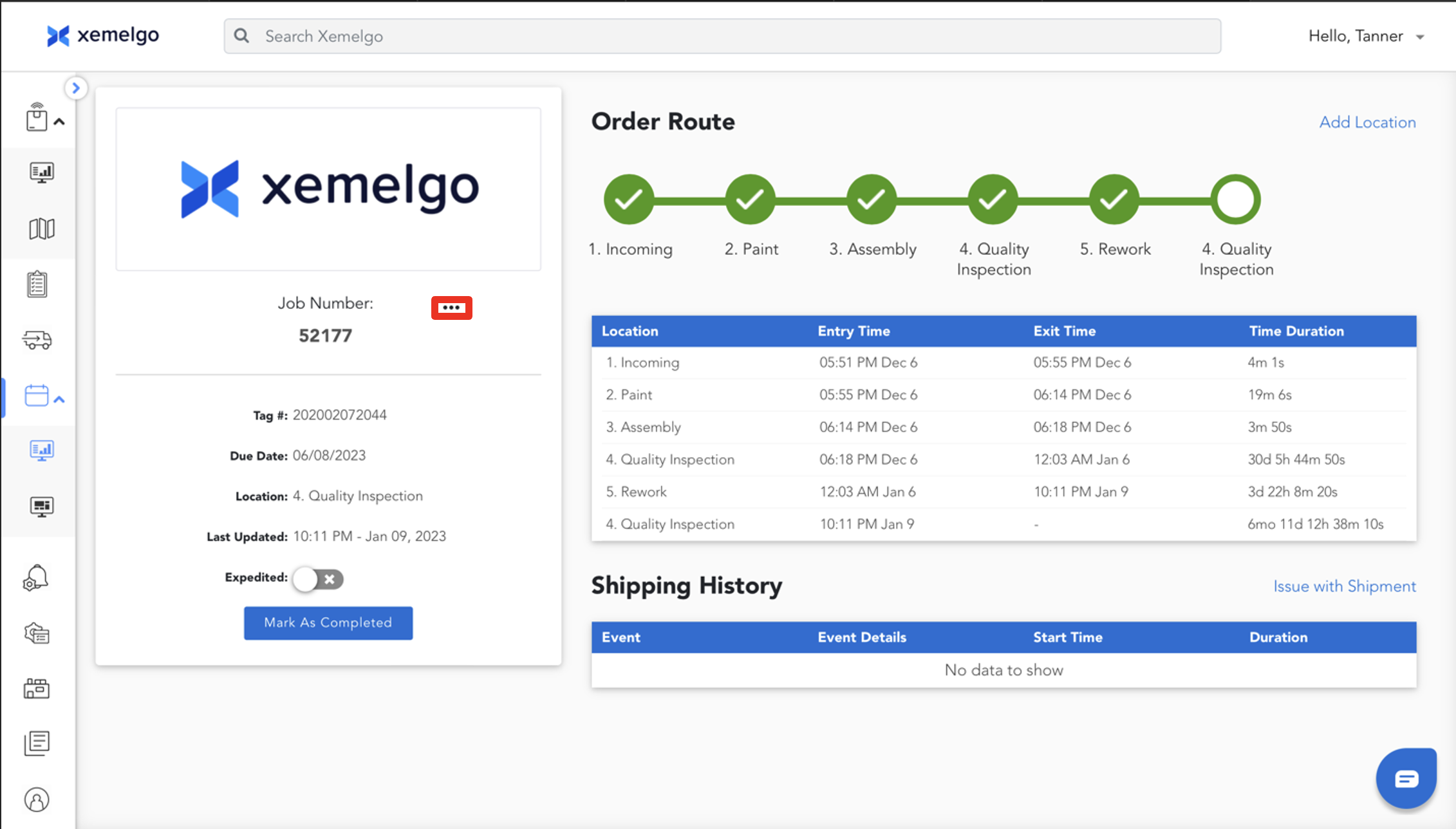
Edit Work Order Details
To edit the work order details, click "..."
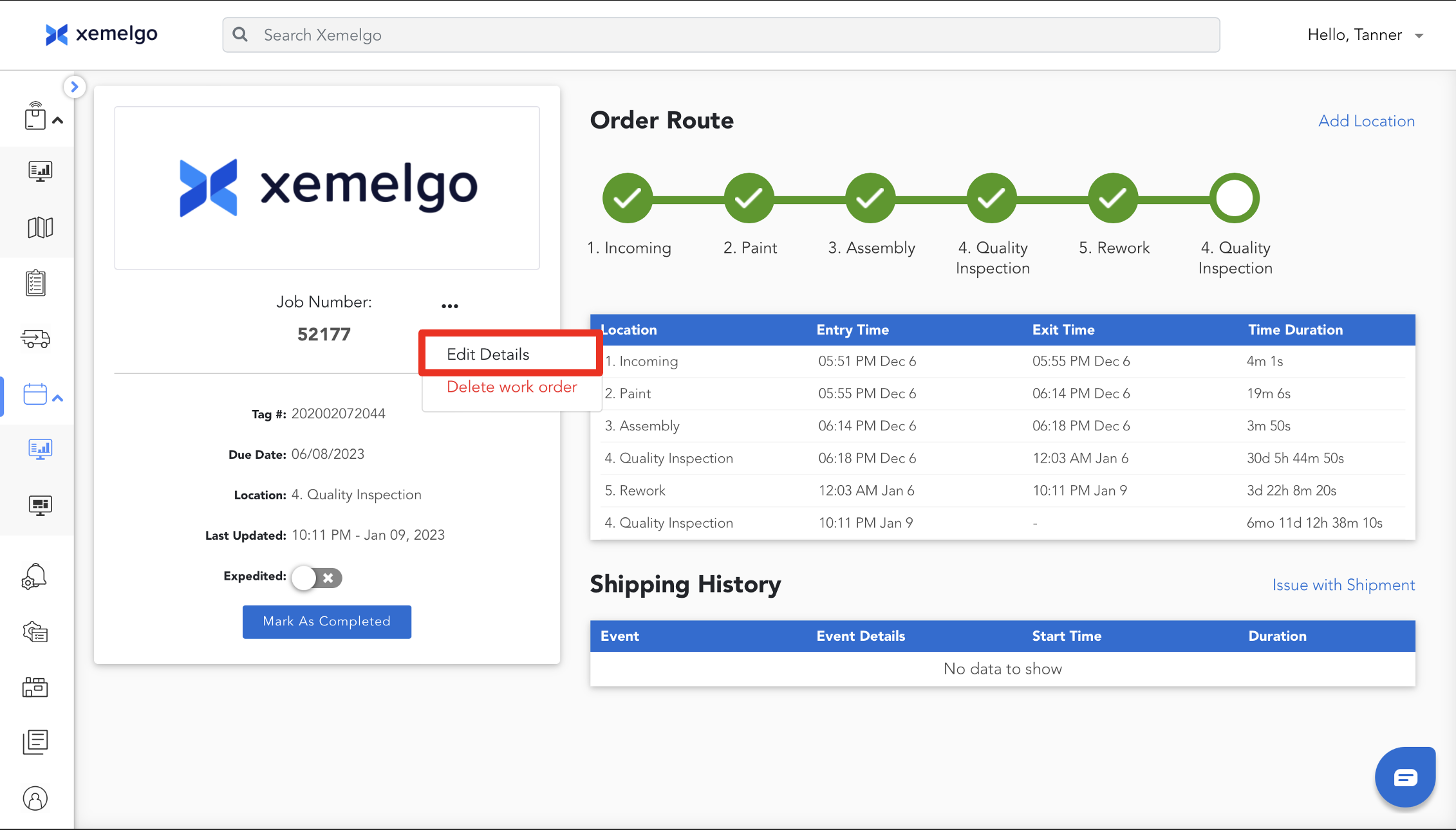
Next, click Edit Details.
Once you have edited the work order details, click Save to update and save the work order details.
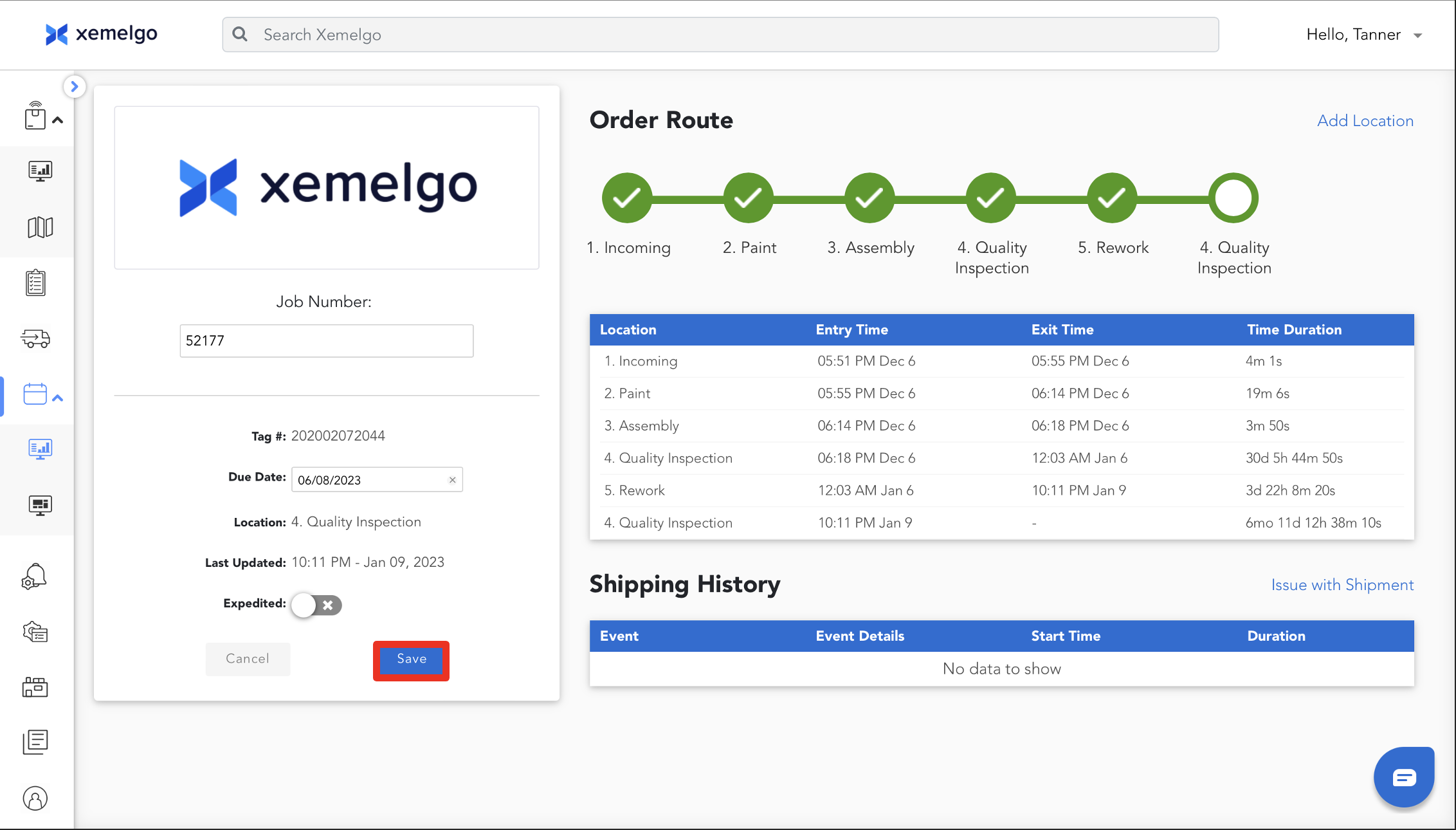
Mark Order as Completed
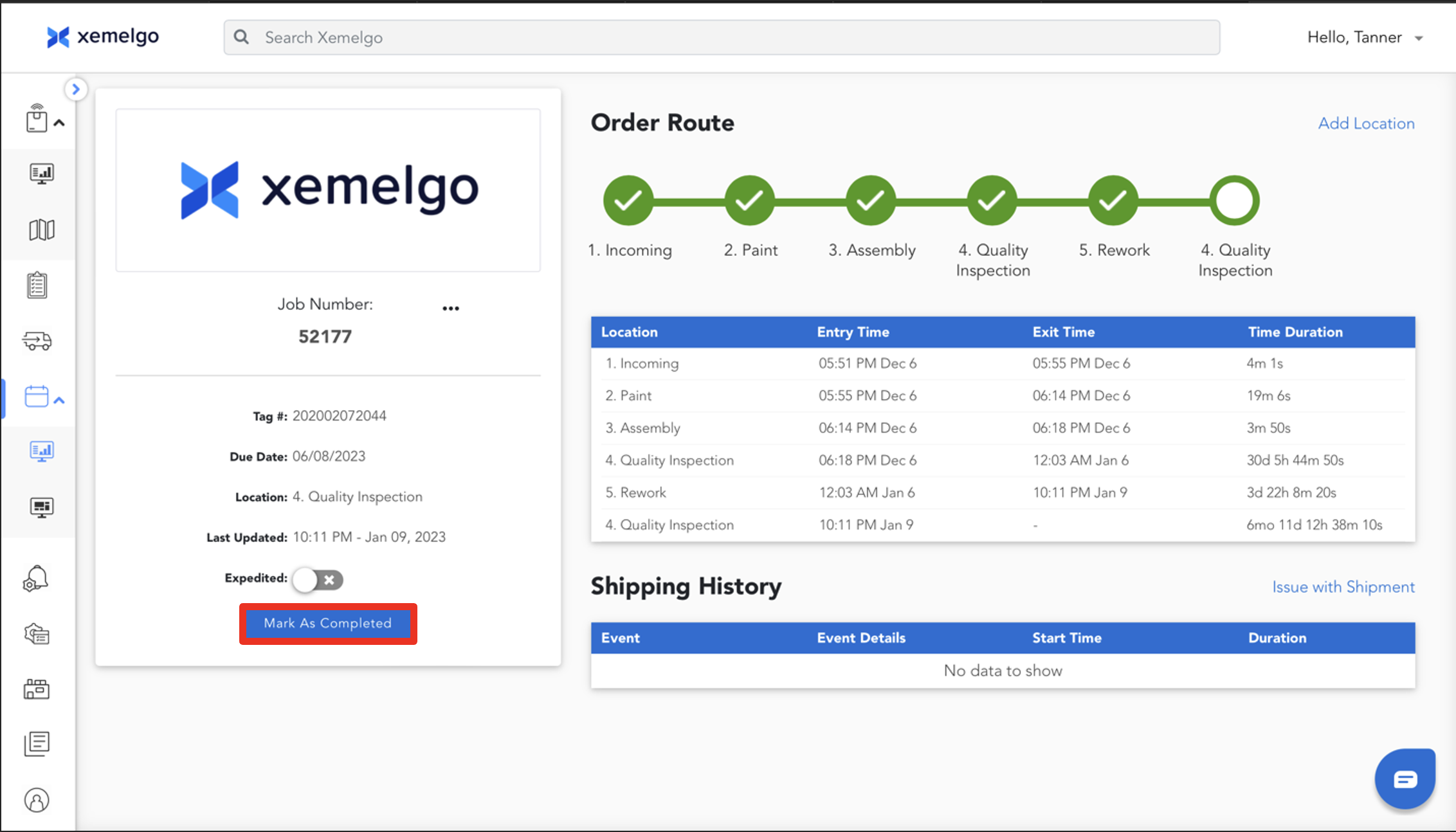
To mark an order as completed, simply click Mark Order as Completed.
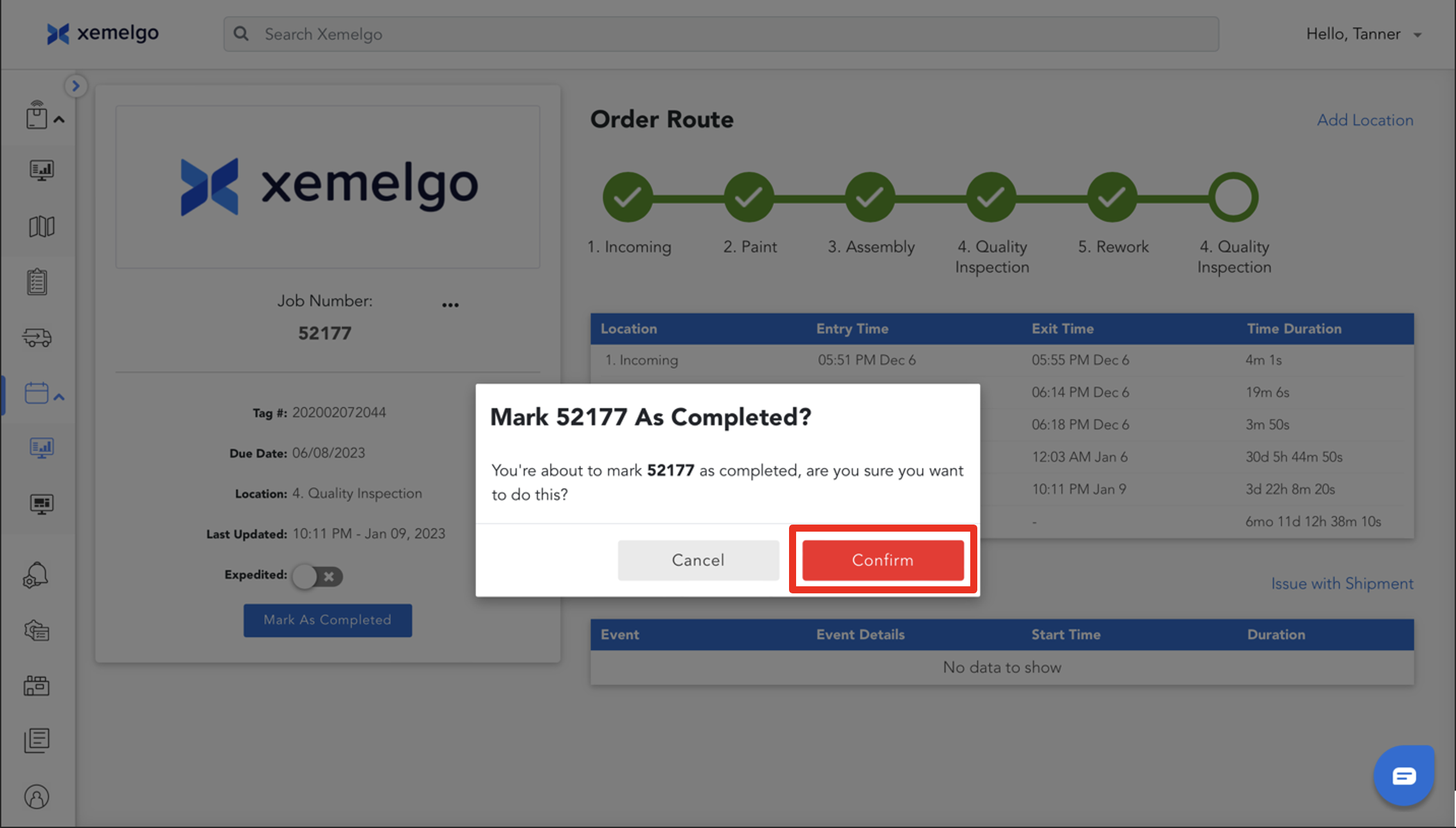
To confirm you want to mark this order as completed, click Confirm.
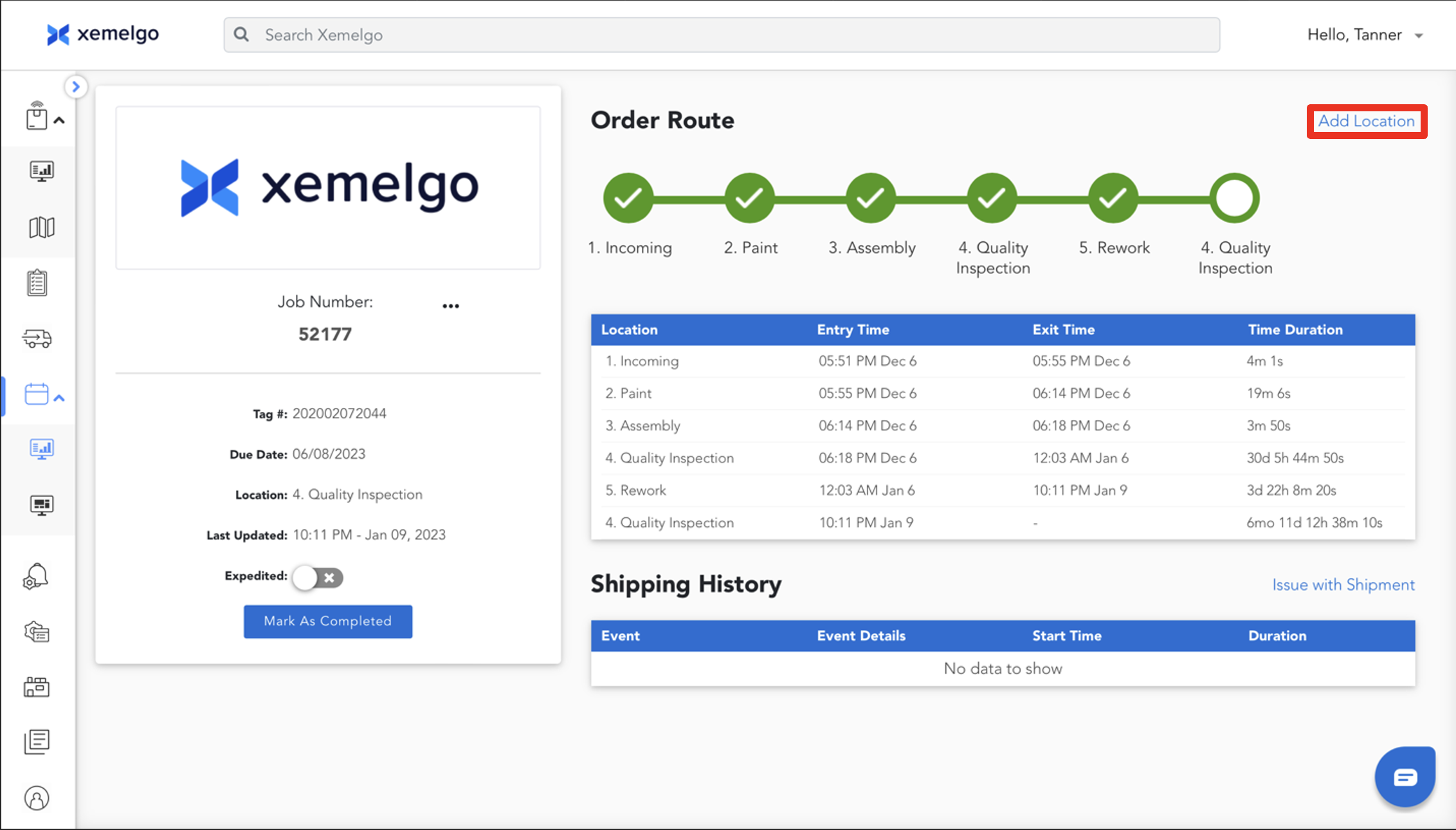
Add New Location Associated with Work Order
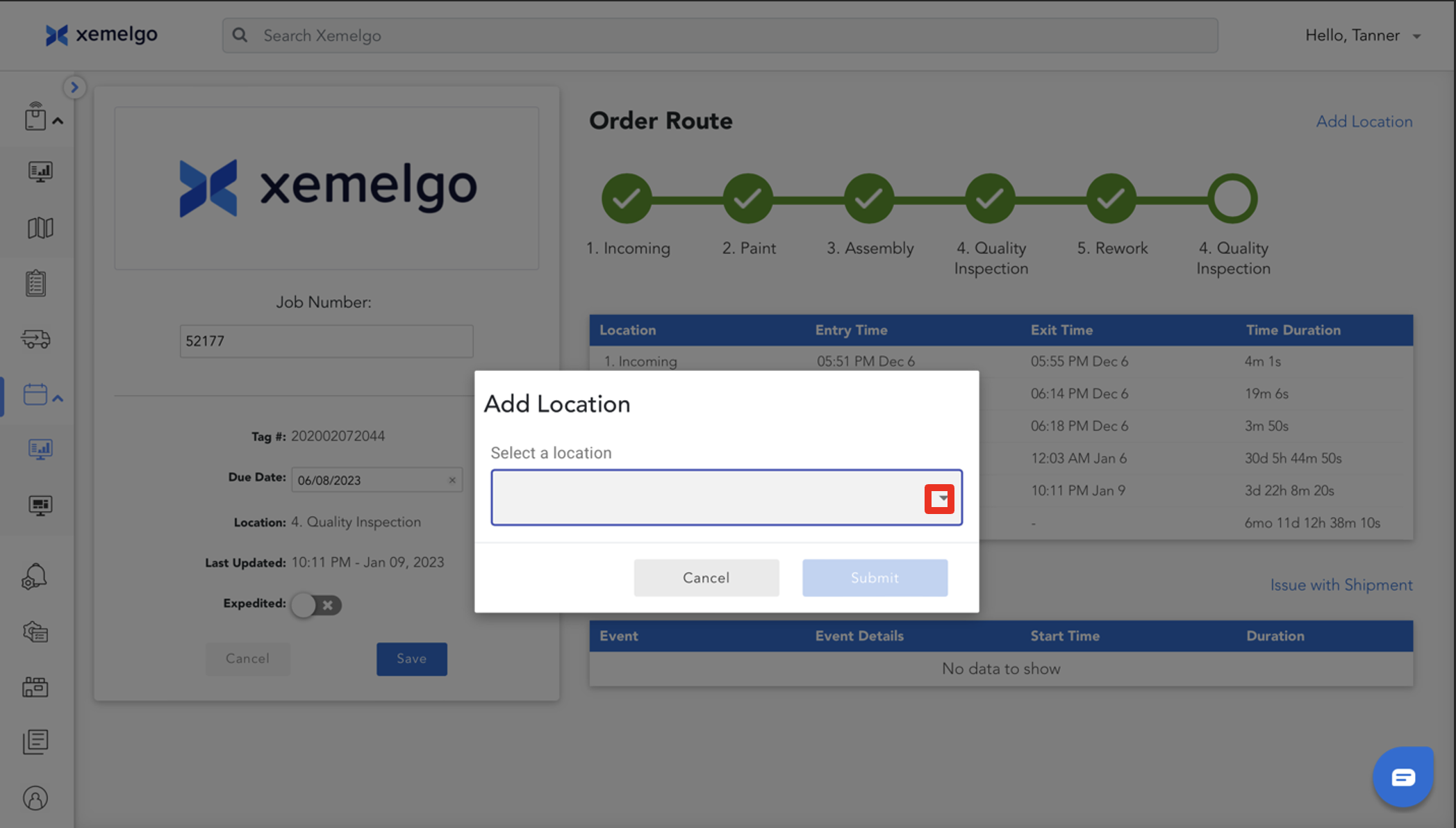
To add a new location associated with the work order, click Add Location.
Next, click on the Location you want to add from the dropdown.
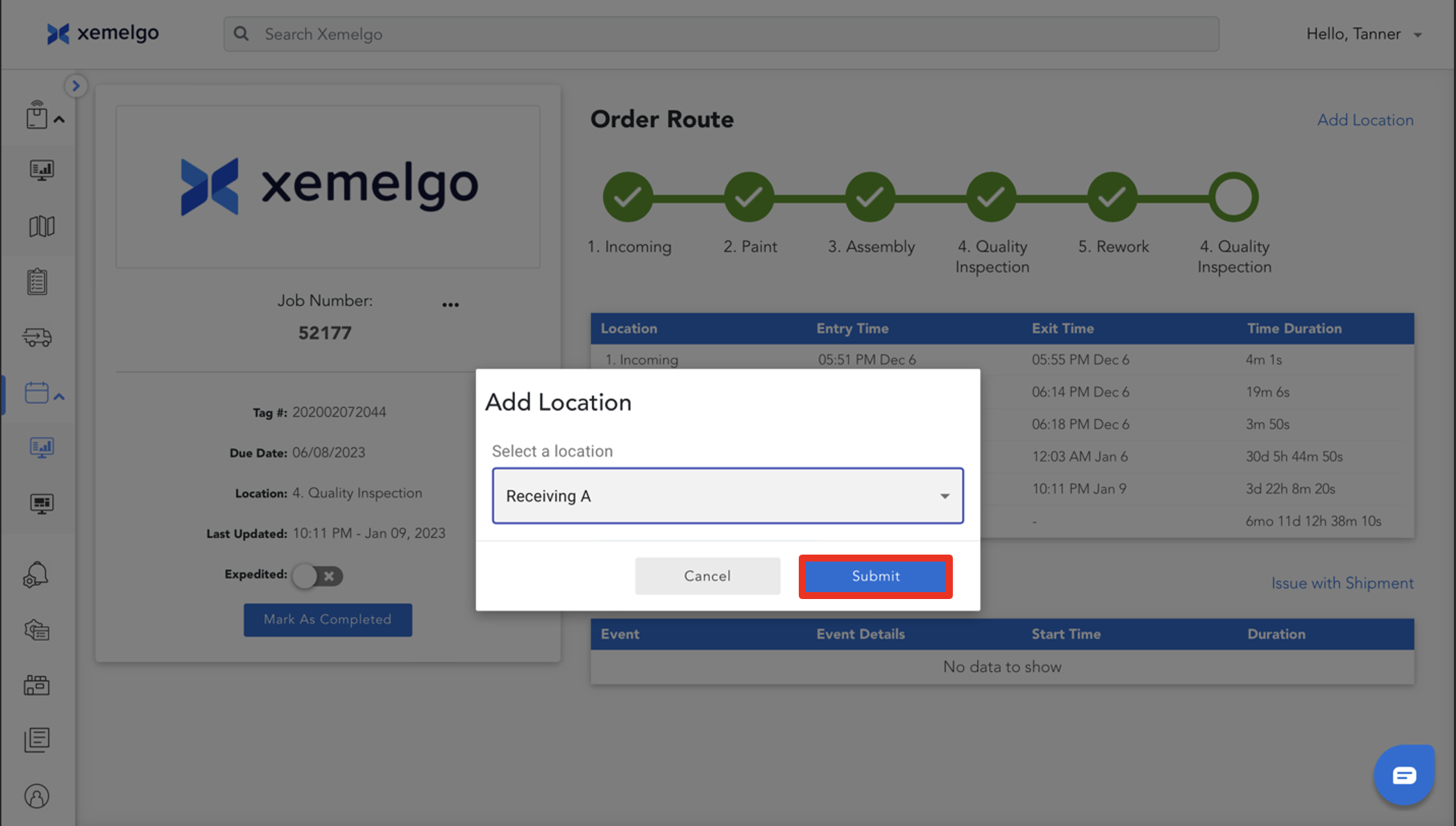
Once you have chosen a location, click Submit.
Need further assistance?
The article above couldn't resolve your issue? Use the chat button in the bottom-right corner to contact the support team.