Order Creation using Kiosk
Order Creation using Kiosk
Overview
This article explains how to complete the order creation process using kiosk.
Instructions
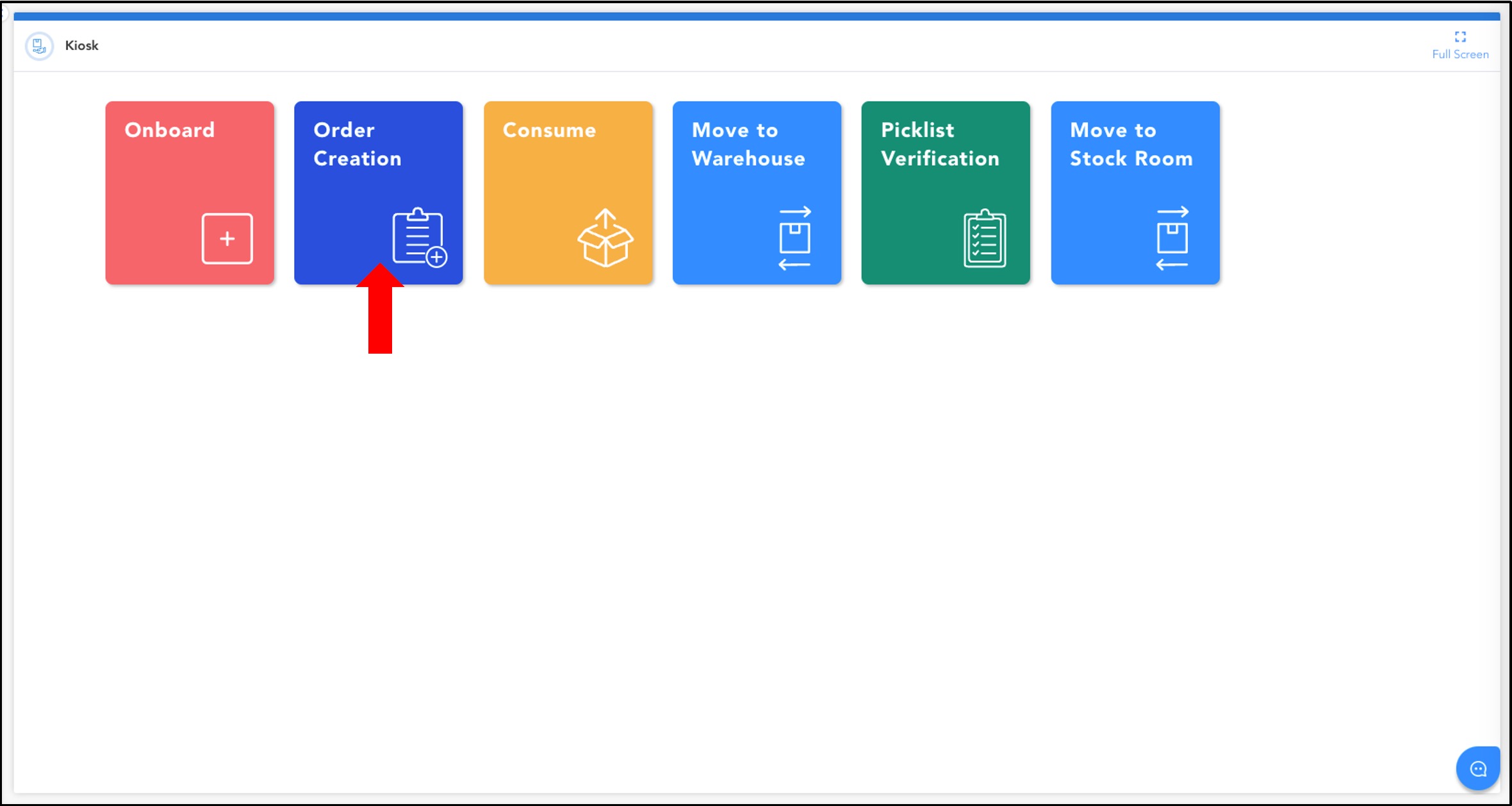
To begin creating an order using kiosk, click Order Creation.
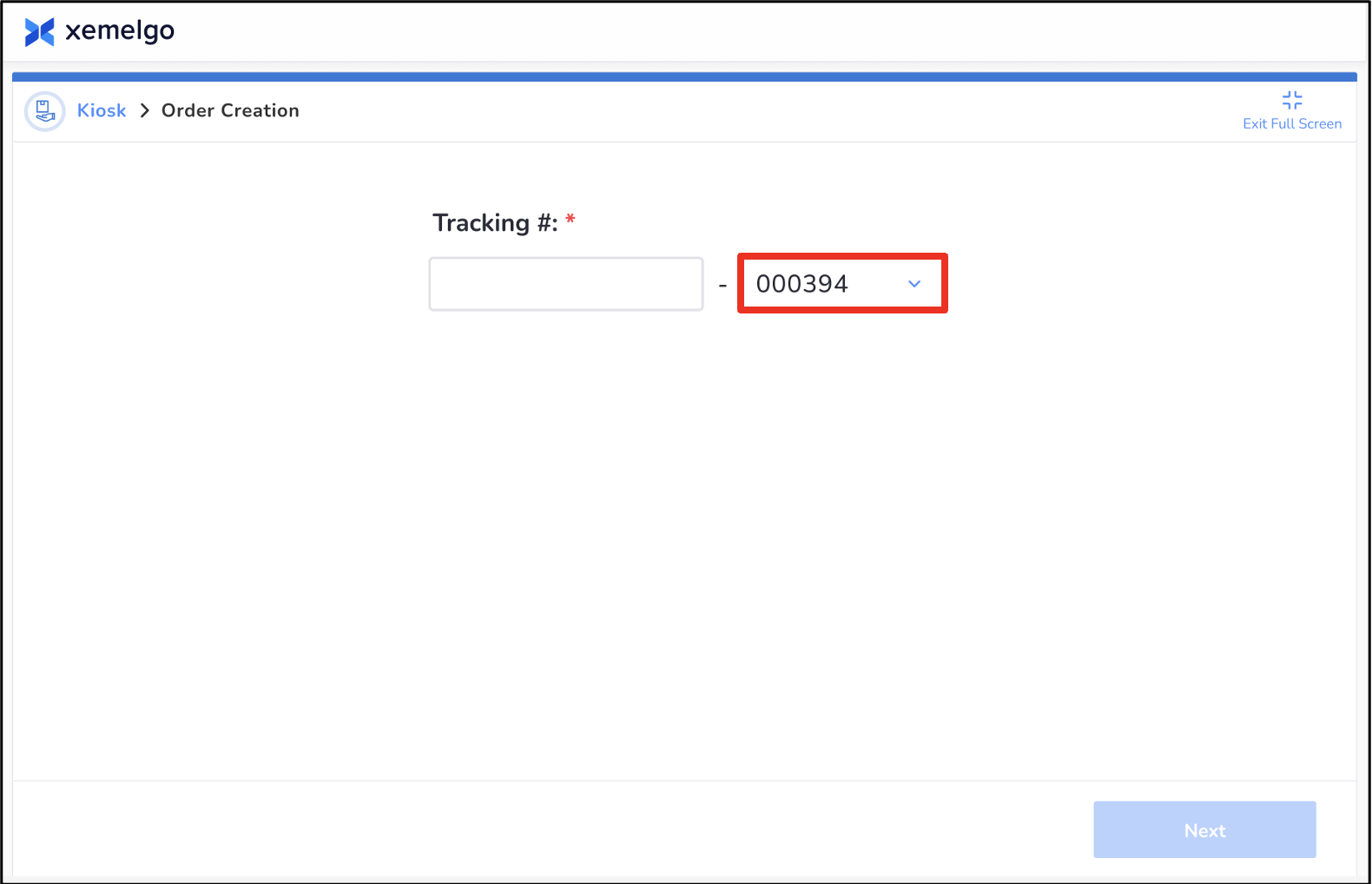
Next, select the appropriate Store Number.
The Store Number field is optional.
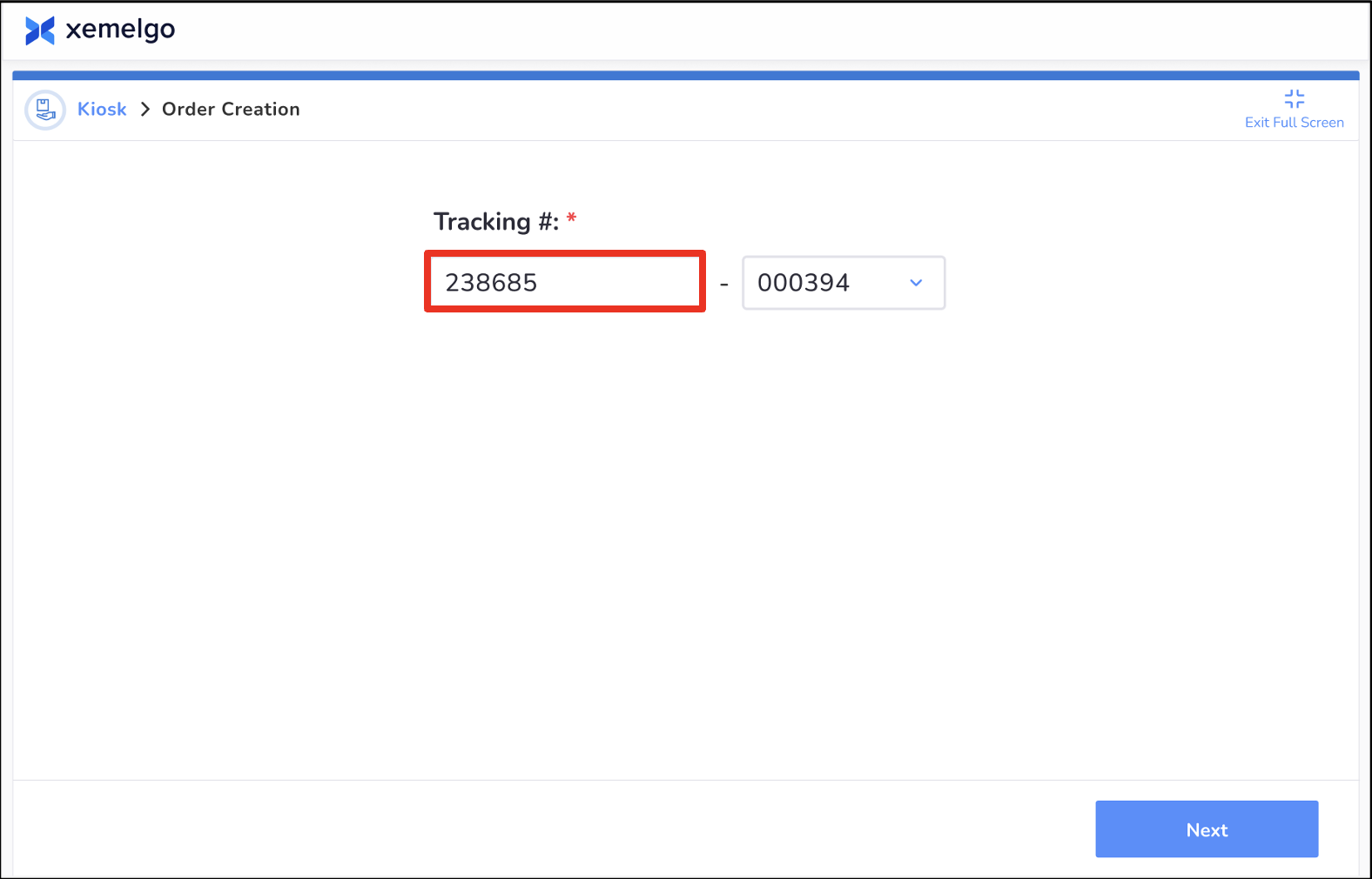
Then, enter the Tracking Number.
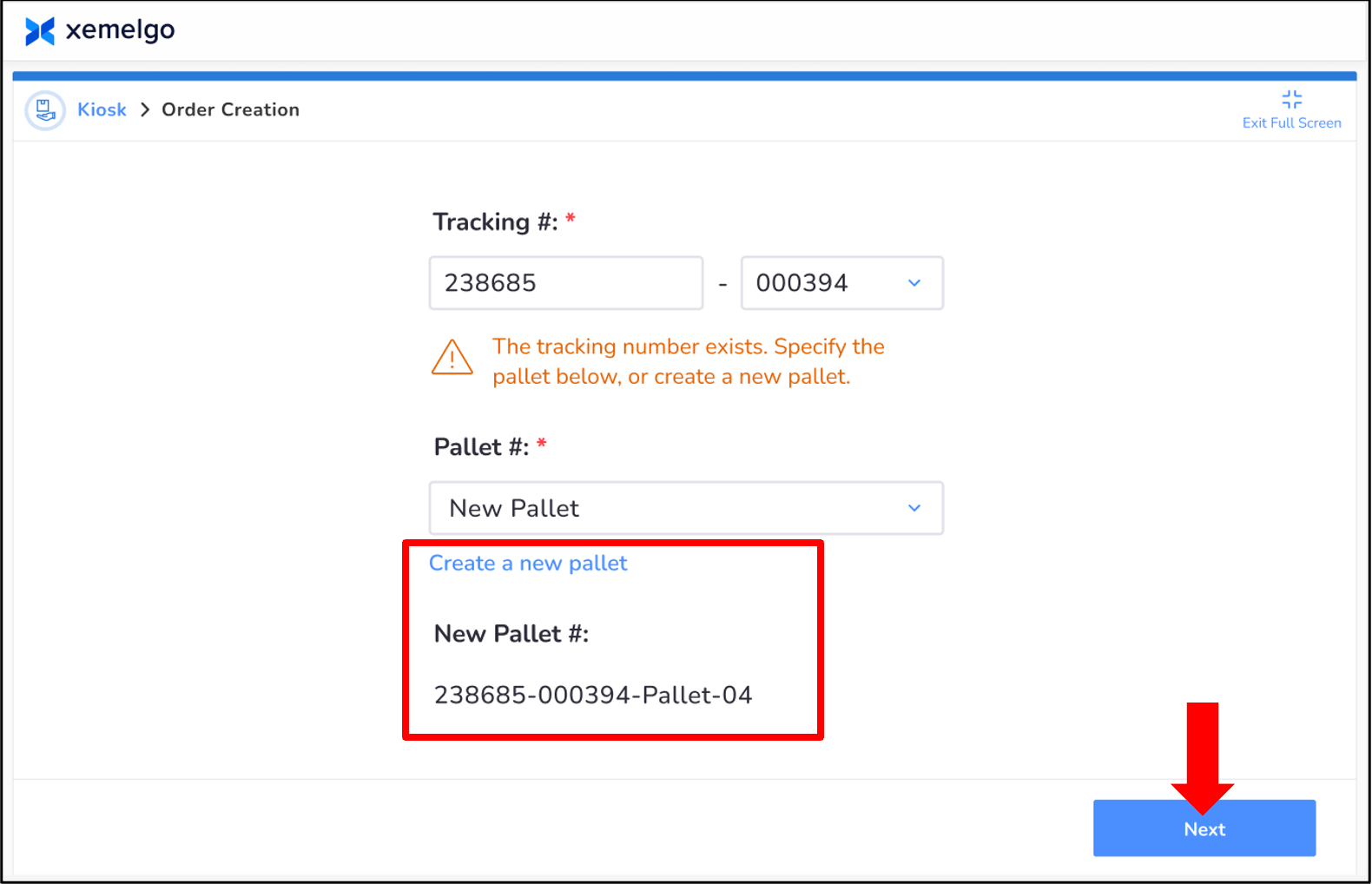
Next, select the Pallet Number to associate the order with.
If the user does not fill in the pallet number information, the pallet number on the scan page will increment by 1, resulting in a new pallet being created.
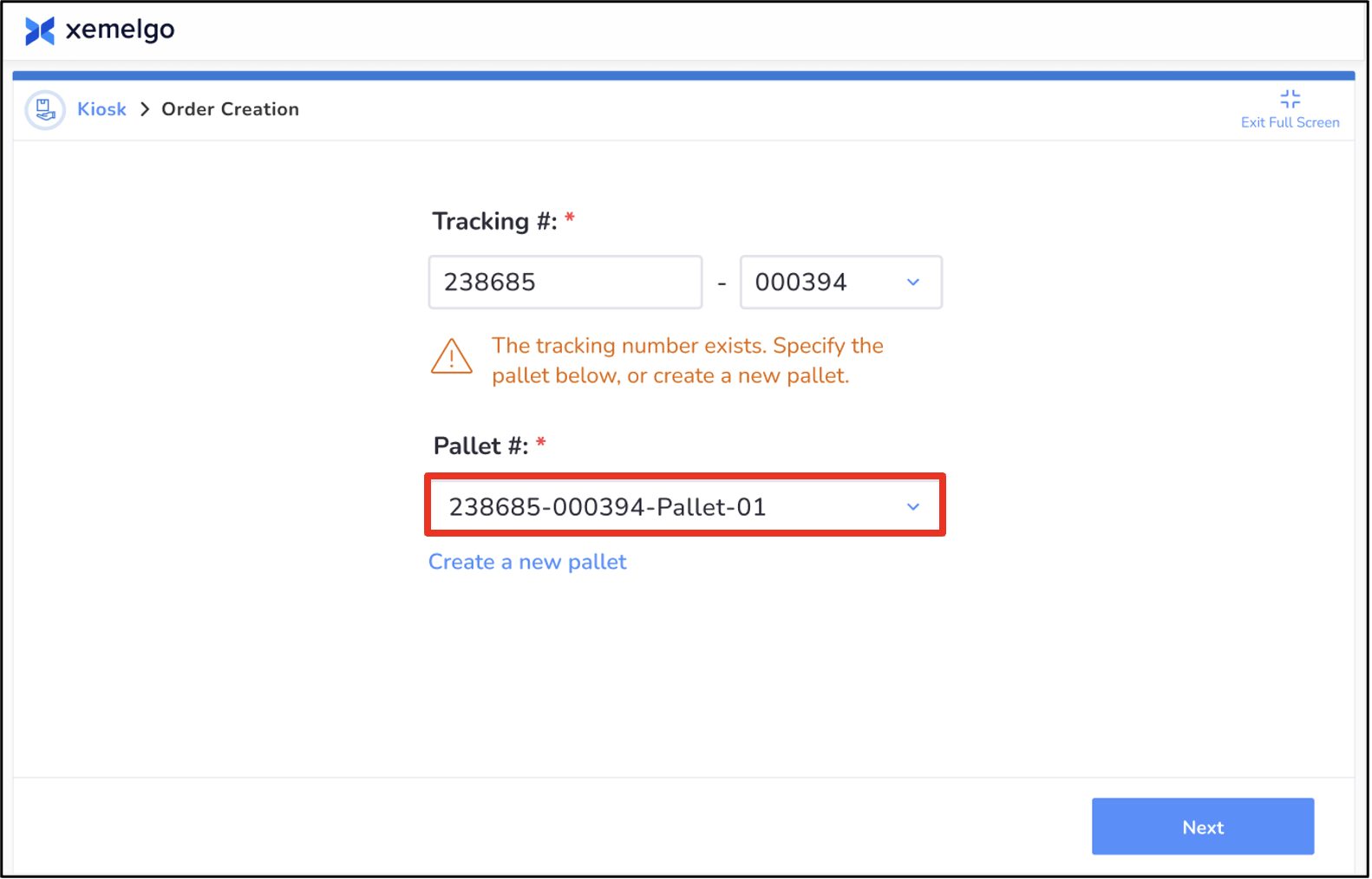
If you need to create a new pallet to associate the order with, click Create a new pallet. The New Pallet Number information will be displayed below.
Then, click Next.
Before associating items to the order, select a Read Point.
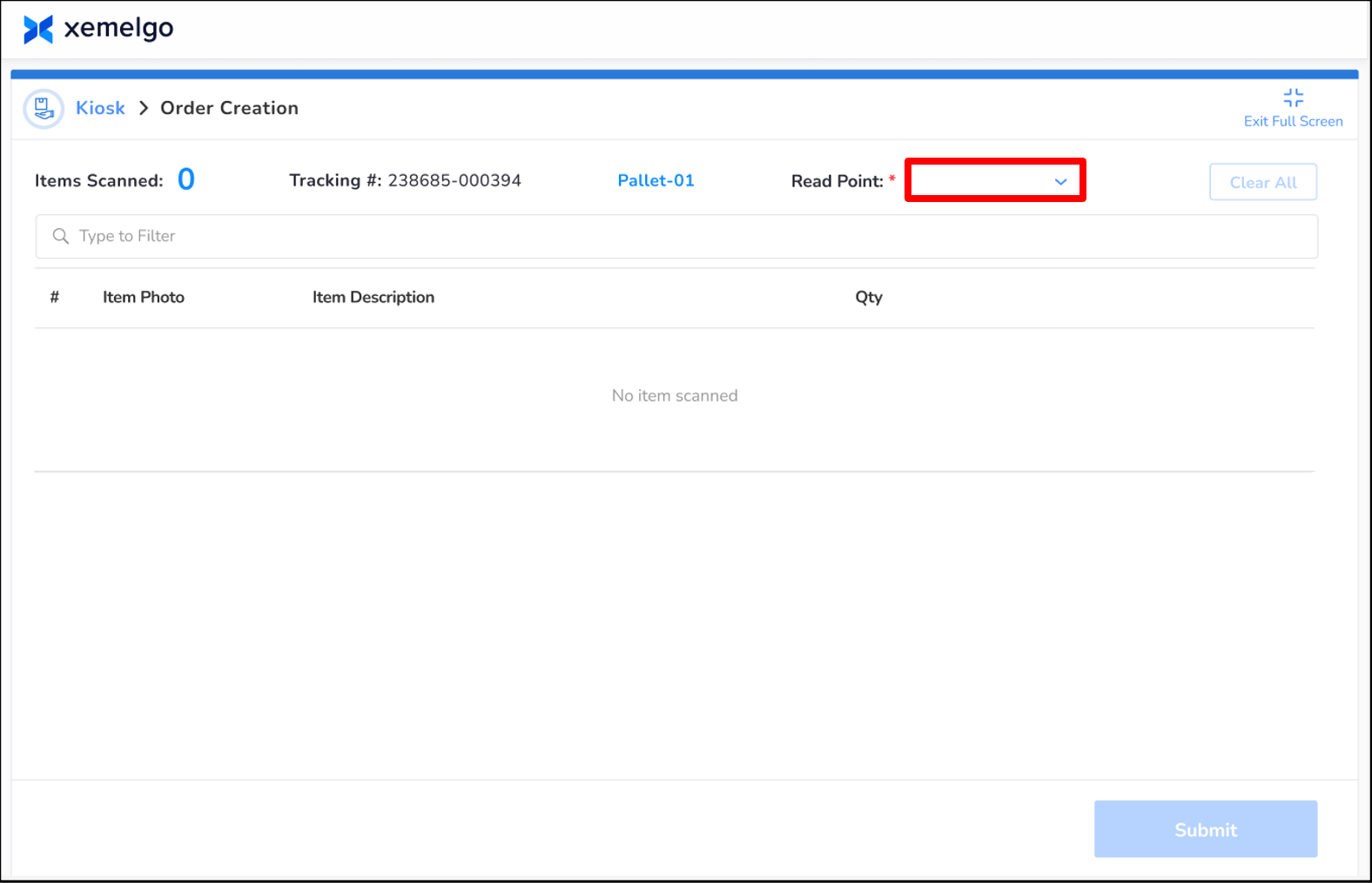
Next, begin scanning items.
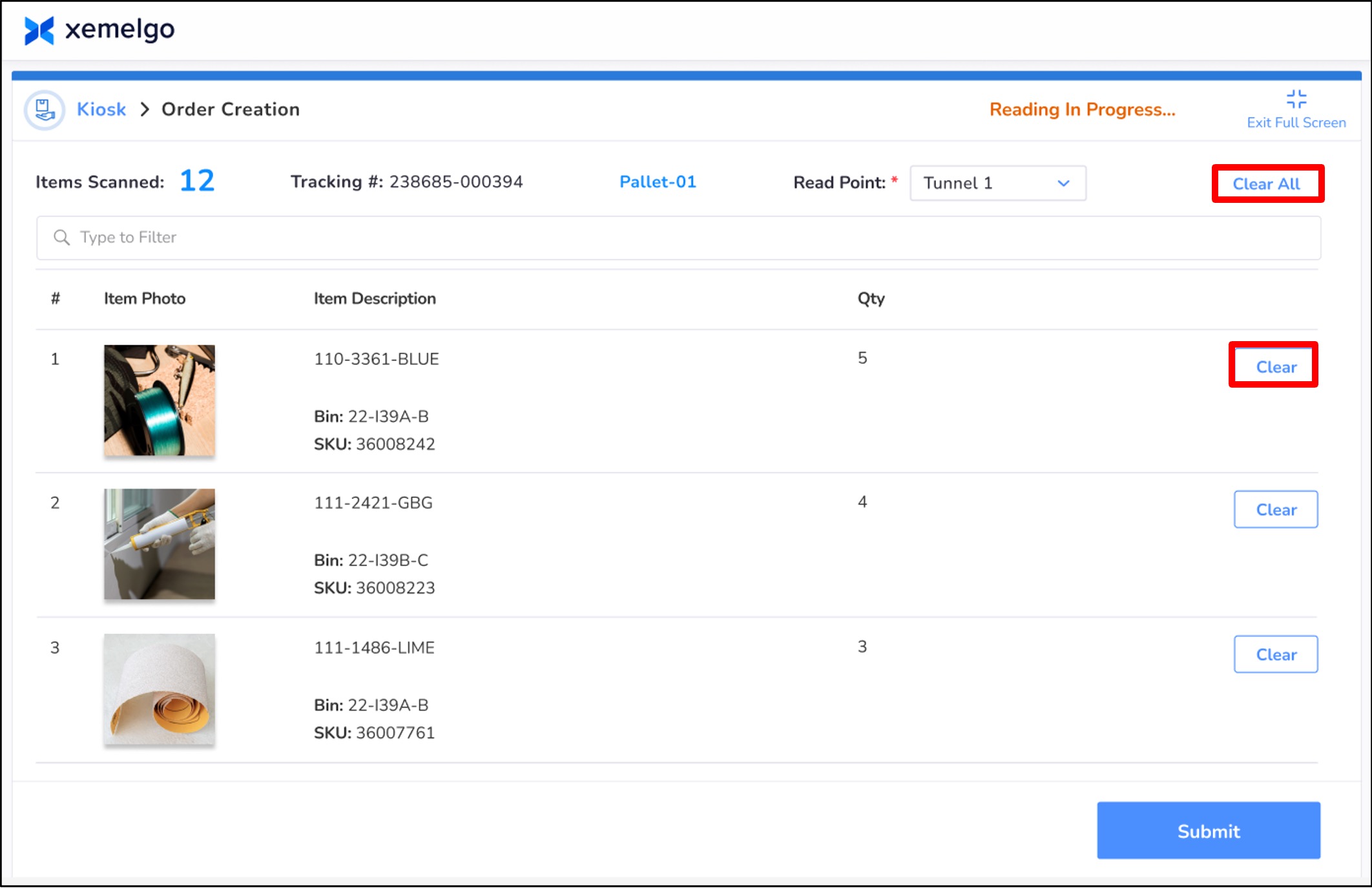
As items are scanned, they will appear below. Information such as the Item Photo, Item Description, and Quantity will be provided.
If you need to remove an individual item that has already been scanned, click Clear.
If you want to remove all items that have already been scanned, instead of starting over, click **Clear All.
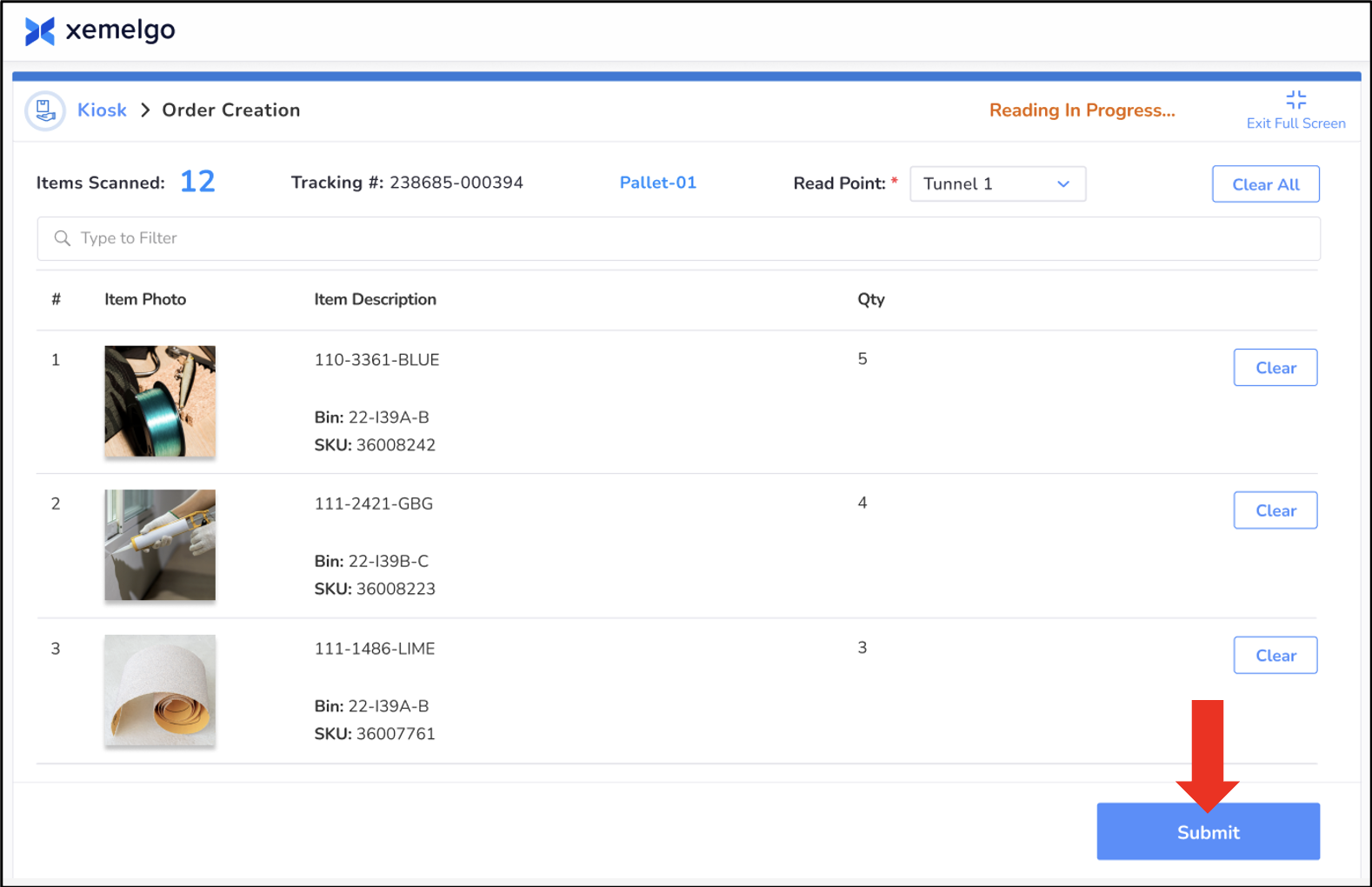
Once all items have been scanned, click Submit.
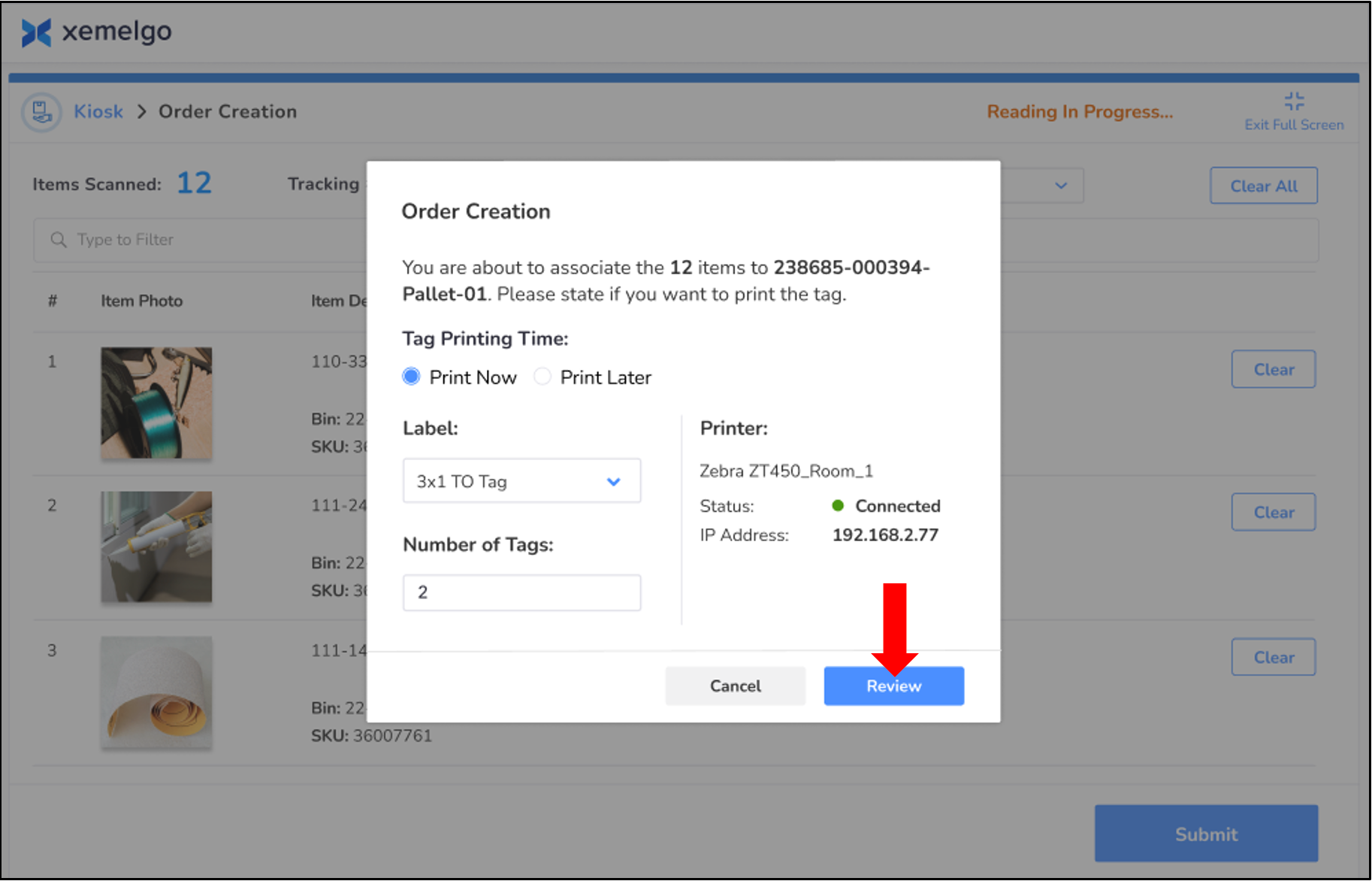
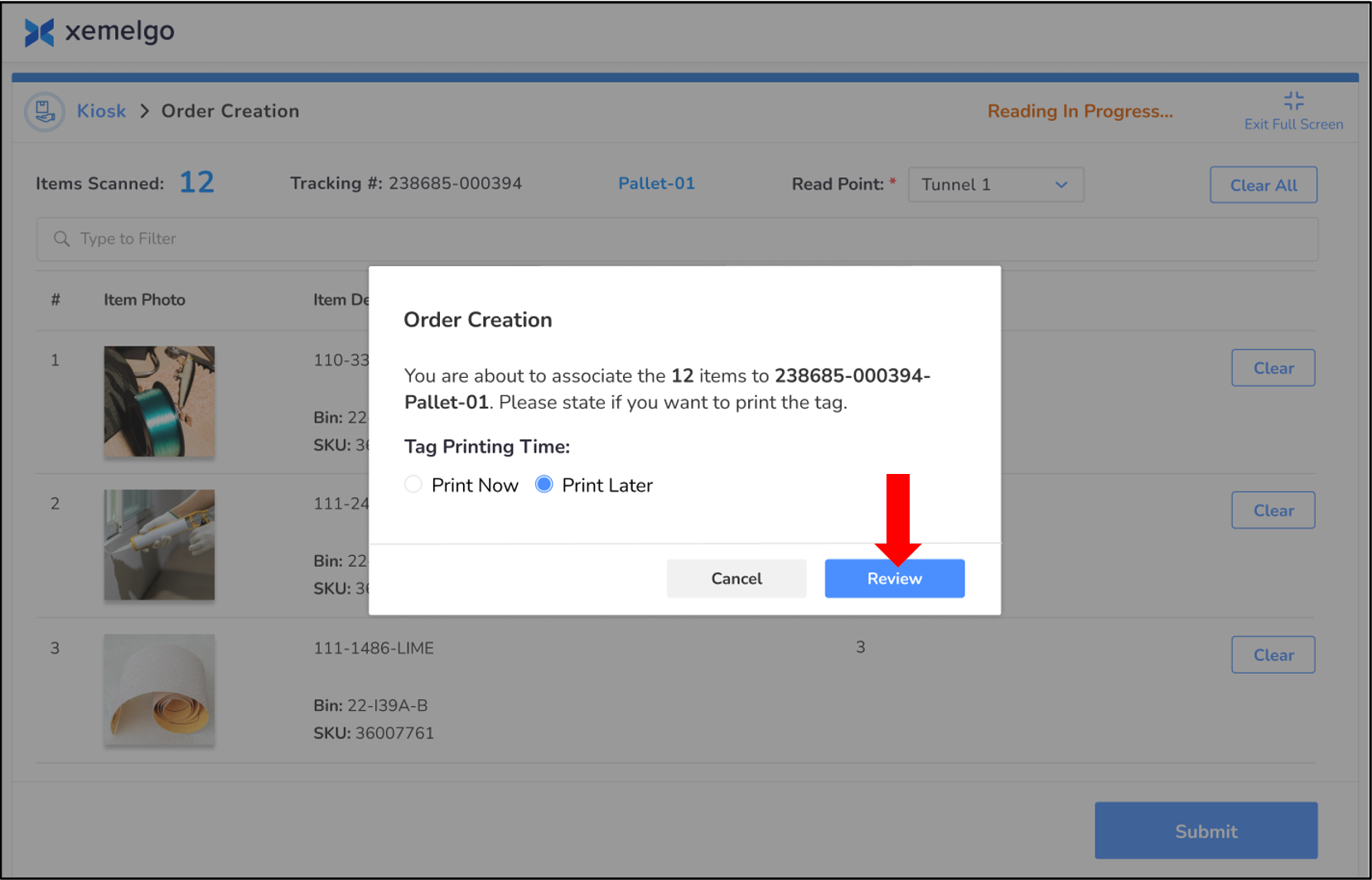
Next, you will be prompted to print the tag for the order. Under Tag Printing Time, users have the option to print the tag now or at a later time.
If you choose Print Now, select a Label and Number of Tags you want to attach to the order.
Then, click Review.
Alternatively, if you choose to Print Later, simply click **Review.
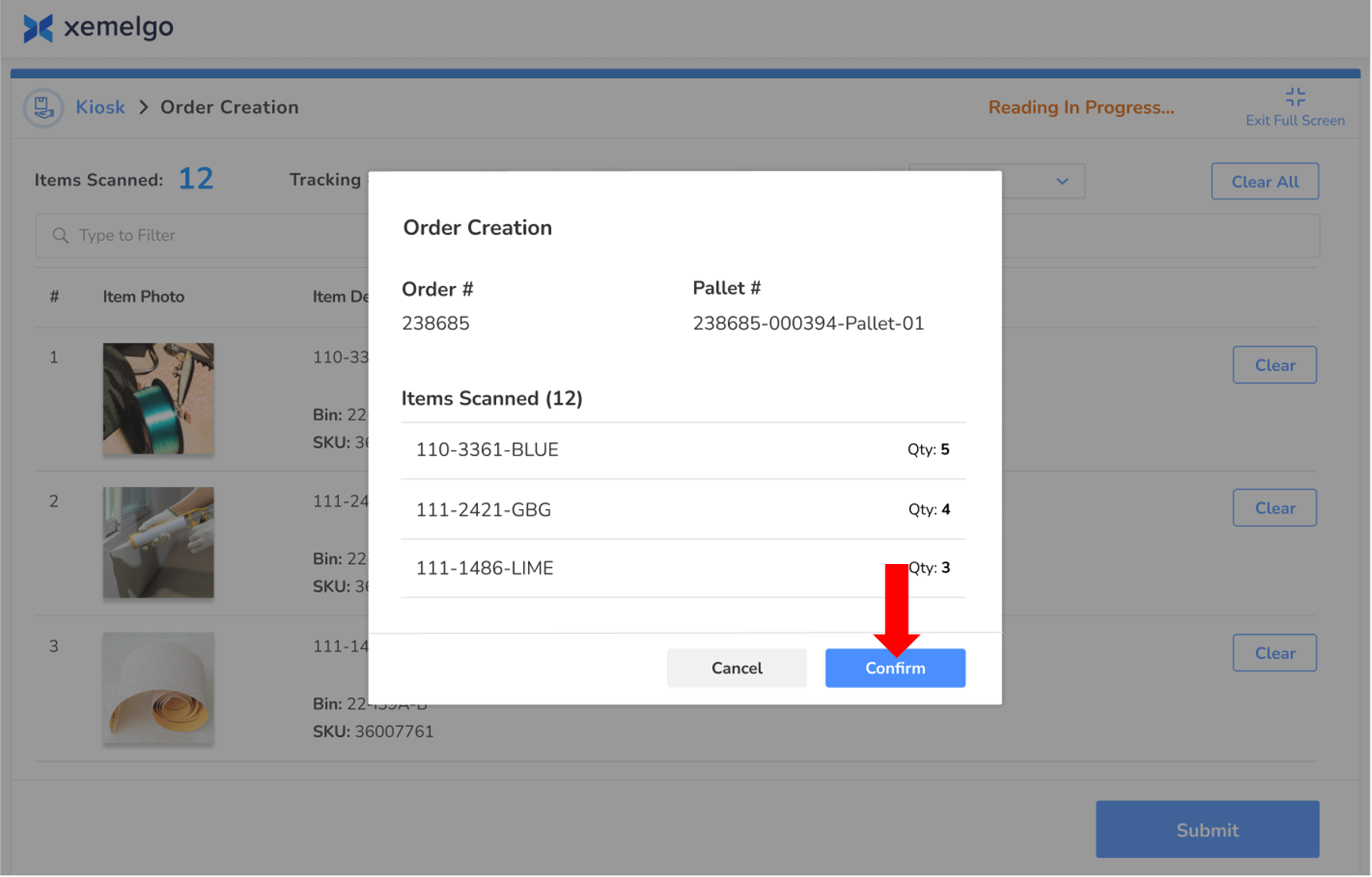
After verifying that the Order Number, Pallet Number, Items and Quantities are correct, click Confirm.
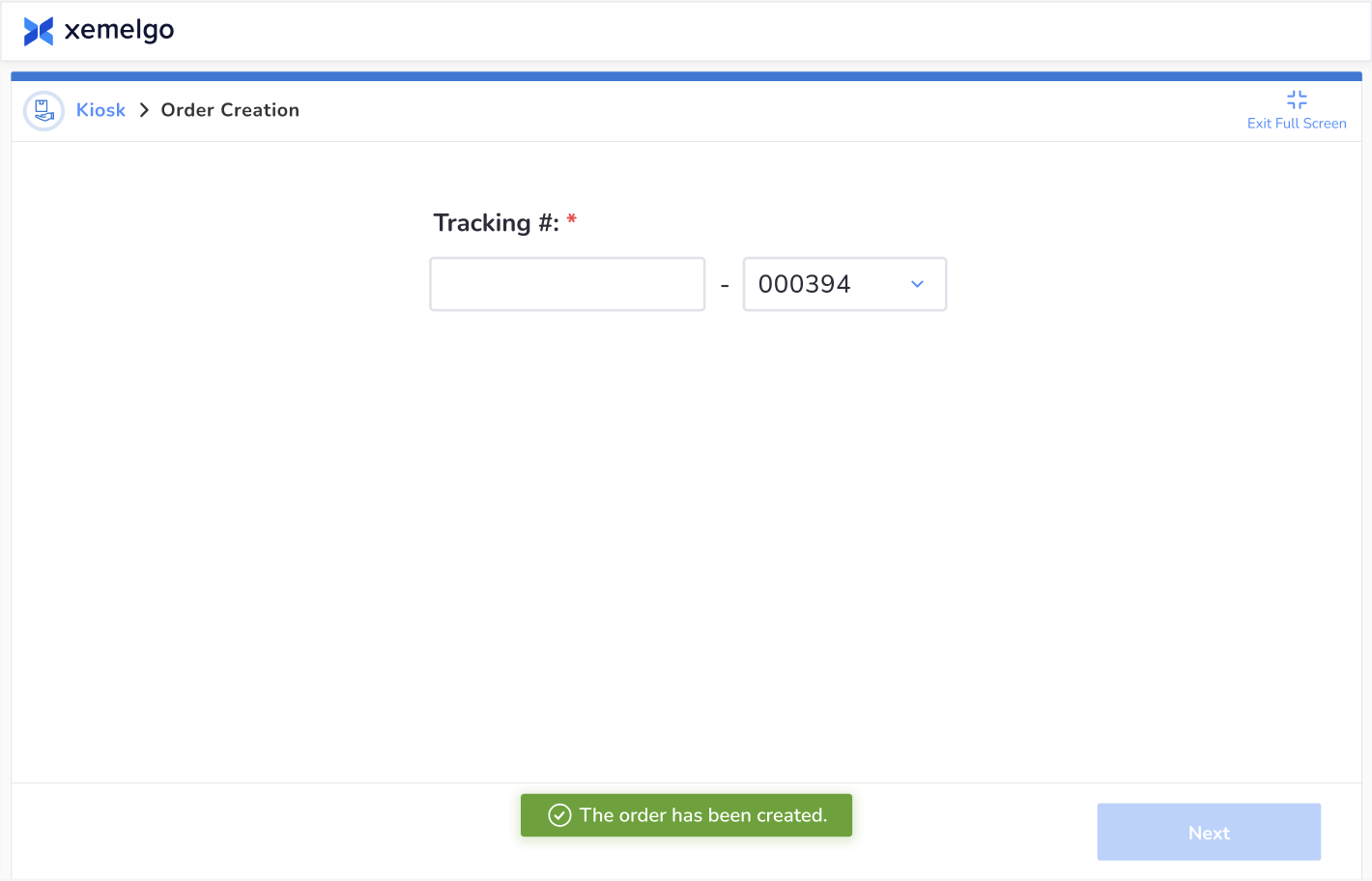
After clicking confirm, you will receive a Green notification at the bottom of the screen. This indicates that you have successfully completed the order creation process.
Need further assistance?
The article above couldn't resolve your issue? Use the chat button in the bottom-right corner to contact the support team.