Navigating the Work-in-Progress Web Homepage
Navigating the Work-in-Progress Web Homepage
Overview
This article provides an overview of a work order management dashboard offered by Xemelgo. Users can track plant health, work order metrics, and expedited orders. They can search, sort, and export data, view it in full-screen mode, and group orders by location. Global search and subscription-based alerts are also available for efficient work order management.
Instructions
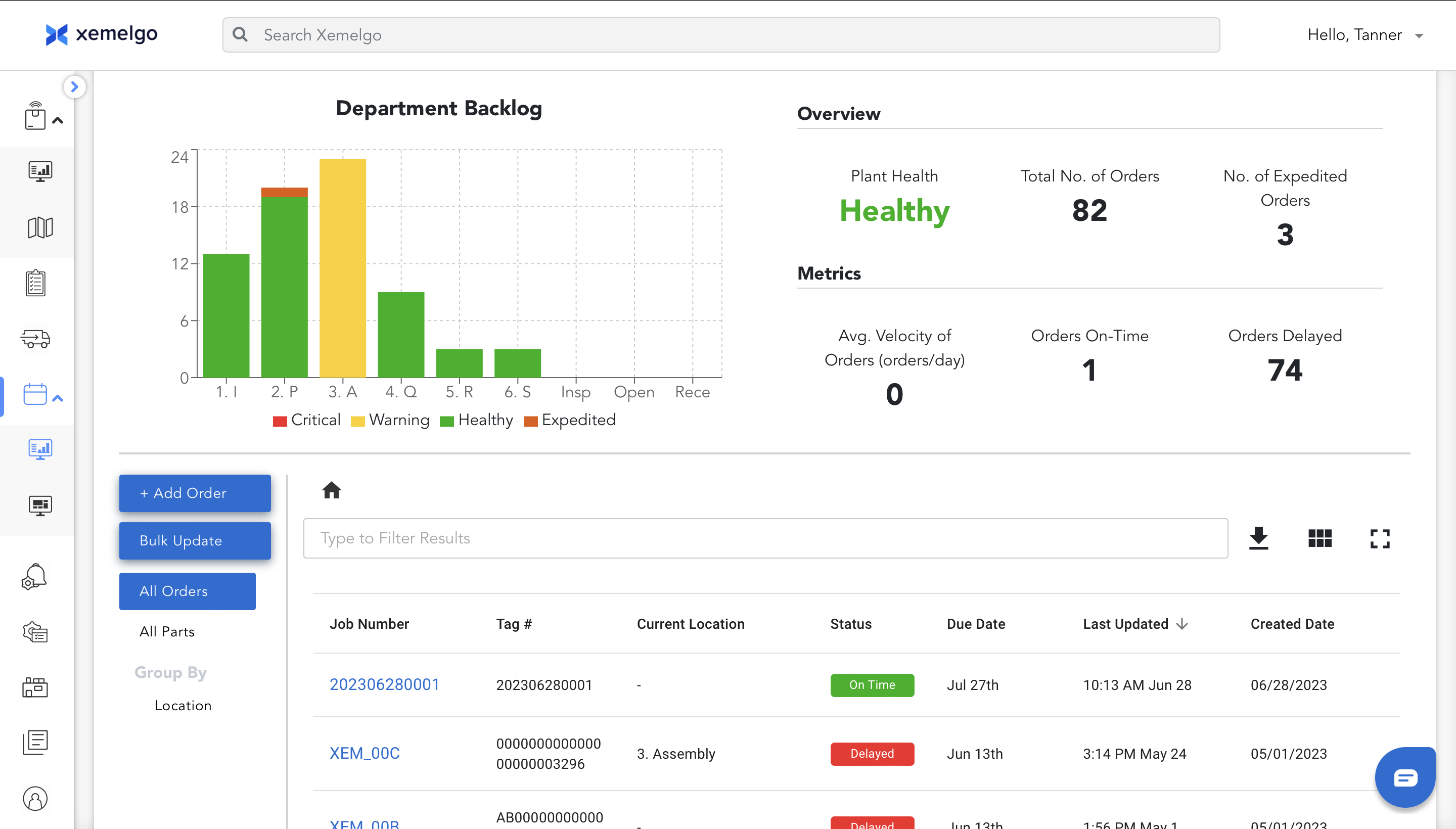
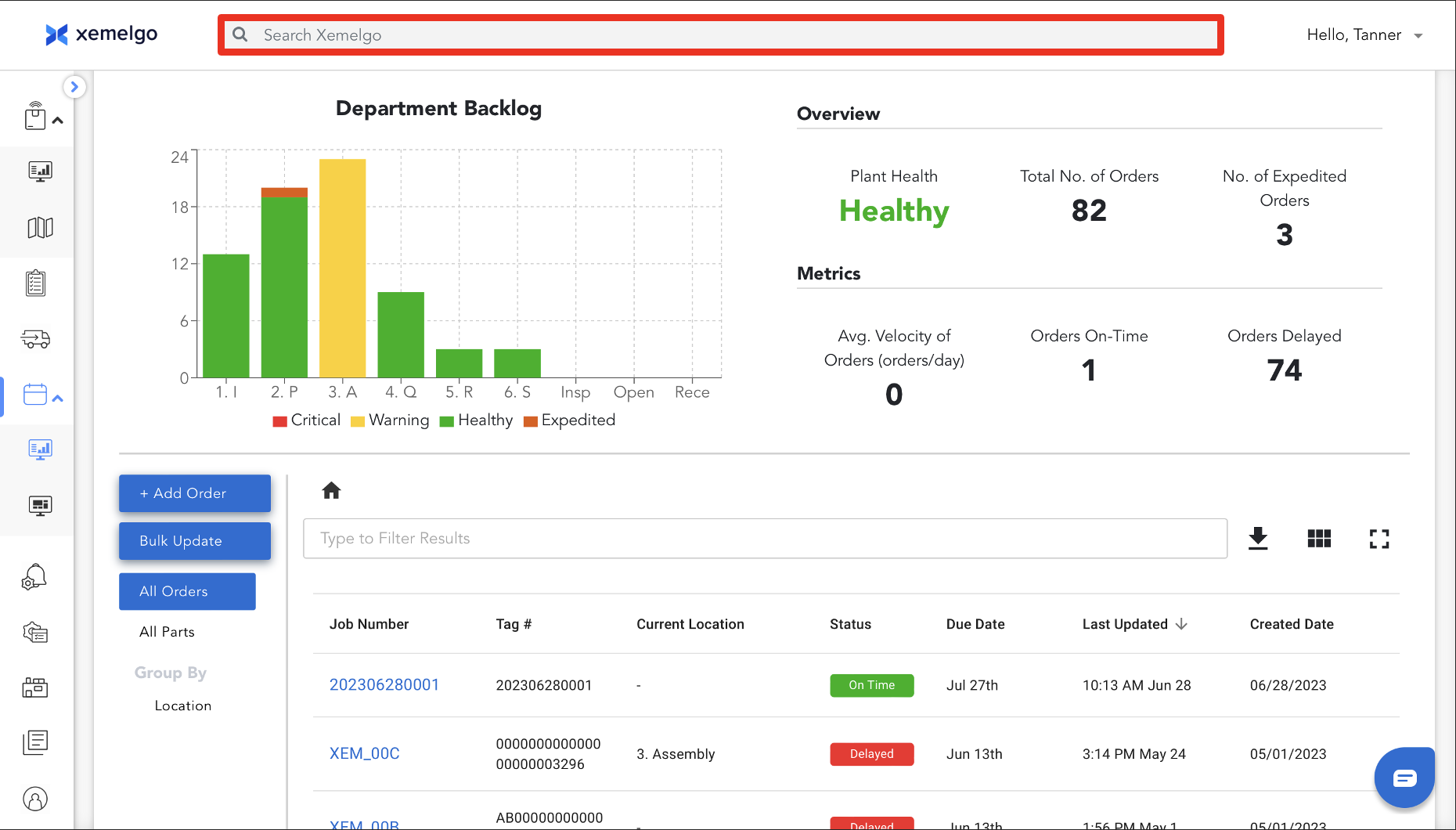
Once you log in, you will see our main dashboard page for work orders. The page has two parts, Metrics and Backlog Chart on the top and a list of Orders on the bottom half of the page.
Overview on Dashboard
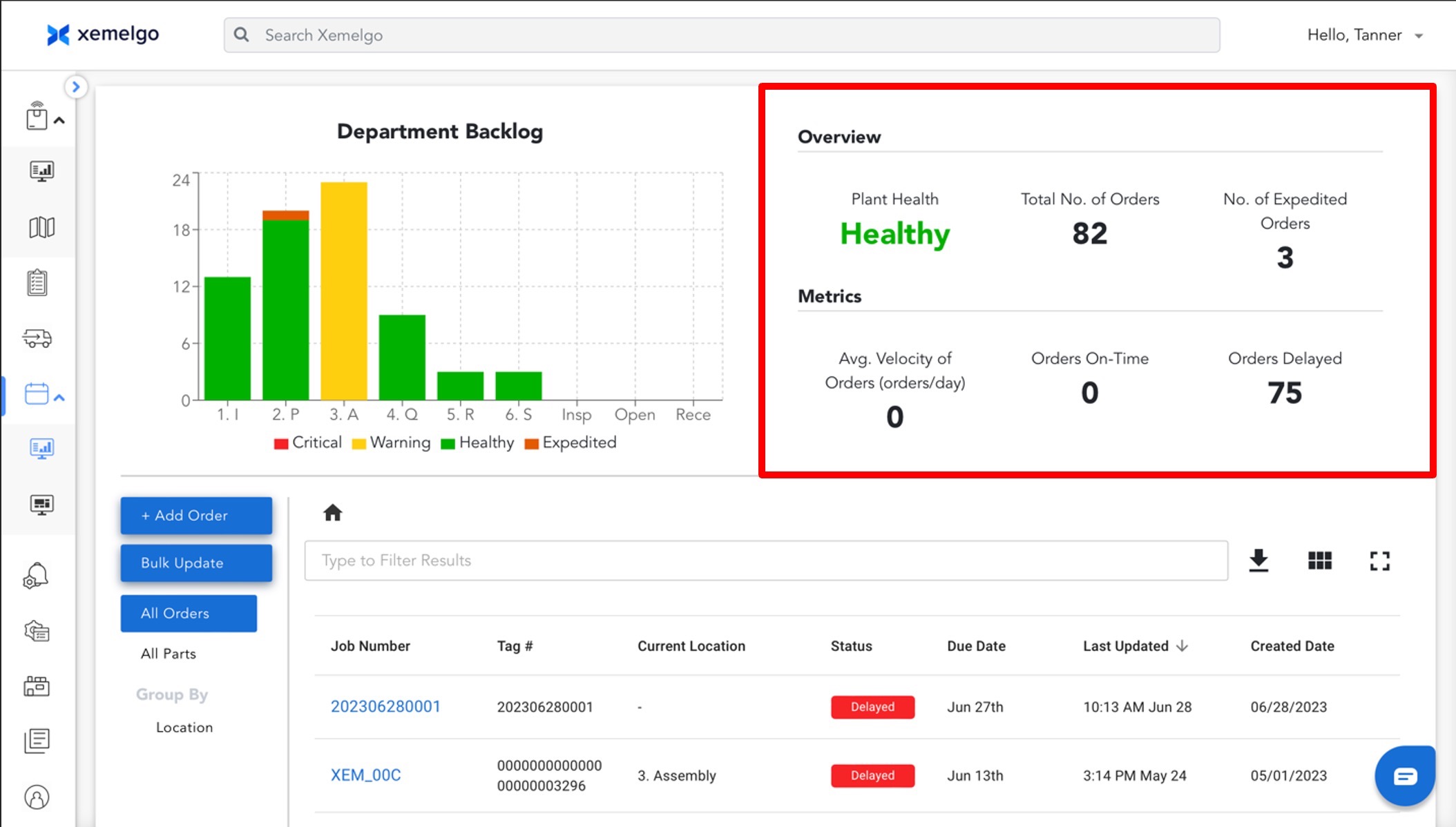
Users are able to see an overview of their Plant Health, Total Number of Work Orders, and Number of Expedited Orders.
Users are also able to view metrics of the Average Velocity of Orders (orders/day), number of Orders On-Time, and number of orders that have been Delayed.
Searching Through Text
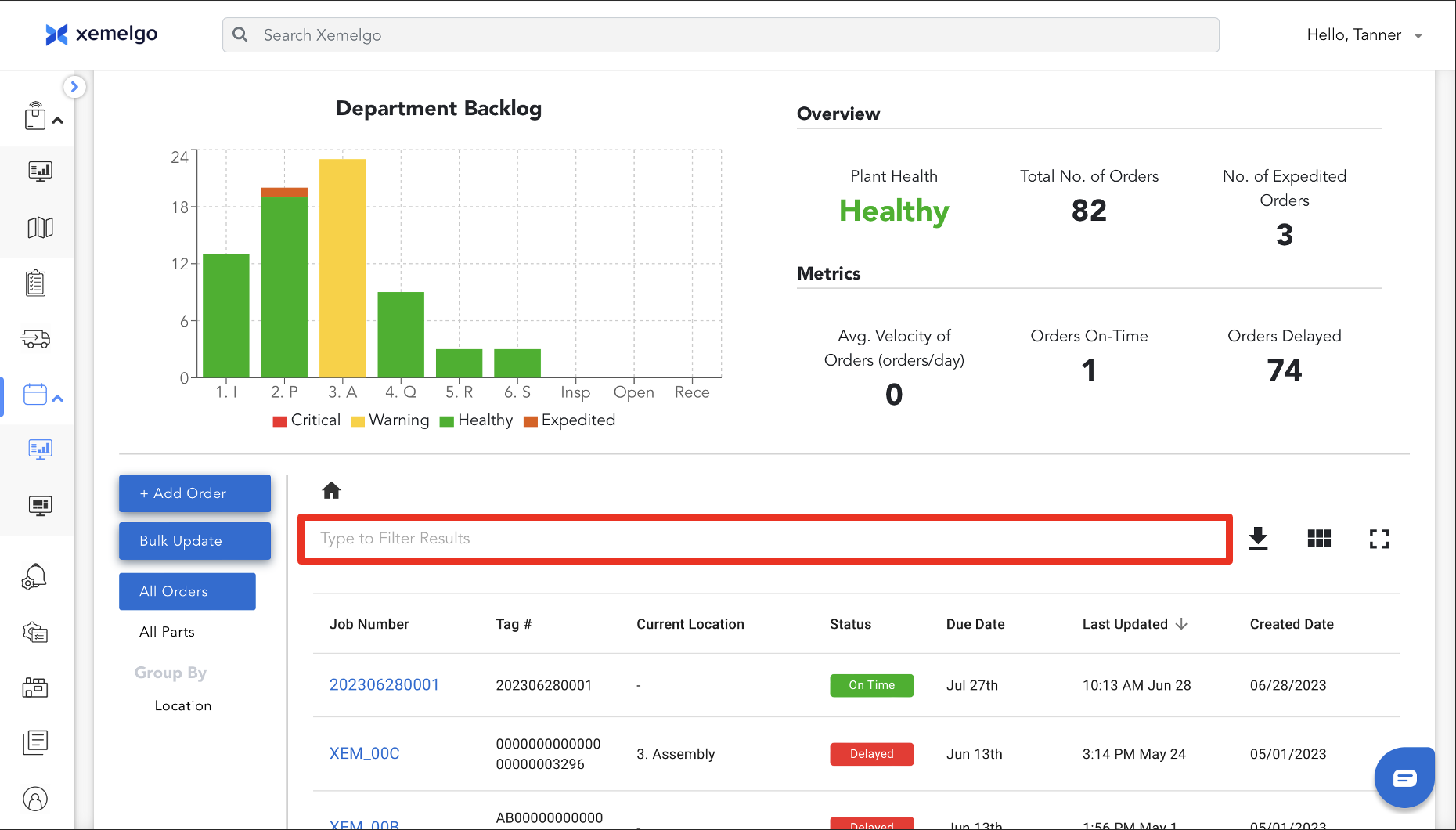
Users can enter any text into the text filter bar to filter the list of work orders or parts (when applicable).
Sorting Through Work Orders
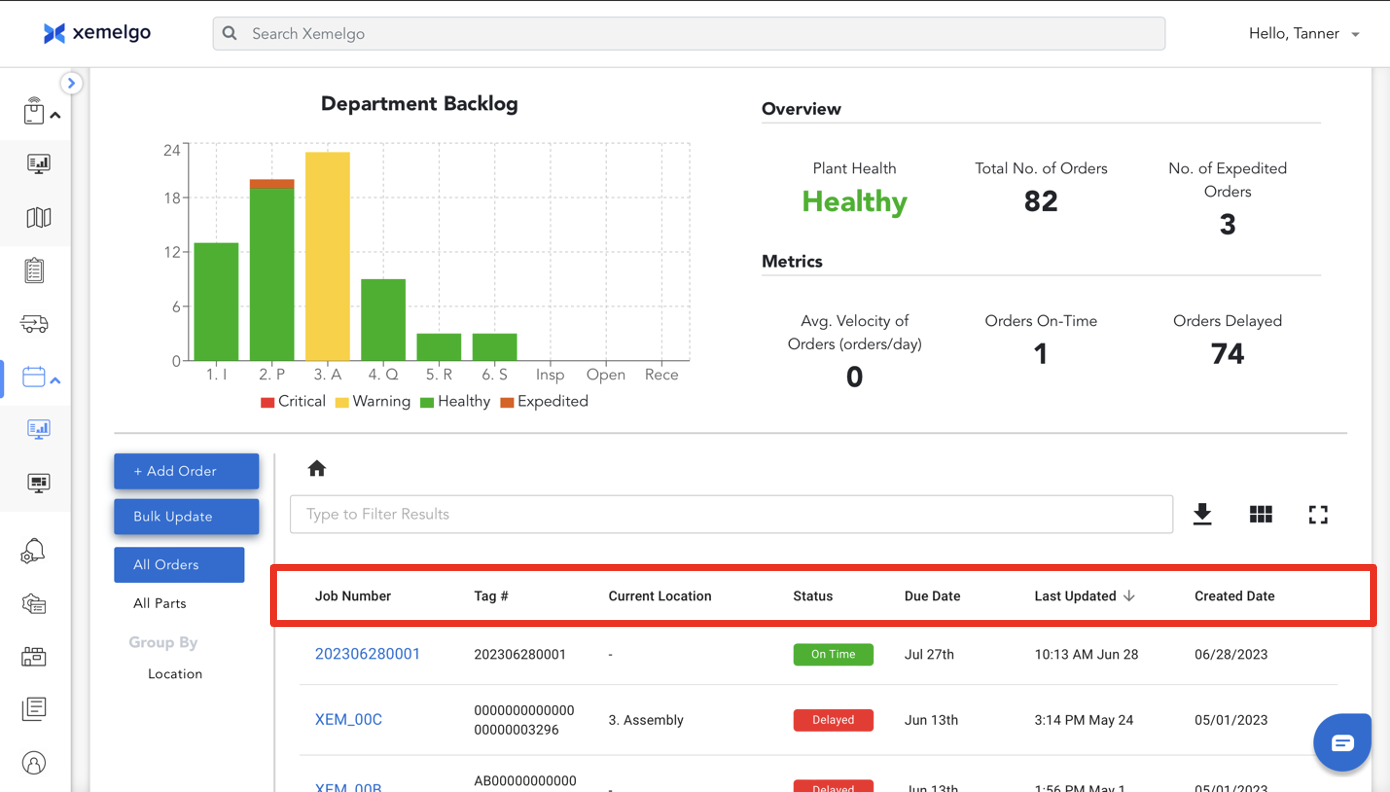
By clicking on the column header, i.e. Job Number, Due Date, etc., you will be able to sort the data based on the column header you have clicked.
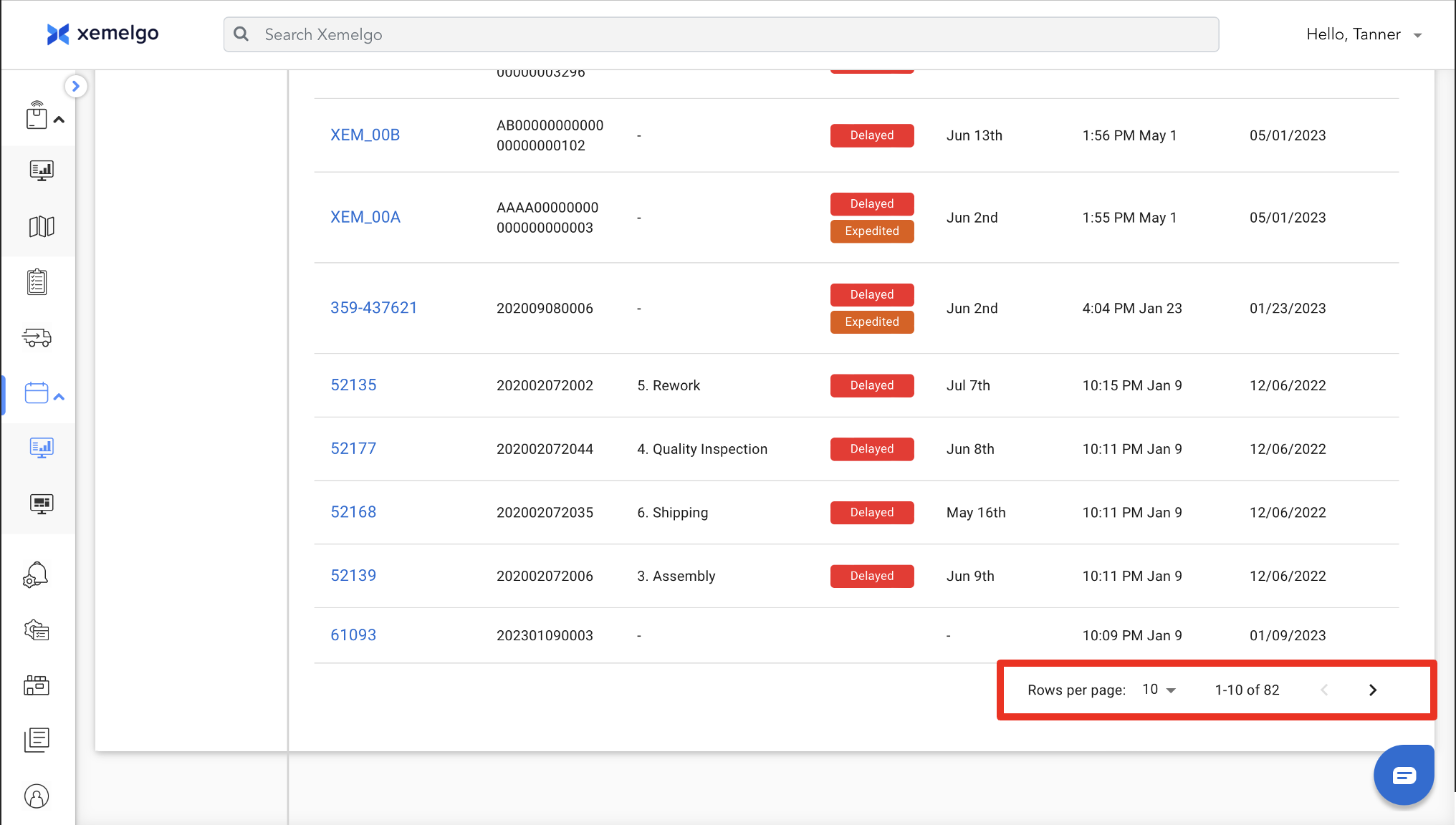
Searching Through Multiple Pages of Work Orders
Users can scroll through each page by selecting the different pages when there are more than 1-page results.
R
Exporting Data as CSV
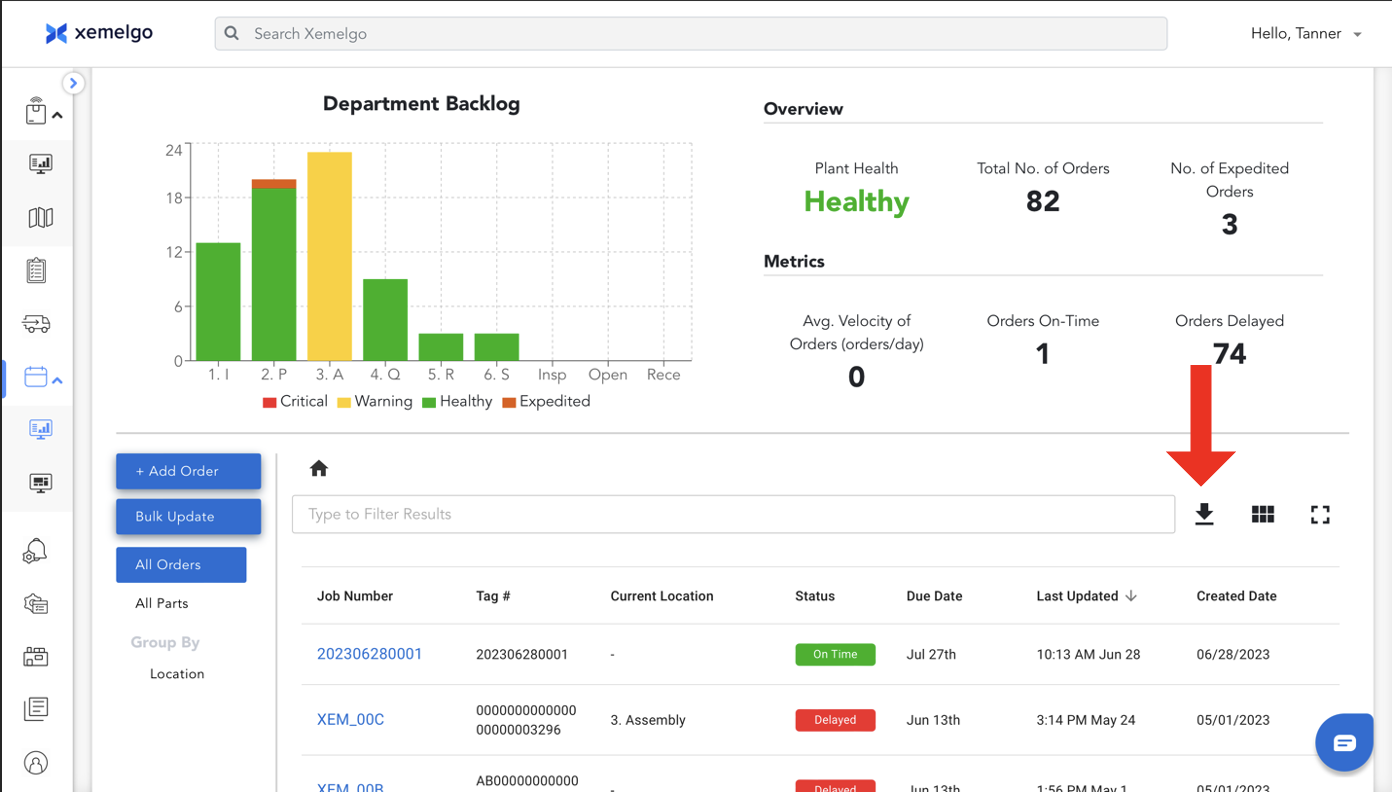
Users can export the data into a CSV file by clicking on the
icon, which will download a .csv file based on the current data being viewed.
R
Viewing Data in Full-Screen Mode
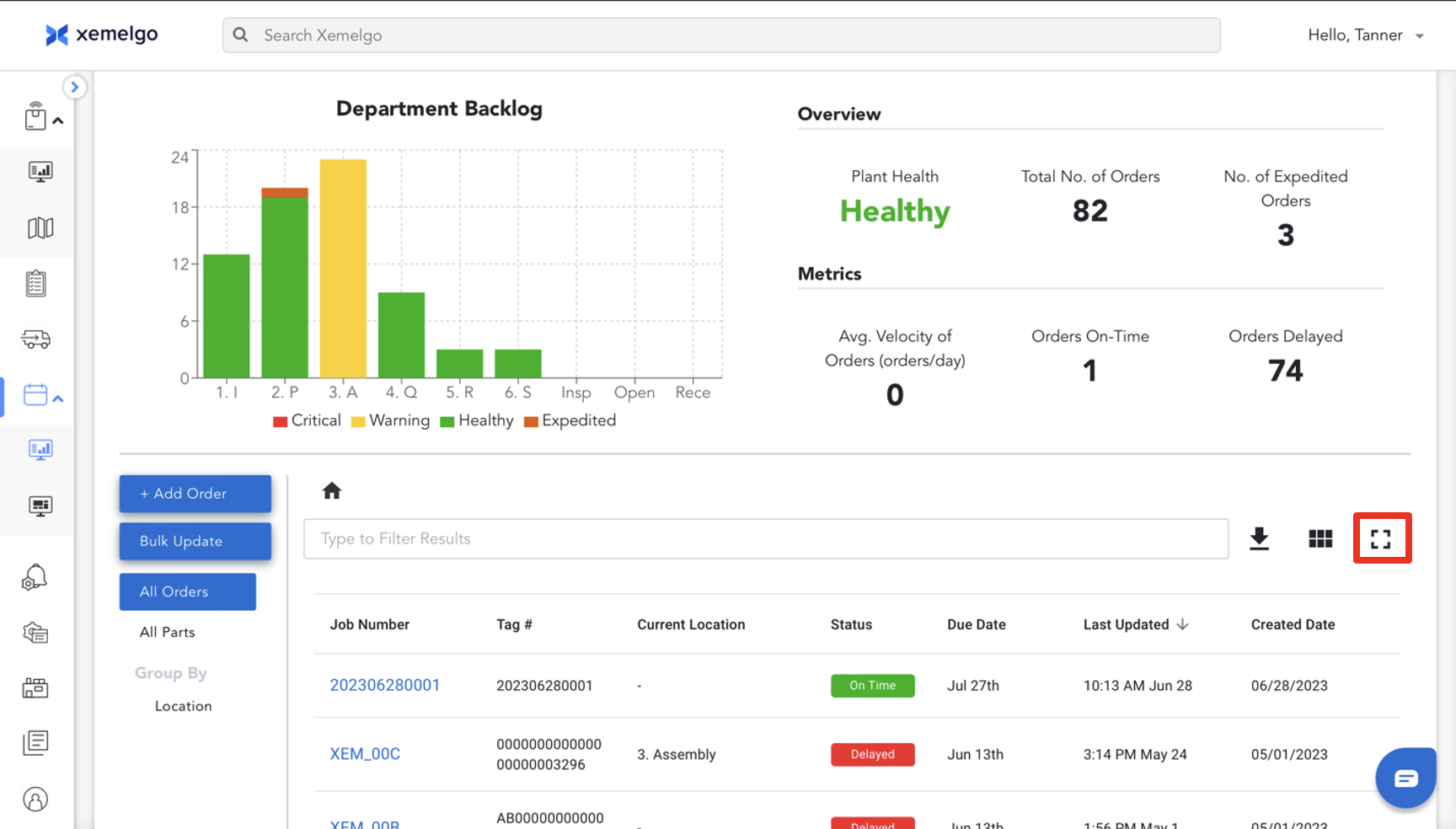
Users can expand the list data to full screen and display it on a TV or external monitor to display a list of prioritized tasks for operators on the floor. Users can do this by clicking on the icon, enabling full-screen mode. The data will automatically update every minute.
Grouping Data by Location
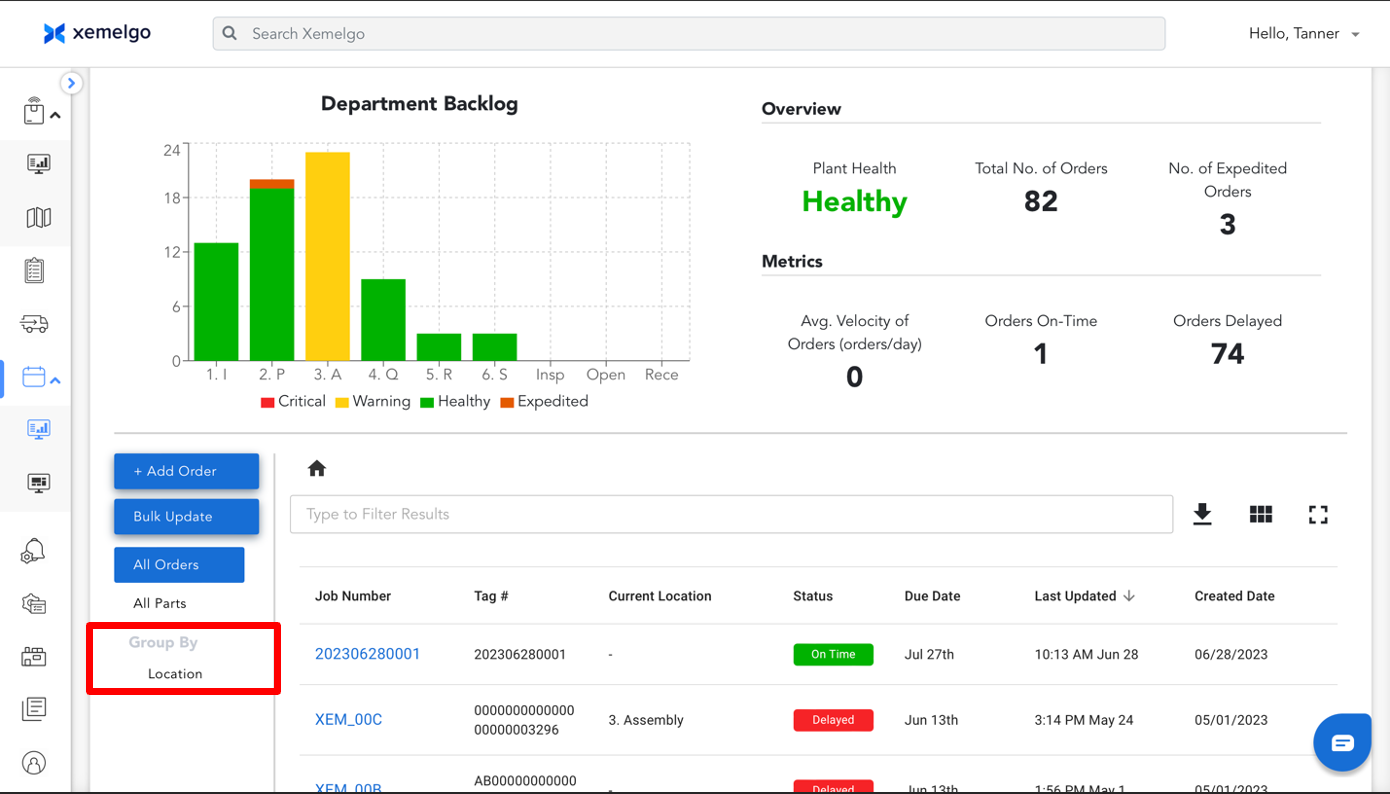
For production managers who want to look across the entire facility, they can select Location under Group By on the left to group the orders by location to get an overview. From there, production managers or department owners can select a specific location to focus on the work orders in that area.
Global Search
Users can instantly search for any item by using the global search at the top. Users can search using: Job Number, Part Number (if applicable), Status (delayed / on-time), or RFID Tag Number.
Users can subscribe to Idle Alerts to receive a notification every time an order has been sitting at a location for an extended period of time.
Users can subscribe to Expedited Alerts to receive a notification every time an order has been marked as expedited.
Users can subscribe to Backlog Alerts to receive a notification every time the backlog in a location exceeds the warning or critical thresholds.
Need further assistance?
The article above couldn't resolve your issue? Use the chat button in the bottom-right corner to contact the support team.