Creating a New Work Order
Creating a New Work Order
Overview
This article explains how users can create work orders in two ways: manually through the dashboard by entering job and RFID tag details, or in bulk by uploading a CSV file with order information.
Creating Through Web
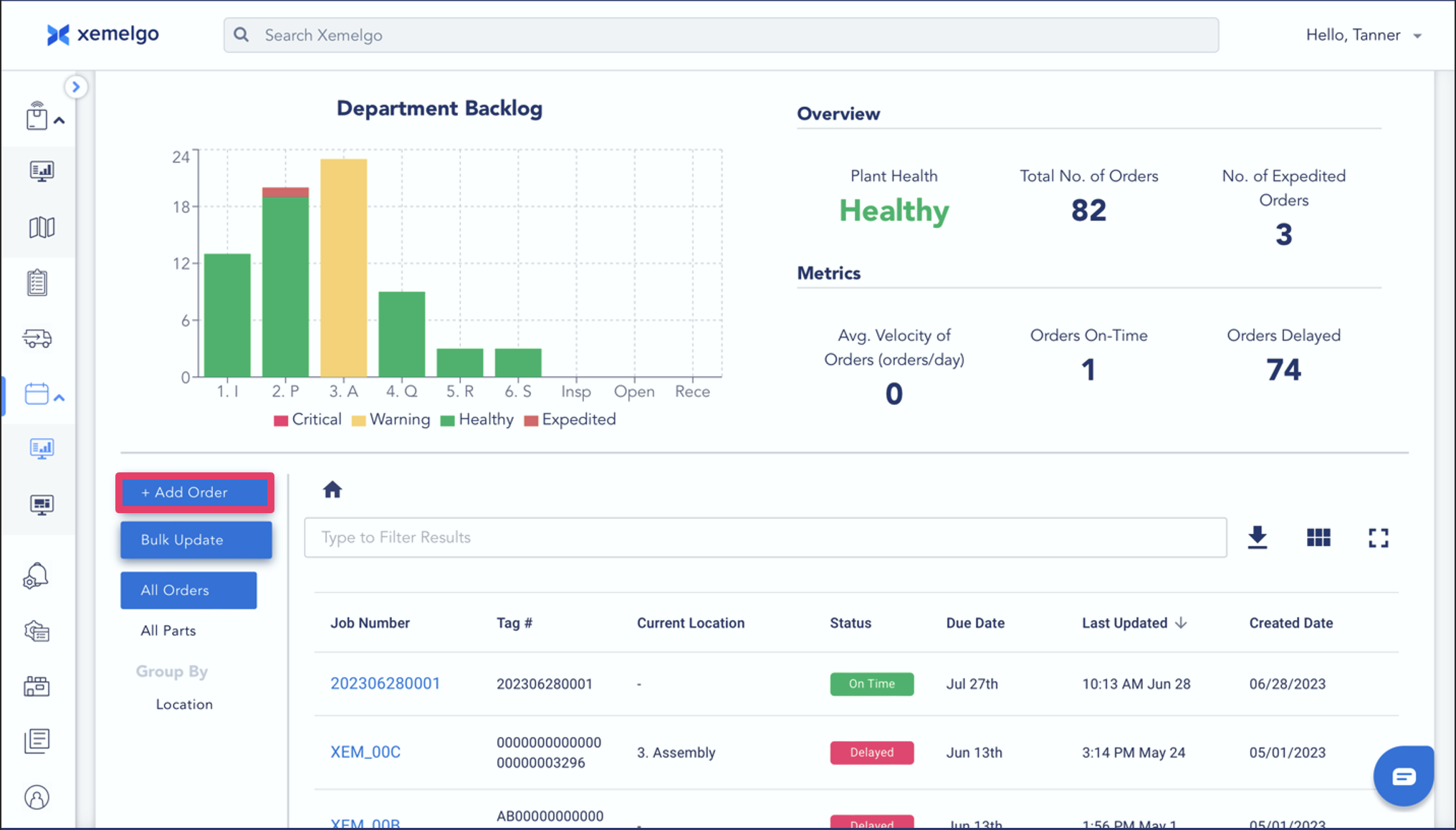
Users can create an order by clicking on the Add Order button on the dashboard.
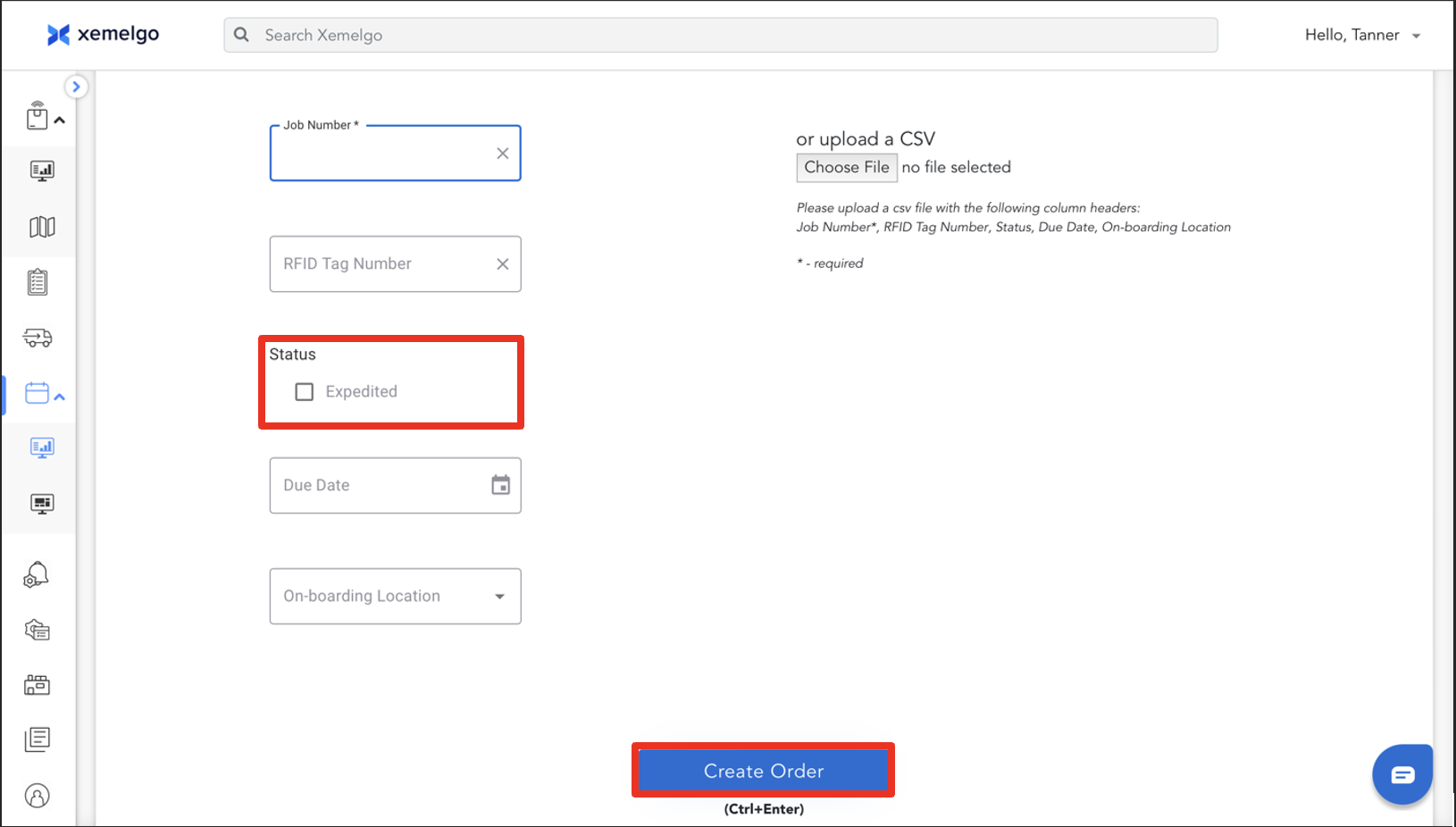
After filling in the required fields of the Job Number and the RFID Tag Number, a user can create the work order.
Optionally, the user can set if the order is Expedited, the Due Date, and the On-boarding Location.
Bulk Importing Through CSV
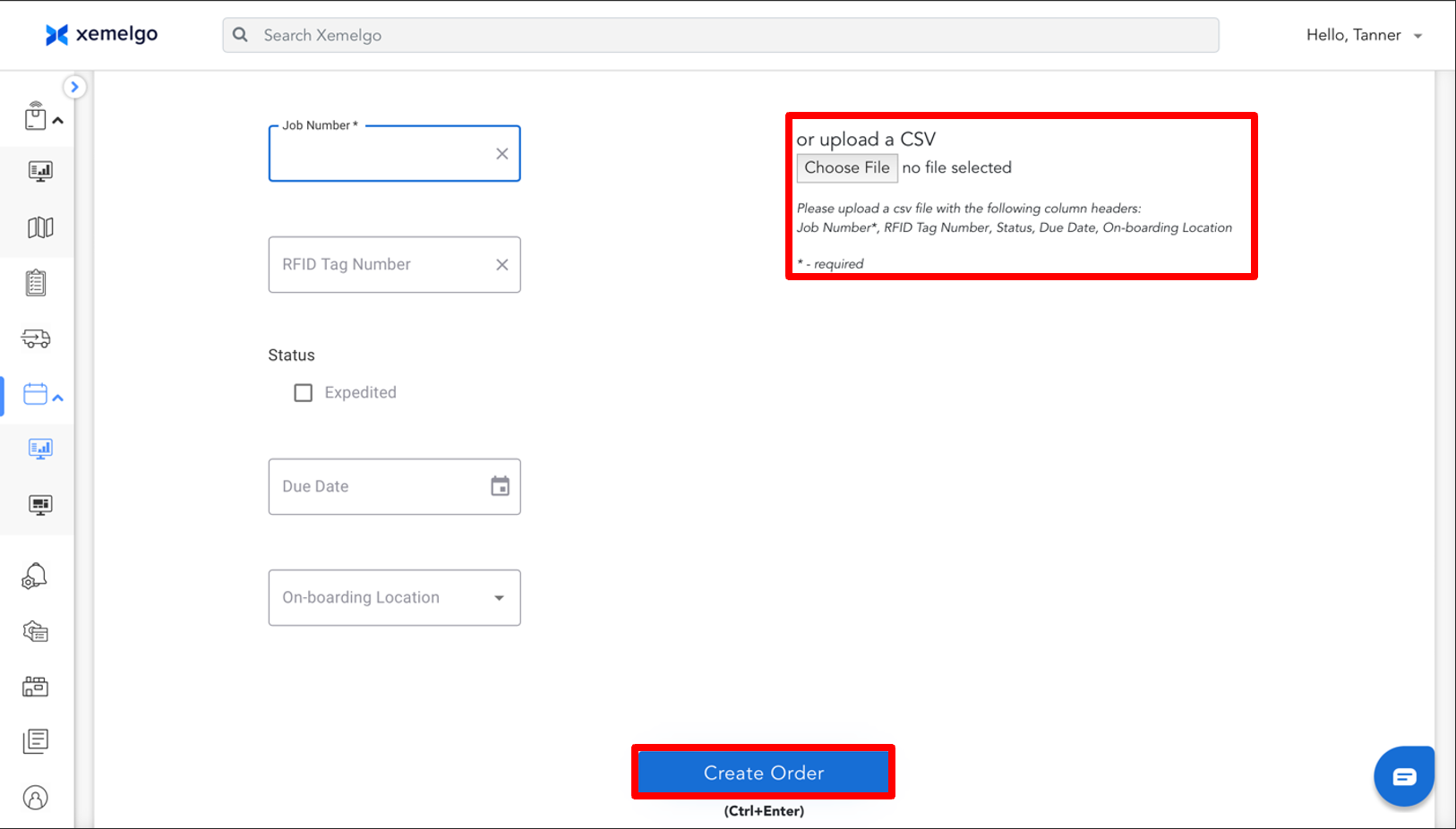
If you have a CSV file of your work orders and it contains the Job Number, RFID Tag Number, Status, Due Date, and On-boarding Location, you can upload it and click Create Order to upload all of your work orders into the Xemelgo system.
Need further assistance?
The article above couldn't resolve your issue? Use the chat button in the bottom-right corner to contact the support team.