Transfer Order Track Page
Transfer Order Track Page
Overview
This article explains how to navigate the transfer order track page.
Instructions
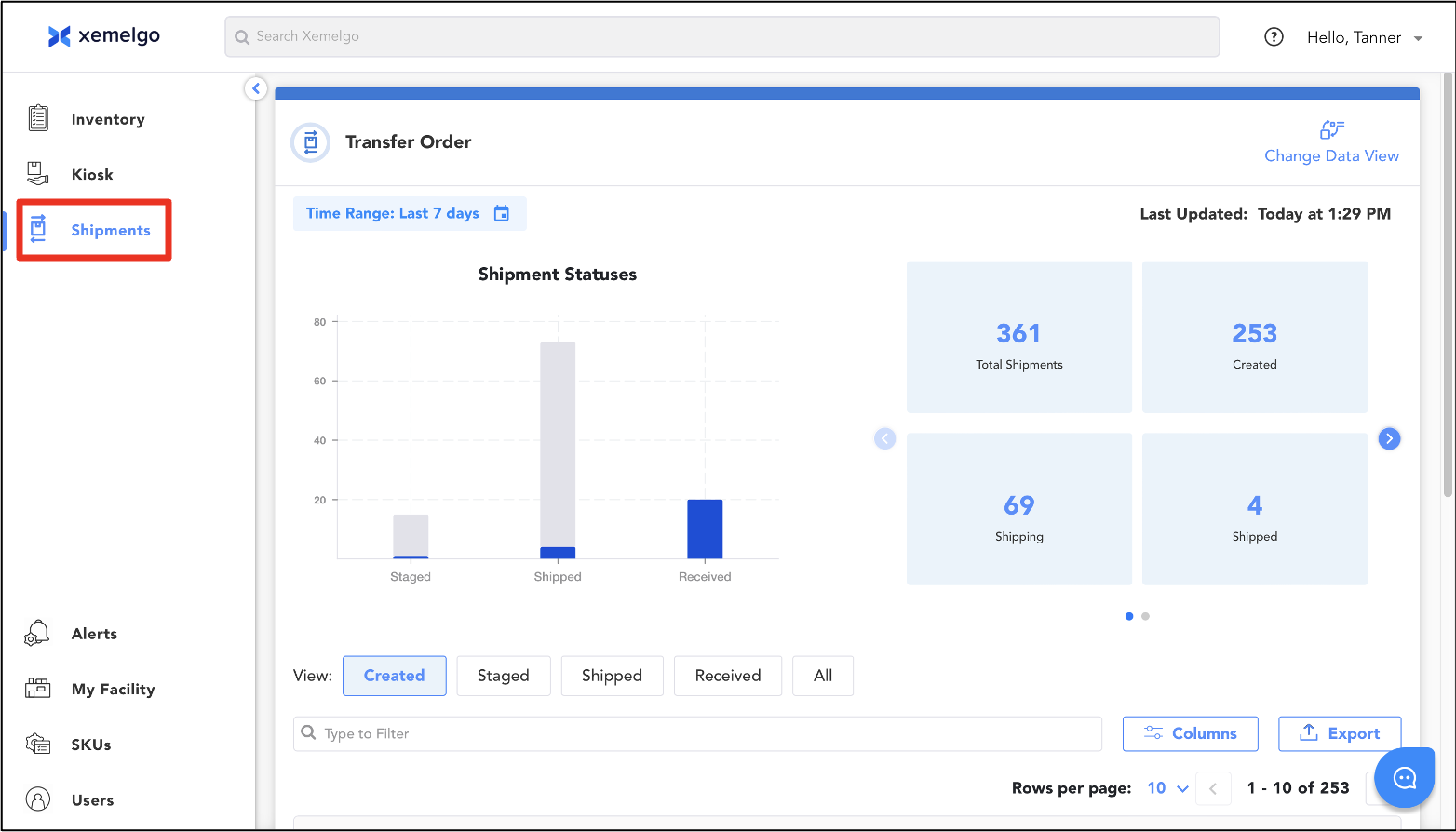
To navigate to the transfer order track page, ensure the Shipments tab is selected.
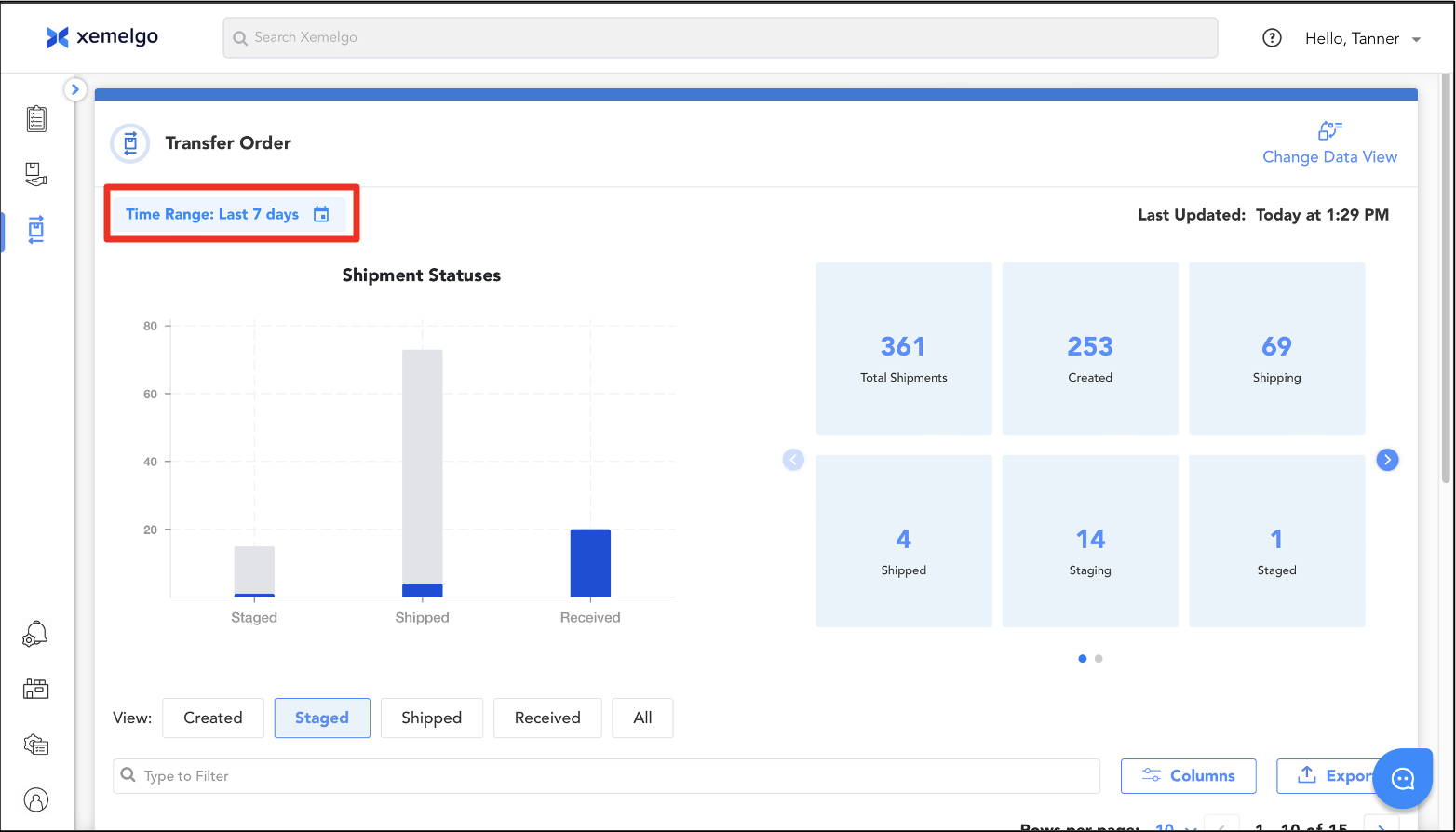
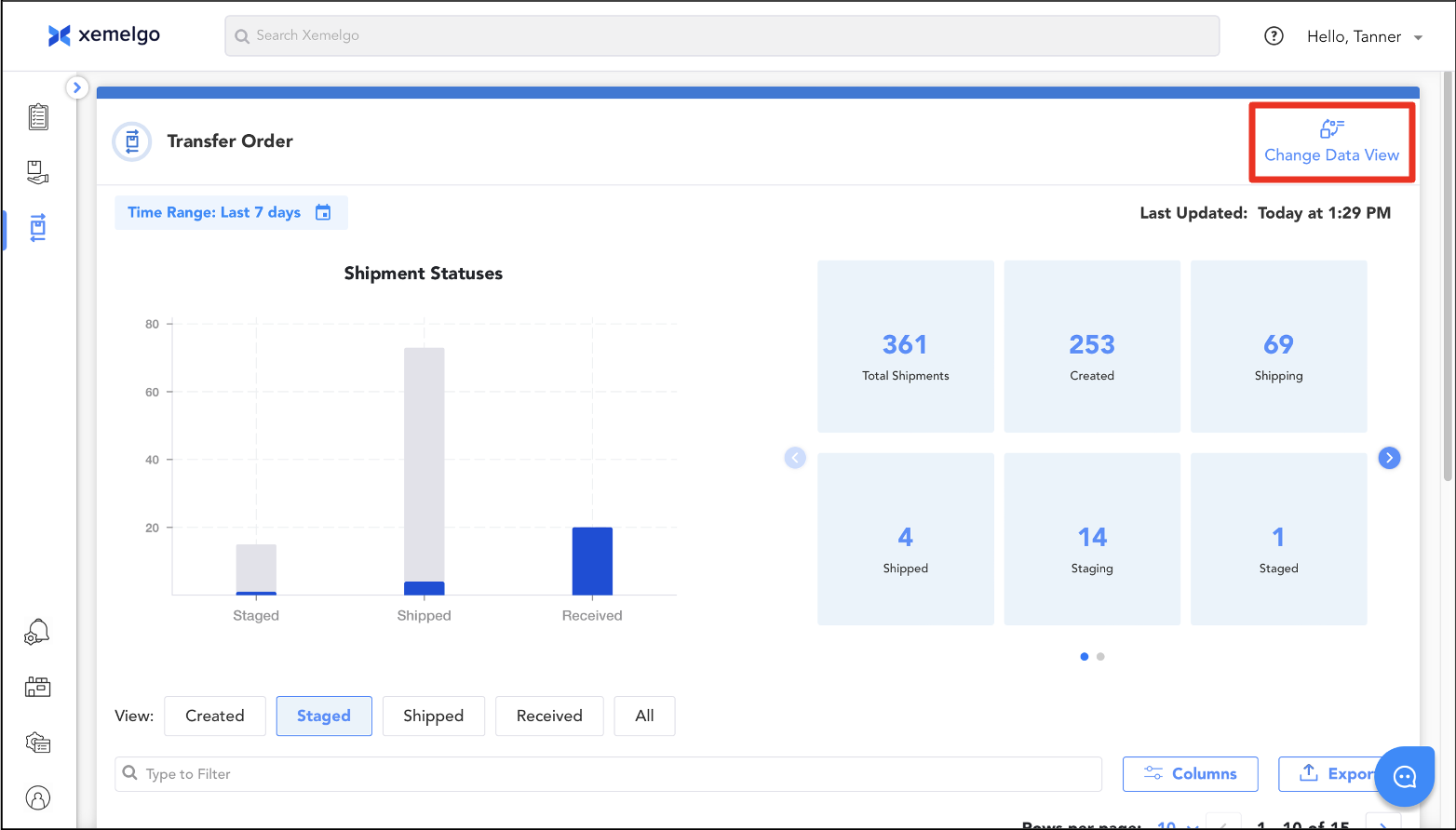
When the transfer order track page opens, it displays data for the last 7 days by default. If you want to adjust the date range, click Time Range in the top right.
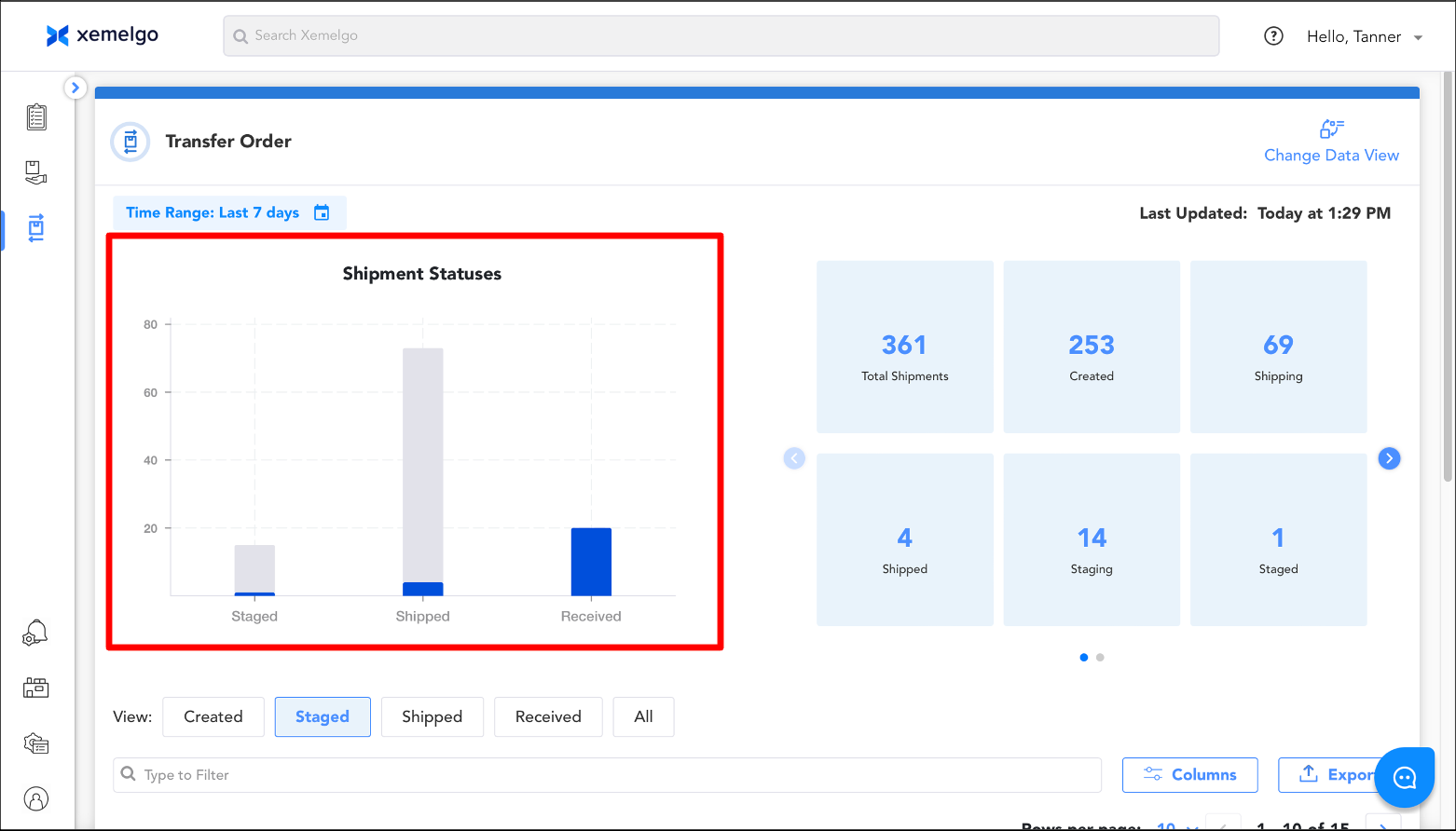
The Transfer Order Statuses chart shows the number of transfer orders for each status over the selected time range. Blue represents the transfer orders that have completed that status, while Gray indicates those still in progress.
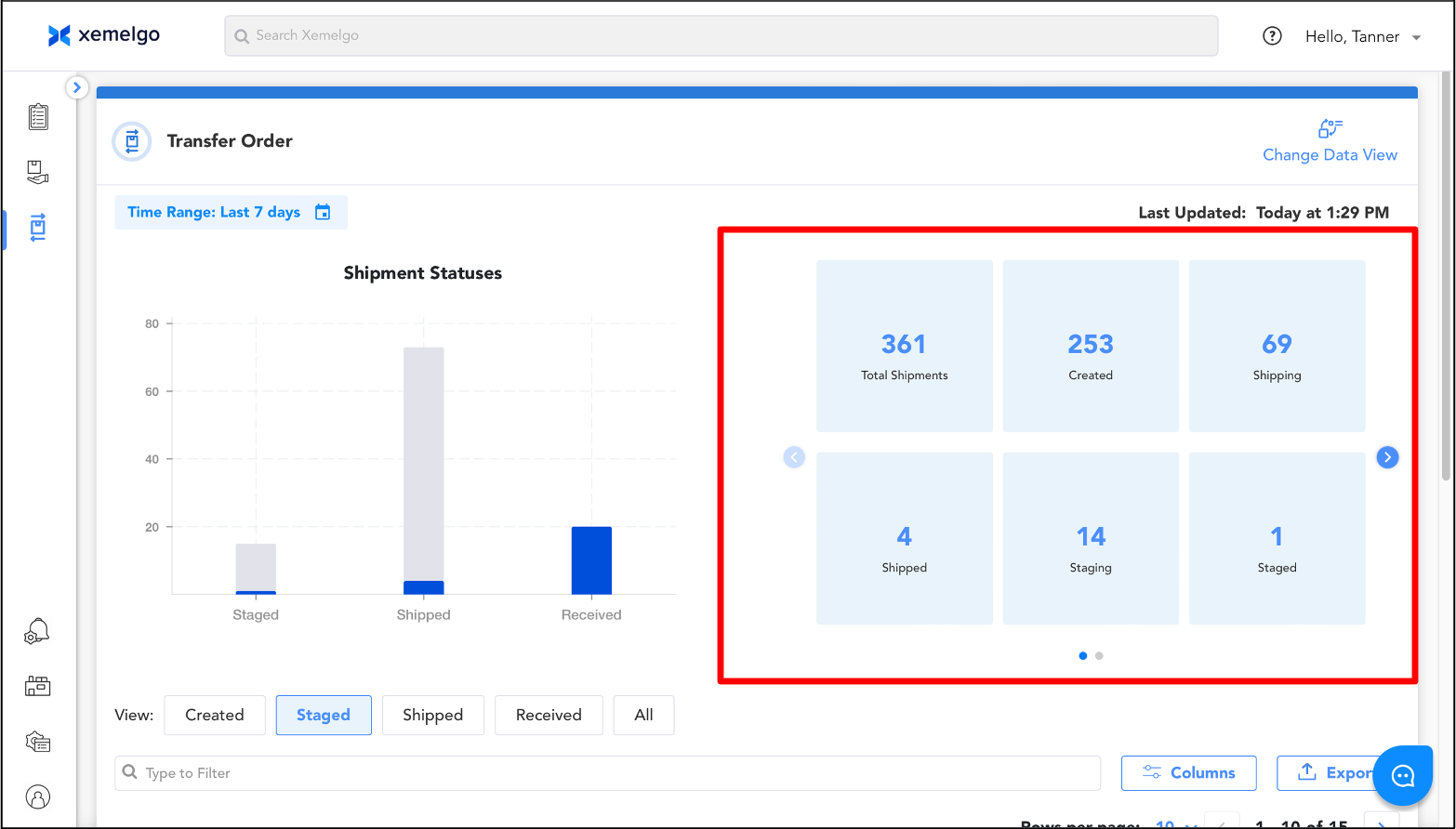
To the right of the Transfer Order Statuses chart, there are summary cards displaying the counts of transfer orders at various stages. These include:
- Total Shipments: The overall number of transfer orders.
- Created: Transfer orders that have been initiated but not yet processed.
- Staging: Orders being prepared for shipment, including picking and organizing items before dispatch.
- Staged: Orders that have been fully prepared and are ready for shipment but have not yet been shipped.
- Shipping: Orders currently in transit.
- Shipped: Orders that have been dispatched but not yet received.
- Receiving: Orders that are in the process of being received.
- Received: Orders that have been successfully delivered and completed.
If you want to adjust the data view, click Change Data View. This will allow you to view just the Transfer Order Statuses chart, just the Summary Cards, Both (default view), or **None.
There are five different views on the transfer order track page:
- Created: Displays all transfer orders with a Created status
- Staged: Displays all transfer orders with a Partially Staged or Staged status
- Shipped: Displays all transfer orders with a Partially Shipped or Shipped status
- Received: Displays all transfer orders with a Partially Received or Received status
- All: Displays all transfer orders
Utilization of the Kiosk or Goods Receipt features will move items from the Created status to Staged status.
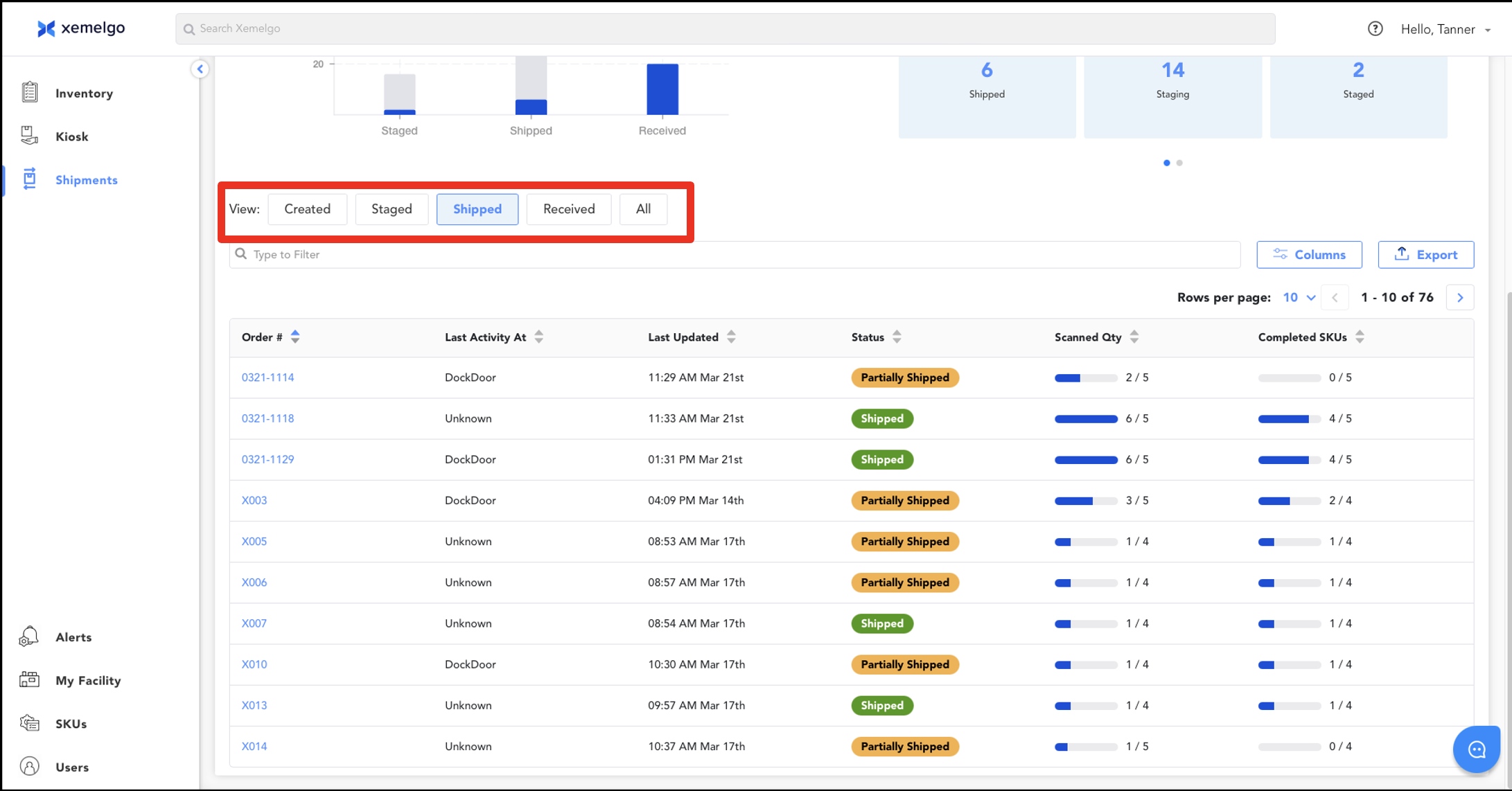
In each of these views, users are able to view the Order #, Last Activity At, Last Updated, Status, Scanned Qty, and Completed SKUs information.
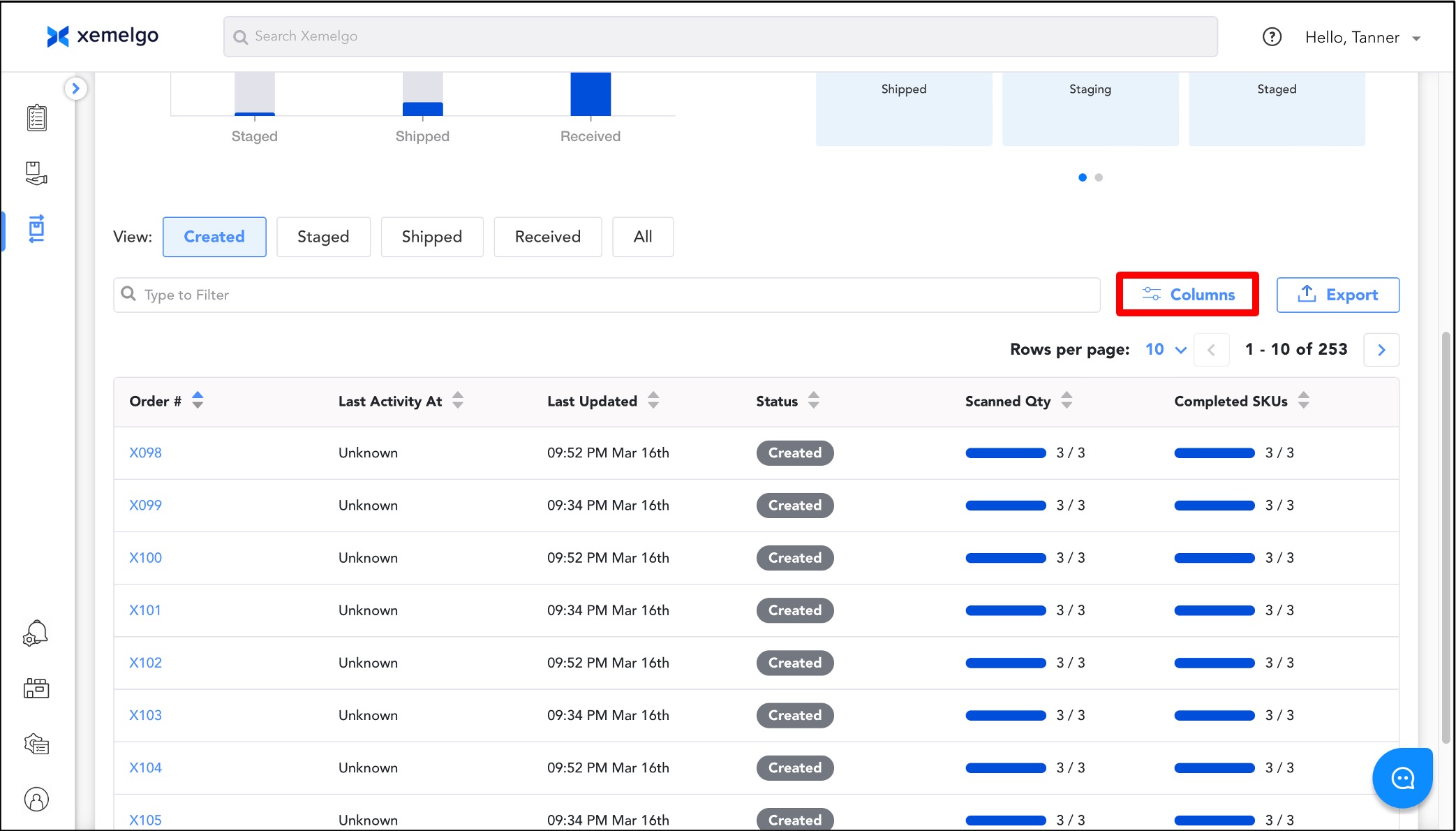
Note: If you want to reorder or remove any of the columns in the view, click Columns.
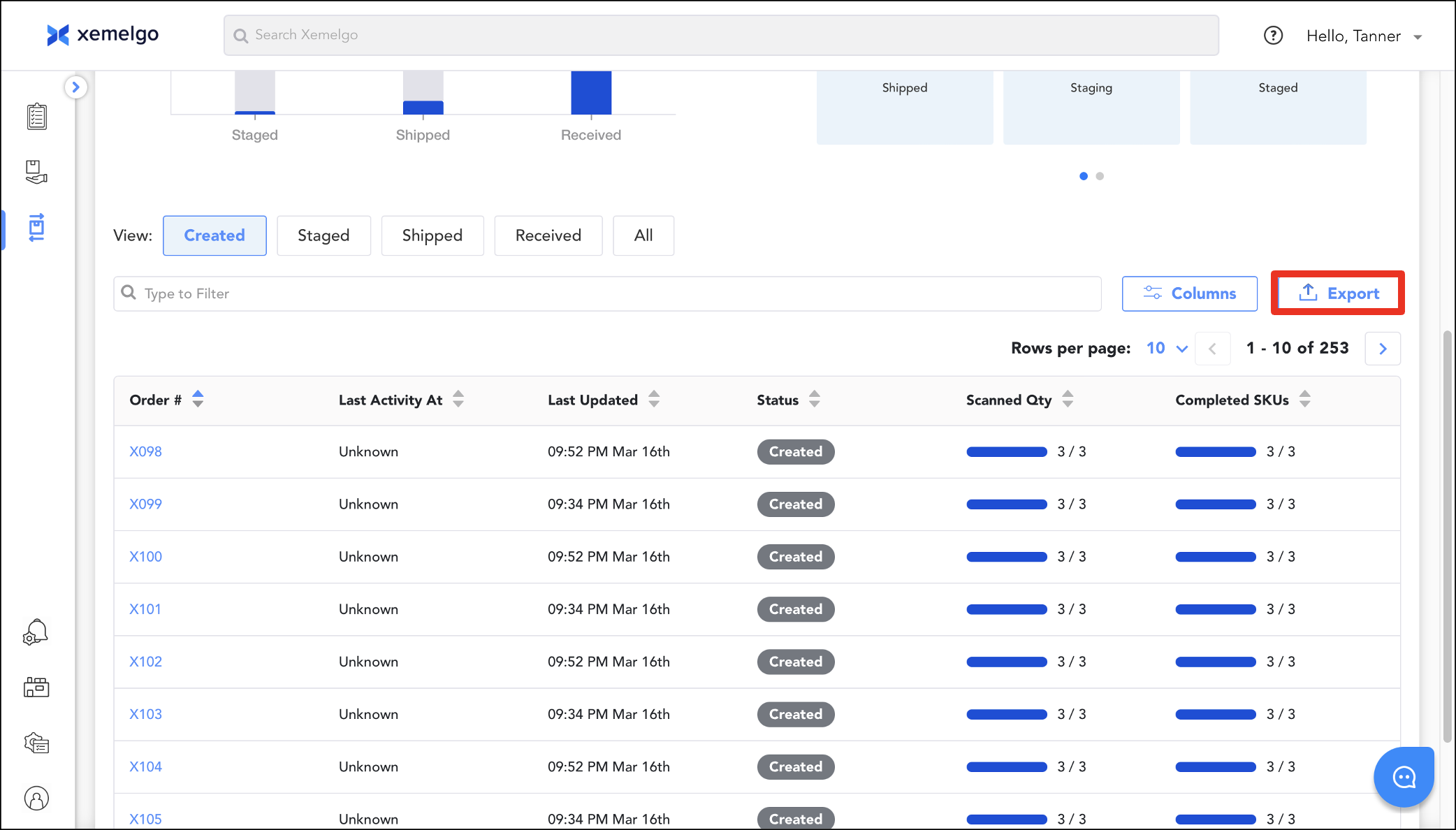
To save the data from the view, click Export to generate a CSV file containing all the displayed information.
Need further assistance?
The article above couldn't resolve your issue? Use the chat button in the bottom-right corner to contact the support team.