Package Dashboard
Package Dashboard
Overview
This article explains how to navigate the package dashboard, sort and filter packages, and export data.
Instructions
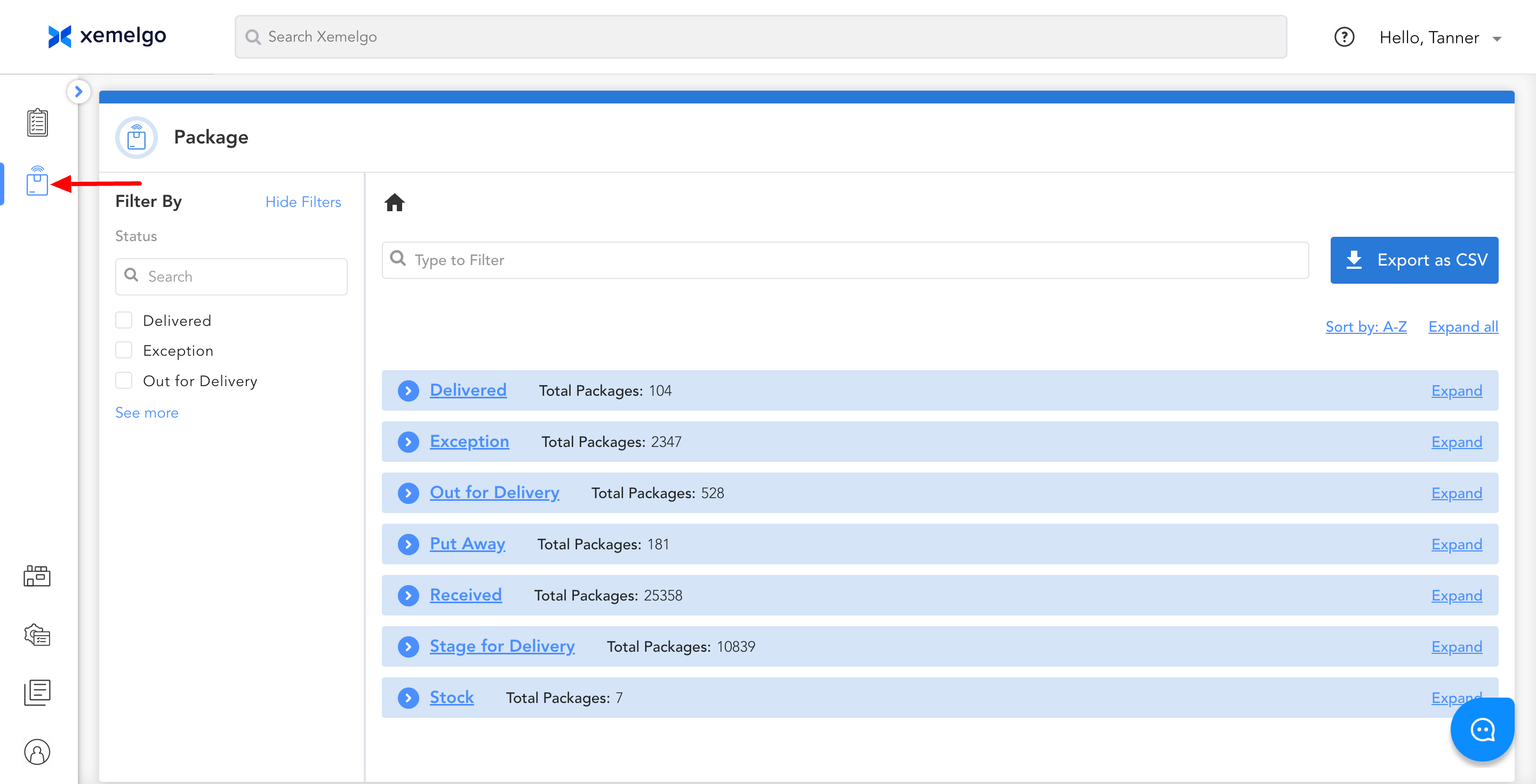
To get to the main dashboard page for package, click the Package Icon displayed on the left side of the screen.
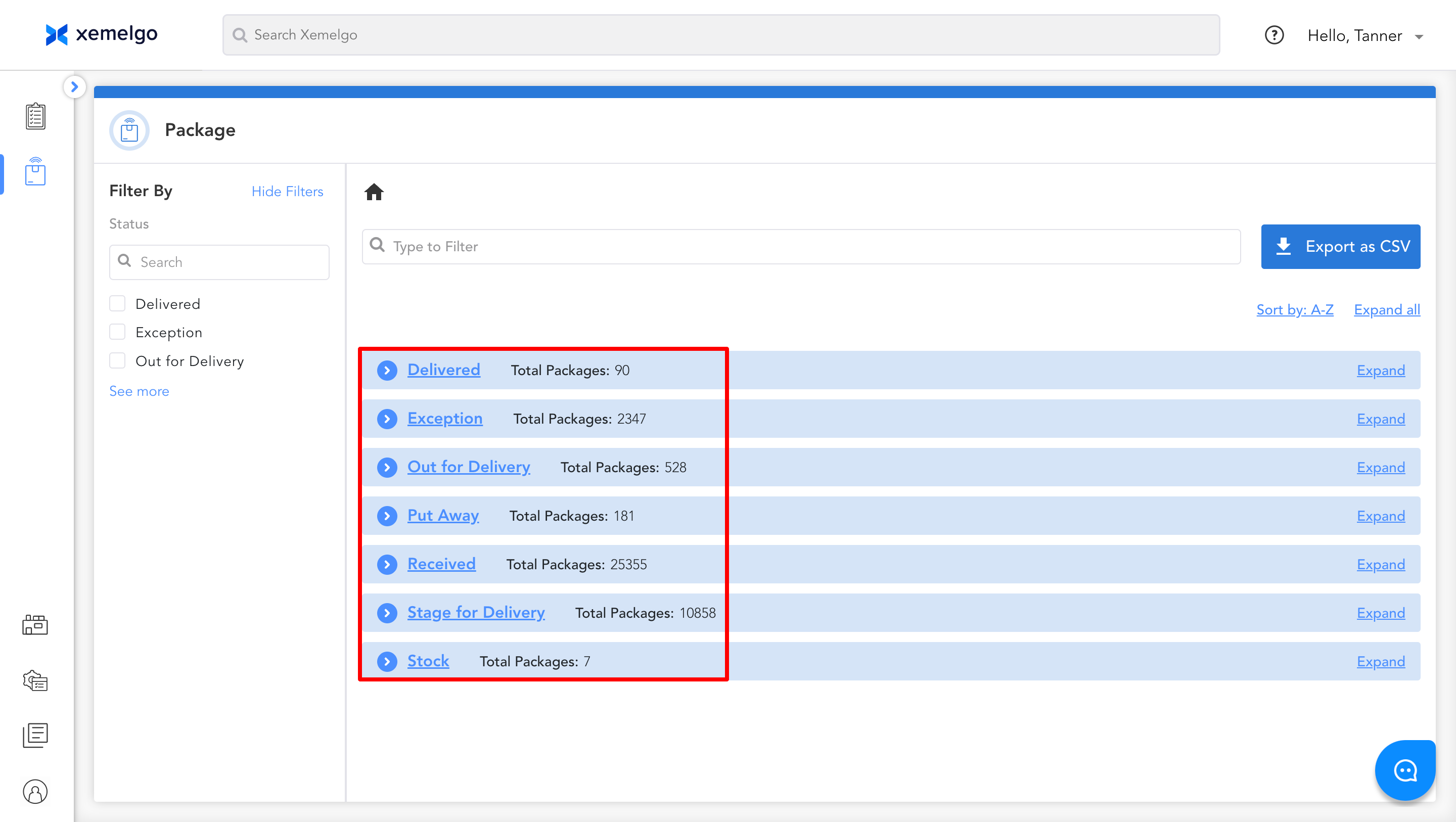
Once you open the package dashboard, you will see several package Statuses and the Total Packages under each status.
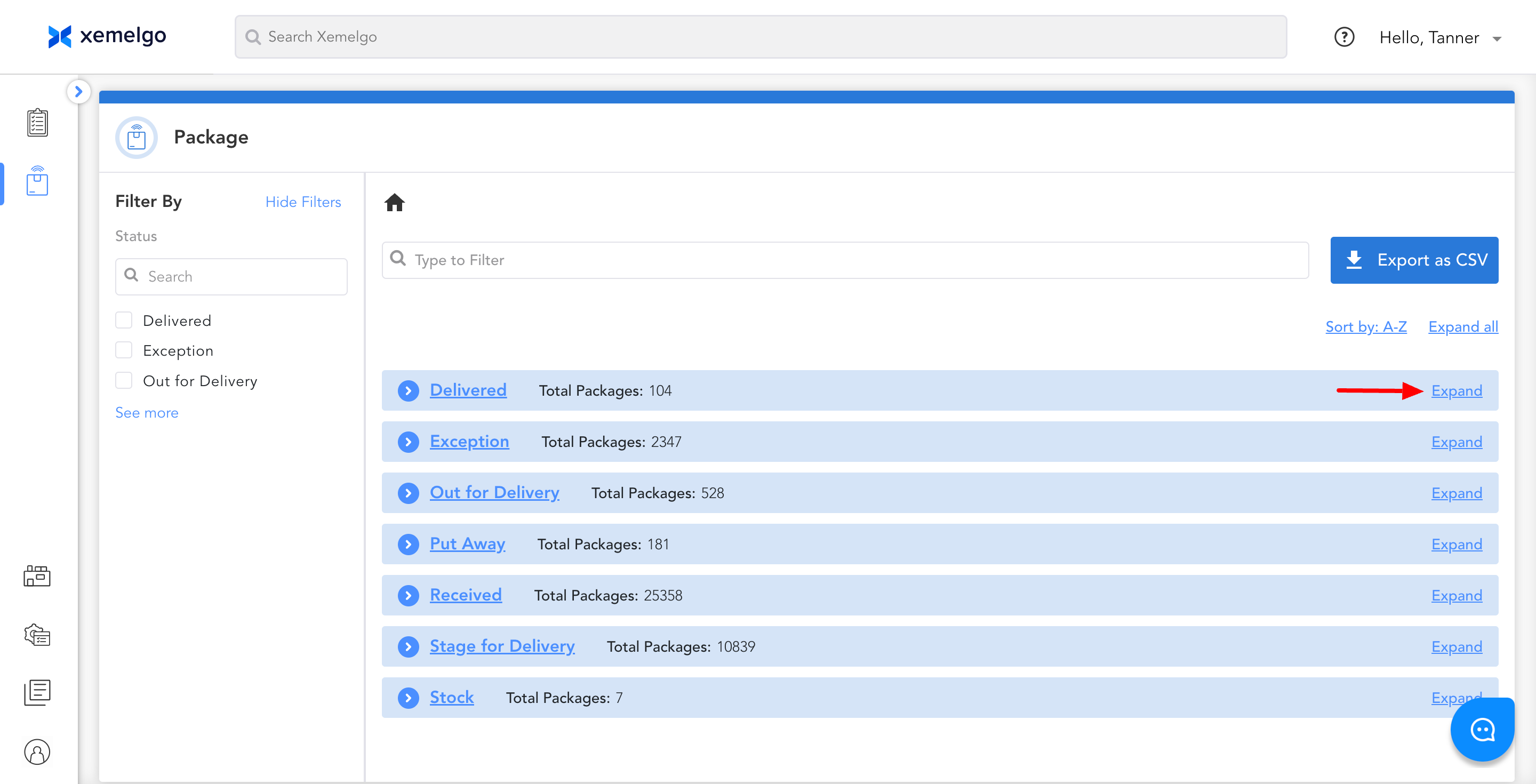
If you want to view the packages under each status, click Expand.
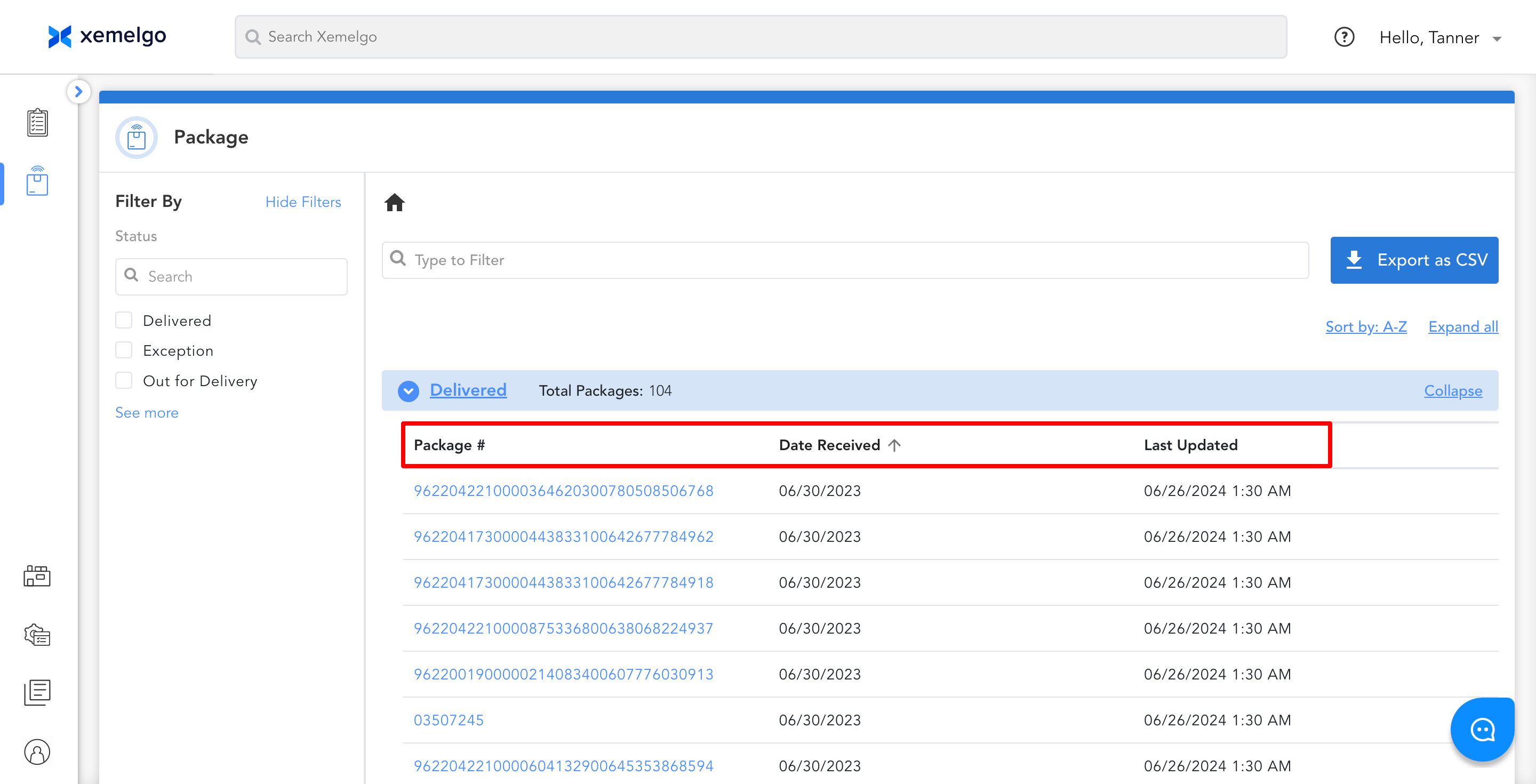
Once expanding a status, you can view the Package #, Date Received, and timestamp of when the package was Last Updated for packages with the corresponding status (Ex. Delivered). Users have the option to Sort packages under the corresponding status by a certain column header in either ascending or descending order by clicking on the column header they want to sort by.
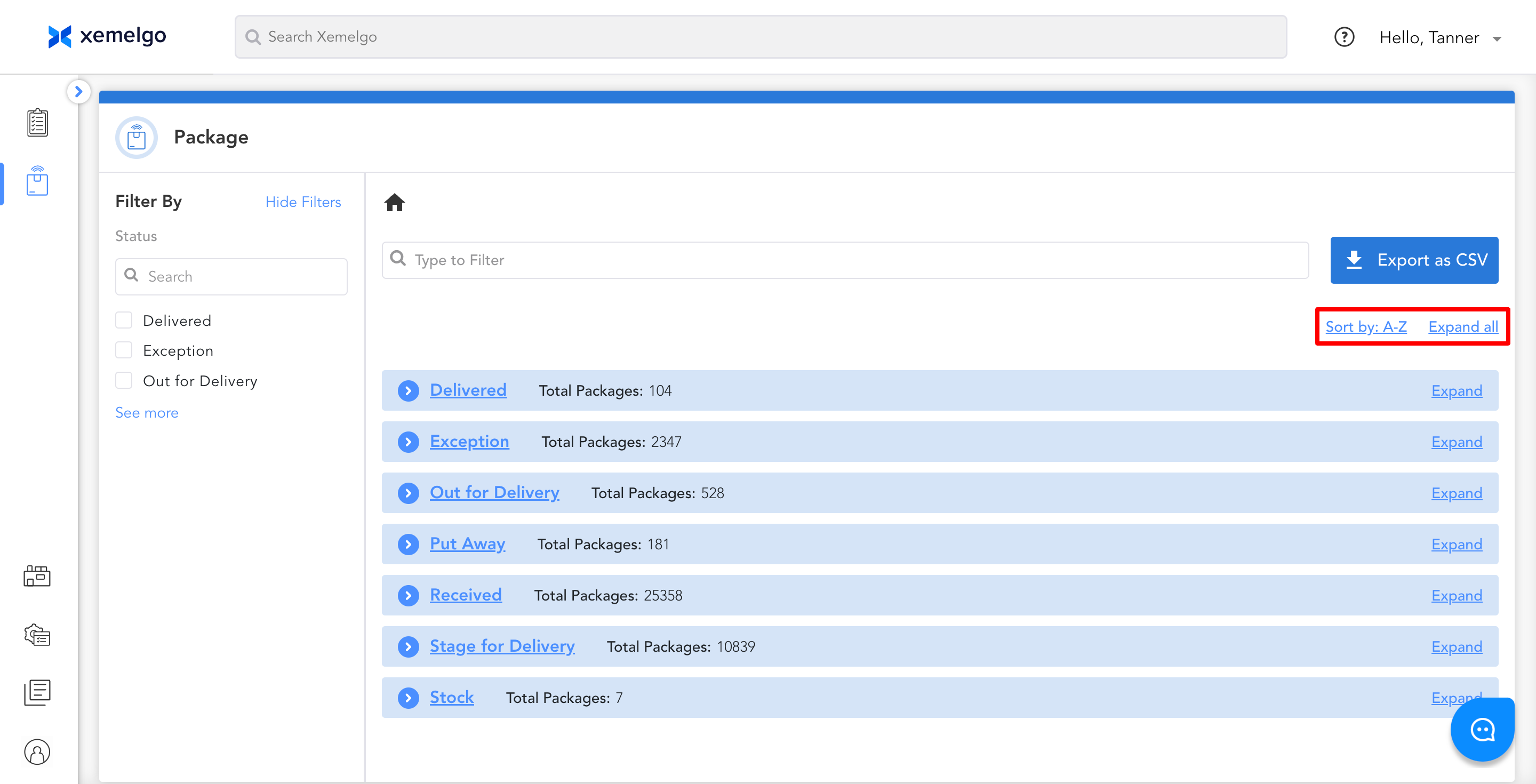
Alternatively, users have the option to sort all statuses from Z-A and can Expand all of them at once.
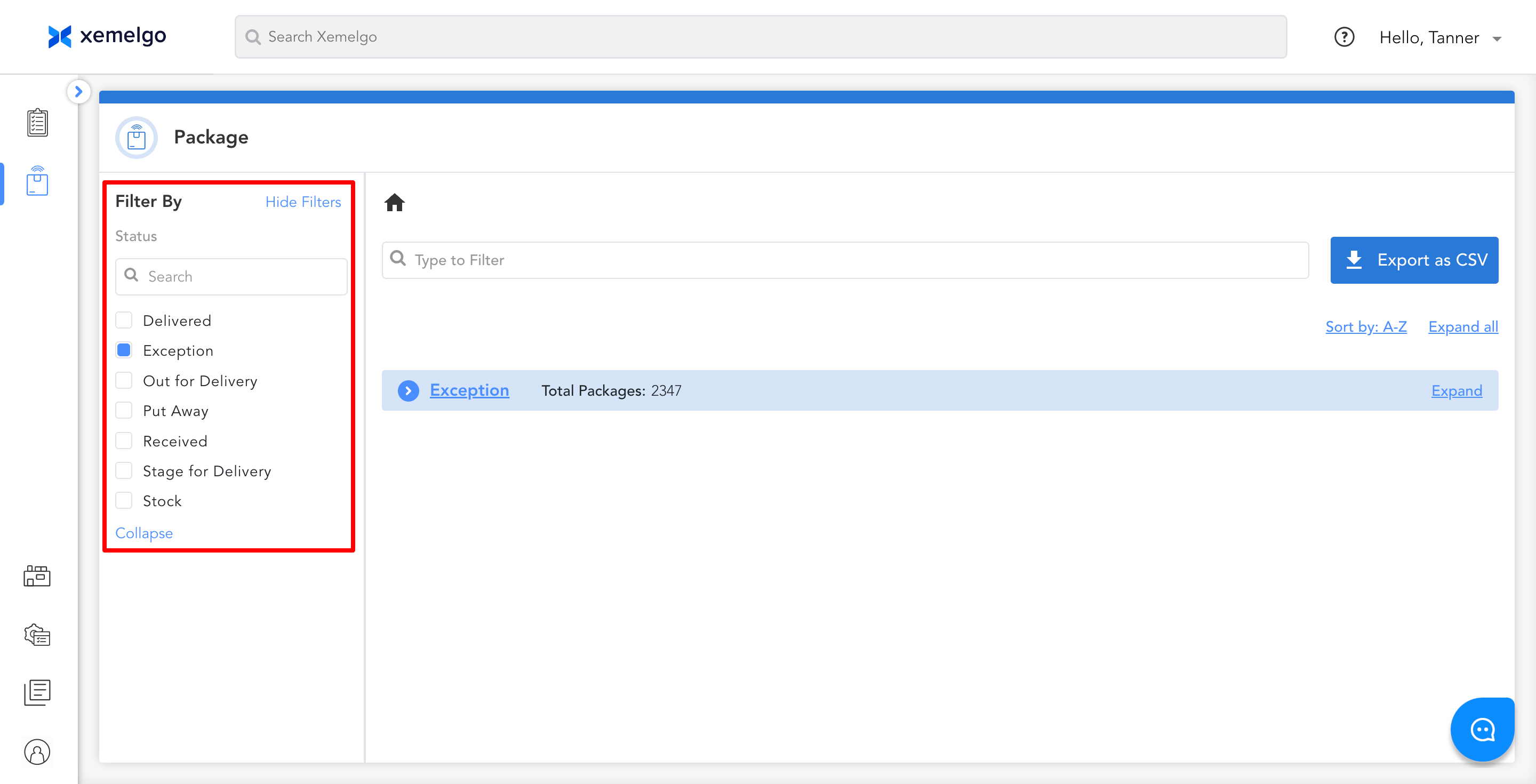
Users can also Filter By a specific status by clicking on one of the listed statuses.
Users can filter by multiple statuses at once.
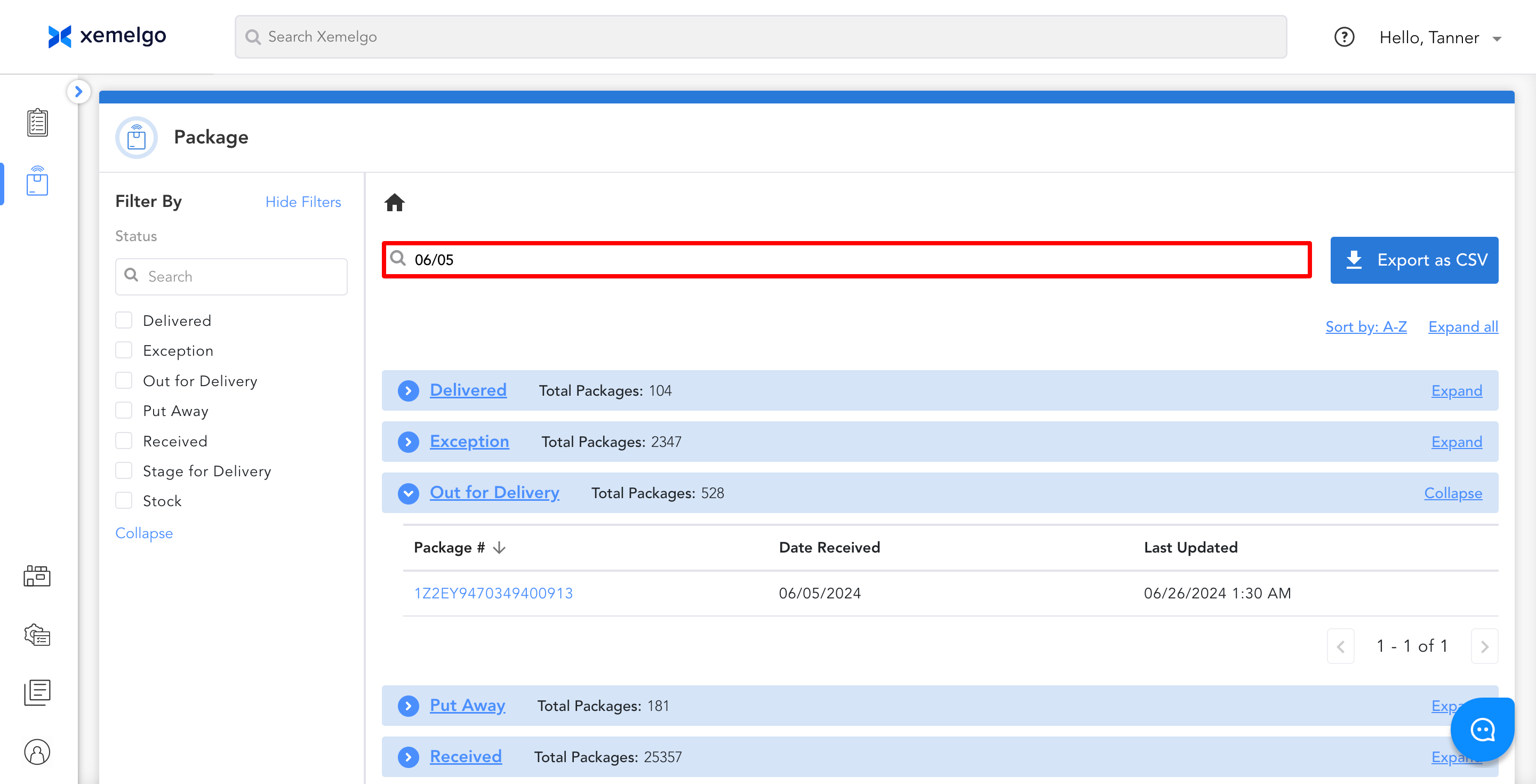
Users can utilize the Search field to search for packages by Package #, Date Received, and Last Updated.
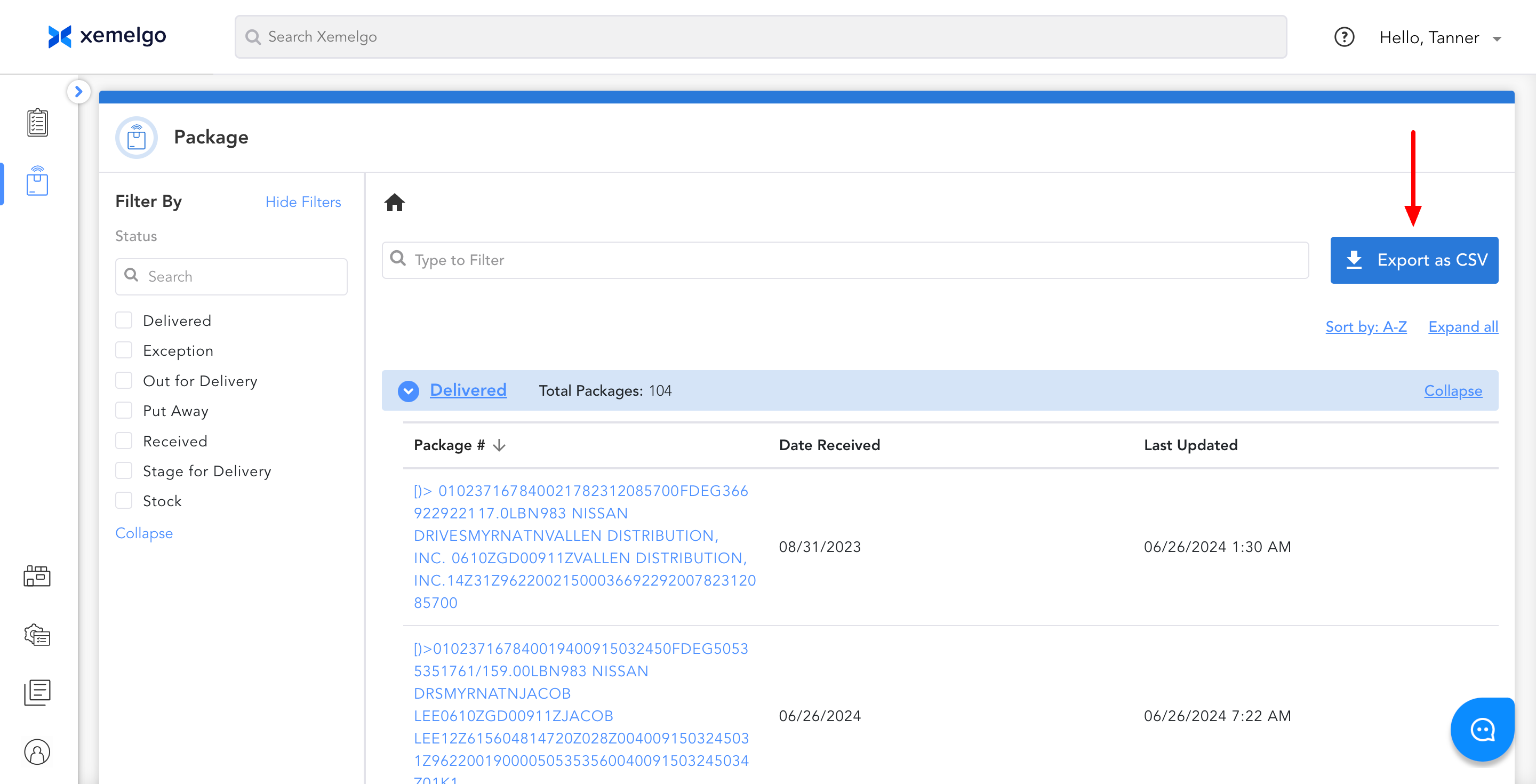
Finally, once you have applied your filters, you can get a CSV file of these specific packages by clicking Export as CSV.
If you want a CSV file of all your packages, click Expand all and then **Export as CSV.
Viewing Package Details
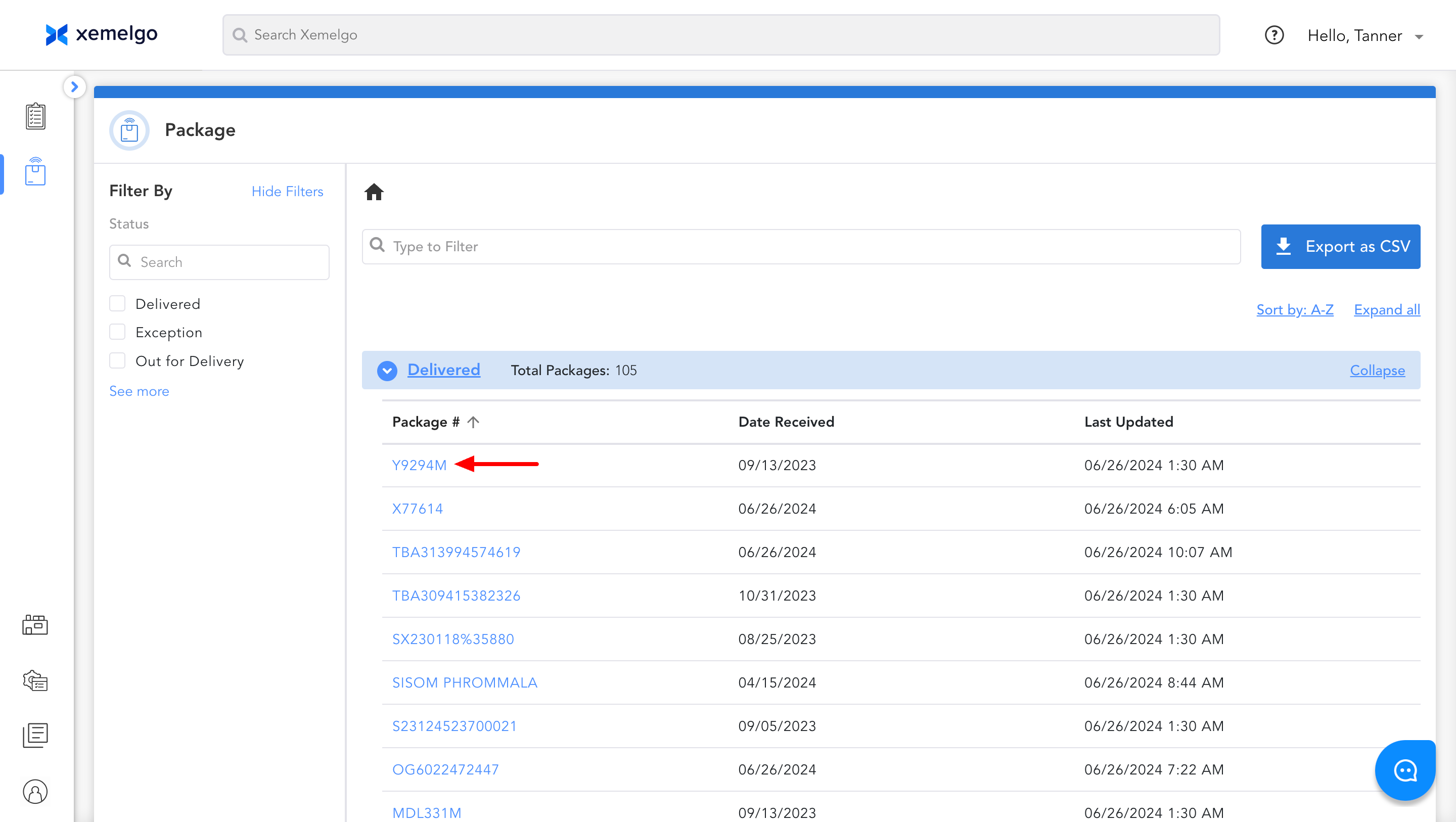
To view more details about an individual package, click on the Package #.
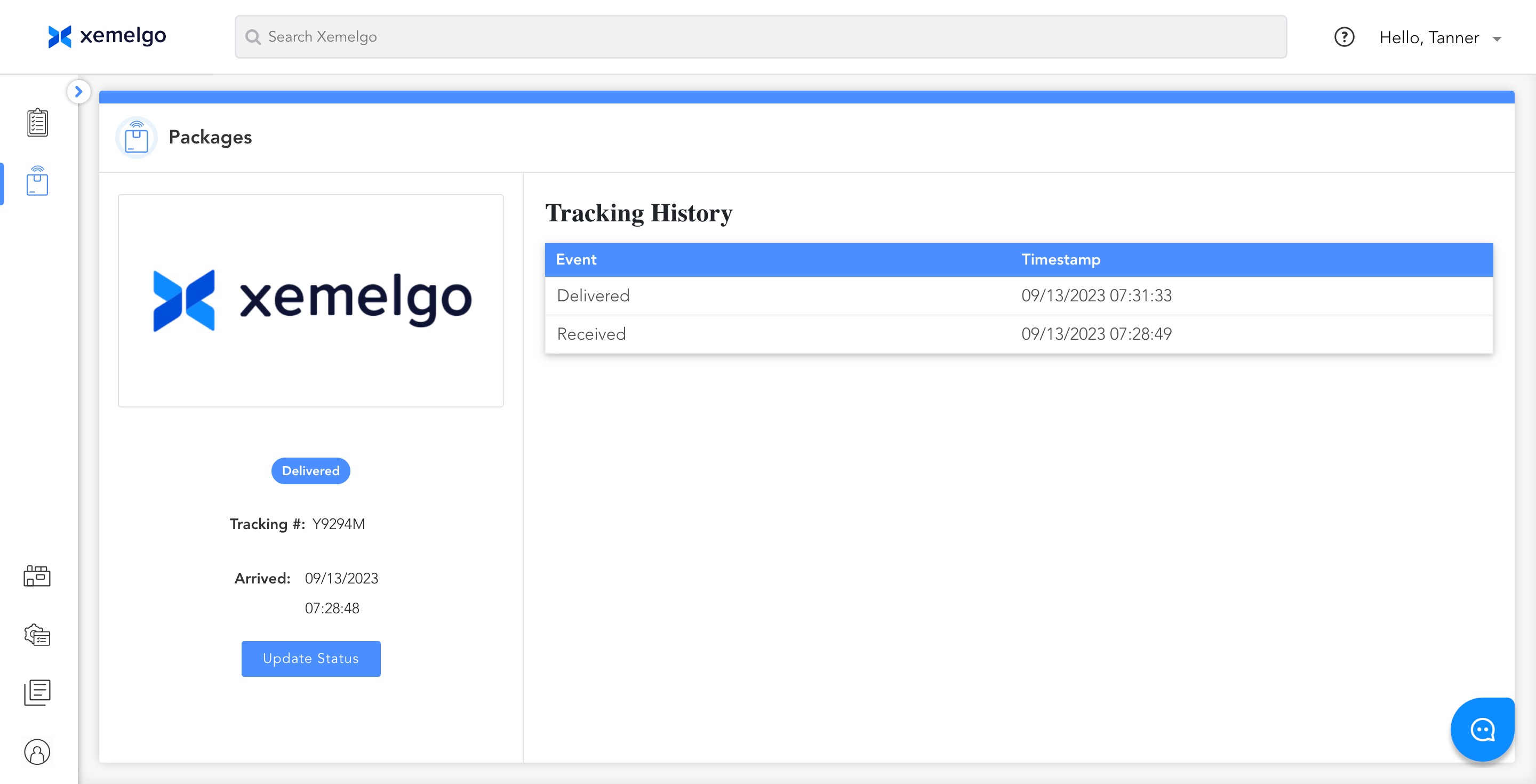
After clicking the package #, you can view the package's Tracking History, Tracking #, Status, and when it Arrived.
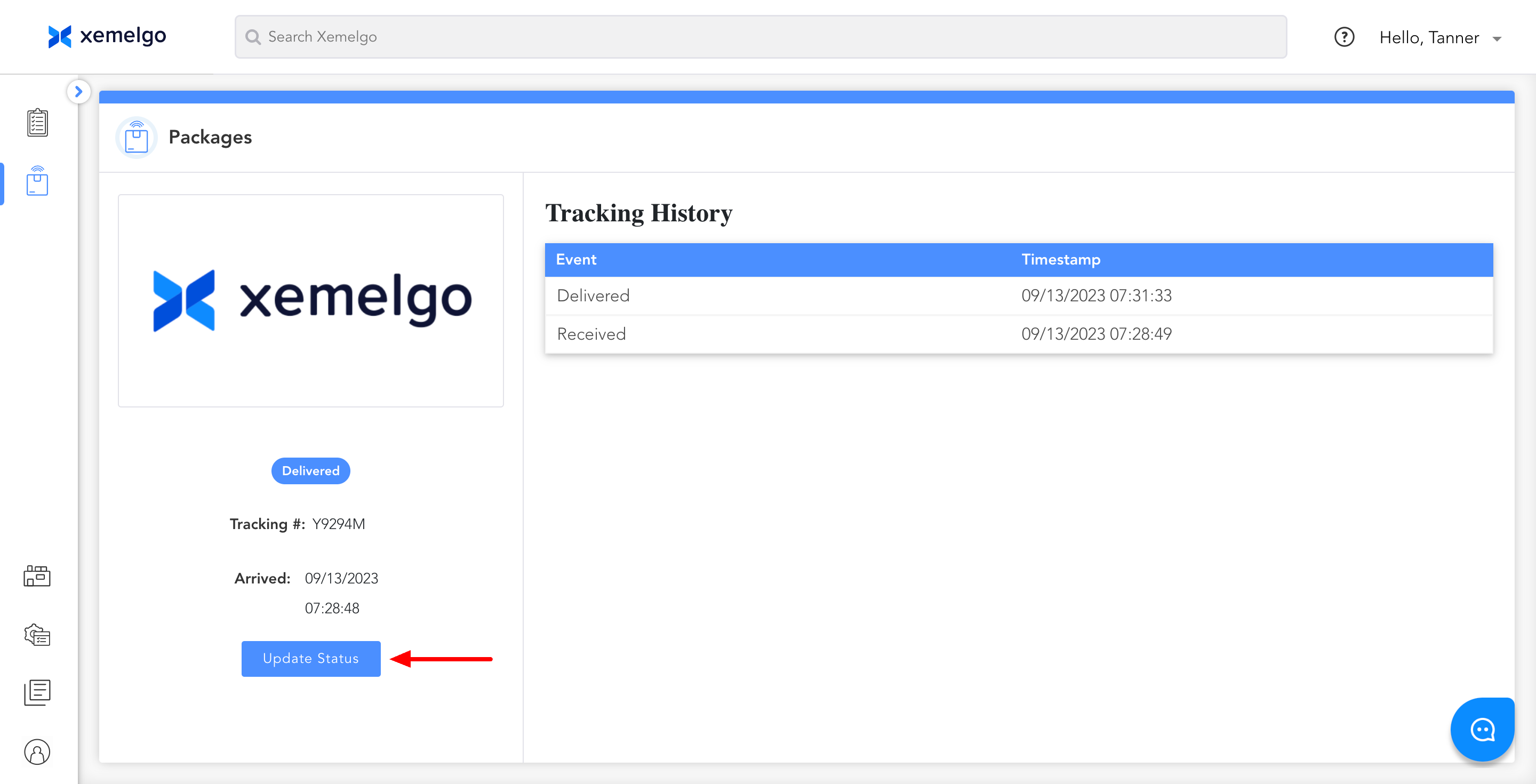
If you need to update the status of the package, click Update Status.
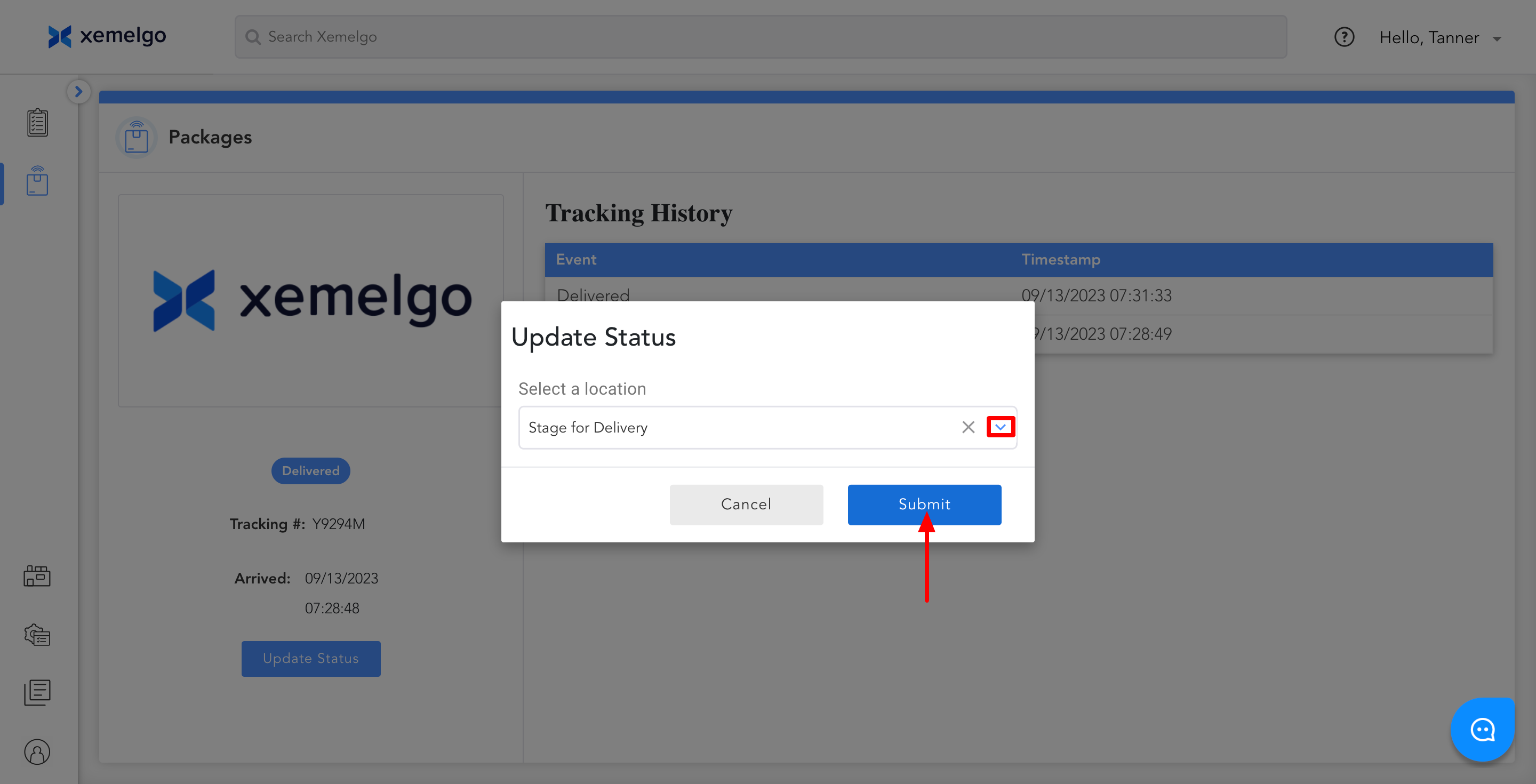
Then, select a status from the Dropdown and click Submit.
To learn how to use these features on mobile, view our* Package Delivery Application documentation.
Need further assistance?
The article above couldn't resolve your issue? Use the chat button in the bottom-right corner to contact the support team.