Update
Update
Overview
This article offers instructions for updating package statuses, including selecting a status update, scanning package barcodes, and manually entering tracking numbers.
Instructions
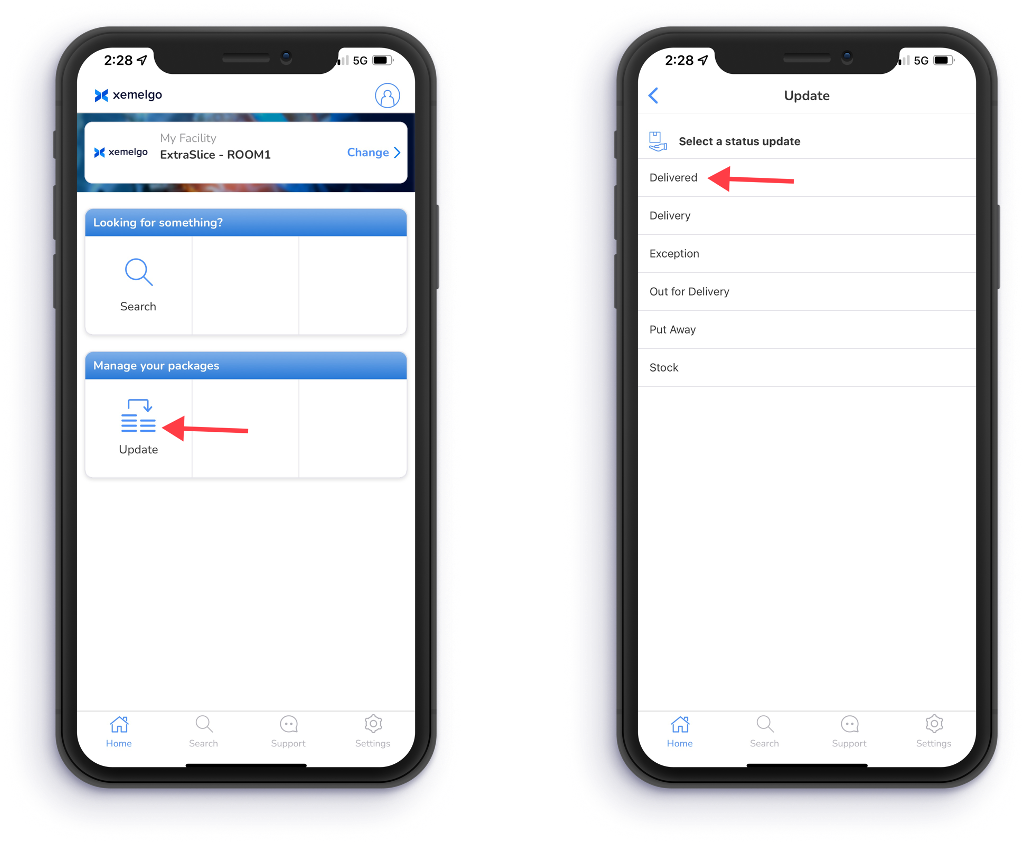
To update the statuses of your packages, tap Update under the Manage your packages section.
Next, select a Status Update.
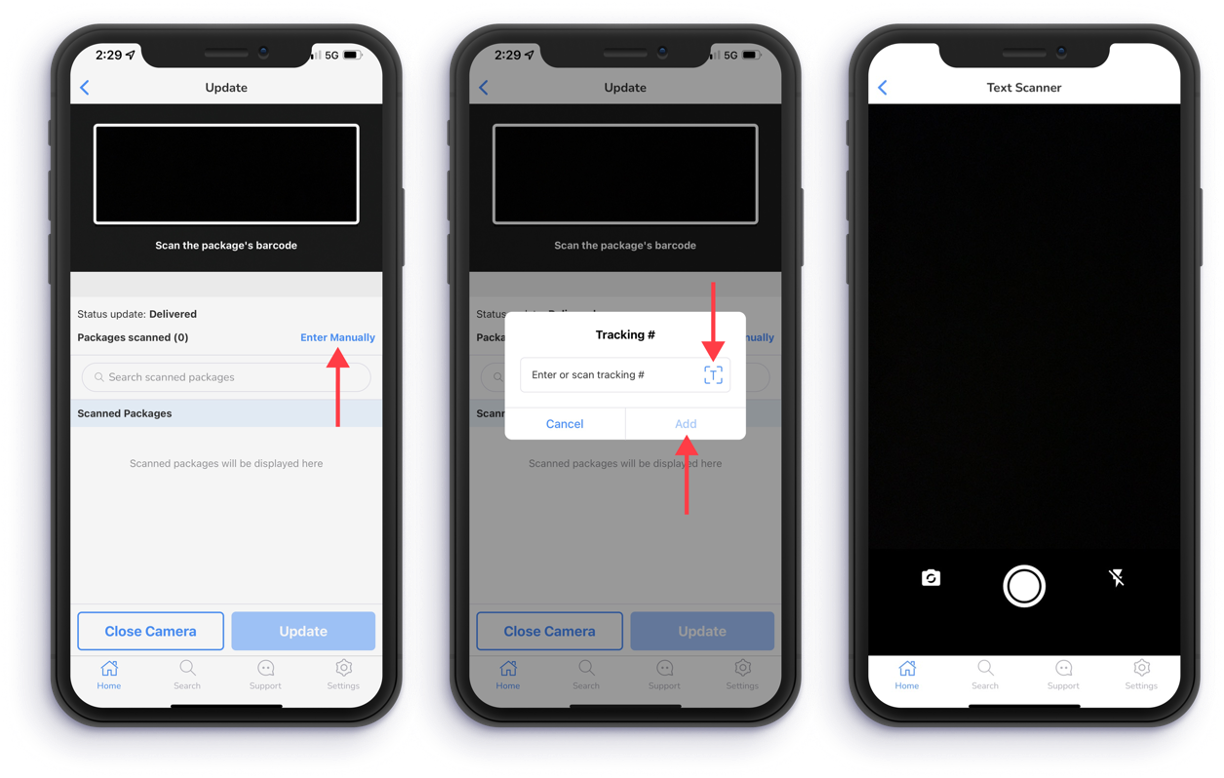
Next, use the camera on your device to scan packages Barcodes.
Once a package has been scanned, it will be displayed below Scanned Packages.
To manually enter a package, tap Enter Manually.
Next, enter the Tracking Number.
Alternatively, users can enter the Tracking Number by tapping on the Text Scanner icon.
Then tap Add.
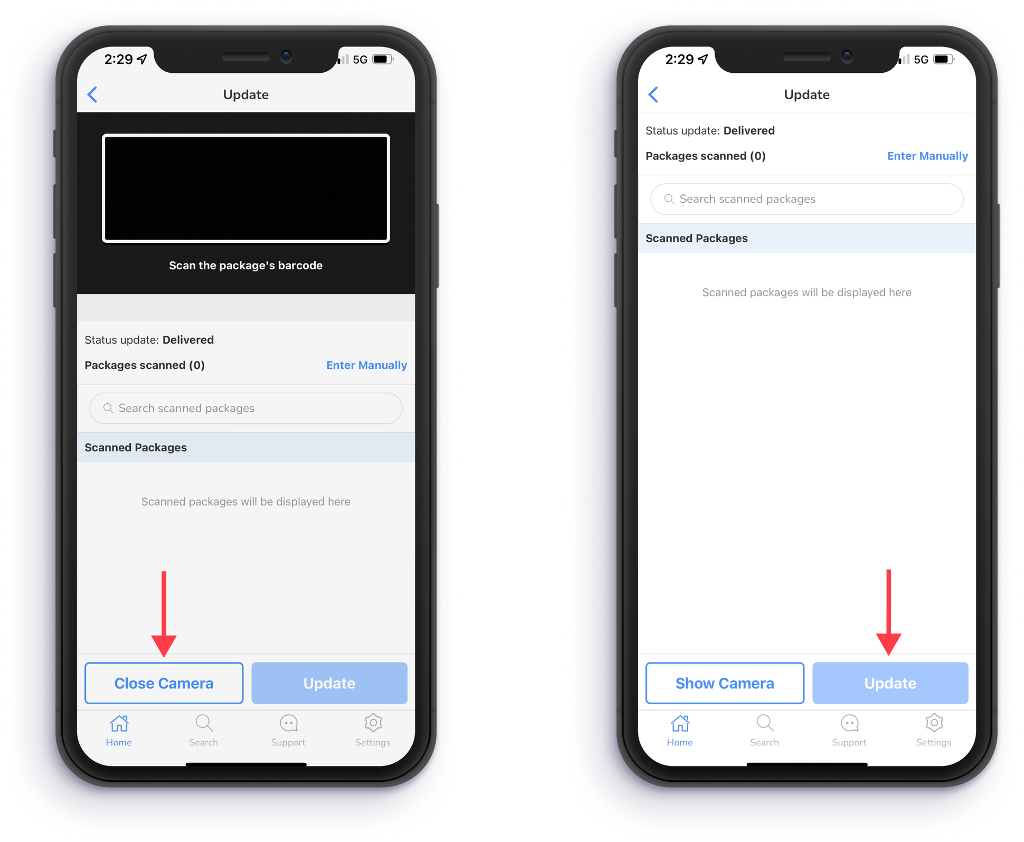
If you want to keep the camera on your device off while using the update feature, tap Close Camera.
Once you have scanned all of the package barcodes you wanted to scan, tap Update.
To learn how to use these features on web, view our **Package Dashboard documentation.
Need further assistance?
The article above couldn't resolve your issue? Use the chat button in the bottom-right corner to contact the support team.