Search
Search
Overview
This article provides step-by-step instructions for tracking packages, viewing their details, updating their status, and marking them as delivered using a mobile app or website.
Instructions
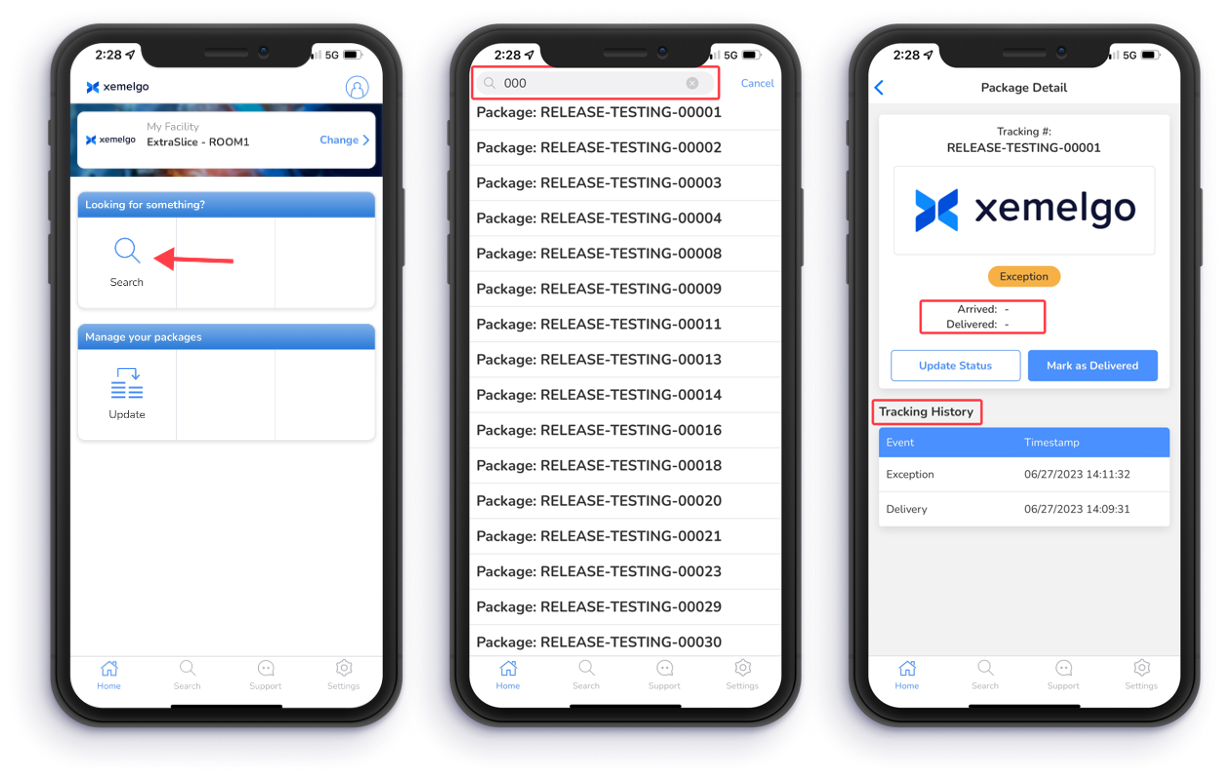
To search for packages, tap Search under the Looking for something? section.
Next, enter the Tracking Number in the text field and tap on the package you were searching for.
Then details associated with the package you selected will be displayed. These details include Tracking Number, when the package Arrived, and when the package was Delivered.
Additionally, a table titled Tracking History will be displayed that shows Events and Timestamps that are associated with the package.
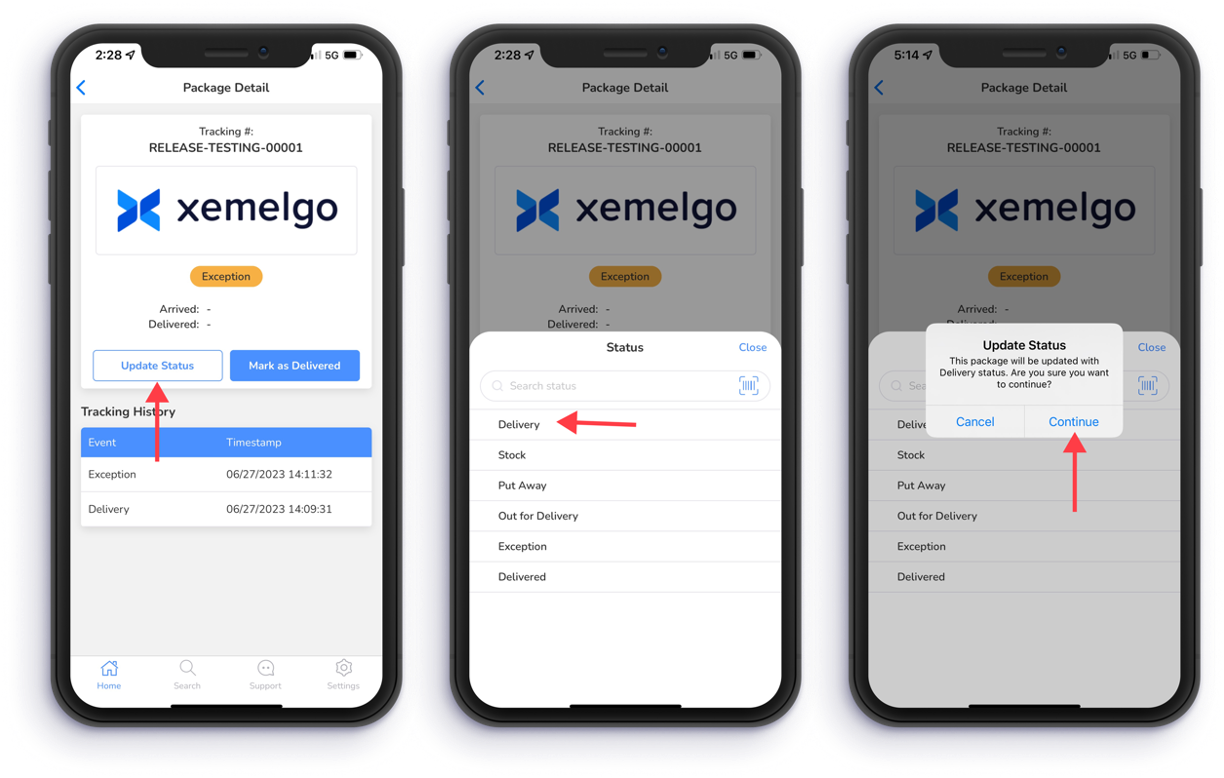
To update the status of the package, tap Update Status.
Next, select the new Status you want to assign to the package.
To confirm the new Status of your package, tap Continue.
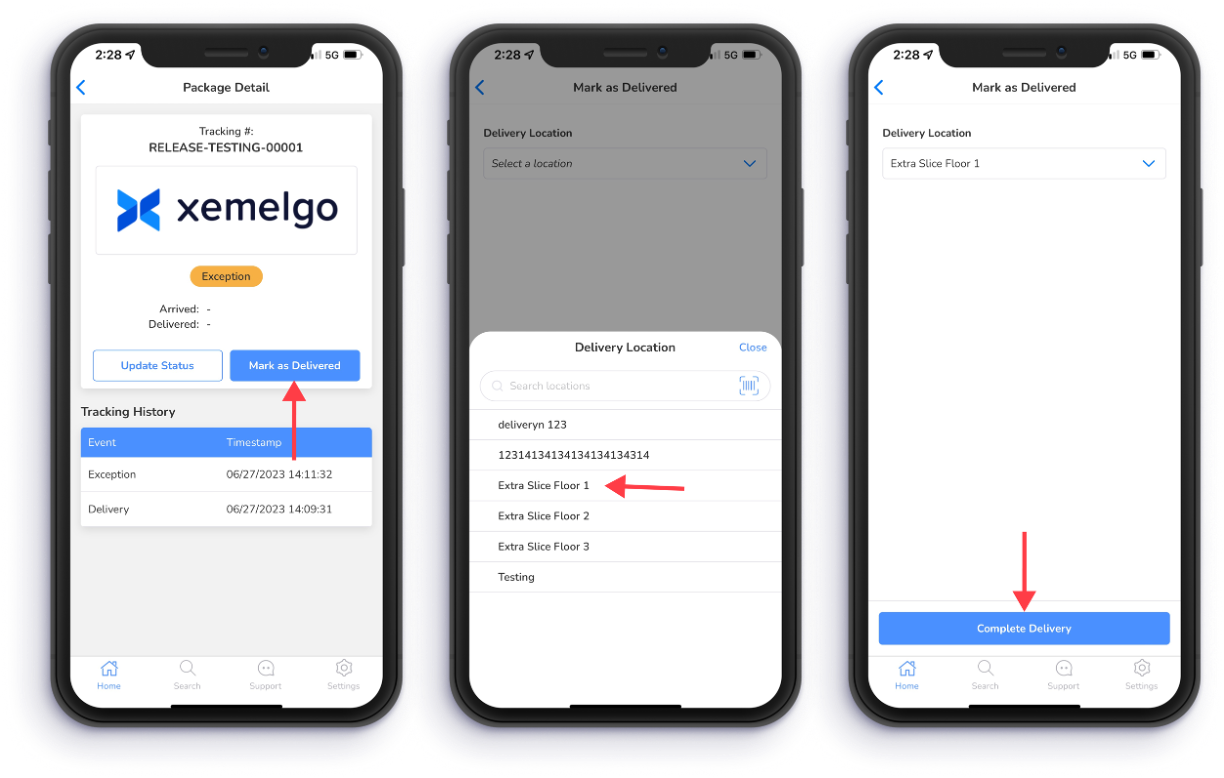
To mark the package as delivered, tap Mark as Delivered.
Next, select a Delivery Location by selecting a location from the Blue dropdown.
Then tap Complete Delivery.
To learn how to use these features on web, view our **Package Dashboard documentation.
Need further assistance?
The article above couldn't resolve your issue? Use the chat button in the bottom-right corner to contact the support team.