Understanding Expired Inventory Management
Understanding Expired Inventory Management
Overview
This article guides users in switching inventory to the expiration view, with features, views, and the option to subscribe to expiration alerts.
Instructions
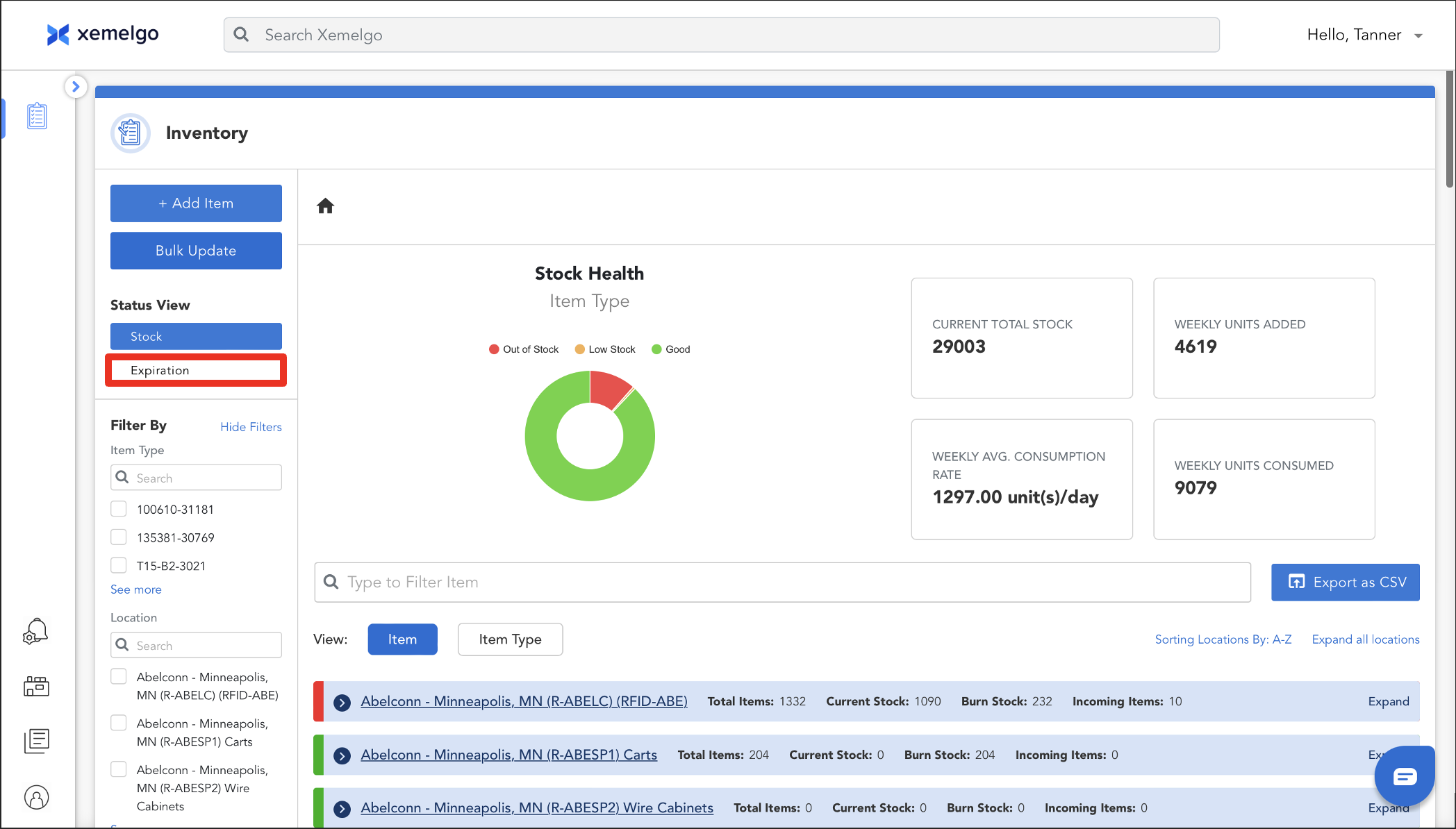
To switch your inventory from stock view to expiration view, click Expiration under Status View.
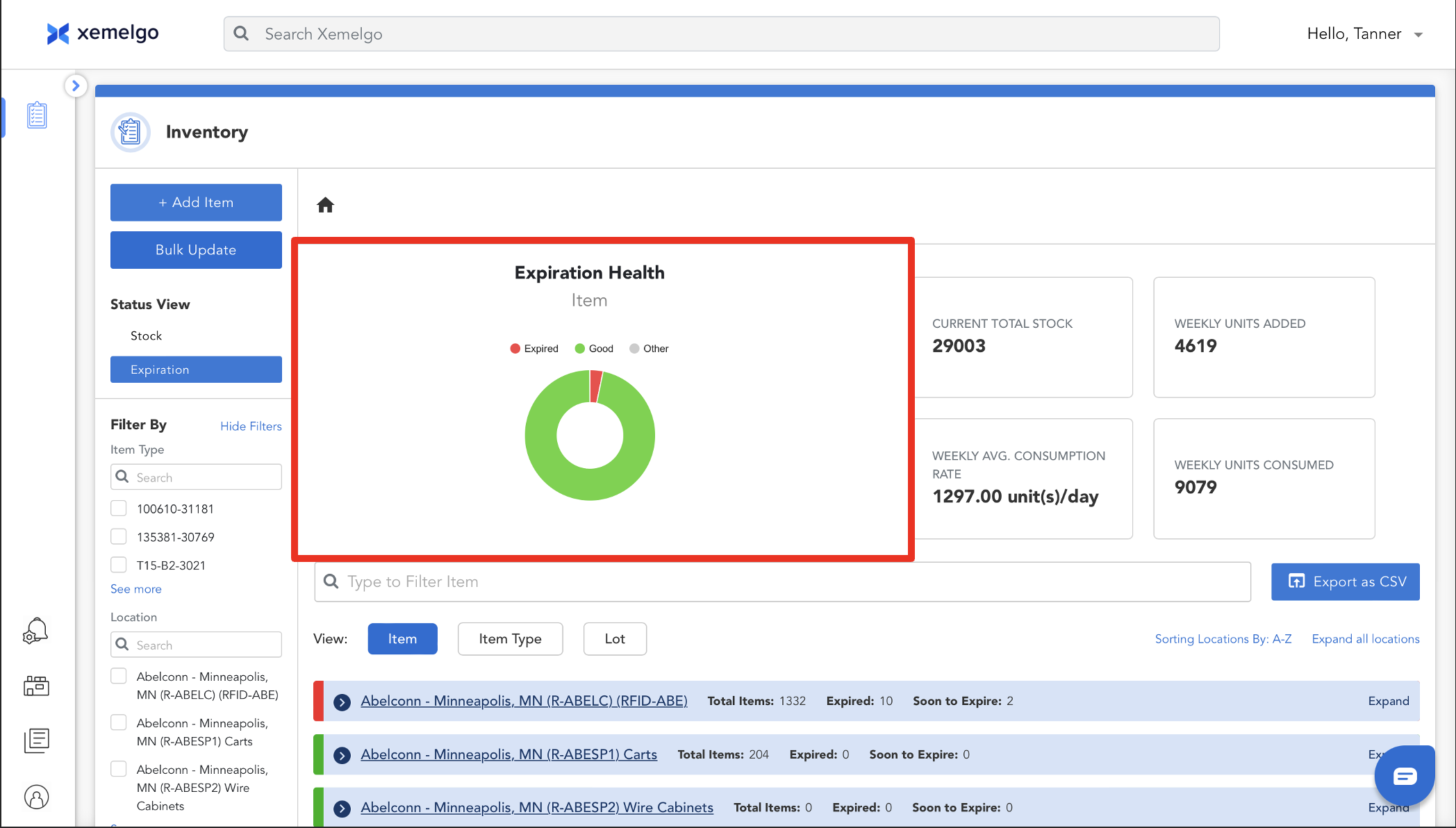
After clicking Expiration, the Donut will switch from Stock Health to Expiration Health. Items will now be placed in 1 of the following 3 categories:
-
Expired - The item has expired and needs to be replenished or replaced
-
Good - The item has not expired
3. Other - The item is not applicable to the overall expiration health
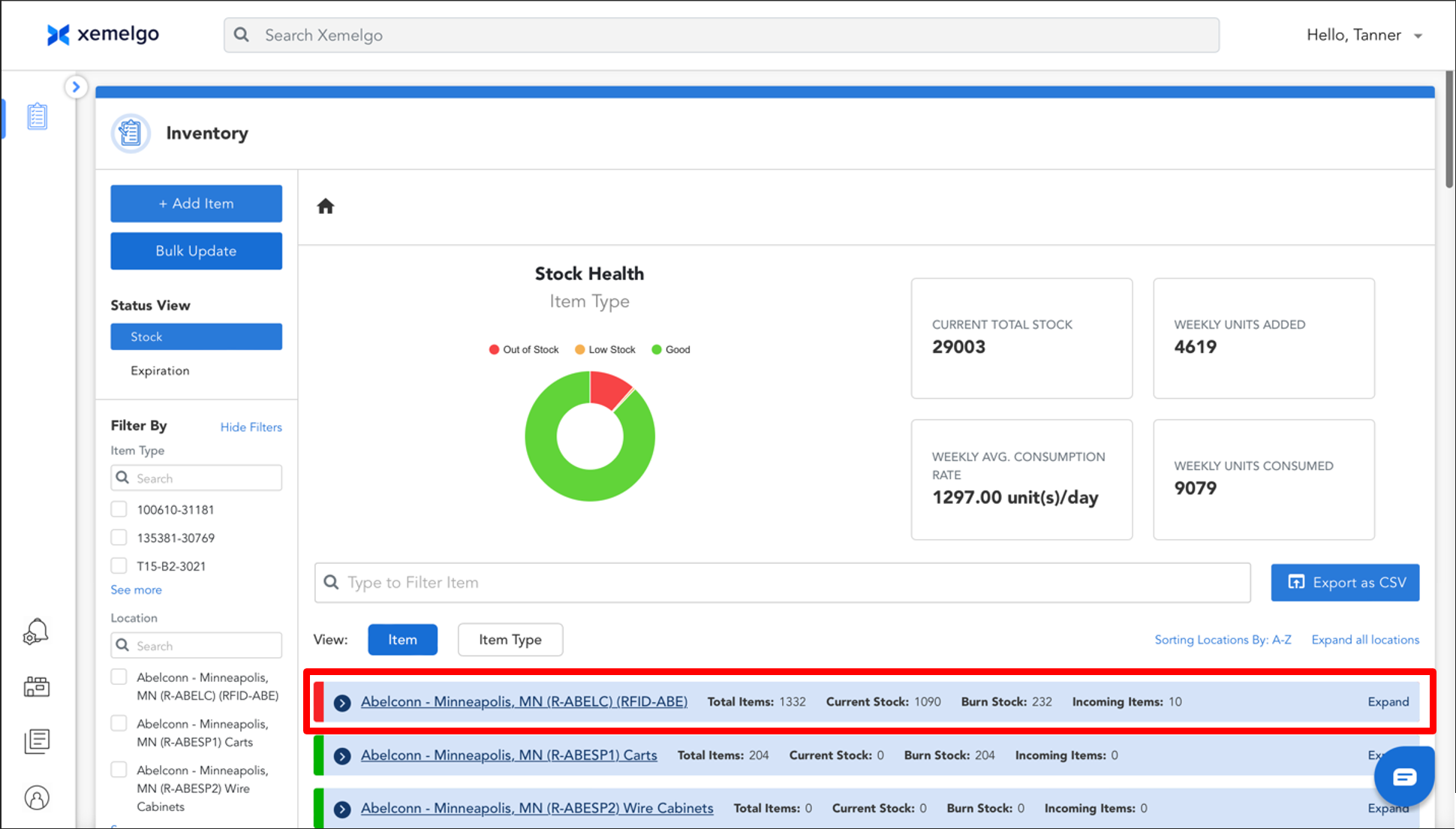
Additionally, when Status View is set to Expiration, Xemelgo automatically Bubbles Up or visually emphasizes locations in your inventory that require immediate attention due to expired or expiring items. This visual emphasis serves as a prioritization mechanism, helping users quickly identify which areas or locations need replenishment or replacement for expired or expiring inventory items.
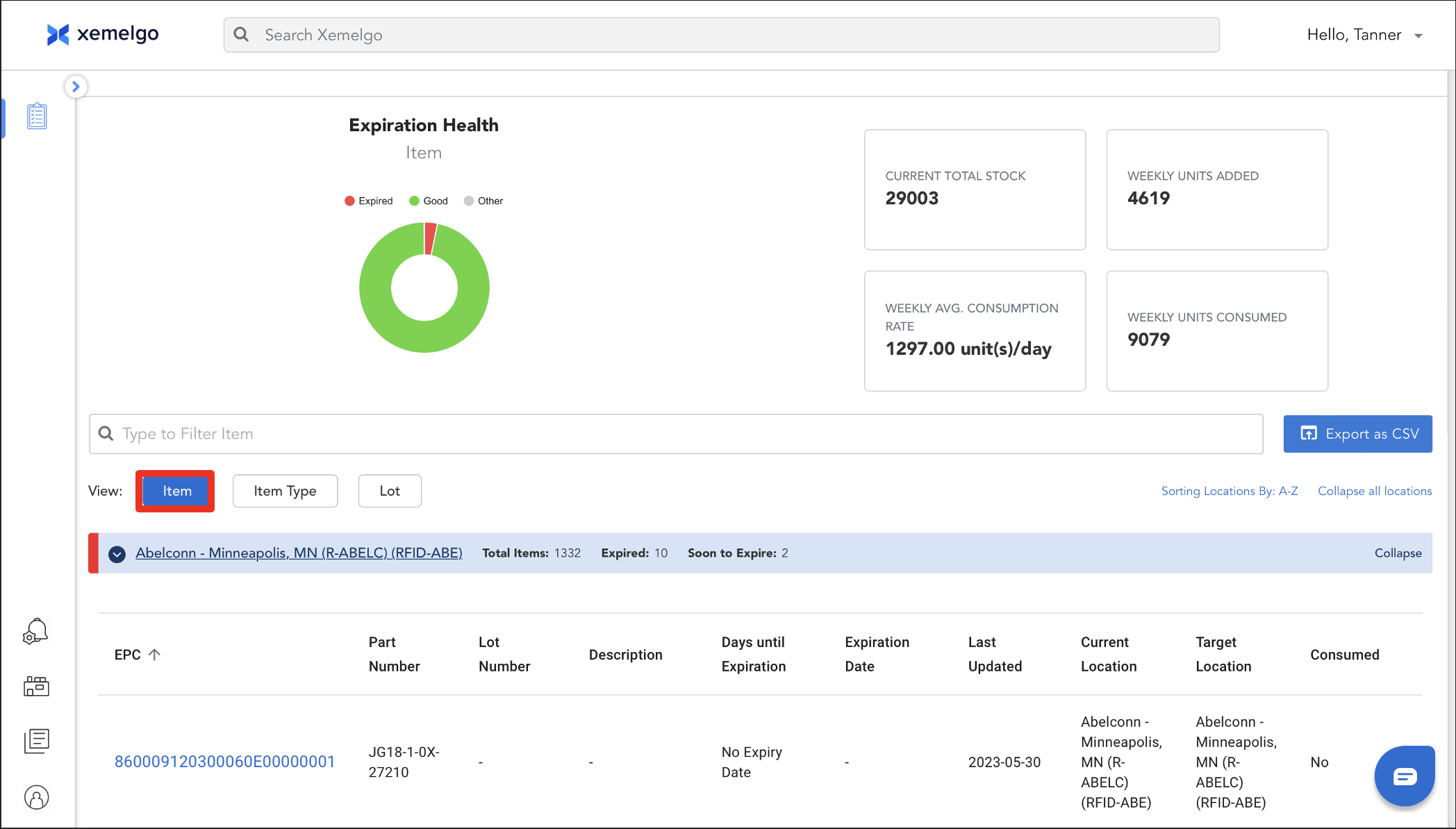
There are 3 different views under the expiration status view:
1. Item
2. Item Type
3. Lot
By clicking Item, you can view the EPC, Part Number, Lot Number, Description, Days Until Expiration, Expiration Date, when the item was Last Updated, its Current Location, its Target Location, and whether or not it has been Consumed.
By clicking Item Type, you can view the Expired Count, Soon to Expire count, and Total Items count associated with a certain Part Number.
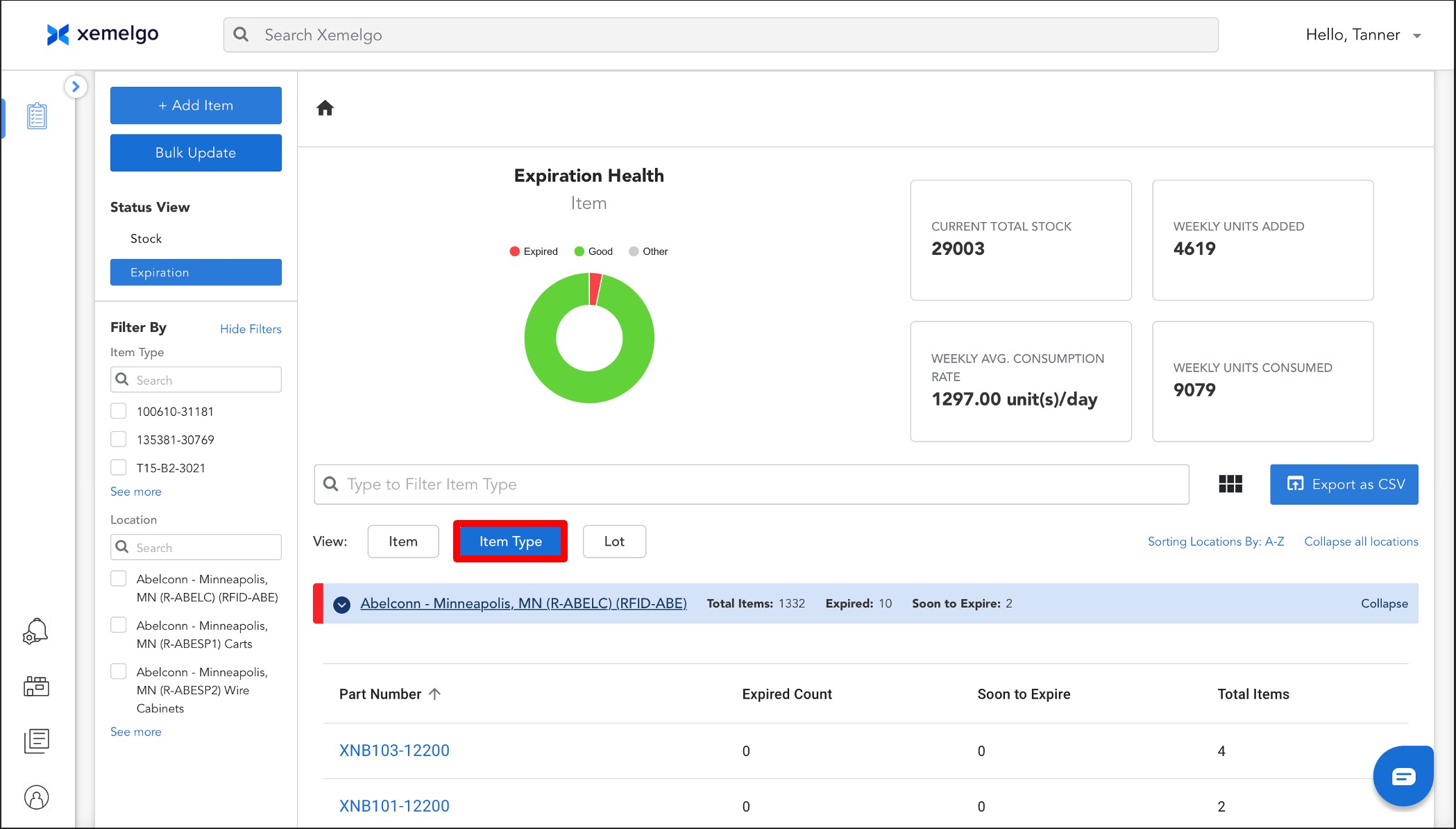
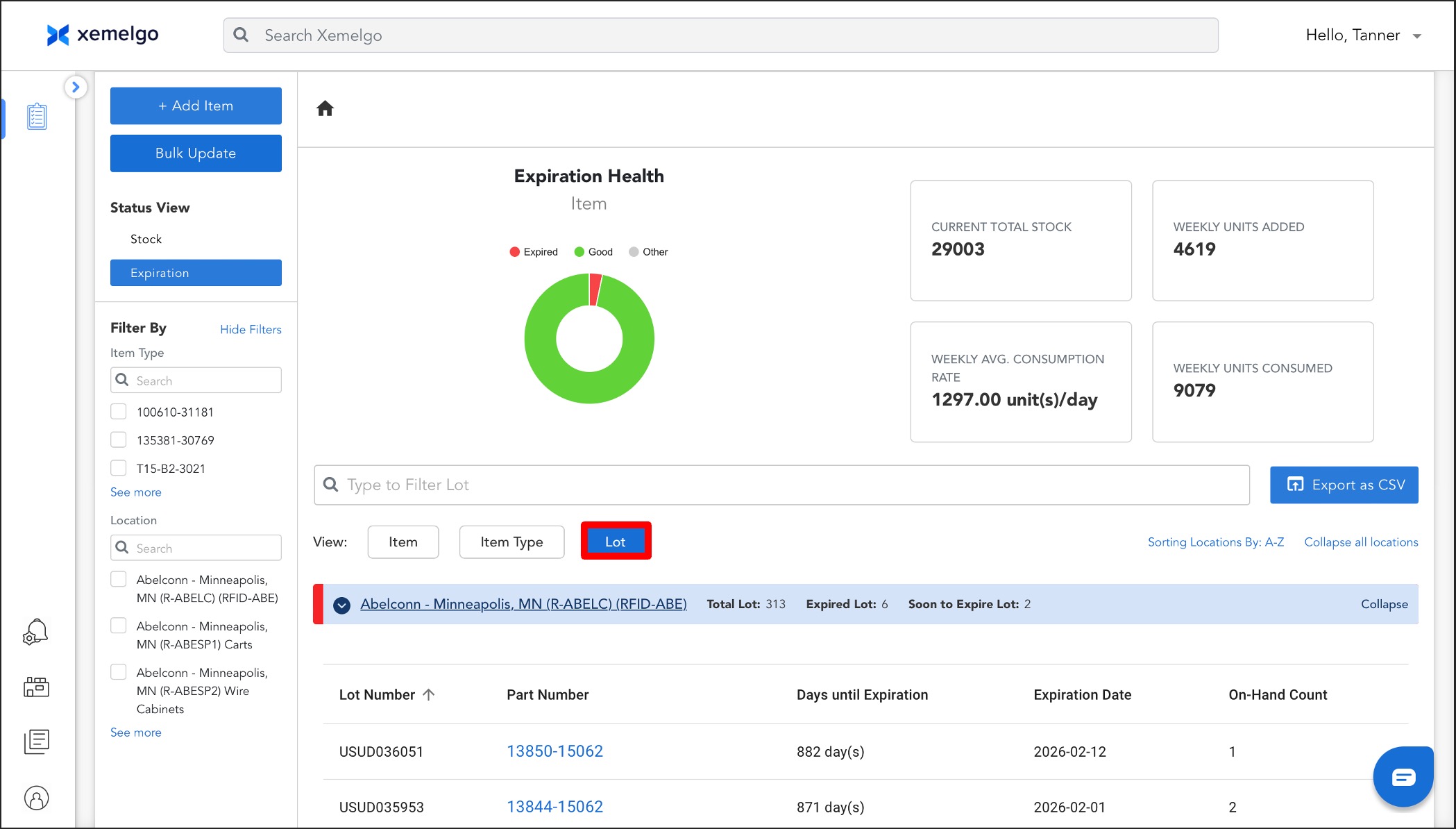
By clicking Lot, you can view the Part Number, Days until Expiration, and On-Hand Count associated with a certain Lot Number.
Users can subscribe to Expiration Alerts to receive a notification every time an item is about to or has expired.
Need further assistance?
The article above couldn't resolve your issue? Use the chat button in the bottom-right corner to contact the support team.