Consume
Consume
Overview
This article focuses on the Consume feature, specifically designed for Non-RFID Inventory management. It guides users on how to initiate consumption, either by selecting an Item Category from a list, searching for it using text, or scanning a barcode. Users can then choose the specific item to consume, enter the desired quantity, and submit the consumption request. Additionally, it mentions the option for users to subscribe to Stock Alerts, which notify them when an item's stock reaches a low level.
Instructions
This feature only applies to **Non-RFID Inventory.
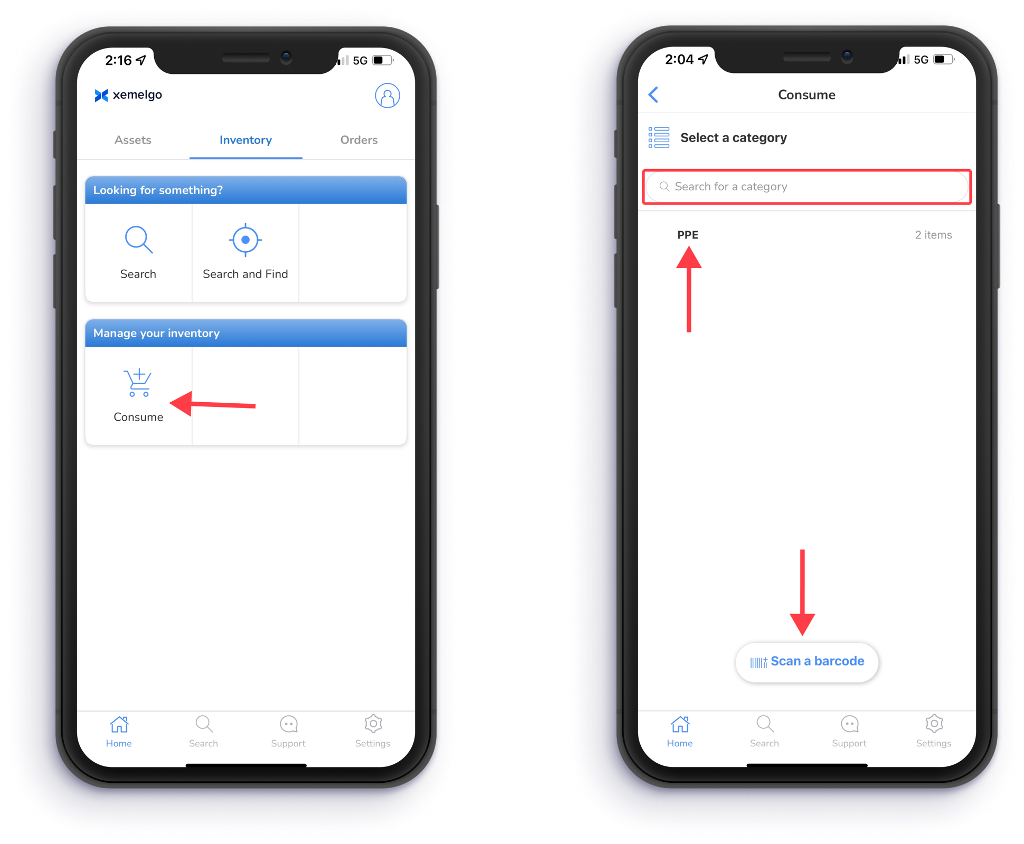
To begin using the consume feature, tap Consume located under the Manage your inventory section of the Inventory user interface.
Next, either select an Item Category from the provided list or search for a specific Item Category using the text field.
Users also have the ability to search for item categories by scanning an item's barcode. To do this, tap Scan a barcode.
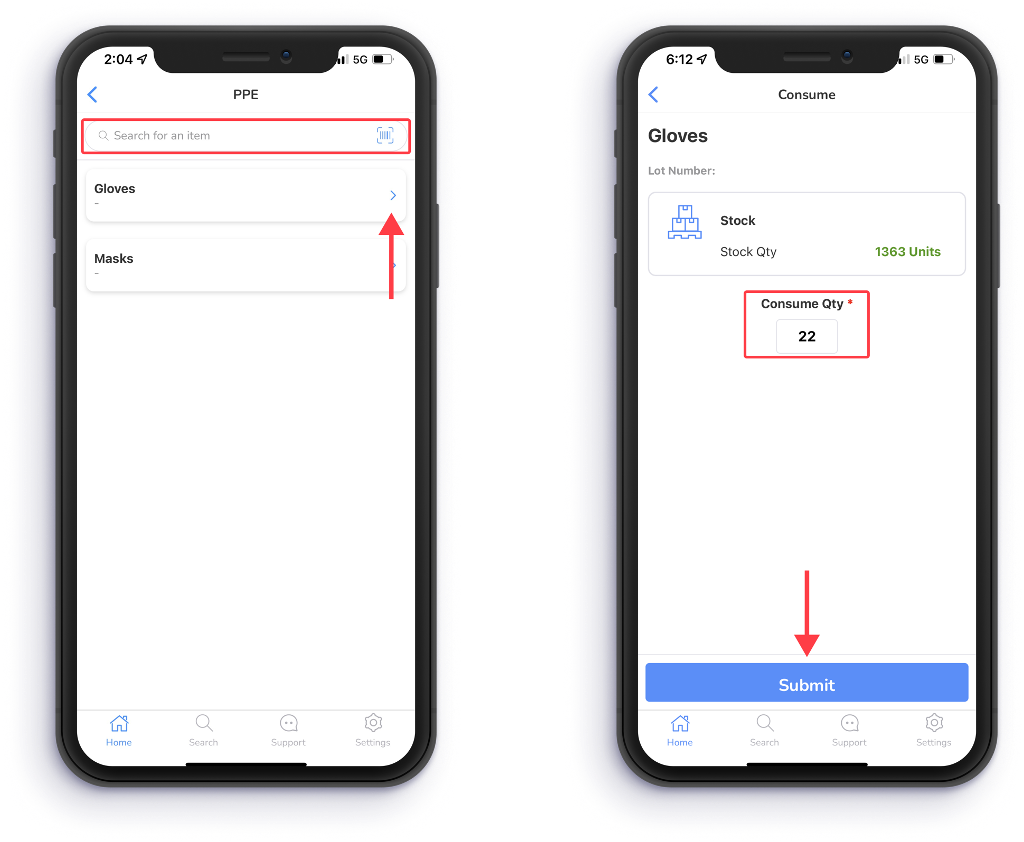
Next, select an item from the item category to consume by selecting the Blue arrow.
If you cannot find the item you are looking for, search for it using the text field.
Then enter the Quantity of the item you want to consume.
After selecting the Consume Quantity, tap Submit.
Users can subscribe to Stock Alerts to receive a notification every time an item's stock is low.
Need further assistance?
The article above couldn't resolve your issue? Use the chat button in the bottom-right corner to contact the support team.