Restart NordicID Mounted Reader Remotely
Restart NordicID Mounted Reader Remotely
Overview
This article provides instructions for logging into the NordicID portal, obtaining the IP address of a mounted reader, accessing the reader's web portal, obtaining login credentials if necessary, and restarting the reader.
Instructions
Login to NordicID Portal.
Make sure your computer has access to the network that the readers are on.
Next, you will need the mounted reader's IP Address. Please reach out to Xemelgo Support if you do not have it as it might not get documented during deployment.
Once you have the mounted reader's IP address, login to the reader's web portal in your browser by typing http:// followed by the IP address (Ex. http://10.10.8.51/)
Then, the browser will prompt you to enter your Username and Password. Please reach out to Xemelgo Support if you don't have it already as those might not get documented during deployment.
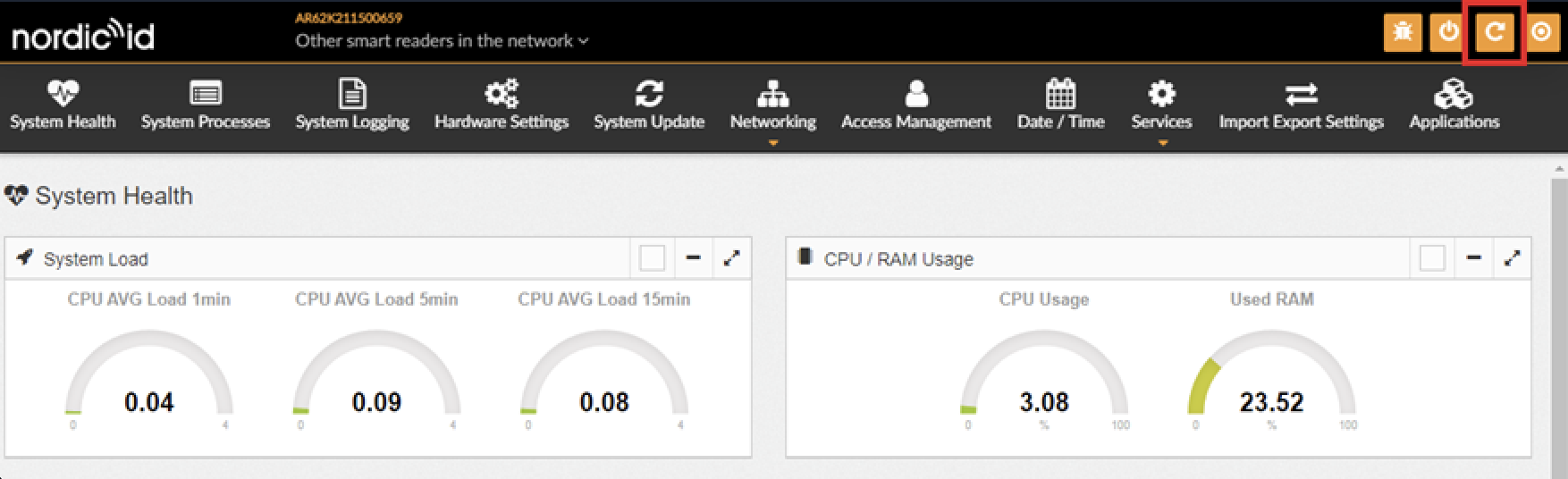
After logging in, click the Restart button on the top right corner to restart the reader.
Need further assistance?
The article above couldn't resolve your issue? Use the chat button in the bottom-right corner to contact the support team.