Onboarding and Connecting to Zebra RFD40/RFD90
Onboarding and Connecting to Zebra RFD40/RFD90
Overview
This article explains how to onboard a Zebra RFD40 or RFD90 to the Xemelgo web application.
Instructions
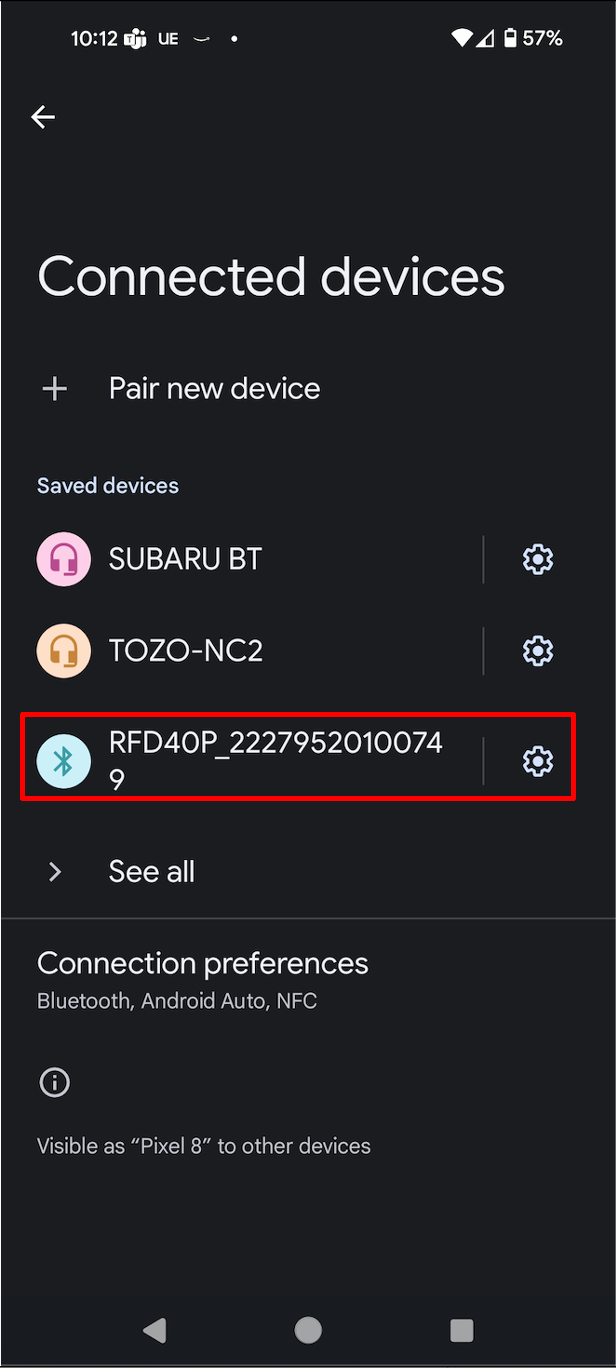
First, pair the handheld reader with an Android device via Bluetooth.
Make note of the Zebra RFD40/RFD90 Device Name that appeared under Connected Devices as it will be needed for a later step.
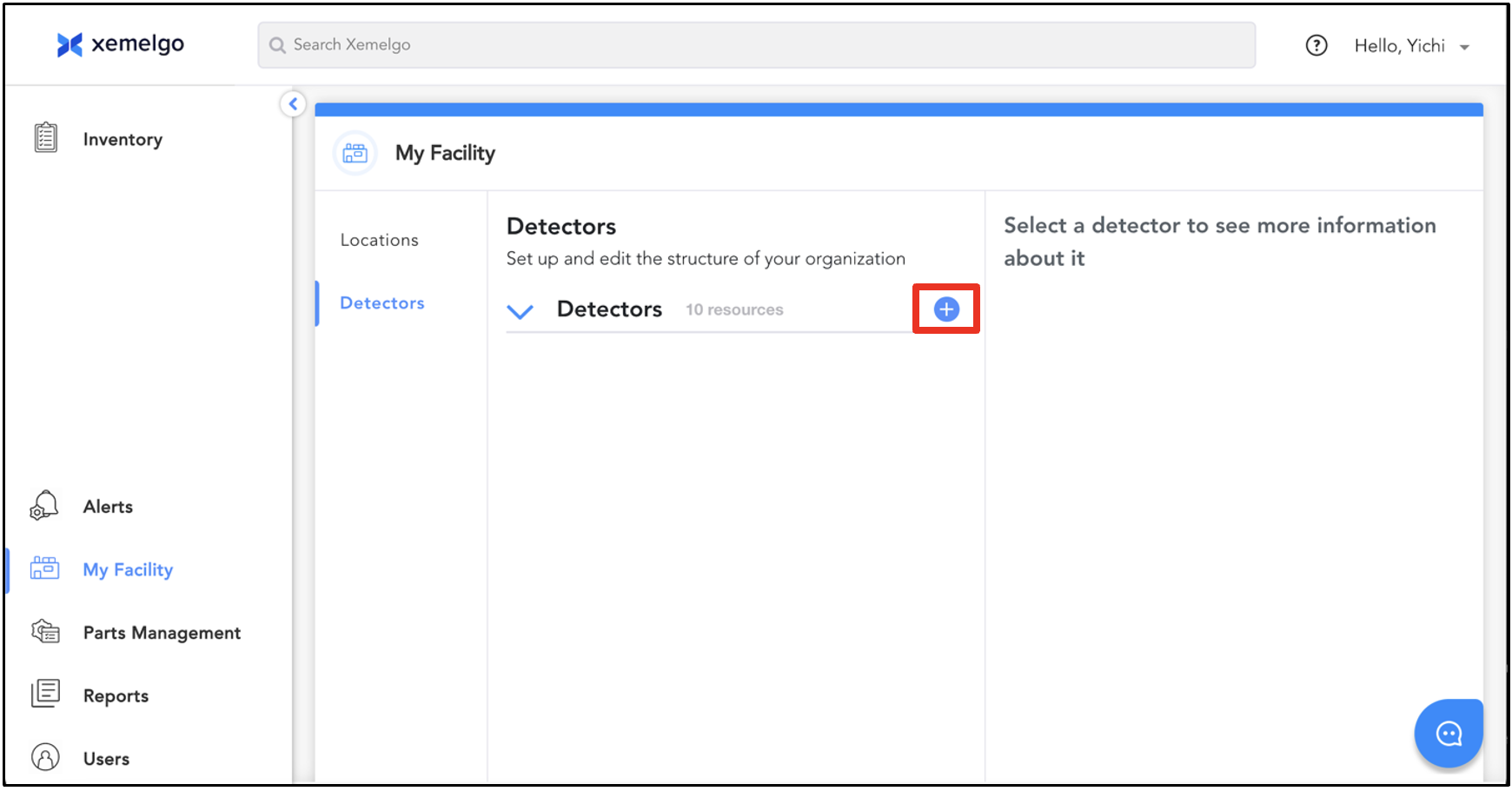
Next, to onboard the reader in the Xemelgo Web Application navigate to the My Facility section on the left, click Detectors, and click on the Blue plus icon.
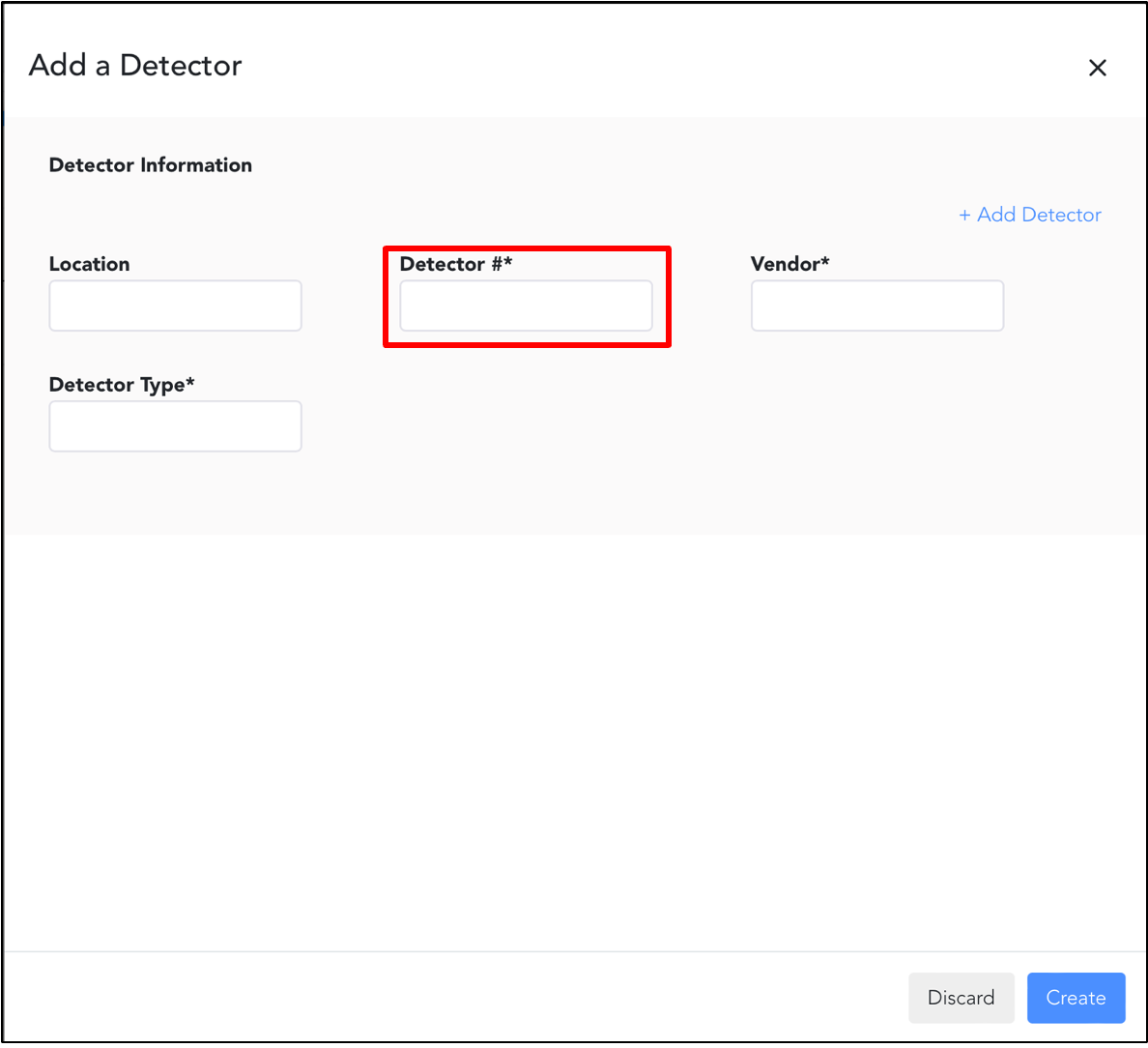
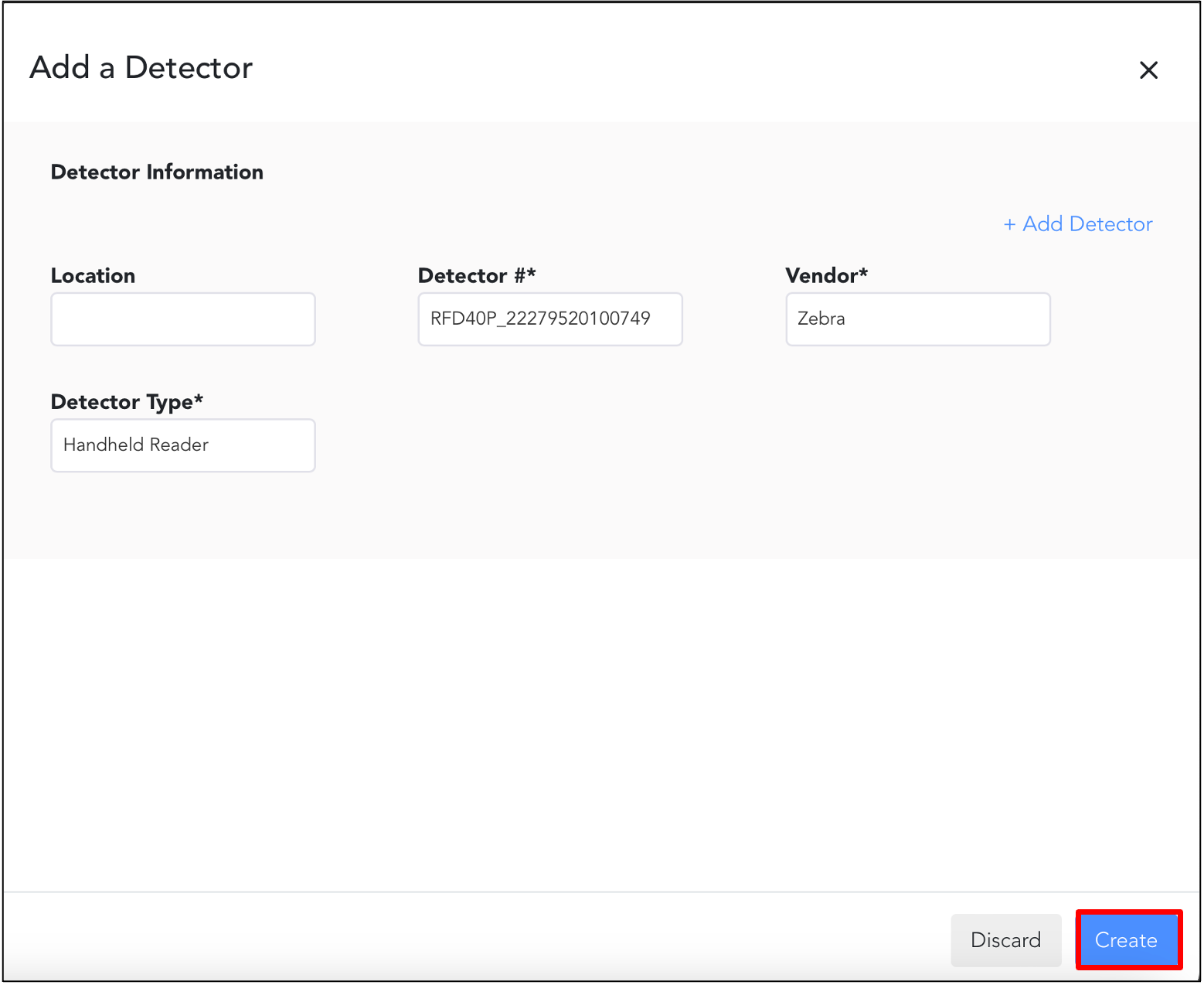
In the Detector # field, enter the Zebra RFD40/RFD90 Device Name that appeared under the Connected Devices section when pairing the handheld reader via Bluetooth.
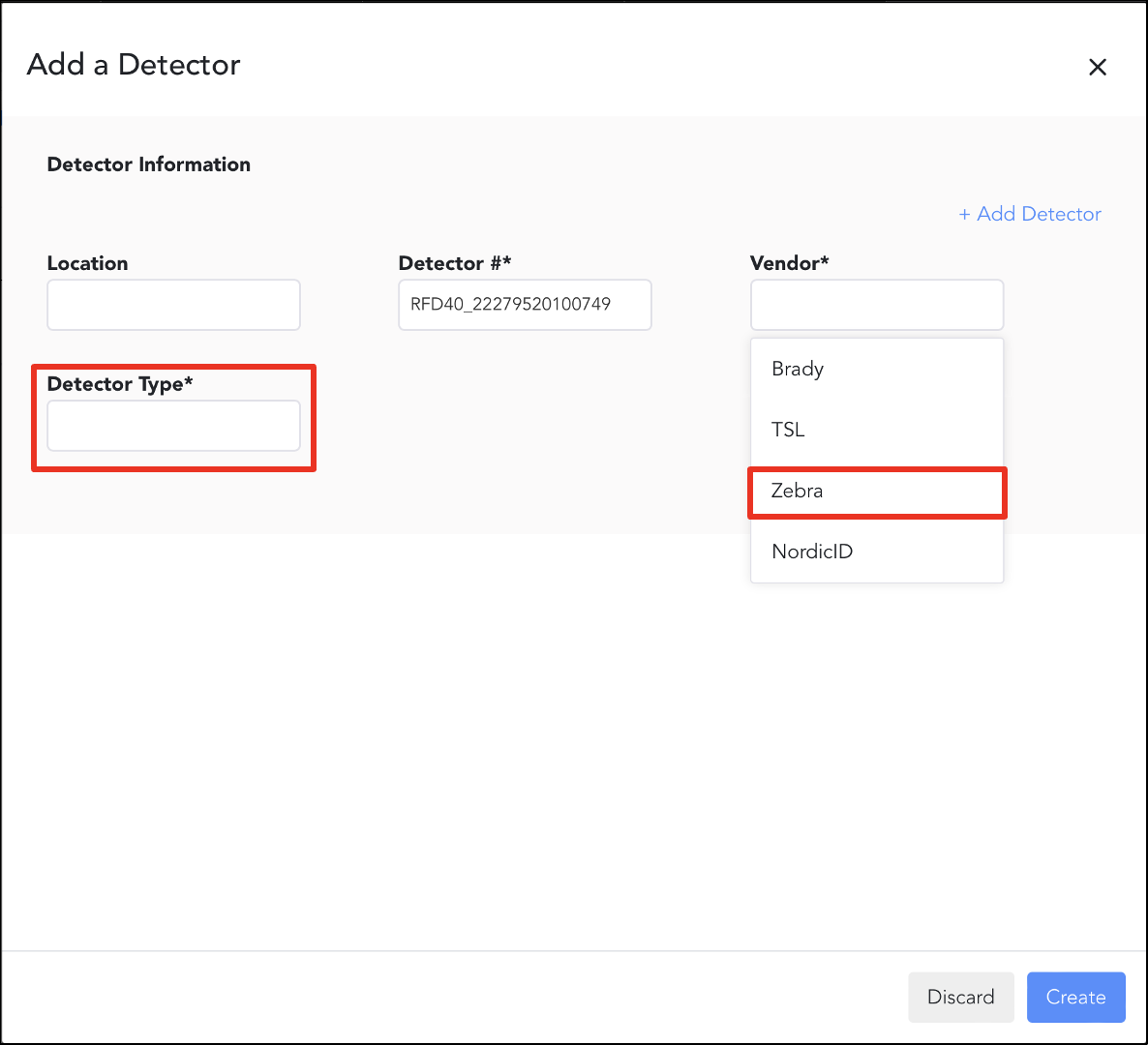
Then, enter the Vendor (Zebra) and Detector Type (Handheld Reader).
To finish onboarding the reader, click Create.
Need further assistance?
The article above couldn't resolve your issue? Use the chat button in the bottom-right corner to contact the support team.