How to Save and Email Printer Configuration After Calibration
How to Save and Email Printer Configuration After Calibration
Overview
This article guides users on saving and emailing printer configuration after calibration.
Instructions
First, get the IP Address of the printer which can be found directly on the printer screen under the Network Tab.
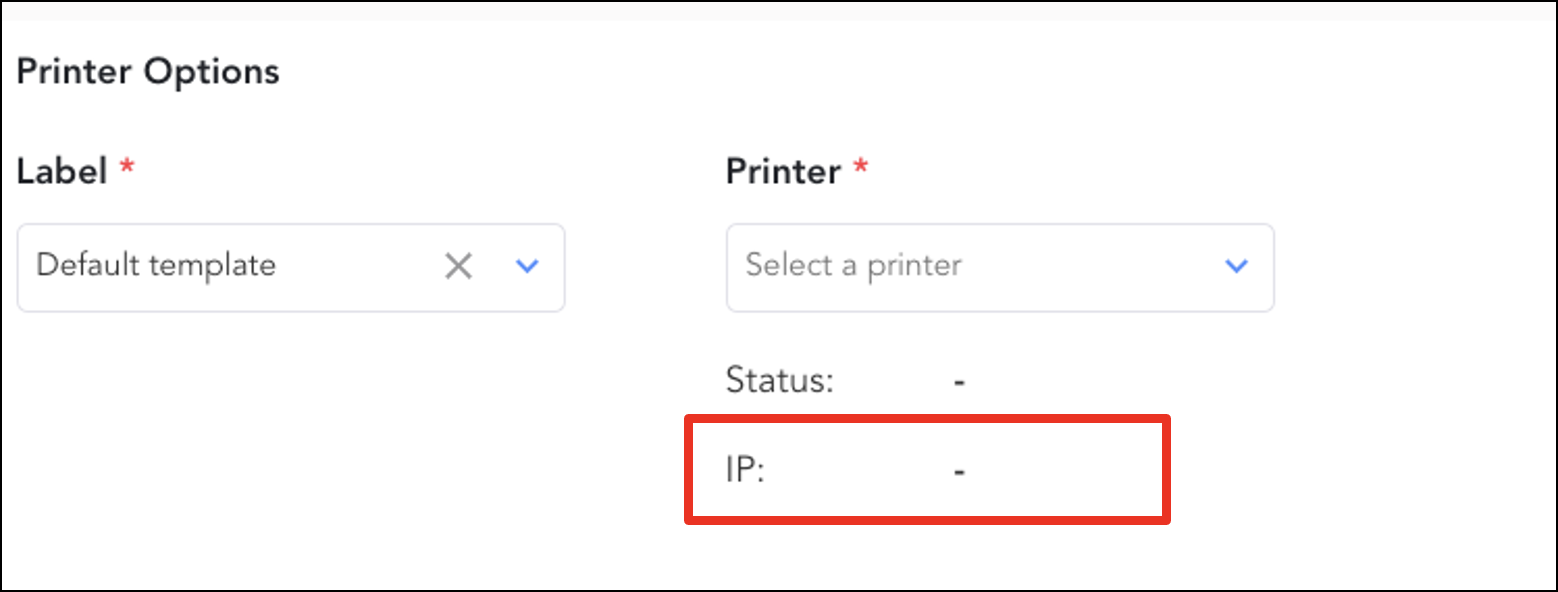
If you are unable to locate the IP Address on the printer, an alternative option would be to obtain the printer’s IP from the Xemelgo UI on the Item Onboarding Page under Printer Status.
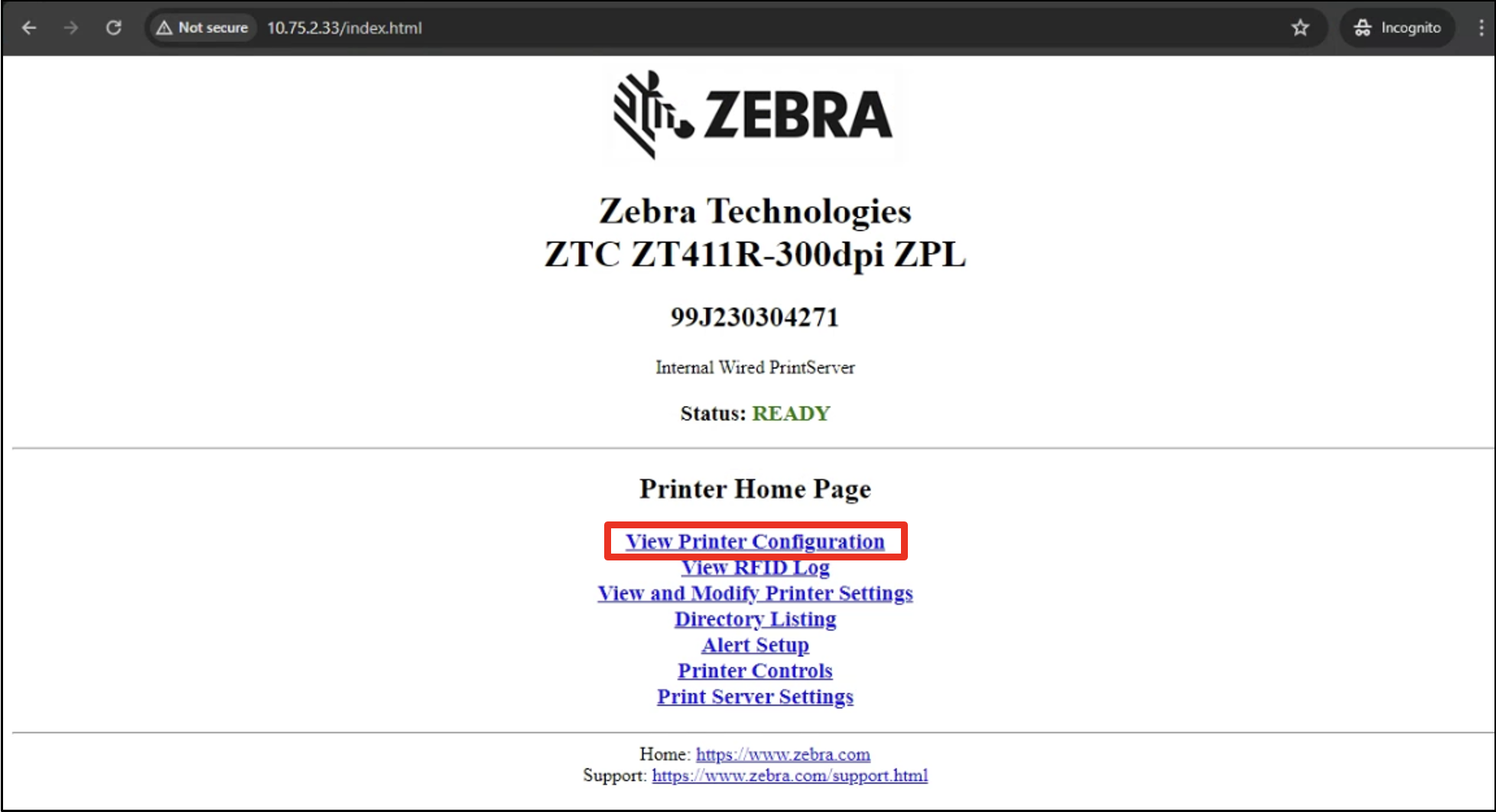
Once you have the printer's IP address, login to the printer's web portal in your browser by typing http:// followed by the IP address (Ex. http://10.75.2.33/)
Next, click View Printer Configuration.
Then, you will then be taken to a new page. Copy the contents of this page.
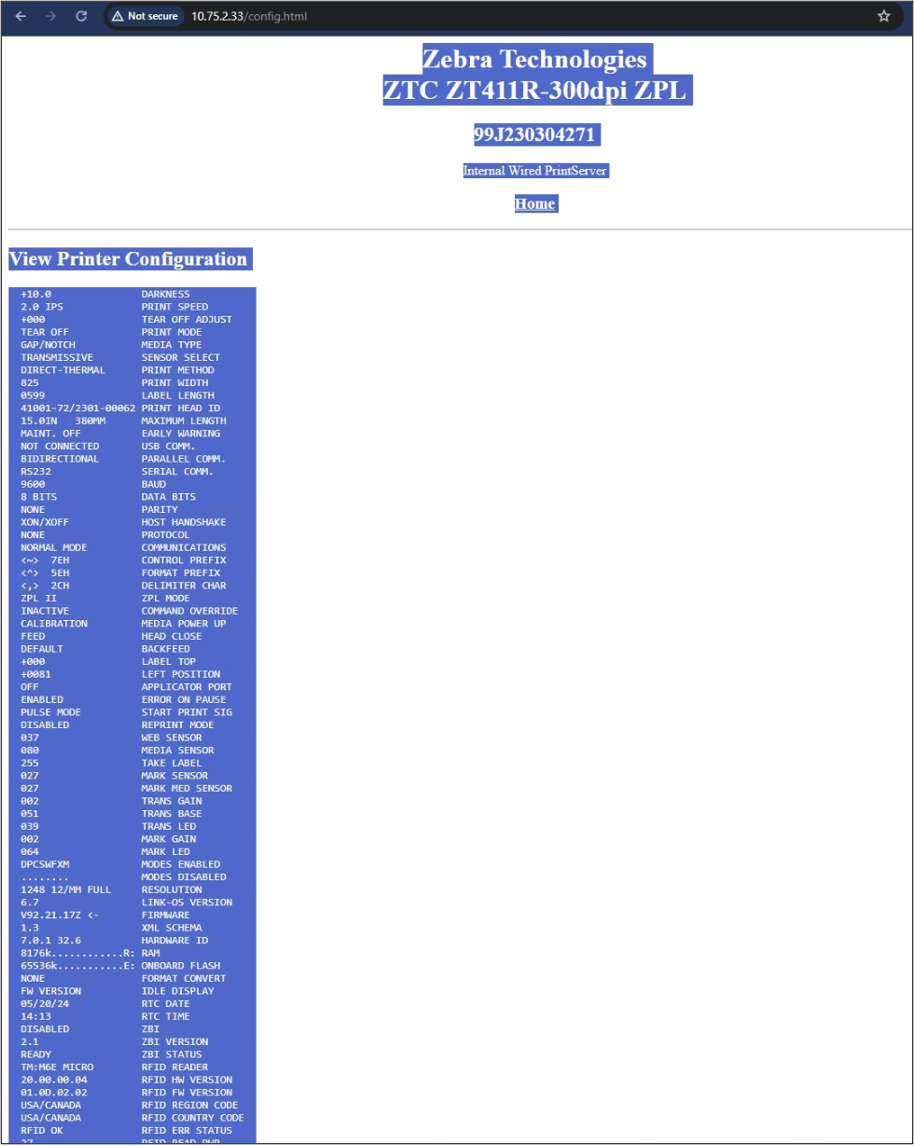
Finally, paste the copied contents into an email to support@xemelgo.com.
Need further assistance?
The article above couldn't resolve your issue? Use the chat button in the bottom-right corner to contact the support team.