Configuring Zebra Phone for Barcode Scanning
Configuring Zebra Phone for Barcode Scanning
Overview
This article guides users on configuring their Zebra phone to scan barcodes effectively.
Instructions
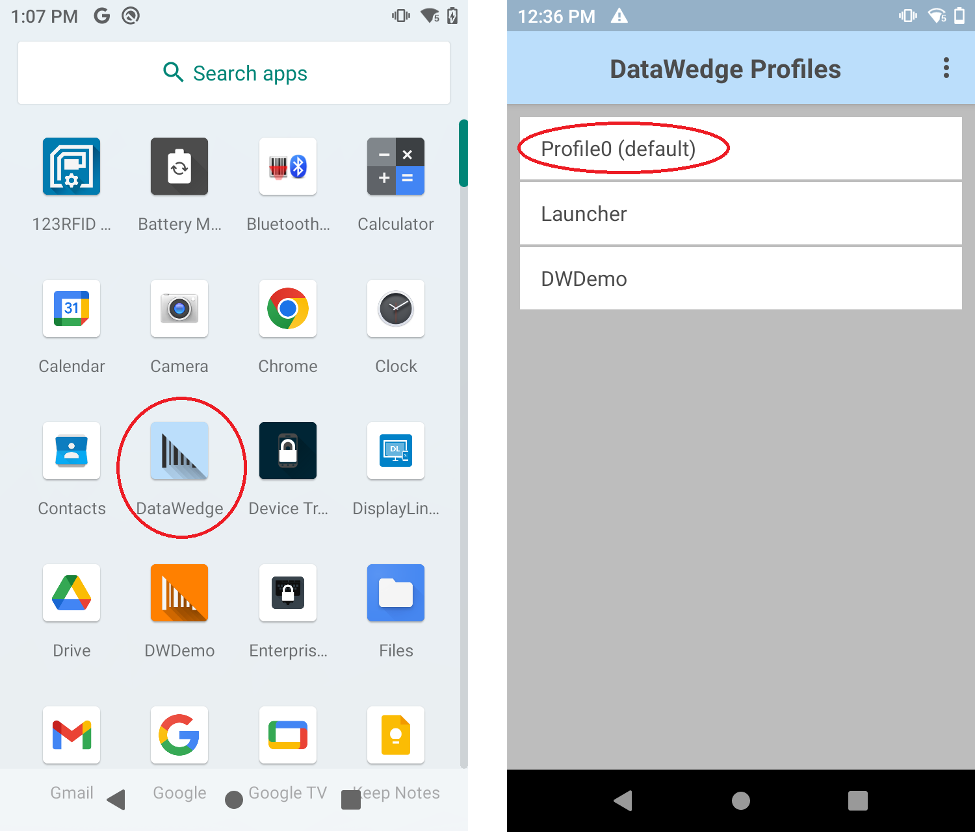
Navigate to the DataWedge app.
Next, tap Profile0 (default).
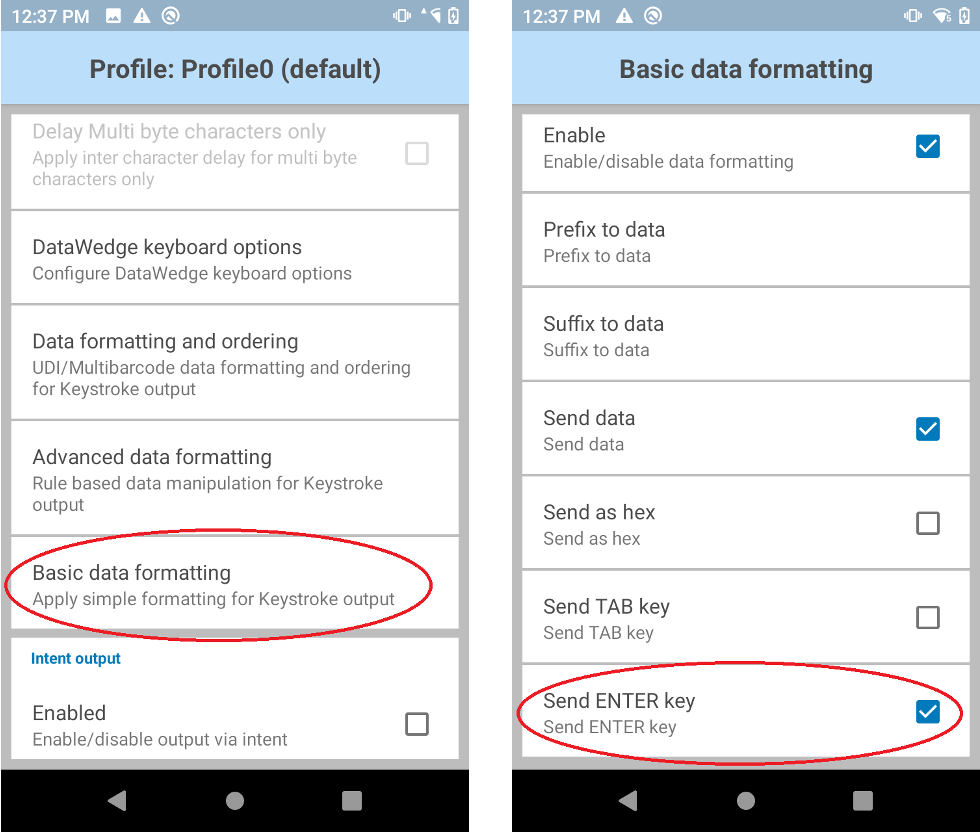
Tap Basic data formatting in the Keystroke output section.
note
Make sure you open Basic data formatting under the Keystroke output section specifically. There are multiple similar sections, and choosing the wrong one will cause scanning to fail.
Then enable the Send ENTER key.
Need further assistance?
The article above couldn't resolve your issue? Use the chat button in the bottom-right corner to contact the support team.
Was this article helpful?