Navigating the Asset Tracking Page
Navigating the Asset Tracking Page
Overview
This article provides a comprehensive guide to navigating the Xemelgo Asset Tracking dashboard. Users can view metrics, group and search assets, switch between list and card view, sort assets, perform a global search, and export data as CSV. It also covers setting up notifications and offers access to additional resources.
Instructions
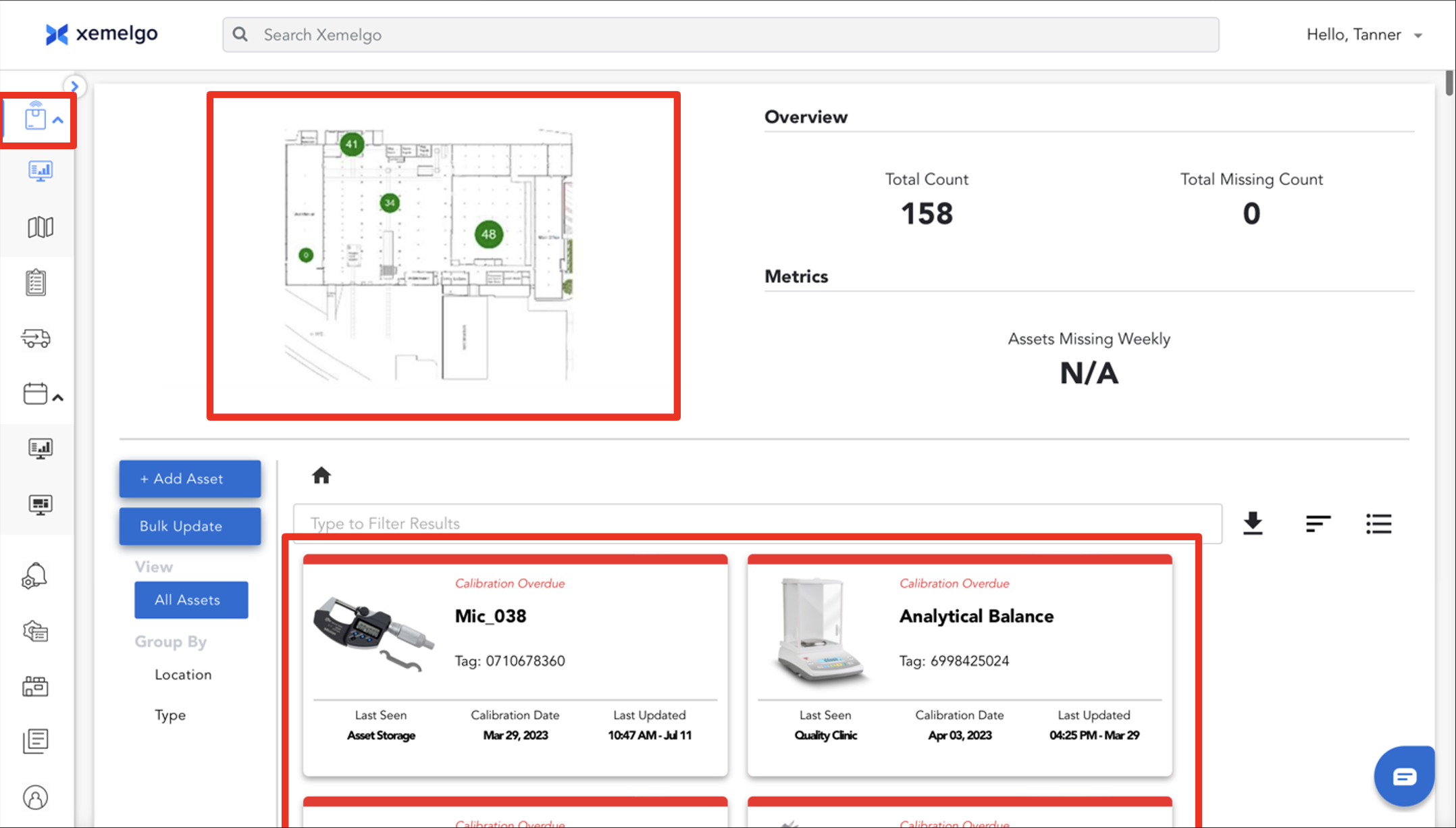
Once you log in, you will see our main dashboard page for Assets. The page has two parts, metrics on the top and a list of assets at the bottom half of the page.
You can also get to the asset tracking dashboard by selecting the Icon displayed on the left side of the screen.
Grouping Data
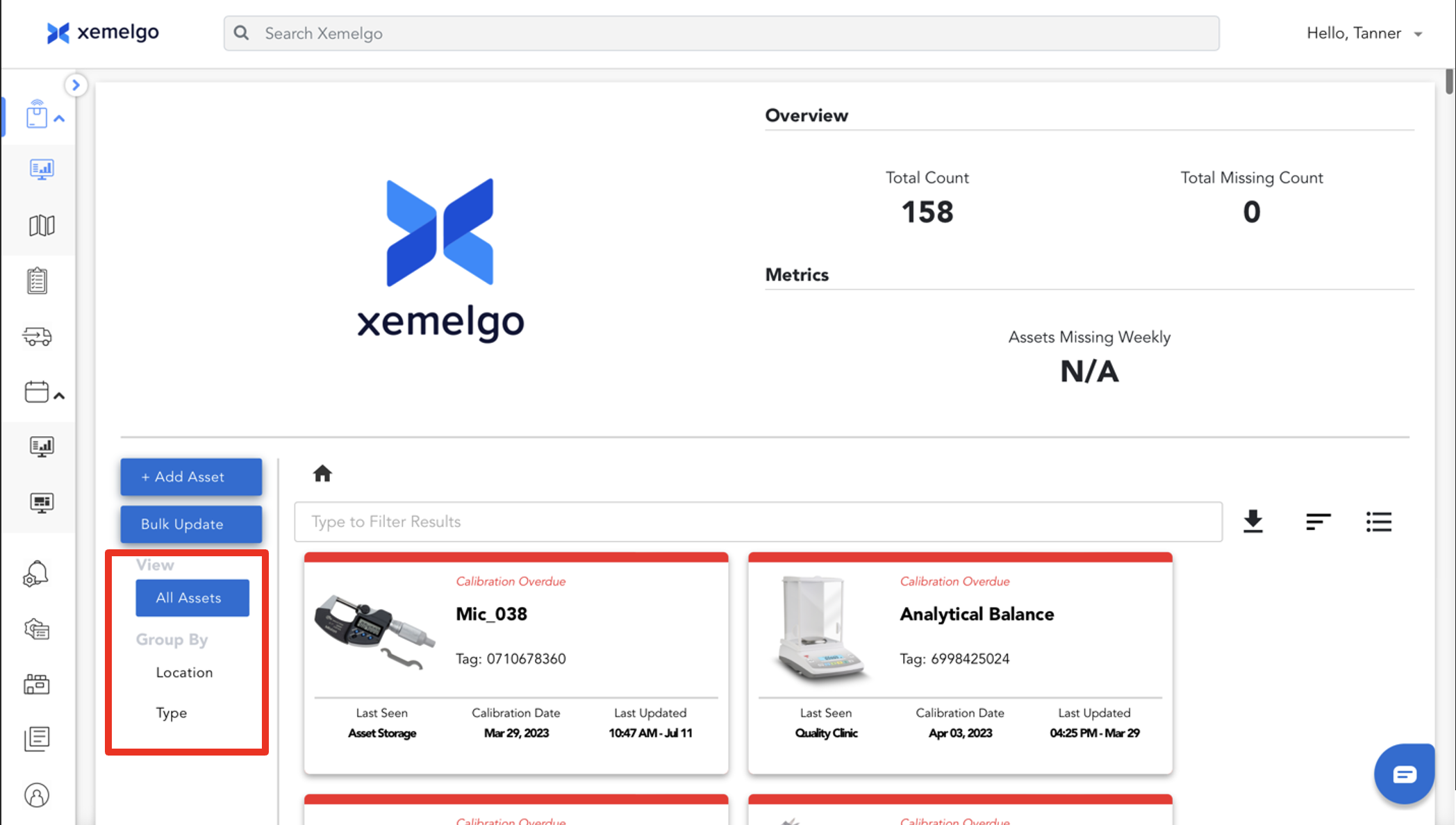
You can Group assets by Type or Location to see the overall details.
Searching Through Text
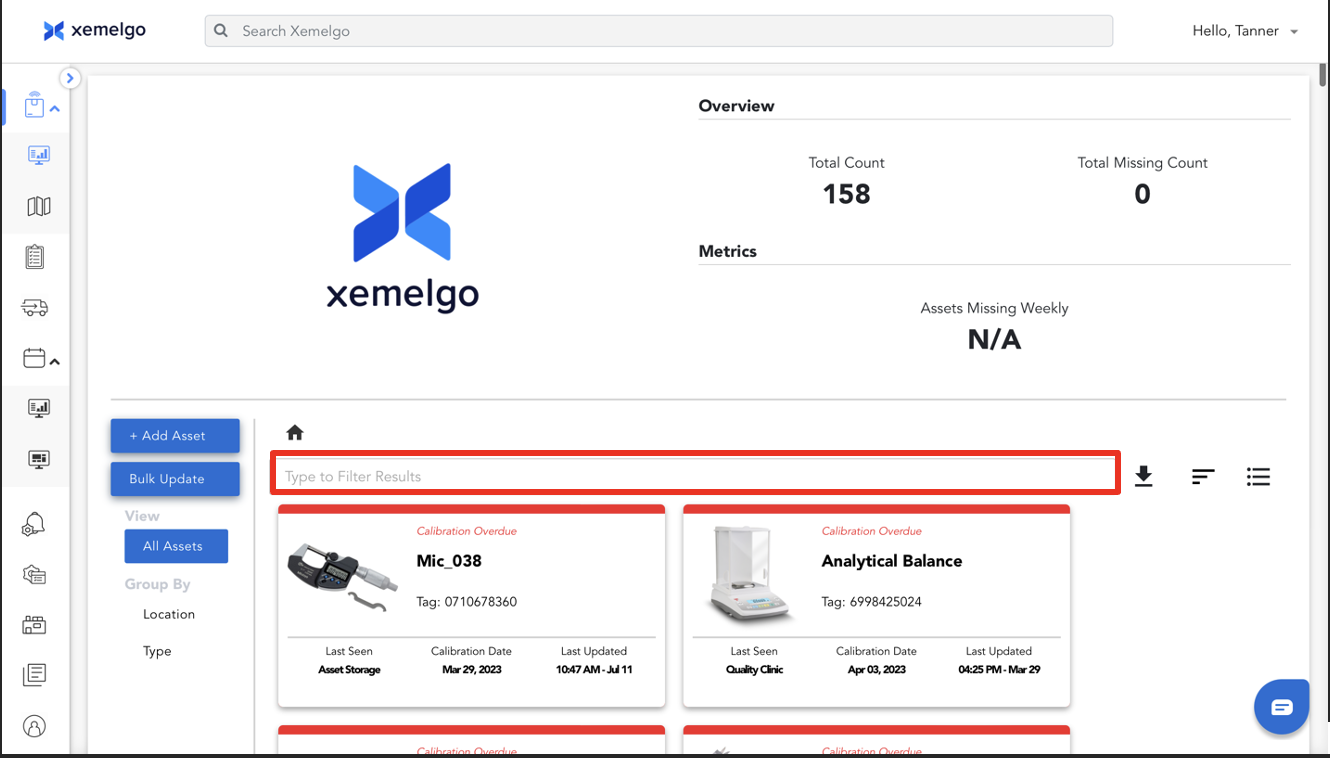
Users can enter any text into the text filter bar to filter for an asset.
List View
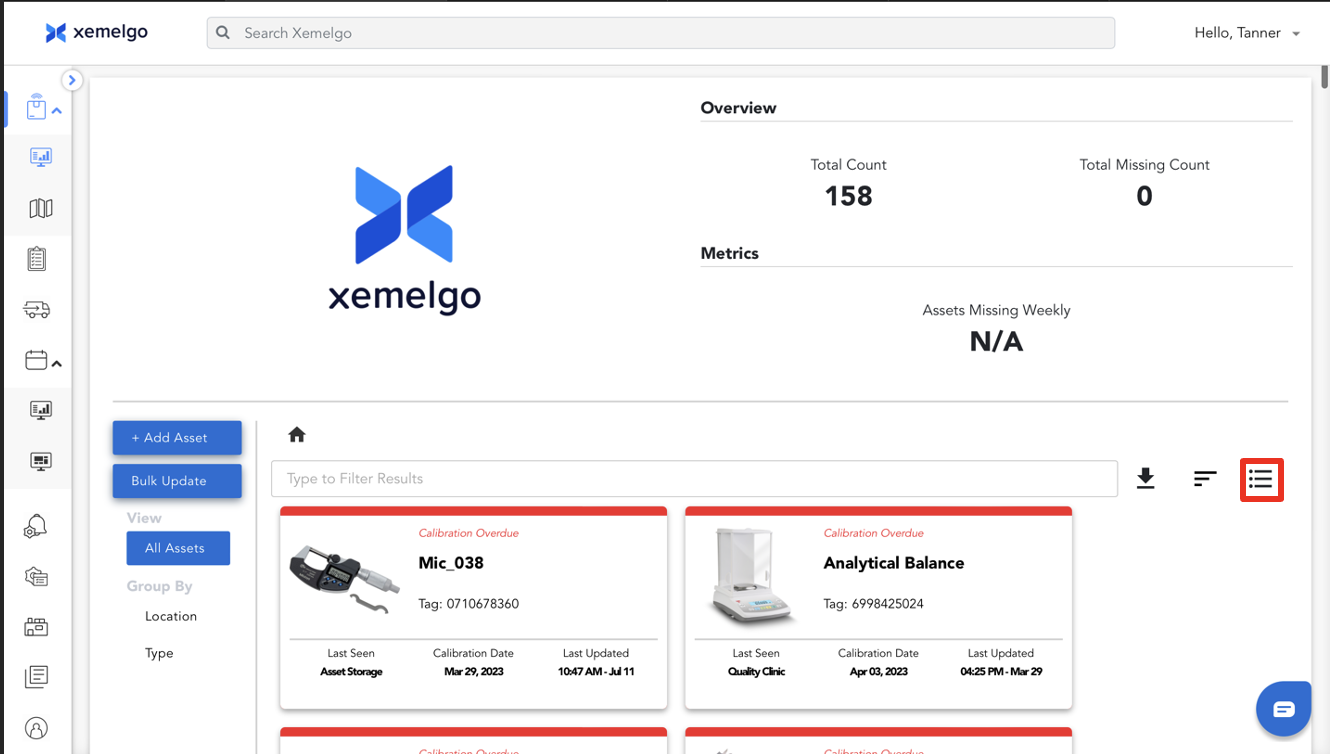
You will be able to switch between List View and Card View by clicking on the icon located on the right side of the text filter.
Sorting Through Assets
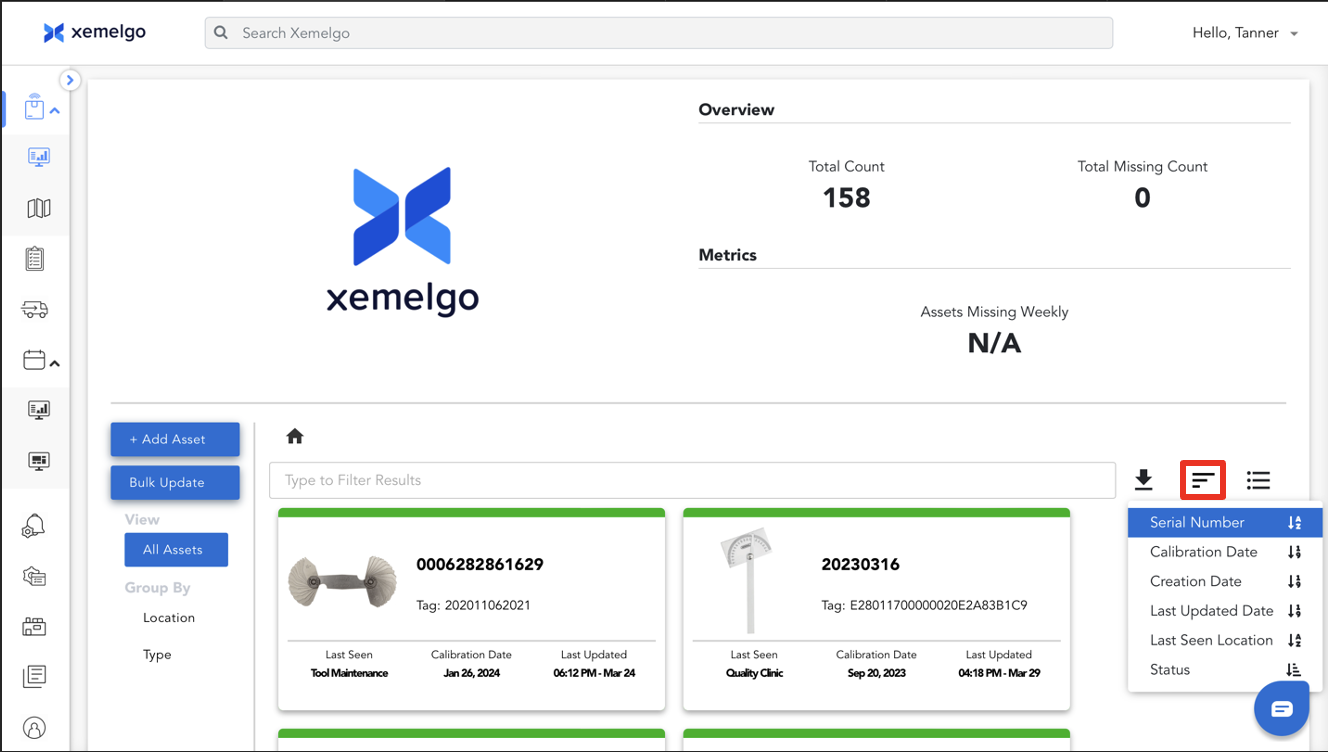
To sort your assets, click the icon. You have the options to sort your assets by Serial Number, Calibration Date, Creation Date, Last Updated Date, Last Seen Location, or Status.
Global Search
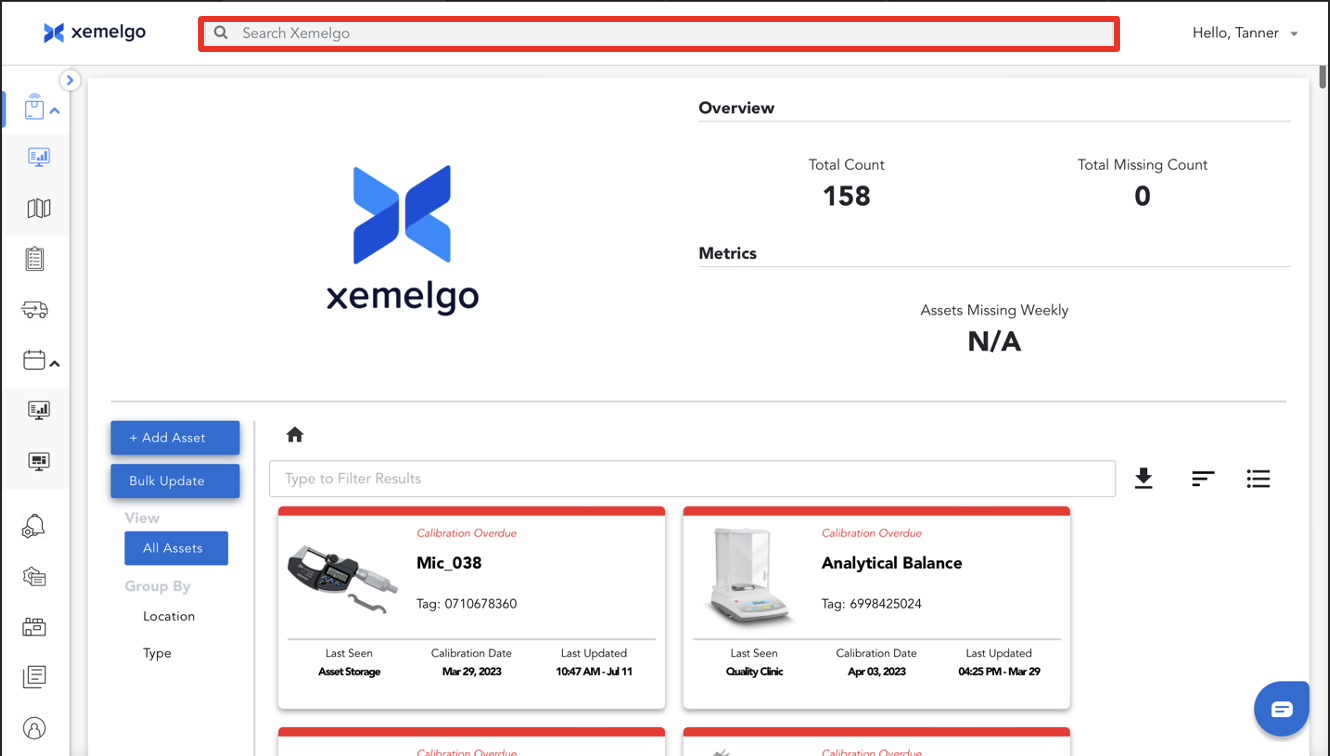
Users can instantly search for any asset by using the global search feature at the top of the screen. Users can search using Asset Type, Asset Number, RFID Tag Number, or Status.
Exporting Data as CSV
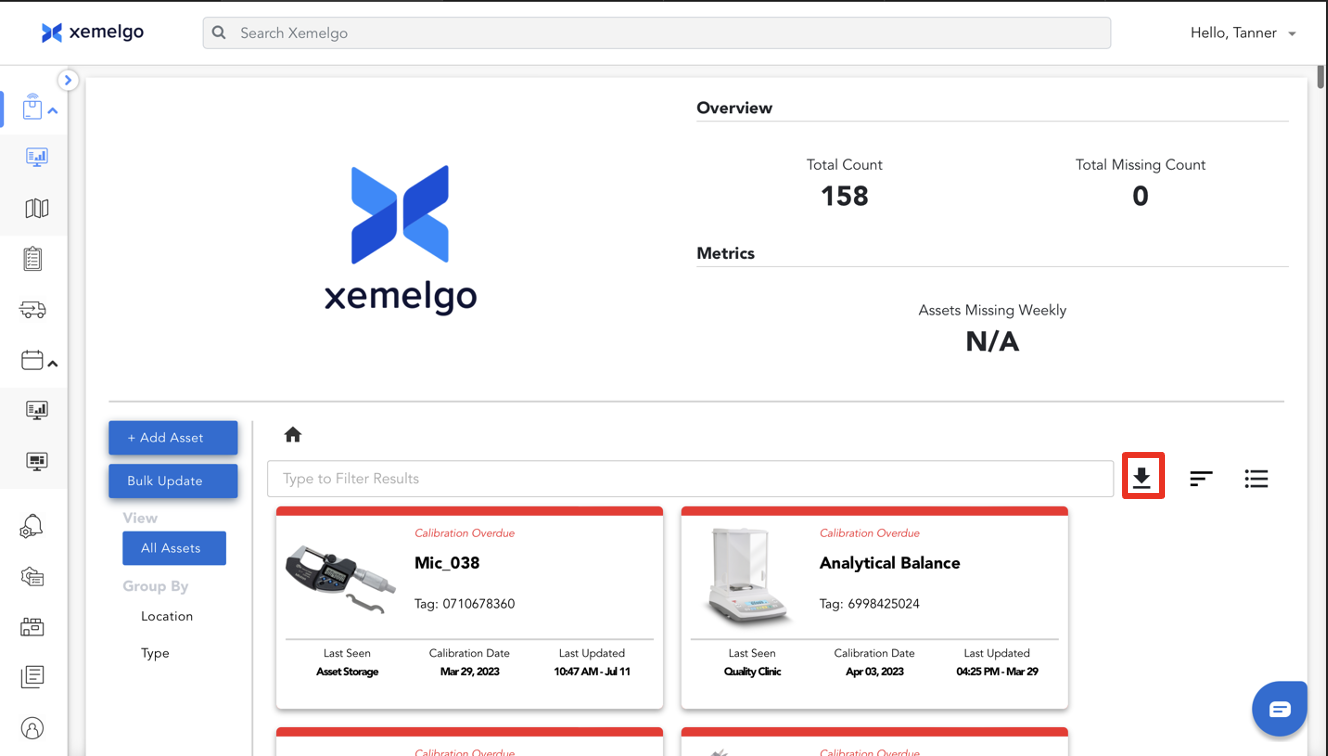
If you need to export the data into a CSV file, you can click on the icon, and it will automatically download the file to your device.
You can set up notifications for when an asset needs calibration. To learn more, visit the Calibration section of the Xemelgo Help Center.
When an asset goes missing or is found, you will receive a notification if you are subscribed to **Missing Asset Alerts.
When an asset exits the geofence, you will receive a notification if you are subscribed to Geofence notifications.
Need further assistance?
The article above couldn't resolve your issue? Use the chat button in the bottom-right corner to contact the support team.