Asset Lookup
Asset Lookup
Overview
This article provides a concise guide to using the Asset Lookup feature in the Assets user interface. It covers how to search for assets using names or QR codes, access detailed asset information, view the Asset Route table, add locations, delete assets, and mark assets as missing. Additionally, it mentions how to activate notifications for missing assets. Whether you're a beginner or experienced user, this article offers essential insights into efficiently managing assets.
Instructions
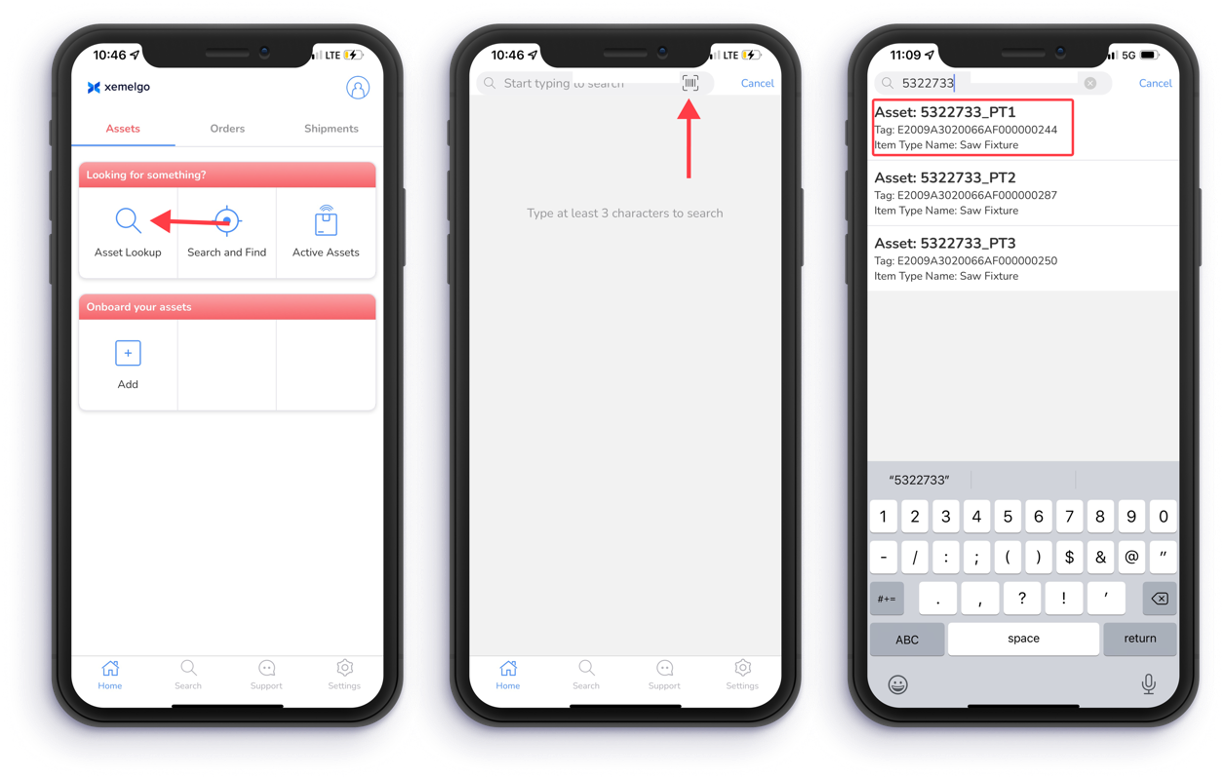
To look up an asset, tap Asset Lookup under the Looking for something? section of the Assets user interface.
Next, type at least 3 Characters of the asset you are looking for in the text field. Alternatively, if you have the asset with a QR code, you can scan that asset's QR Code by tapping the icon.
Then, select the asset you are looking for from the list of assets from the search.
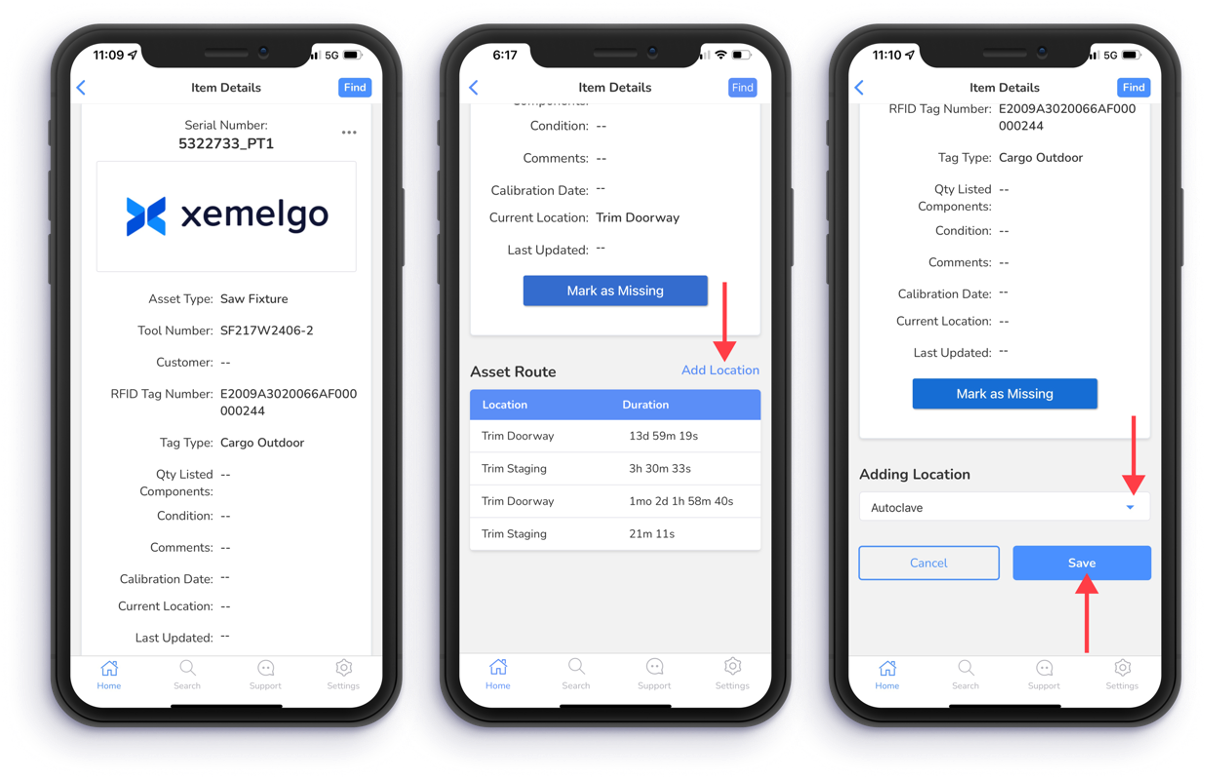
After looking up a certain asset, item details such as Serial Number, Asset Type, Tool Number, Customer, RFID Tag Number, Tag Type, Quantity Listed Components, Condition, Comments, Calibration Date, Current Location, and Last Updated will be shown.
Quantity Listed Components, Condition, and Comments are Customer Specific, meaning they may not be applicable to your Xemelgo application.
If you scroll up on your device's screen, a table titled Asset Route will be displayed that shows the Location and the Duration the asset spent at each location.
To add a location to the Asset Route table, tap Add Location.
Next, tap the Blue dropdown under Adding Location.
Once a location has been selected, tap Save.
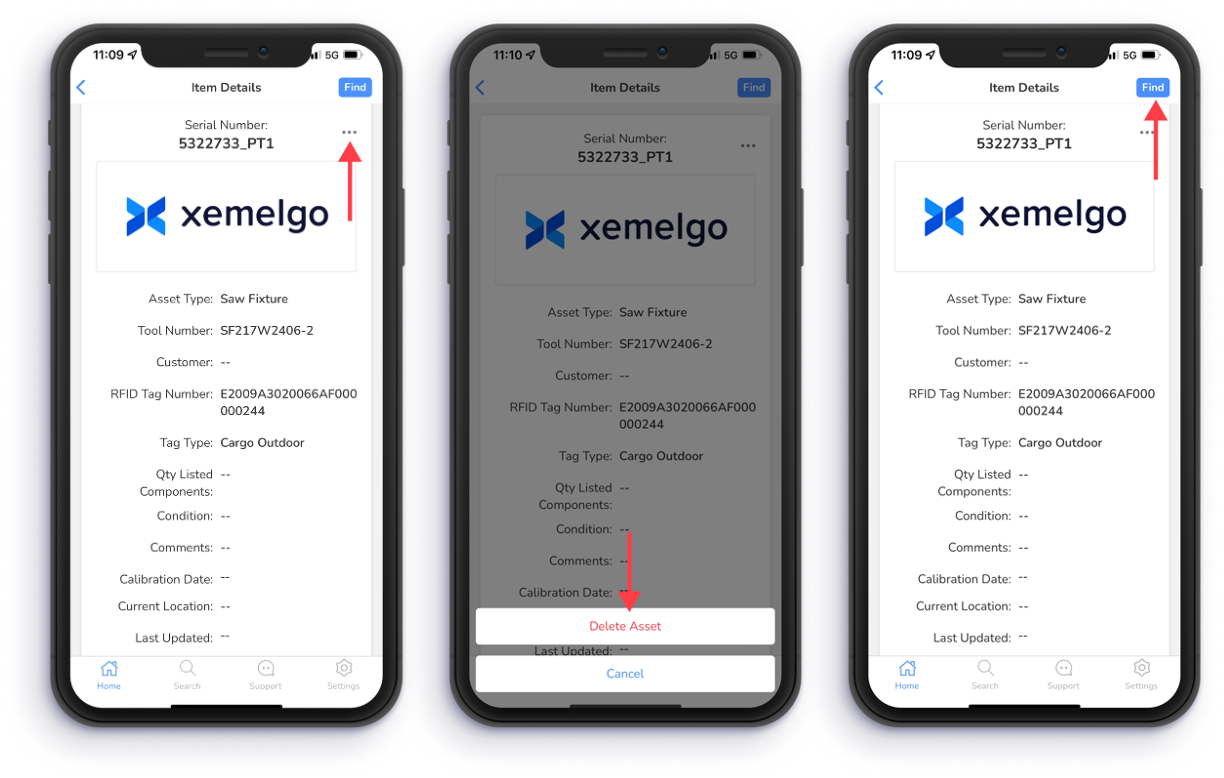
If you want to delete an asset, tap "..." in the top right corner.
Then tap Delete Asset.
If you are having trouble locating the asset you looked up, tap Find. This will connect to an RFID handheld device which will help you find the asset.
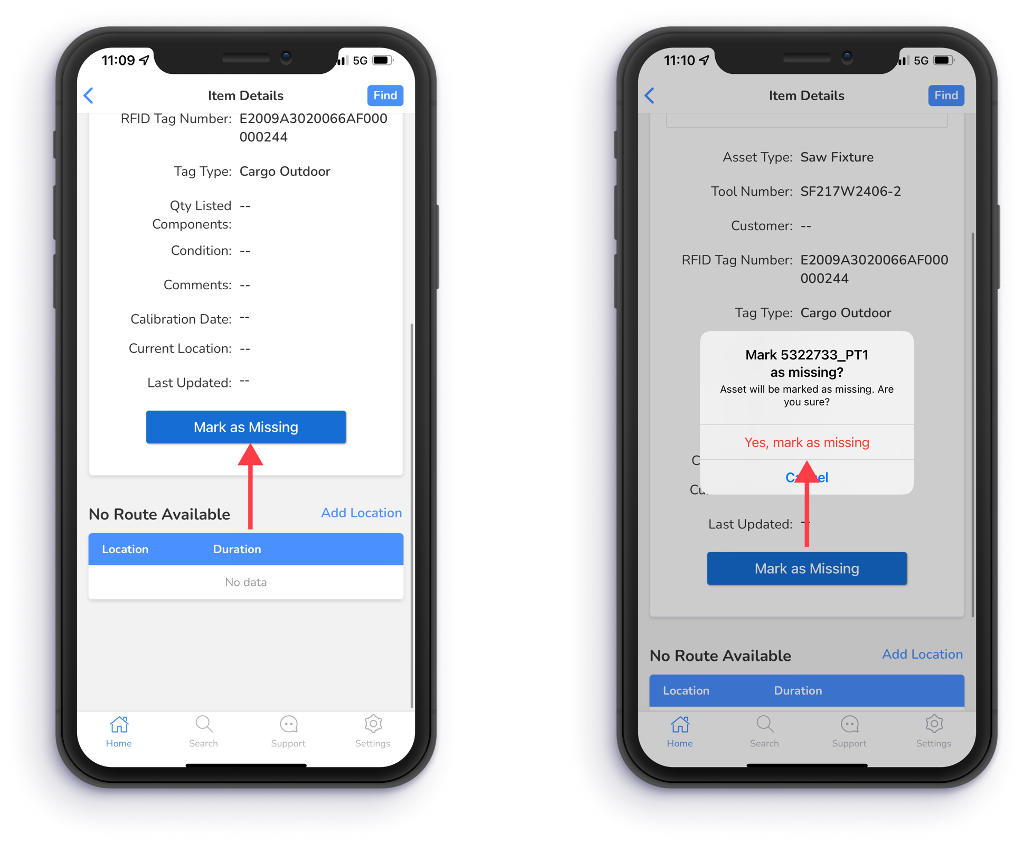
If you are unable to find the asset, you have the ability to mark the asset as missing by tapping on the Mark as Missing button.
To confirm that the asset is missing, tap Yes, mark as missing.
When an asset goes missing or is found, you will receive a notification if you are subscribed to **Missing Asset Alerts.
Need further assistance?
The article above couldn't resolve your issue? Use the chat button in the bottom-right corner to contact the support team.