Active Assets
Active Assets
Overview
This article covers the process of accessing and viewing active assets, including options to switch between different views such as All Assets, Location, or Asset Type. You'll also learn how to apply filters to narrow down specific asset criteria and sort them based on various parameters. Additionally, we'll explore how to access detailed asset information, delete assets if necessary, and view their asset route history, displaying locations and durations. If you encounter difficulties locating an asset, we'll guide you on connecting to an RFID handheld reader and marking an asset as missing.
Instructions
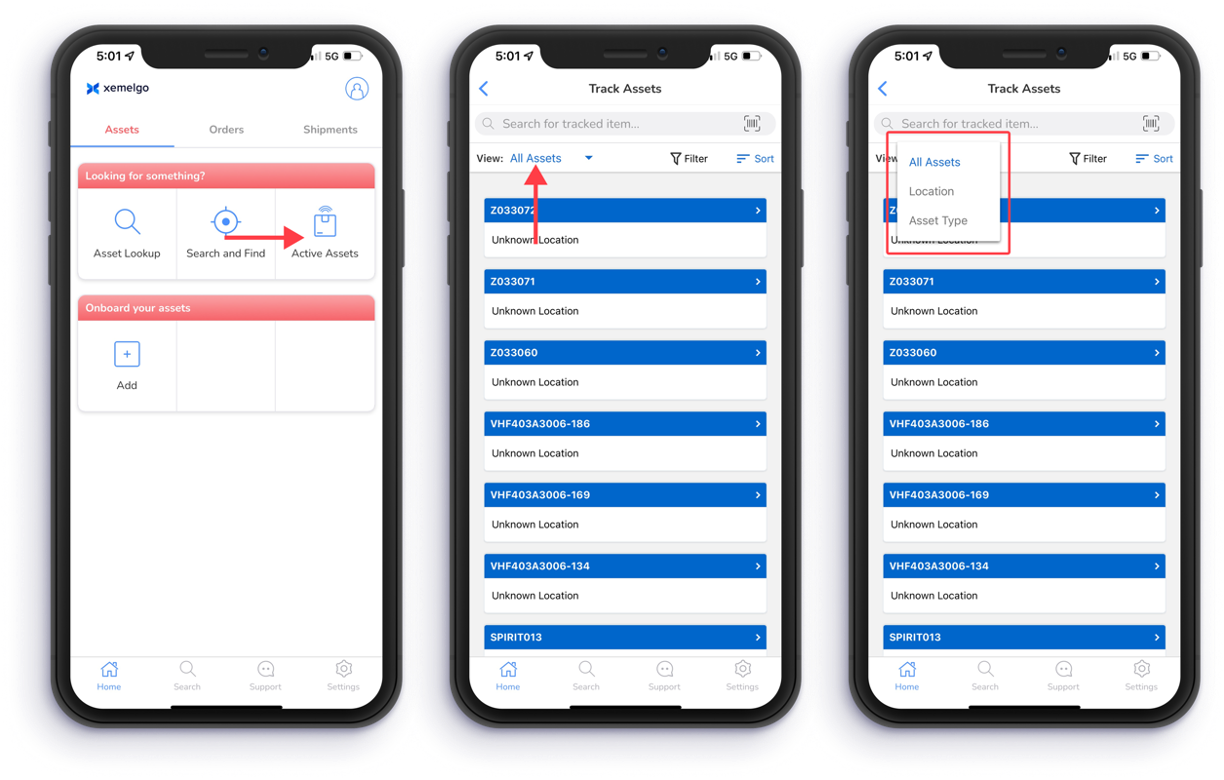
To view which assets are active, tap Active Assets under the Looking for something? section of the Assets user interface.
To switch how you are viewing your assets, tap the dropdown to the right of View.
Users have the option to view their assets by either All Assets, Location, or Asset Type.
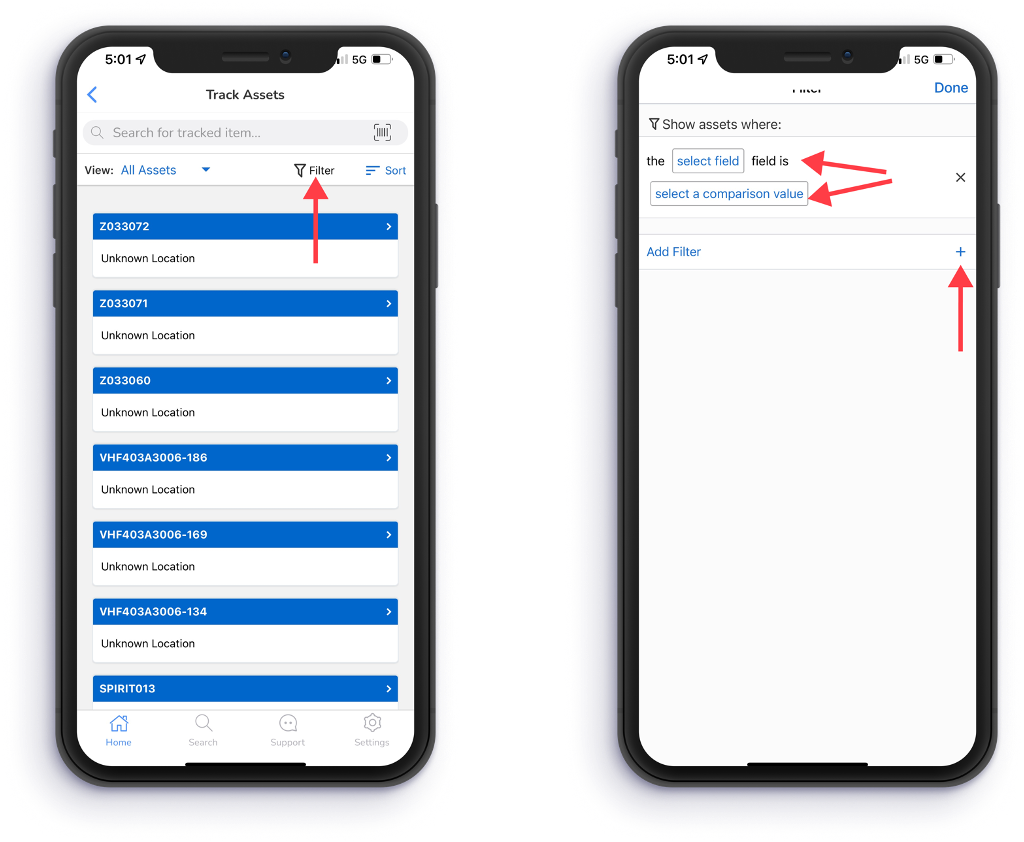
To filter for specific assets, tap Filter.
Then select a Field and a Comparison Value.
To add an additional filter, tap the "+" sign to the right of Add Filter.
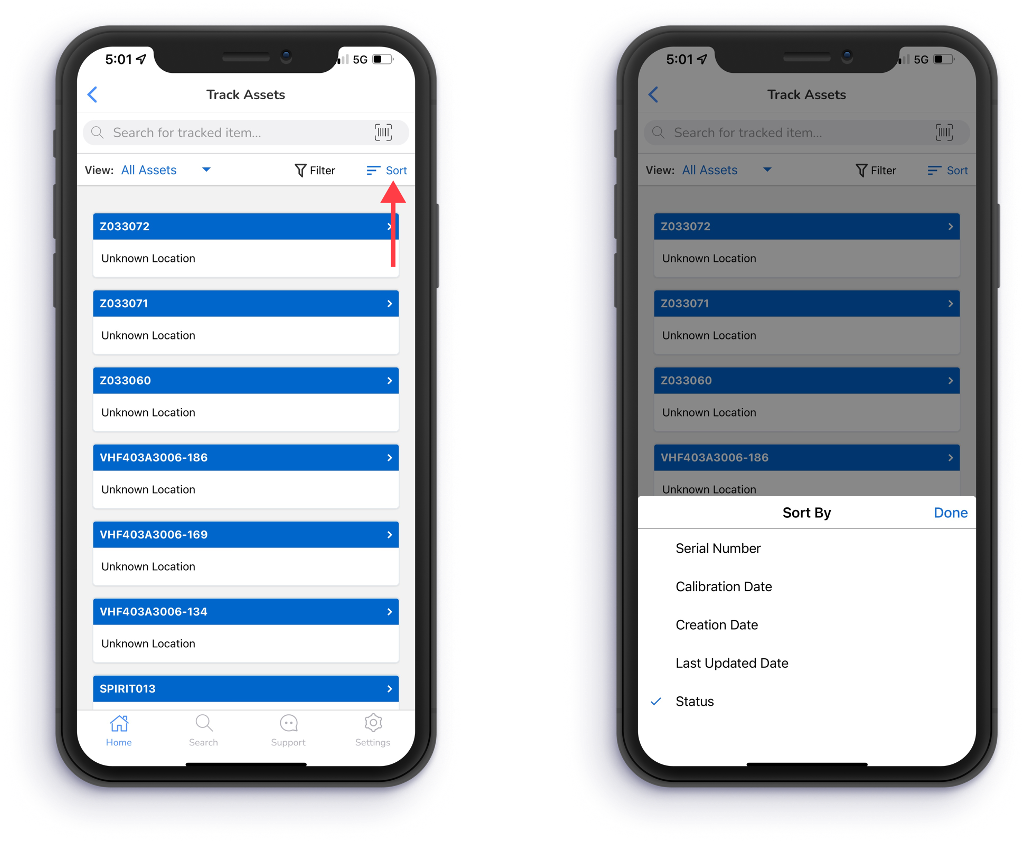
To sort your assets, tap Sort.
Users have the option to sort their assets by Serial Number, Calibration Date, Creation Date, Last Updated Date, and Status.
Once you have chosen an option to sort by, tap Done.
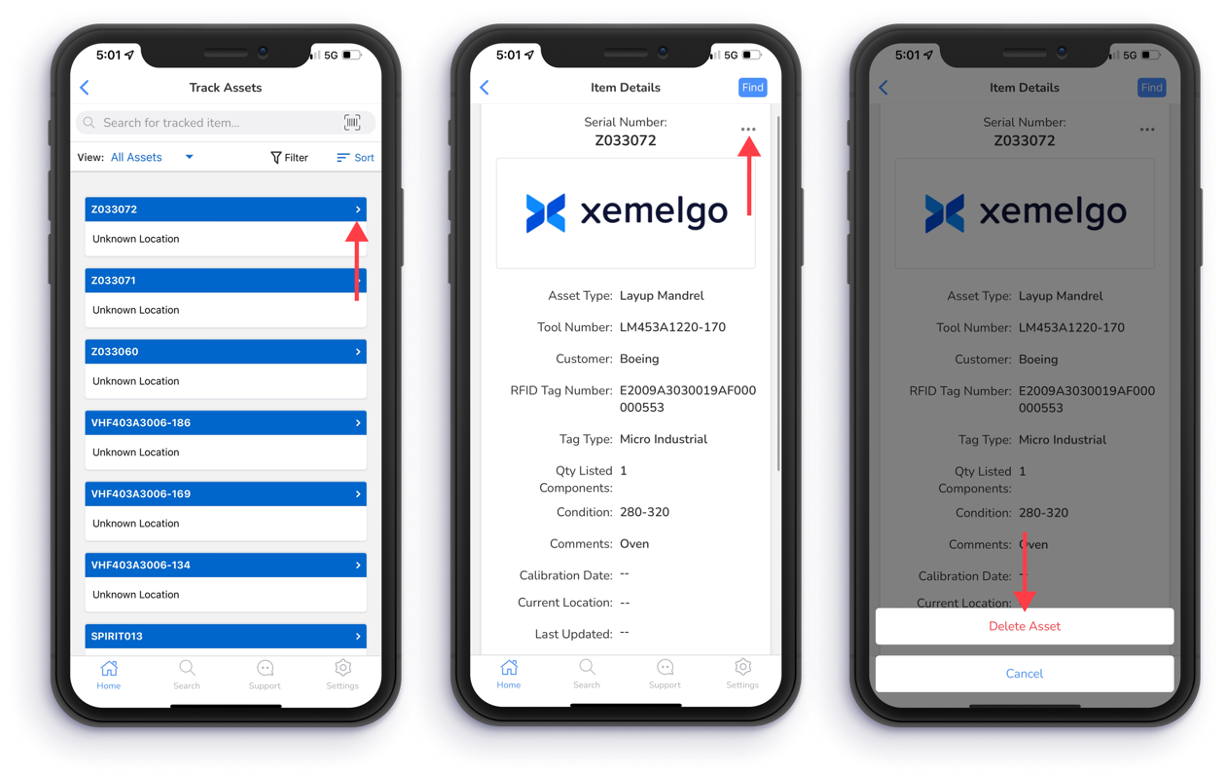
To view additional details of an asset, tap the white arrow.
Then the assets item details such as Serial Number, Asset Type, Tool Number, Customer, RFID Tag Number, Tag Type, Quantity Listed Components, Condition, Comments, Calibration Date, Current Location, and Last Updated will be displayed.
If you want to delete the asset, tap "..."
Then tap Delete Asset.
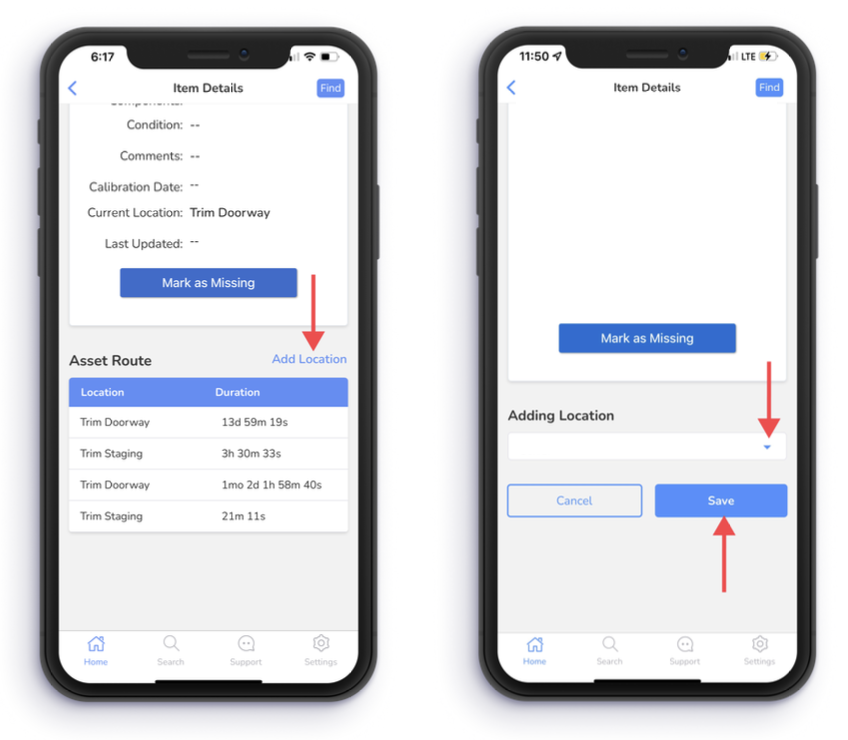
Additionally, a table titled Asset Route will be displayed that shows the Location and Duration the asset spent at a location.
To add a location to the Asset Route table, tap Add Location.
Then select a location from the Blue dropdown and tap Save.
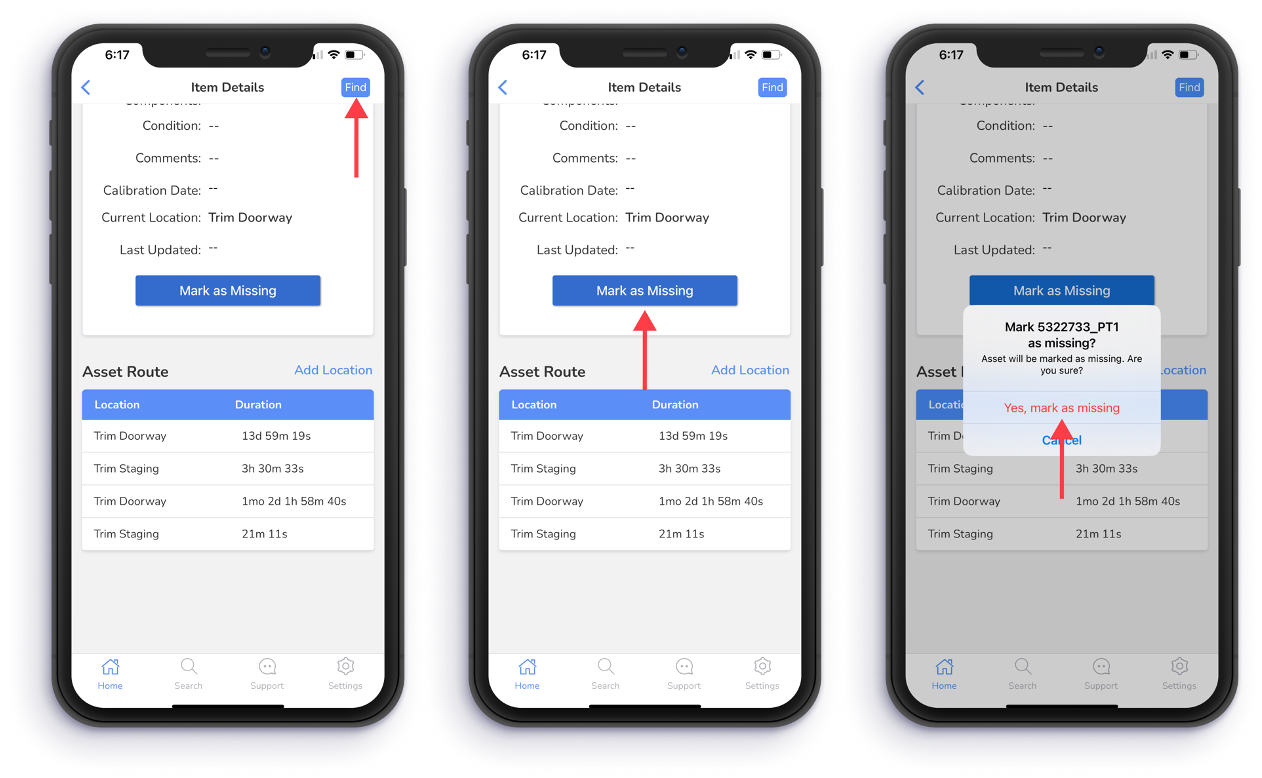
If you are unable to find the asset, tap Find to connect to an RFID handheld reader.
If you are still unable to find the asset, tap Mark as Missing.
To confirm that the asset is missing, tap Yes, mark as missing.
When an asset goes missing or is found, you will receive a notification if you are subscribed to **Missing Asset Alerts.
Need further assistance?
The article above couldn't resolve your issue? Use the chat button in the bottom-right corner to contact the support team.